
Connect - Recording a video for a speech assignment (student)
Learn how students record and submit a video for a speech assignment in Connect.
Tags
- Higher Ed Student
- Resources
- Higher Education
- Customer Support
- Connect


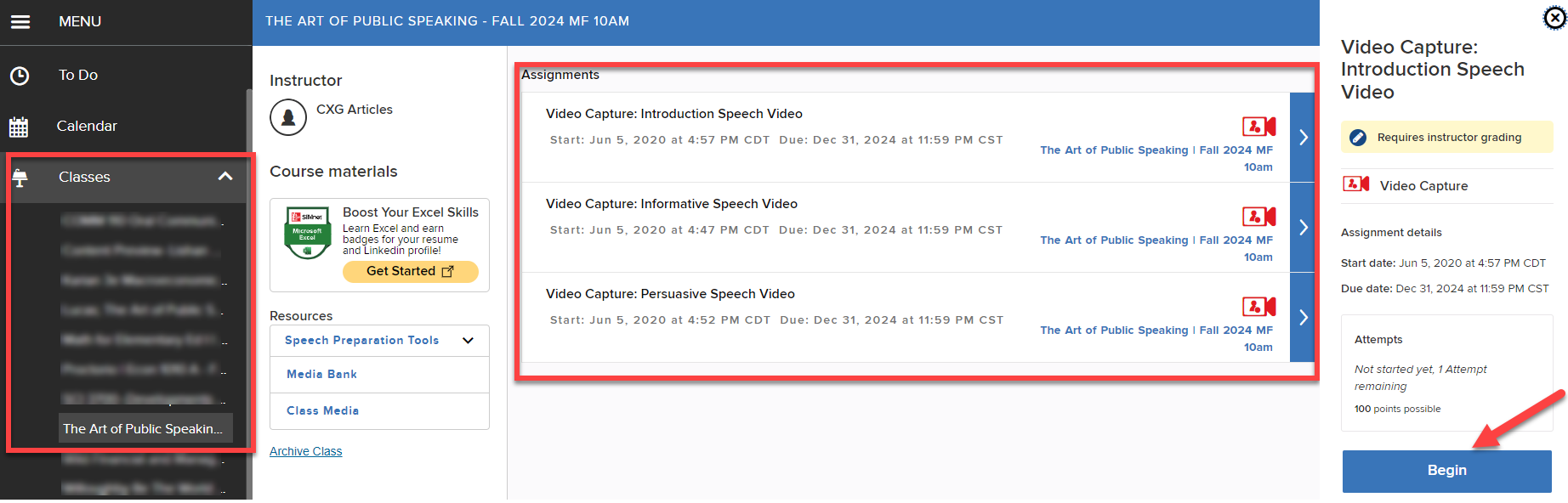
From your Classes dropdown, select the section with your speech/video assignment .
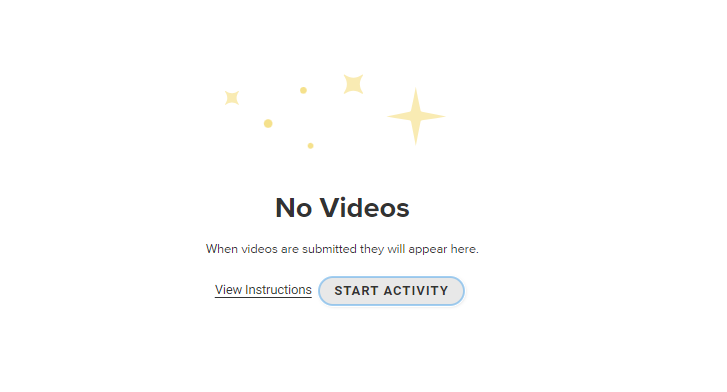
Select View Instructions to review the available instructionso or select START ACTIVITY to begin creating your Video Assignment
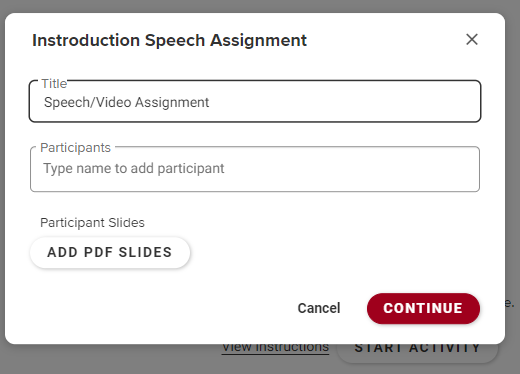
Title your Speech/Video assignment and click CONTINUE.
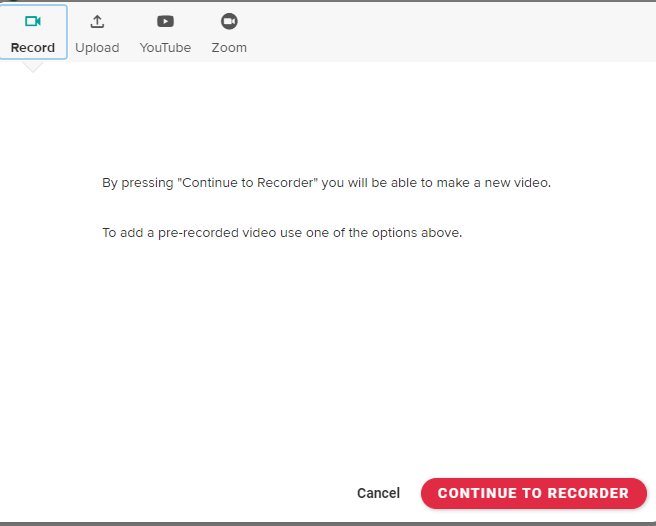
Click CONTINUE TO RECORDER to record your Speech/Video assignment or choose the alternate options (Upload, YouTube, Zoom) to add a pre-recorded video.
 \
\
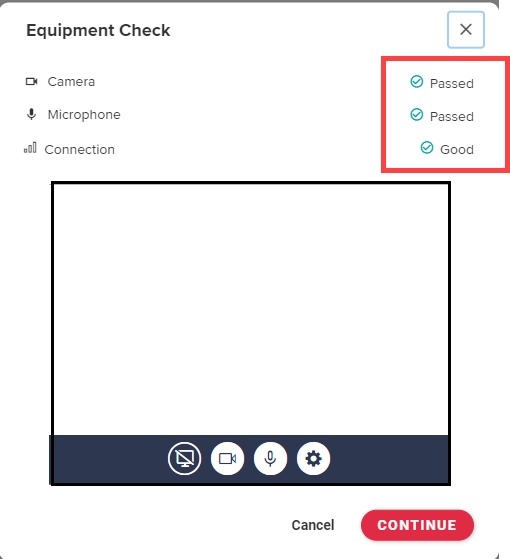
Run your Equipment Check (Camera, Microphone & Connection) and click COTINUE once everything passes.
Now you’re ready to record!
