Connect - Pairing your Canvas course with an existing account
Pair a Canvas course with an existing Connect account.
- Higher Ed Student
- Higher Education
- Customer Support
- Connect


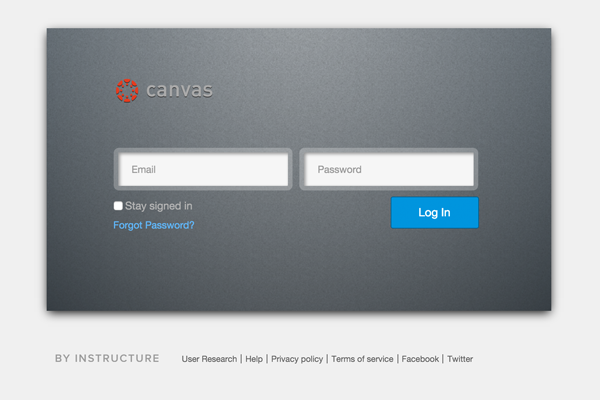
Step 1. Begin by logging into Canvas.
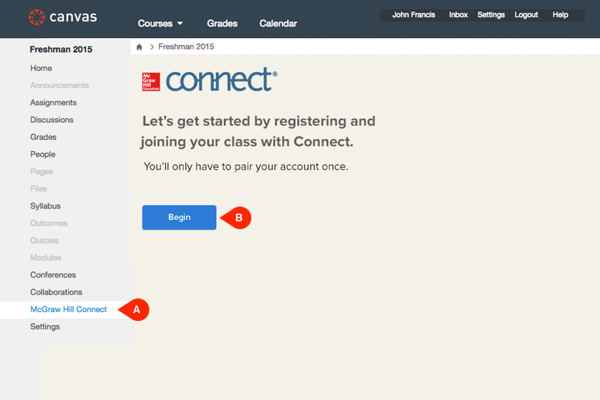
Step 2. Once in Canvas, click on the McGraw-Hill Connect link (A), then click Begin (B).
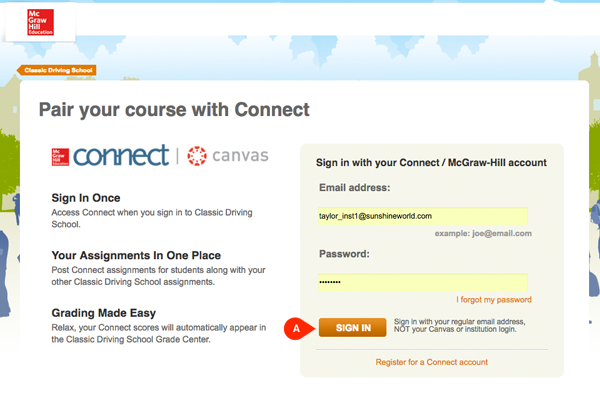
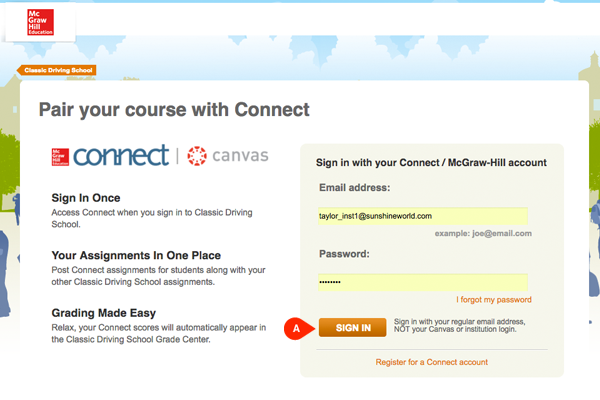
Step 3. In a new browser tab, you’ll see a confirmation modal before you’ll be taken to the Connect login page. Once here, you’ll need to enter your login credentials and click Sign In (A).
Step 4. Once signed in, you'll have to choose whether you want to pair your Canvas course with a section in new or existing Connect course. Select the second option, a section in an existing Connect course (A).
Then select the course (B).
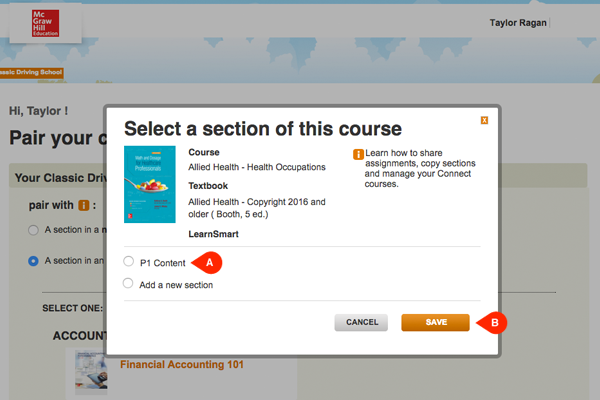
Step 5. Once you've selected your Connect course, choose the section with which you want to pair your Canvas course (A) and then click Save (B).
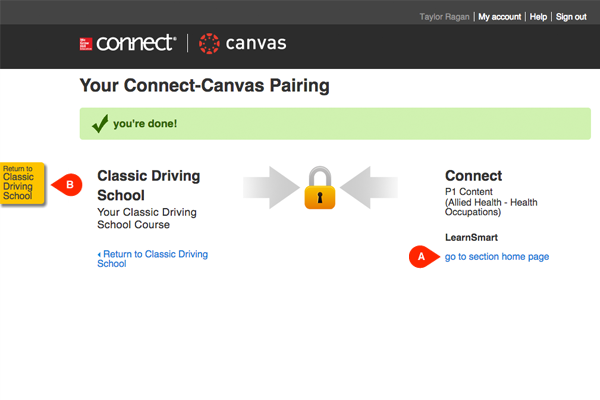
Step 6. You'll see confirmation that you've successfully paired! You can continue from here to your Connect section by clicking go to section home page(A) or you can return to Canvas by clicking the link on the left side of the page (B).