Connect - Pairing your Brightspace account with an existing section
Learn how instructors pair Brightspace with an existing Connect course section.
Tags
- Higher Education
- Customer Support
- Connect
- Instructor


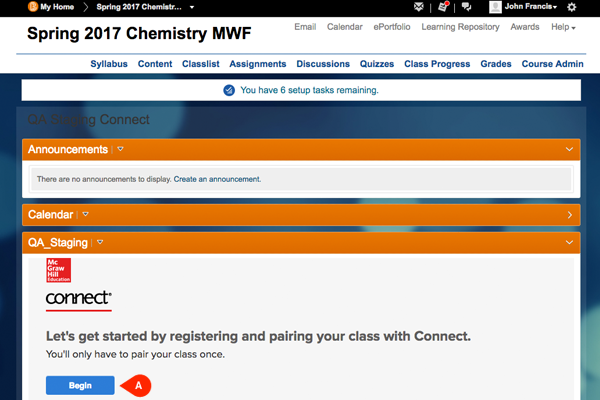
- Once you’ve logged into Brightspace, select the course you want to pair with Connect. In the widget, click Begin (A).
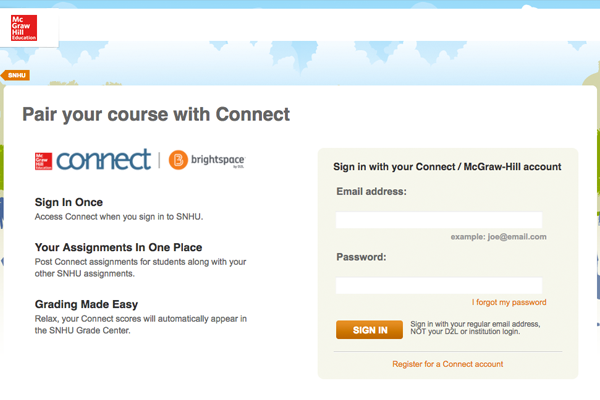
- In a new browser tab, you’ll see a confirmation modal before you’ll be taken to the Connect login page. Once here, you’ll need to enter your login credentials and click Sign In (A).
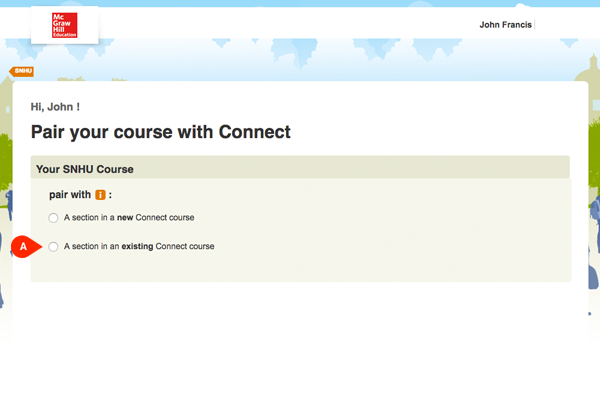
- Once signed in, you'll have to choose whether you want to pair your Brightspace course with a section in a new or existing Connect course. Select the second option, a section in an existing Connect course (A).
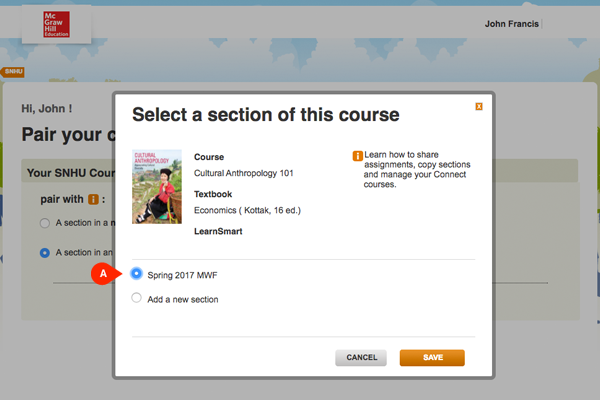
- Select the existing section you want to pair with (A).
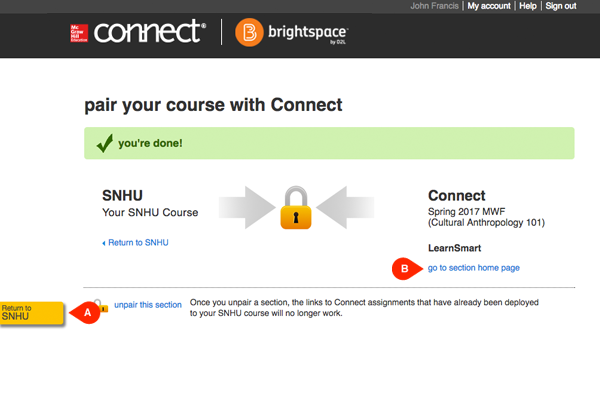
- You'll see confirmation that you've successfully paired! From here you can return to Brightspace (A) or go to Connect (B).