Connect - Pairing your Brightspace account with an existing section Student
Discover how students pair a Brightspace course with an existing Connect section.
Tags
- Higher Ed Student
- Higher Education
- Customer Support
- Connect


- Here we’ll explain how to pair your existing Brightspace course with an existing Connect account.
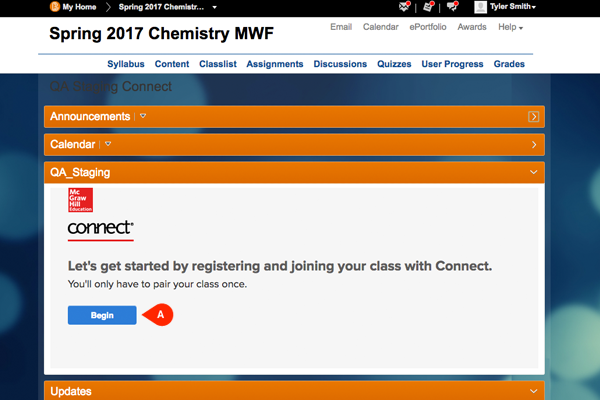
Once you've logged into Brightspace, select the class you want to pair. Then, in the Connect area, click Begin (B).
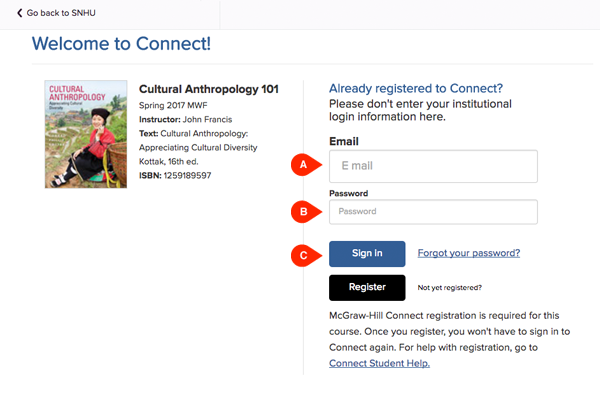
- Since you have an existing Connect account, you'll simply enter your email address (A) and password (B), and then click Sign in (C).
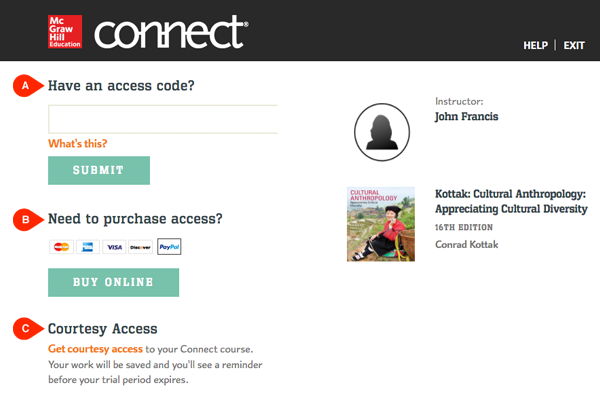
- Choose one of three ways to register for your class:
— Register with an access code (A)
— Purchase access with a credit card (B)
— Start courtesy access (C), a 14-day free trial of your Connect course. Courtesy access is particularly useful for students who are awaiting financial aid and for those who may drop the class.
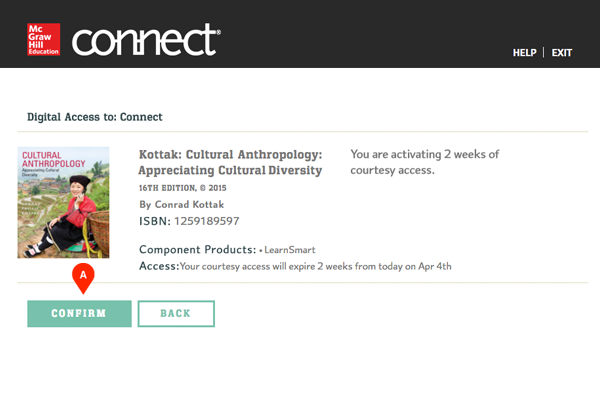
- Review the class information before continuing. When ready, click Confirm (A).
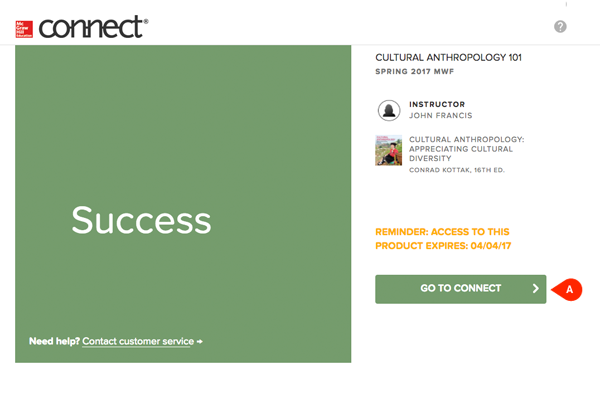
- When you've completed registration, you'll see a Success page from which you can Go to Connect (A).
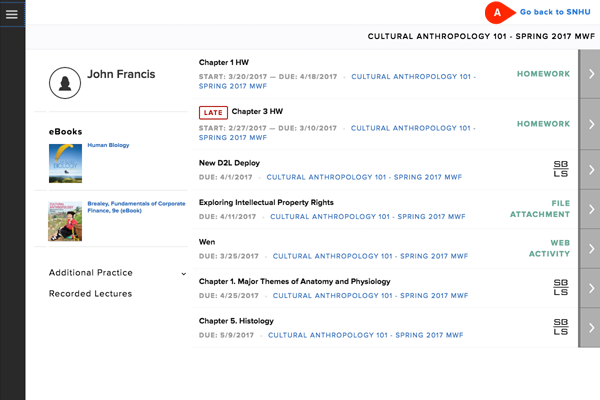
- Explore your new Connect class! You can return to Brightspace at any time by clicking the link at the top of the page (A).