Connect - Pairing your Brightspace account with a new Connect section
Learn how instructors pair Brightspace with a new Connect section.
Tags
- Higher Education
- Customer Support
- Connect
- Instructor


- Here we’ll explain how to pair your existing Brightspace course with a new Connect course. We’ll show you how to register with Connect (create a Connect account) and create a Connect course. Once your new Connect course is created, it will be automatically paired with Brightspace!
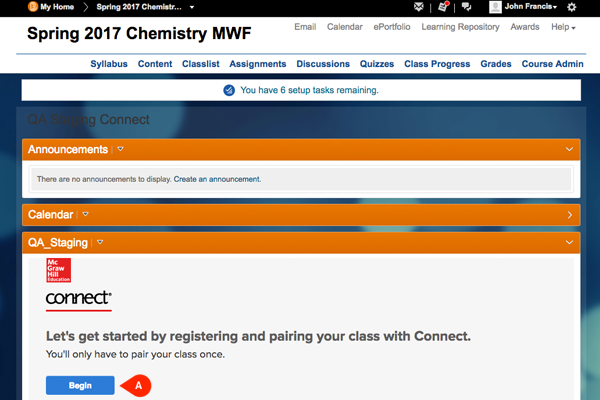
Once you’ve logged into D2L, select the course you want to pair with Connect. In the widget, click Begin (A).
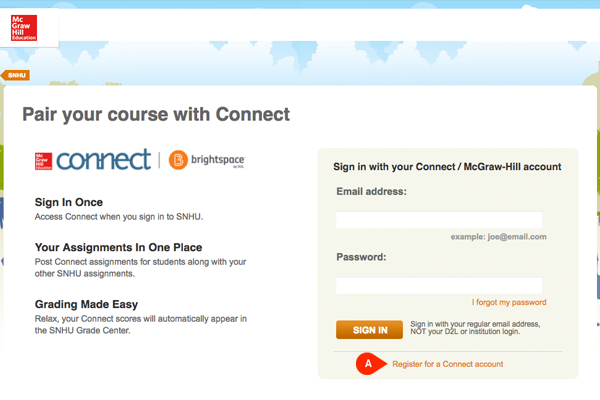
- In a new browser tab, you’ll see a confirmation modal. Click "continue" and you'll be taken to the Connect login page. Once here, you’ll need to create an account by clicking Register for a Connect account (A).
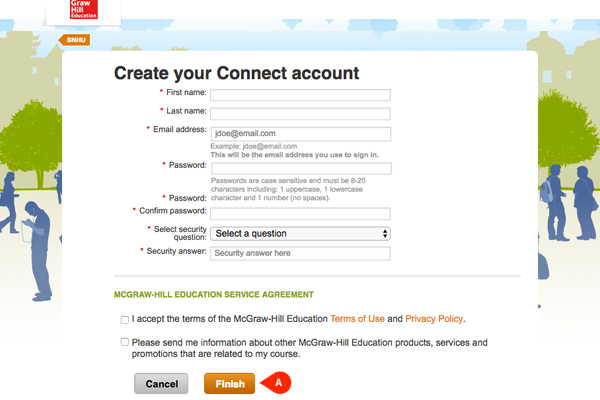
- Enter the required information and click Finish (A).
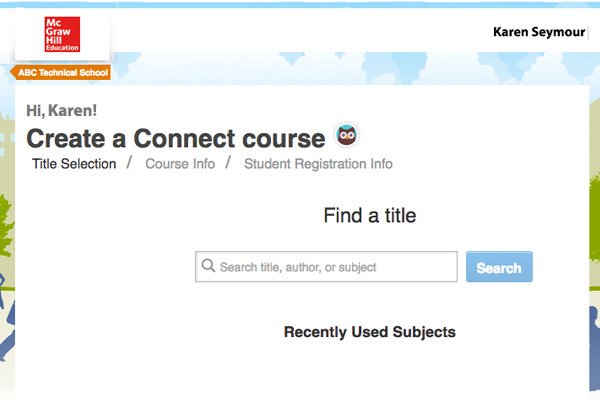
- Search by title, author or subject.
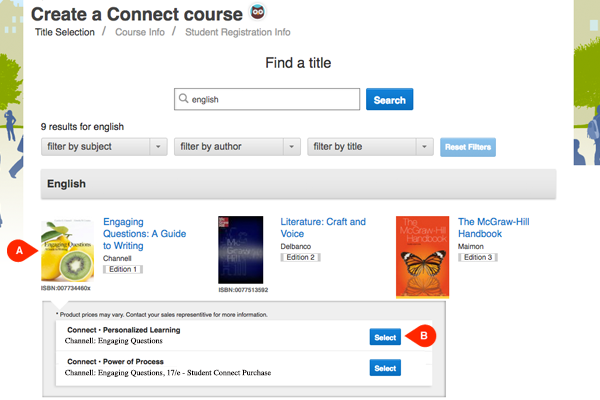
- Once you've entered your search criteria, you can filter by subject, author or title. Select the title you’ll use for the course (A) and choose a bundle, if available (B).
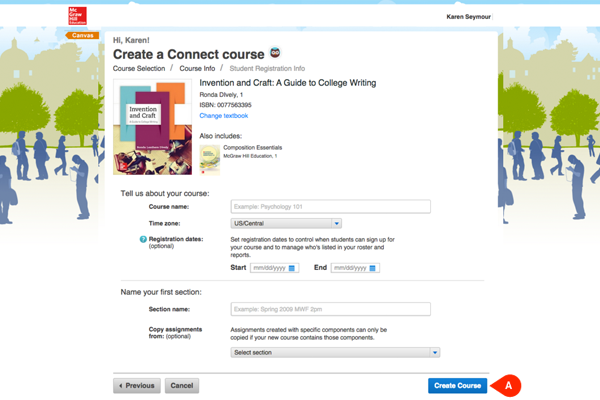
- Complete the course creation process by naming your course, selecting a time zone, setting registration dates and naming your first section. Then click Create Course (A).
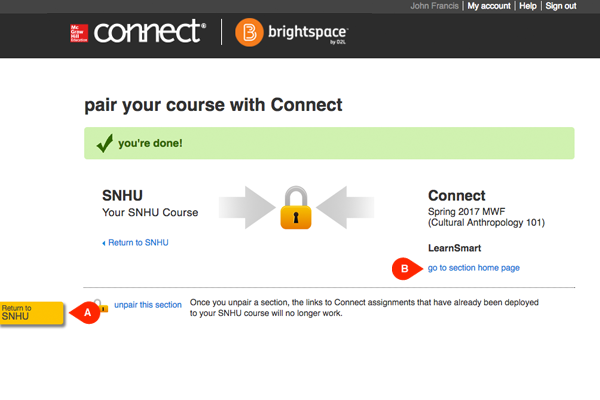
- Once you’ve created your course, it will be automatically paired with Brightspace! You’ll see this page showing the successful pairing. From here you can return to Brightspace (A) or explore your new Connect course by clicking Go to section home page (B).