
Connect - Navigating Connect (for instructors)
Learn how instructors navigate Connect, including course menus, assignments, reports, and gradebook tools.
Tags
- Higher Education
- Customer Support
- Connect
- Course Management
- Instructor


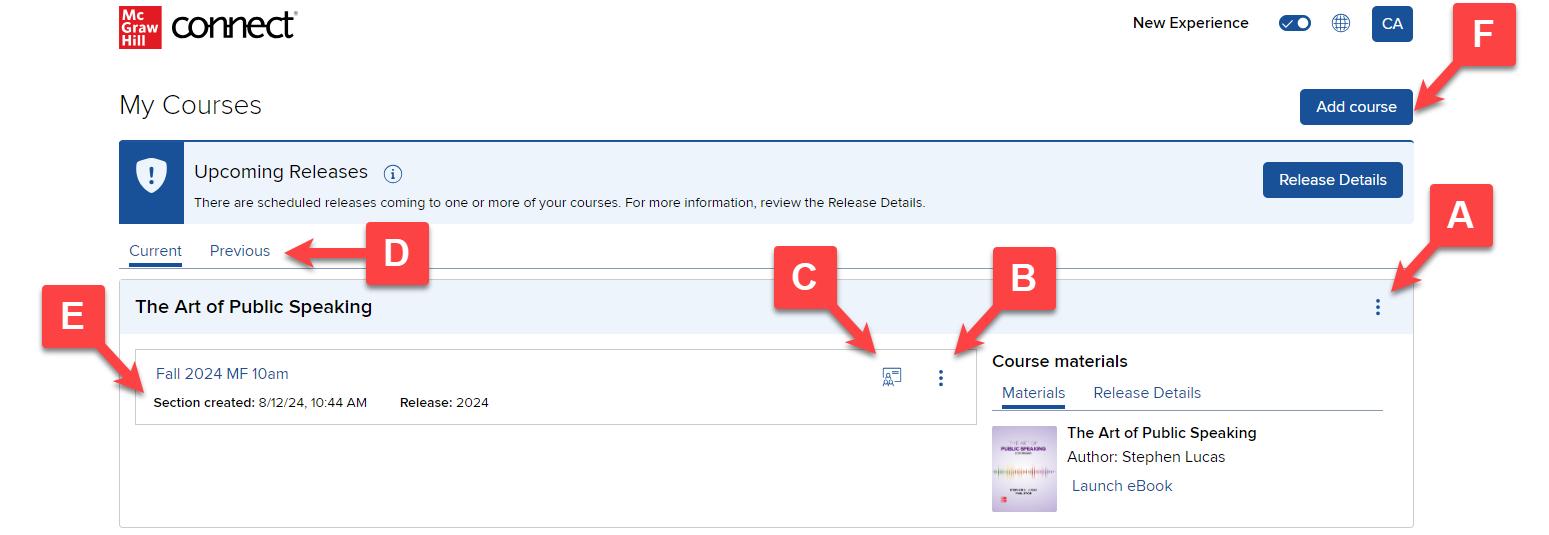
The My Courses page is the first page you see when you sign in to your Connect account. It's where you manage and edit courses (A) and sections (B). You can also access your Student Roster (C) and Previous courses (D).
Youe Sections are organized by Section created date (E) with more recent sections at the top.
You can add a course at any time (F).
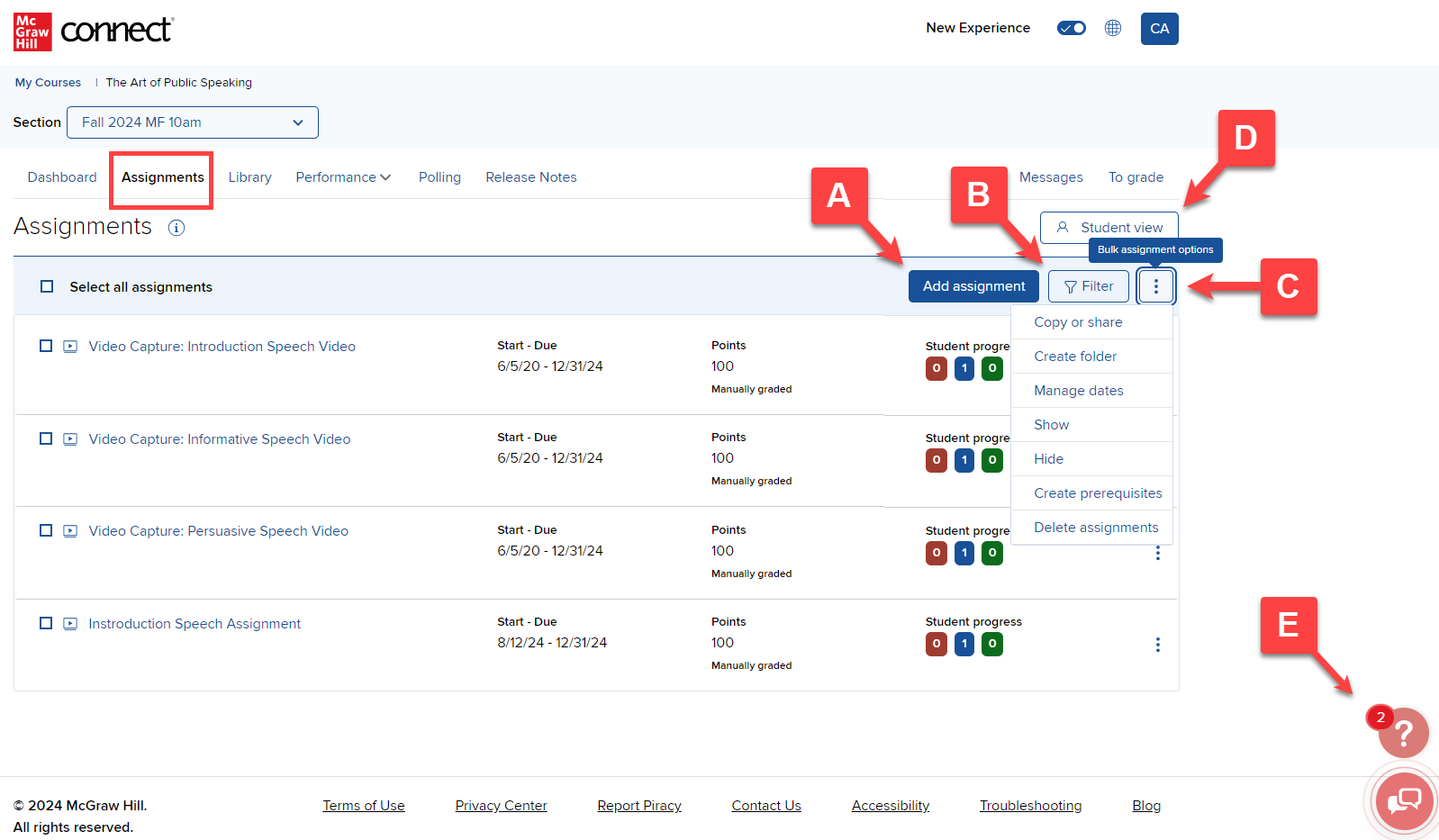
Your Section home will open any time you click on a section from the My Courses page. This is where you create, assign, edit and manage assignments.
Click Add assignment (A) to create assignments, filter the assignment list (B) and manage assignments using the option menu (C).
Return to the courses page at any time or switch to another section within your course (D).
Want to see what your students see? Navigate between the Instructor view and Student view.
The Help (E) link is a great way to learn more about any aspect of Connect in more detail. The help tool is context sensitive and, to save you time, will display initial results based on the area of Connect in which you are working.
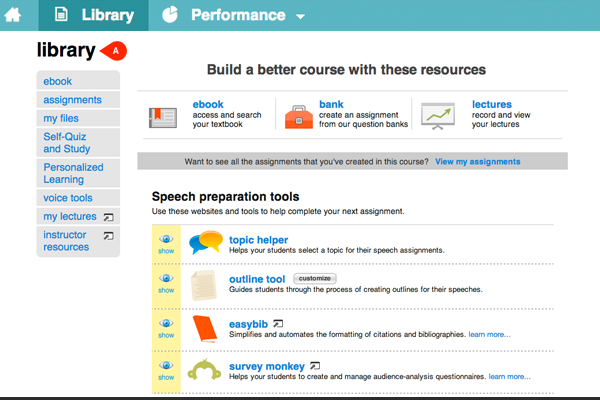
The Library (A) provides access to additional resources related to your course, including the Connect Plus eBook (if available) and instructor resources, such as the textbook instructor manual, PowerPoint Presentations, etc. Other resources, such as pre-made assignments and student self-quiz and study plans, may be available based upon the title you're using in Connect.
Note that students will typically have access to "student resources" in their library tab, which provides an opportunity for additional study beyond what you've assigned within Connect. This is a great resource for students who ask for additional help.
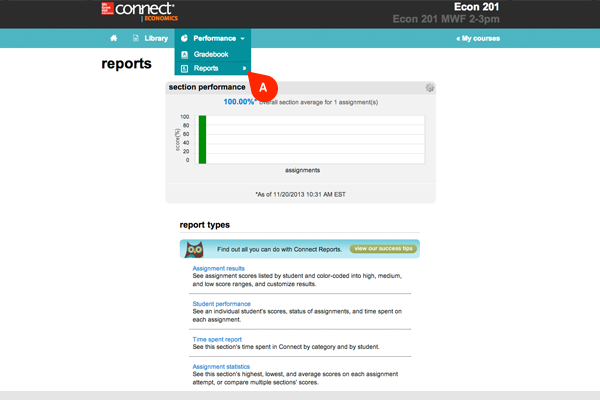
Click the Performance tab and select Reports (A) to see all available reports based on your section and courses data. If you have the gradebook option for your course, you'll be able to access this here.
There is nothing you need to do to set up data collection in Connect reports. Any assignment created in Connect has student results automatically recorded. You simply choose the report you want to run and select the desired options and settings.
Youe Sections are organized by Section created date (E) with more recent sections at the top.
You can add a course at any time (F).
Your Section home will open any time you click on a section from the My Courses page. This is where you create, assign, edit and manage assignments.
Click Add assignment (A) to create assignments, filter the assignment list (B) and manage assignments using the option menu (C).
Return to the courses page at any time or switch to another section within your course (D).
Want to see what your students see? Navigate between the Instructor view and Student view.
The Help (E) link is a great way to learn more about any aspect of Connect in more detail. The help tool is context sensitive and, to save you time, will display initial results based on the area of Connect in which you are working.
The Library (A) provides access to additional resources related to your course, including the Connect Plus eBook (if available) and instructor resources, such as the textbook instructor manual, PowerPoint Presentations, etc. Other resources, such as pre-made assignments and student self-quiz and study plans, may be available based upon the title you're using in Connect.
Note that students will typically have access to "student resources" in their library tab, which provides an opportunity for additional study beyond what you've assigned within Connect. This is a great resource for students who ask for additional help.
Click the Performance tab and select Reports (A) to see all available reports based on your section and courses data. If you have the gradebook option for your course, you'll be able to access this here.
There is nothing you need to do to set up data collection in Connect reports. Any assignment created in Connect has student results automatically recorded. You simply choose the report you want to run and select the desired options and settings.
