
Connect Media Services - How to Share Media with Students
Explore general Redbird Math report features for tracking performance and progress.
- Higher Ed Student
- Higher Education
- Customer Support
- Connect
- Instructor


Connect Media Services
How to Share Media with Students
Currently, you can share your media (lectures) in Connect in several ways.
NOTE: Connect Media Services is only available in the 'New Experience'
You may switch to the New Experience from your Connect courses page, or from within a section by clicking the switch in the blue banner at the top of the page:
Option 1: Share through student “Class Media”
-
Access your Connect section in the usual way
-
Under “Course Materials” (bottom right) click “Launch my media”
-
Click the kebab (3 vertical dots) to the right of a recording and click “Add as student resource”
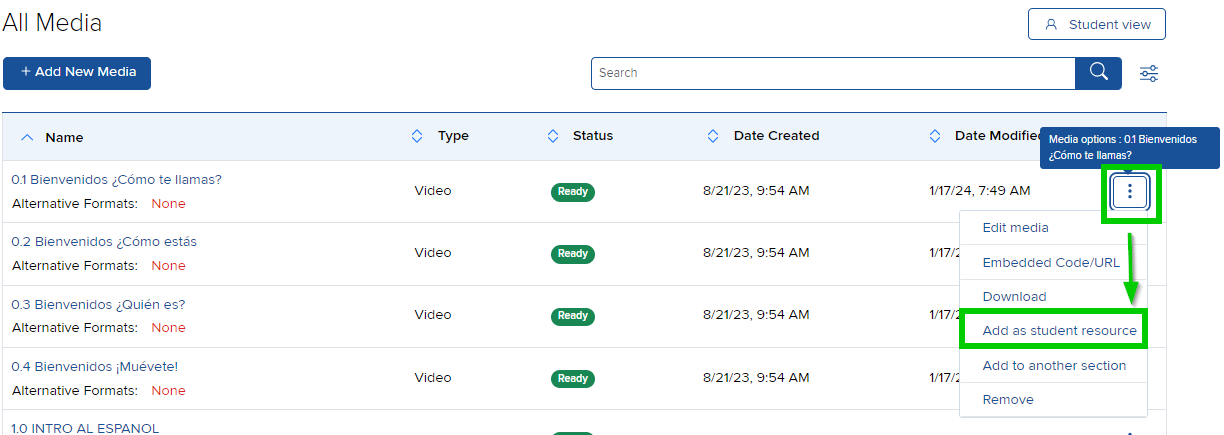
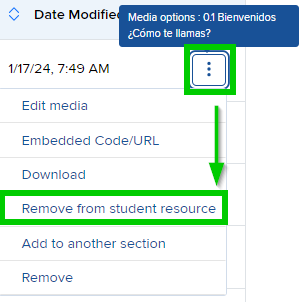
Note: if you see “Remove from student resources” the media is already shared with students
- To hide media from students click “Remove from student resources”
How will students review my lectures?
-
The student will access their section in the usual way
-
You may click the “Student View” button to review how your students will view
-
-
Under “Resources” in the left panel, click “Class Media”
-
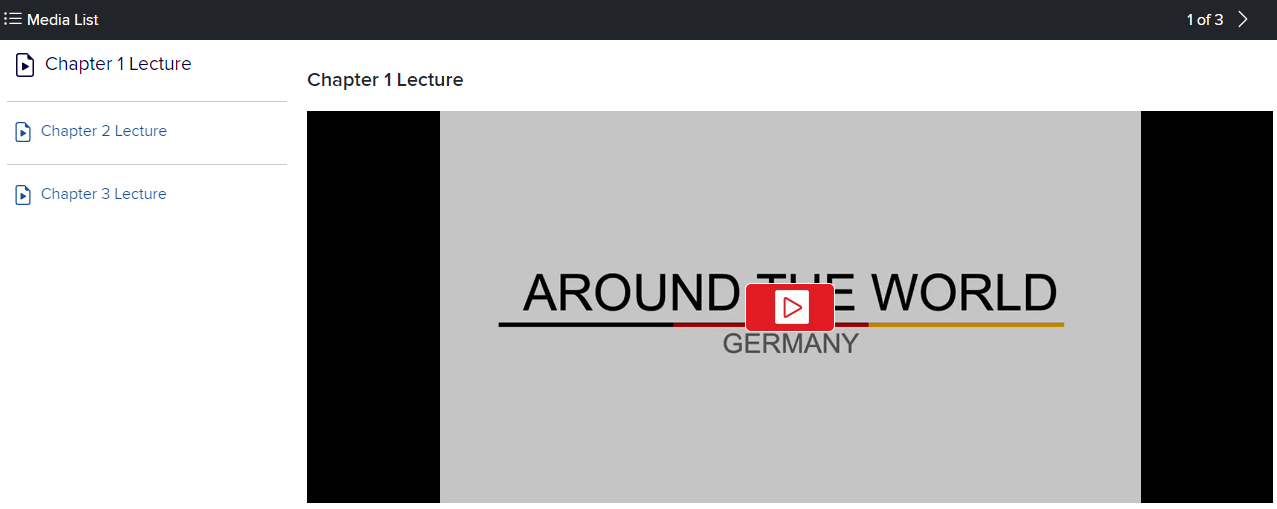
This will open a new page containing your shared lectures, as below:
-
Option 2: Share through assignment type “web activity”
- Navigate to your media as in Option 1
- Click the kebab to the right of a recording and click “Embedded Code/URL
- From the pop-up window Share Recording, click “Copy URL”
- Close the pop-up window
- Click the “Assignments” tab below the section name, upper right
- Click “Add assignment”
- Click “web activity”
- Remove the https:// from the “web address:” window and paste the URL you copied earlier
- Customize the rest of the fields to your preference, then click the “next: assign” button
- Enter an "assign" and "due date", or you may leave the fields blank if you wish students to view the assignment at any time throughout the course.
- Click Assign
- From the section Assignment page, click the kebab to the right of the assignment and select "Show"
How will students review my lectures?
-
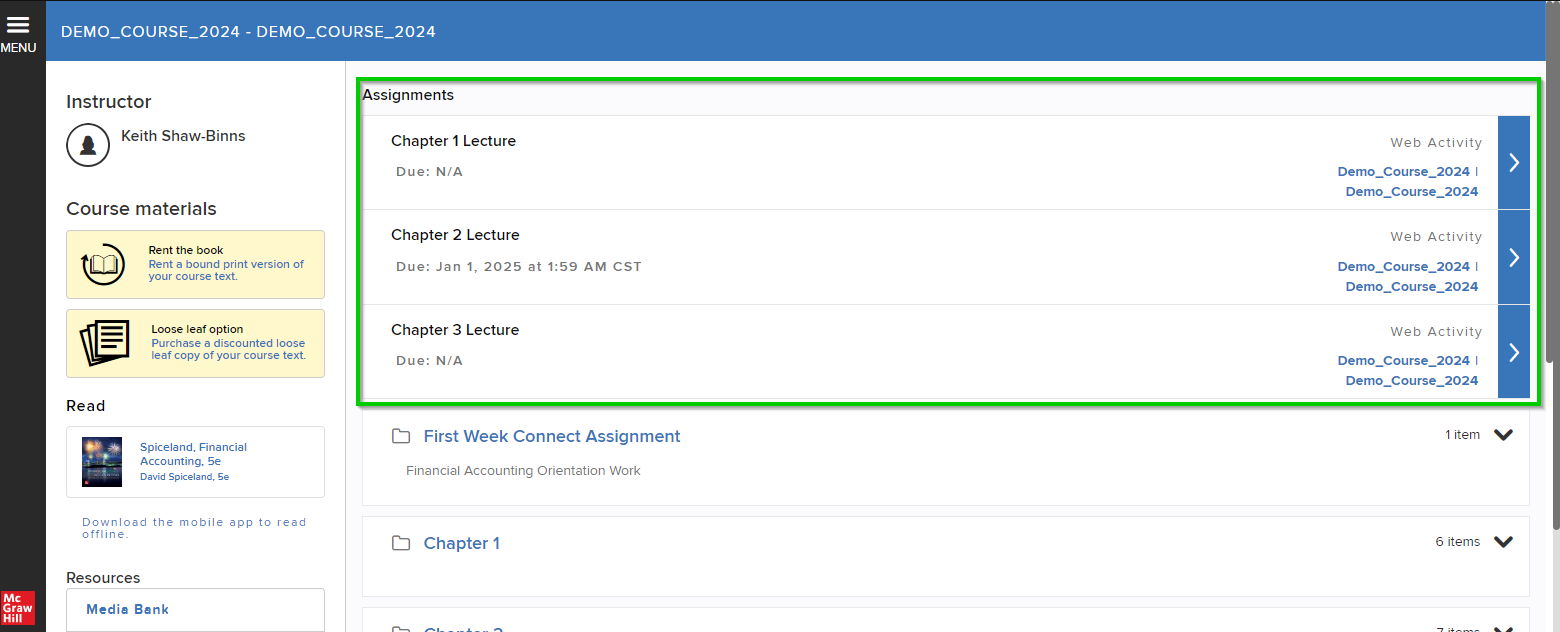
Using this method, students will see the media under assignments
-
Note, that it is not possible to auto-grade web activity assignments, it is a method of sharing any web link with your students
-
Option 3: Share in your LMS
Most LMS allow you to share media directly through the platform. Please consult your local LMS admin, or in most instances visit the LMS support site for instructions.
You will need the Media Services " Public Link", please follow the steps below to obtain the link:
- Navigate to your media as in Option 1
- Click a recording name
- locate the switch to the right of the media preview window and move it to the left, from "Private" to Public"
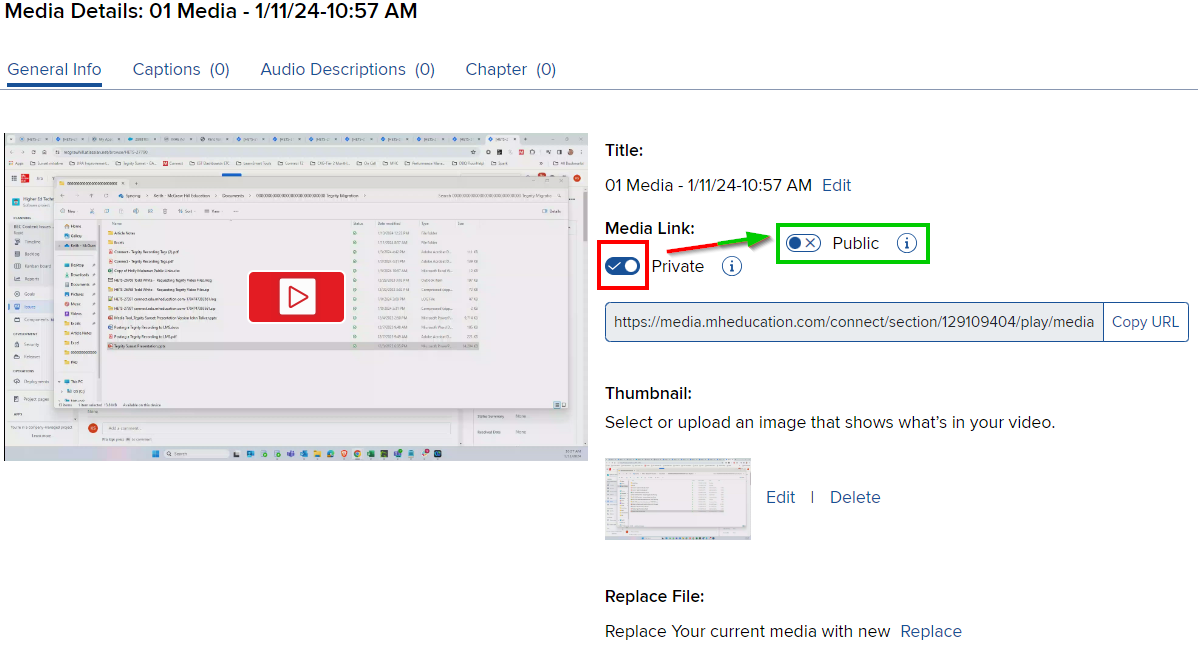
- Click Copy URL
- To test the link, open a different web browser and paste the link into the address bar, then press Enter on your keyboard.