
Connect Media Services - How to Organize my Media
Review the Redbird Math class progress report to monitor growth and lesson completion.
Tags
- Higher Ed Student
- Higher Education
- Customer Support
- Connect
- Instructor


.
How to change the order of my media
Rename the media numerically:
When you have completed numbering your media, click the column heading “Name”. You may need to click twice to place 01 at the top of the list.
You may also precede your media name with Chapter 1, Chapter 2, etc... If naming your recordings in this format be mindful that an accidental extra space will impact the ordering.
For example, placing an extra space between Chapter and 2 will push the Name above Chapter 1 which has a single space.
Connect Media Services
How to Organize My Media
How to change the order of my media
Rename the media numerically:
- Access the section in the New Experience
- Scroll down to Course Materials, bottom right, and click Launch My media
- Click a recording name from the list of recordings
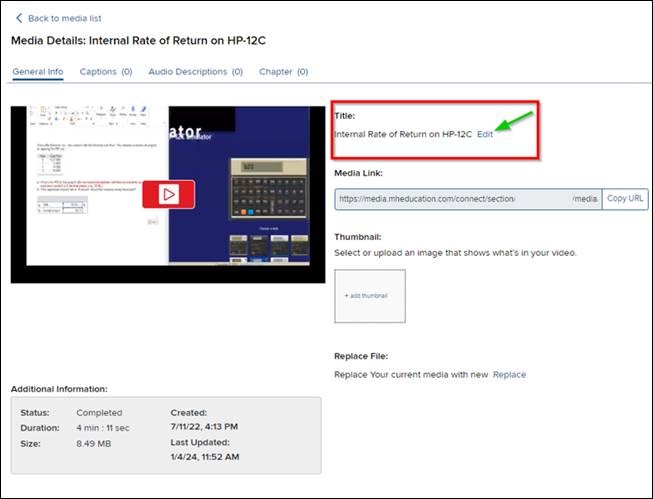
- Click “Edit” to the right of the “Title:”
- Add a desired number to the beginning of the existing name. Example, 01, 02, 03, etc.… When you reach 10 drop the preceding number '0’
- Click Edit to the right of the recording title and add the appropriate number to the beginning, for example, "01 Internal Rate of Return on HP-12C"
When you have completed numbering your media, click the column heading “Name”. You may need to click twice to place 01 at the top of the list.
You may also precede your media name with Chapter 1, Chapter 2, etc... If naming your recordings in this format be mindful that an accidental extra space will impact the ordering.
For example, placing an extra space between Chapter and 2 will push the Name above Chapter 1 which has a single space.
