
Connect Media Services - How to Copy, Duplicate, and Share Media
Resolve issues where the Proctorio exam agreement page appears blank.
Tags
- Higher Ed Student
- Higher Education
- Customer Support
- Connect
- Instructor


Connect Media Services
How to Copy, Duplicate, and Share Media
Many instructors record chapter lectures to be shared with students and will copy their media to additional sections or semesters. Sometimes, instructors will also share their media with other faculty members teaching relative courses. The purpose of this article is to provide steps on how to achieve these functionalities in Connect Media Services.
Please note before you proceed:
If you are familiar with Copying, Sharing, and Duplicating Connect Courses and Sections, your media will be Copied, Shared, and Duplicated by following the steps you are familiar with.
If you are unfamiliar with these processes, continue with the steps below.
- How to Share or Copy Sections
- How to Duplicate Sections Containing Media
- How to Copy my Media to an Existing Section or to a Colleague with an Existing Section
Share:
Sharing a section allows you to replicate your section for other instructors and to retain control over assignment editing, due dates, and policies. Changes you make to your section will apply to the shared versions of that section. Changes made to the shared versions of the section will not affect the original.. Updates made in thew Primary section will copy over to shared sections, such as adding or replacing media. adding captions etc...
- Locate the section you wish to Share on your course page
- Click the kebab (3 verticle dots) and select "Send to Colleague"
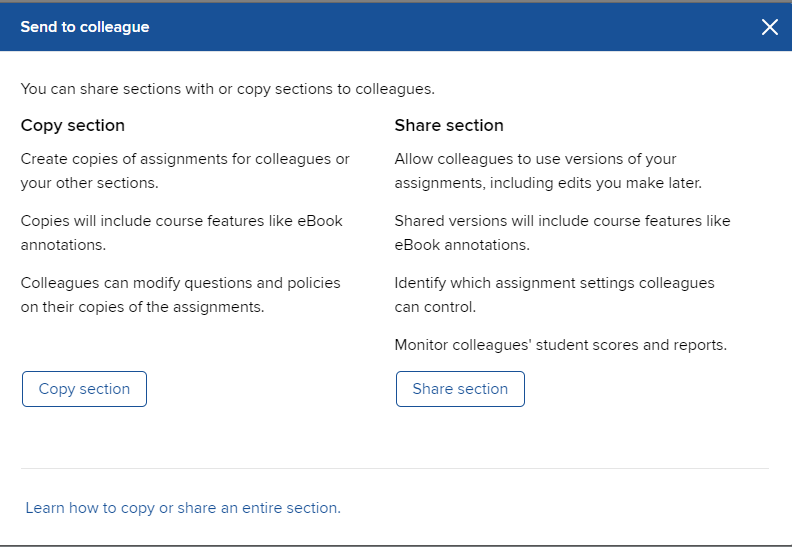
- Click "Copy section" or "Share section" in the pop-up window
- The pop-up window will display the features of each function, Copy or Share
- Enter the email addresses of colleagues with whom you want to share/copy the section with
- You can enter or copy and paste up to 200 email addresses.
- Click "Find colleagues"
- Choose:
- How many times you wish to share the section with each instructor
- Select which permissions apply
- Click "Share"
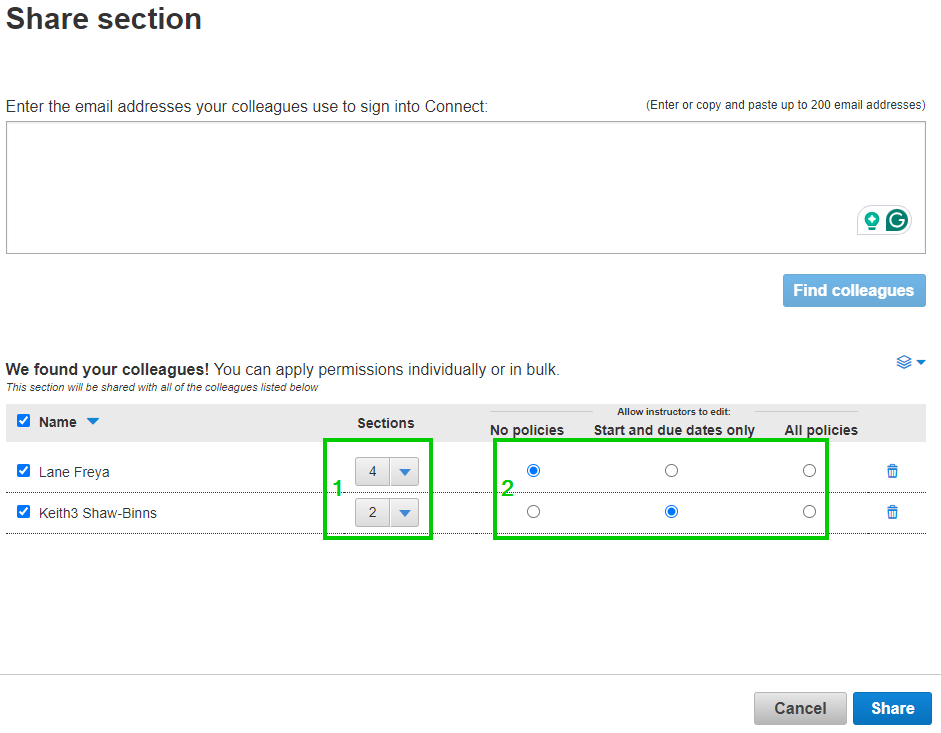
Note: The default number of sections and default permissions will apply if you choose not to change them.
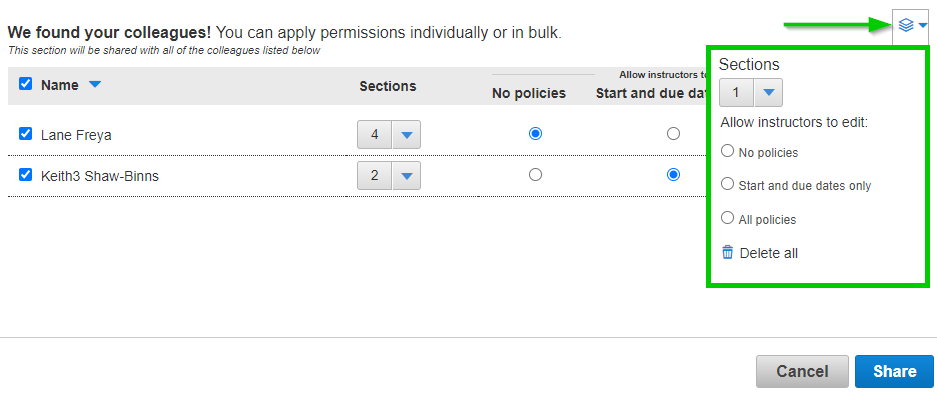
You can also apply bulk changes to the number of sections and permissions by checking the checkbox at the top of the colleagues list or selecting the checkboxes beside the names of individual instructors. Then click the bulk settings icon.
Copy:
Copying a section allows you to clone your section for other instructors but without any control over editing, due dates or policies. Changes you make to your section will not apply to the copied versions of that section. Changes made to the copied versions of the section will not affect the original.
- Find the section on your courses page and, from the settings menu, select "Copy Section".
- Enter the email addresses of colleagues to whom you want to copy the section to.
- Click "Find colleagues".
- Click "Copy" to continue.
Best Practices:
- Use the Share and Copy features after assignment creation to give other instructors access to your Connect section. Sharing retains your control over assignment editing, due dates, and policies while Copying provides a completely editable version
- Choose Copy to send a standalone copy to other instructors
- Choose Share to create a "link" allowing you to share assignments to recipients on an ongoing basis, and generate a report on assignment results (ideal for course coordinators)
- NOTE: You can also share or copy individual assignments rather than an entire section
Back to Top
Follow the steps below to reuse your Media by using the "Duplicate Section" option.
Note: Duplicating Sections will duplicate the following:
- Your Media Recordings
- All assignments
- eBook annotations
To save time we recommend setting up your section completely before you duplicate it.
- On your My Courses page, find the course containing sections and assignments you would like to duplicate
- Click the kebab (3 verticle dots) adjacent to the Section Name and then click on "Duplicate this section"
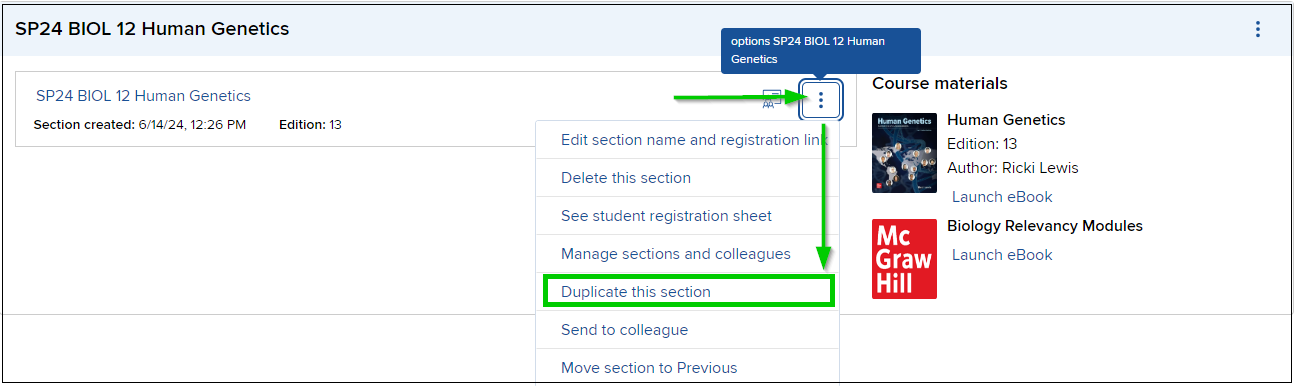
- In the pop-up window, you will see that your section has been renamed as Copy of... by default.
- You have the option to rename the section here or once you have completed duplicating the section,
- Click "Continue to new section", and you will be taken into your new section
Please note, if you do not see your media straight away try refreshing the page.
__________
_____
___
How to Copy my Media to an Existing Section or to a Colleague with an Existing Section
_____
___
How to Copy my Media to an Existing Section or to a Colleague with an Existing Section
If you have an existing Section and you wish to Copy media to it, or to a colleague with an existing Section, it will be necessary for you to contact support.
The Support Team will request the information below:
NOTE: If you wish to copy media to a colleague you will need to provide the instructors' Connect email address and the section details to copy to.
Instructor Details:
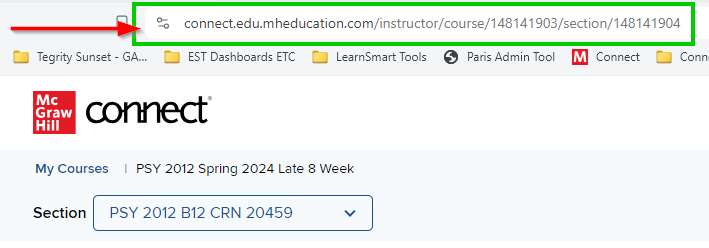
How to capture the Section URL:
Contact the Support Team Here:
The Support Team will request the information below:
NOTE: If you wish to copy media to a colleague you will need to provide the instructors' Connect email address and the section details to copy to.
Instructor Details:
- Full name:
- Connect email address:
- Section Name:
- Section Id:
- Or you may provide the section URL in text format
- Example: https://connect.edu.mheducation.com/instructor/course/148141903/section/148141904
Copy To - Section Information:
- Section Name:
- Section Id:
- Or you may provide the section URL in text format
- Example: https://connect.edu.mheducation.com/instructor/course/148259203/section/148259204
How to capture the Section URL:
- Enter the section, and copy the URL (web address) from the address bar at the top of the page, see below:
Contact the Support Team Here:
Create a
Support Ticket
__________
_____
___
_____
___