
Connect Media Services - How to Change Your Microphone or WebCam
Review the ALEKS Adventure admin standards report to evaluate standards mastery.
Tags
- Higher Ed Student
- Higher Education
- Customer Support
- Connect
- Instructor


Connect Media Services
How to Change Your Microphone or WebCam
This article provides steps on how to change the Microphone and Webcam when recording media in Connect Media Services.
Q: Why do I need to change these devices?
A: If you use a laptop you most likely have a built-in microphone and webcam. Although these devices are useful, you may also use a USB microphone and webcam for convenience or improved quality.
Note: If you have not recorded media in Connect previously, please review the article below before proceeding:
How to Change My Microphone
We recommend using Google Chrome for Media Services, the steps below are related to Google Chrome.
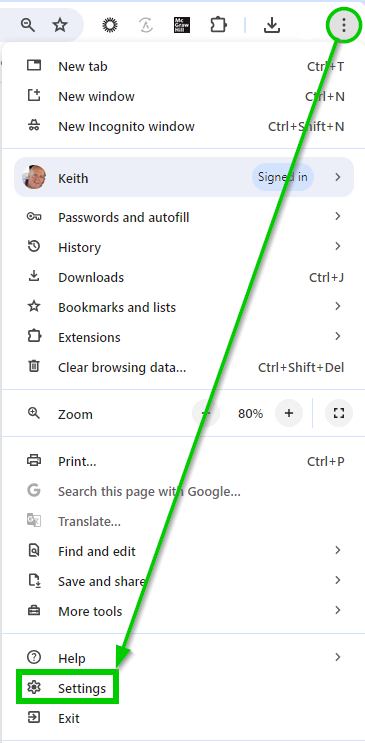
- Click the kebab at the top right of Google Chrome and select "Settings"
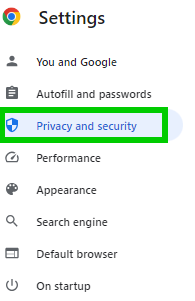
- Under the Settings menu, top left, click "Privacy and security"
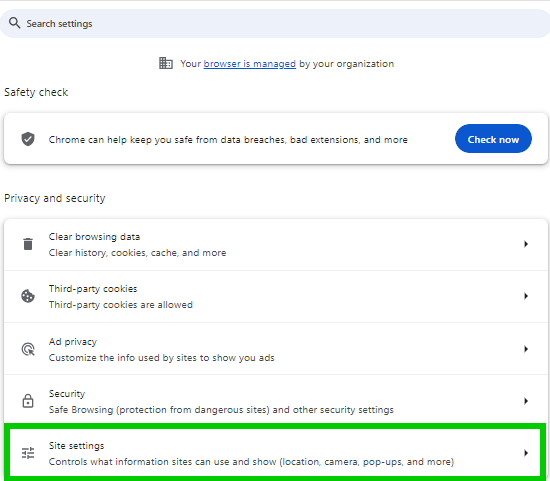
- From the menu in the center of the page, click to expand "Site Settings"
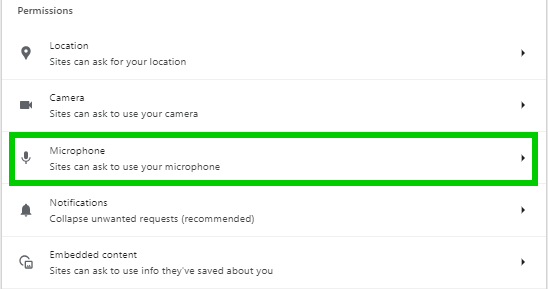
- Here you will see "Permissions", click "Microphone" to access the settings
- Click the drop-down menu at the top of the settings page to reveal microphones that are connected to your device
- Click the microphone you wish to use from the list
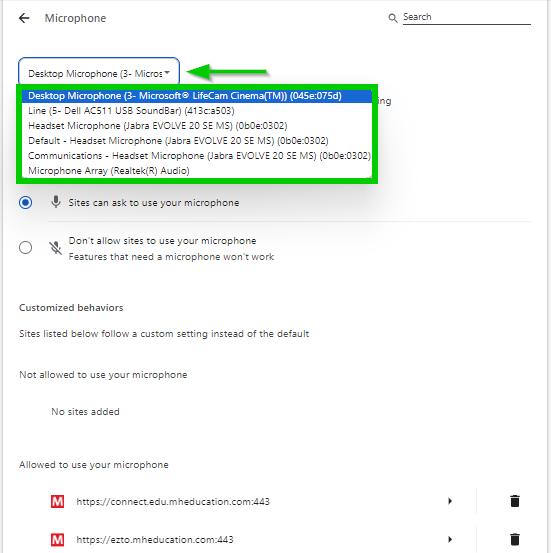
NOTES:
- If you do not see the microphone you wish to use, check your device System settings to ensure it is enabled.
- If you see two entries for the microphone you wish to use, use the entry that includes "(Default)", otherwise you may encounter the error below when you start to record:
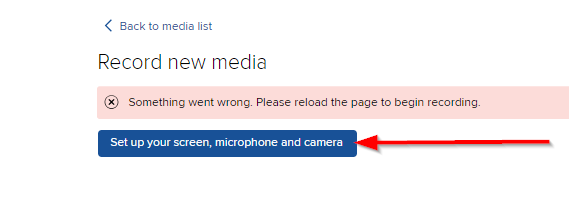
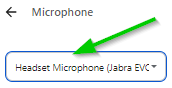
- Your selection will populate the drop-down window and is now your Google Chrome default microphone
When you launch the recorer you will see an audio-level line. You may speak to test the audio level to ensure your microphone is functioning correctly before you click "Start recording", the audio-level line will fluctuate to your voice, as below:
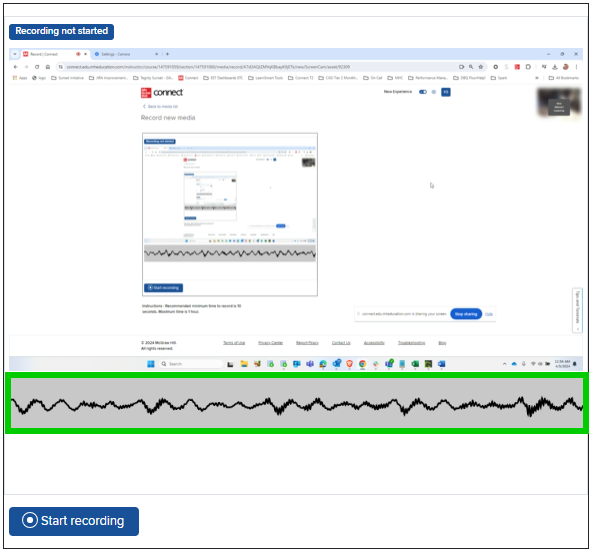
NOTE: If the audio-level line does not fluctuate to your voice, confirm the browser settings saved your changes. If the browser settings have been saved, ensure your microphone is turned on in your computer system settings and the volume level is adequate.
Before you record your lecture, we recommend performing a 2-minute recording to ensure your audio levels are satisfactory on playback.
Back to Top
Before you record your lecture, we recommend performing a 2-minute recording to ensure your audio levels are satisfactory on playback.
Back to Top
__________
_____
How to Change My WebCam
_____
How to Change My WebCam
We recommend using Google Chrome for Media Services, the steps below are related to Google Chrome.
- Click the kebab at the top right of Google Chrome and select "Settings"
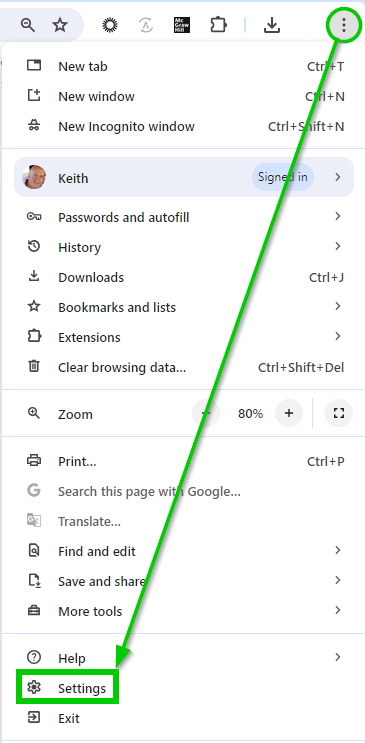
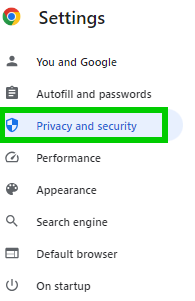
- Under the Settings menu, top left, click "Privacy and security"
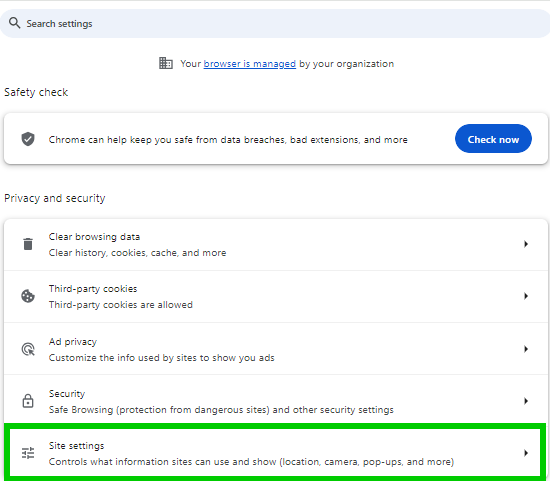
- From the menu in the center of the page, click to expand "Site Settings"
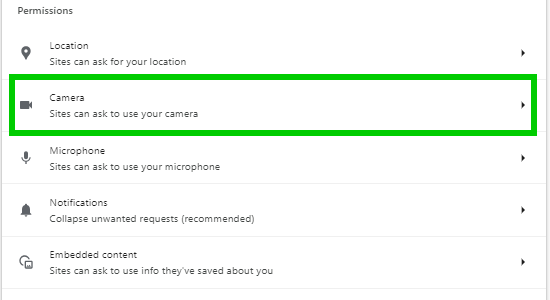
- Here you will see "Permissions", click "Camera" to access the settings
- Click the drop-down menu at the top of the settings page to reveal webcams that are connected to your device
- Click the webcam you wish to use from the list
- Check the radio button "Sites can ask to use your camera"
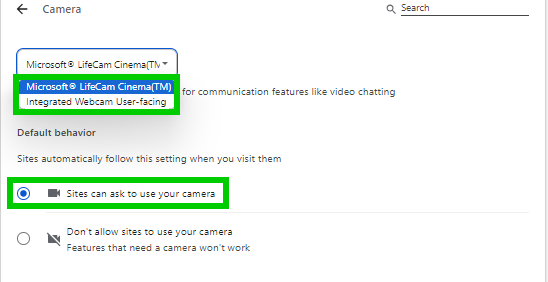
NOTE: If you do not see the camera you wish to use, check your device System settings to ensure it is enabled.
- Your selection will populate the drop-down window and is now your Google Chrome default camera
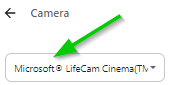
Before you record your lecture, we recommend performing a 2-minute recording to ensure your camera quality is satisfactory on playback.
Back to Top
