
Connect Media Services - Creating a Media Assignment
Learn how to record or upload new videos and media using Connect Media Services.
- Higher Ed Student
- Higher Education
- Customer Support
- Connect
- Instructor
- Assignment Management


Connect Media Services
Creating a Media Assignment
Instructors may wish to set Connect Media assignments to help ensure students view recorded lecture material. All the functionality of "Create your own question" will apply. These assignments will allow an instructor to add questions to an assignment, Start, and Due dates, and all the features of a Test Bank assignment.
NOTES:
- It will be necessary for an instructor to be in the Connect New Experience during creation, steps are provided below.
- The Connect Media video will launch in a new browser tab, students will need to enable pop-ups for https://connect.mheducation.com
- When you start to use the question editor, please save your work at intermittent stages, otherwise you may lose valuable work!
Getting started:
- Sign in to Connect
- If you are not in the New Experience, move the switch in the blue banner at the top of the page to the right

Before we create the assignment, we are going to copy the preferred media file URL.
How to Copy my Media file URL:
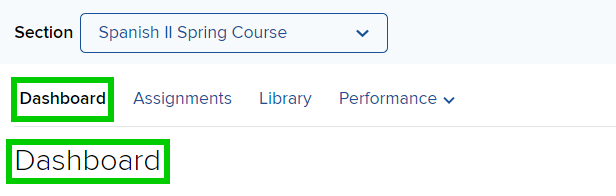
- From the top left of the section home page, ensure you are in the section Dashboard:
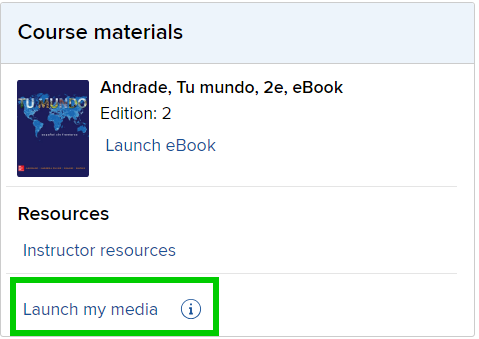
- Scroll down to "Course materials", lower right, and click "Launch my media"
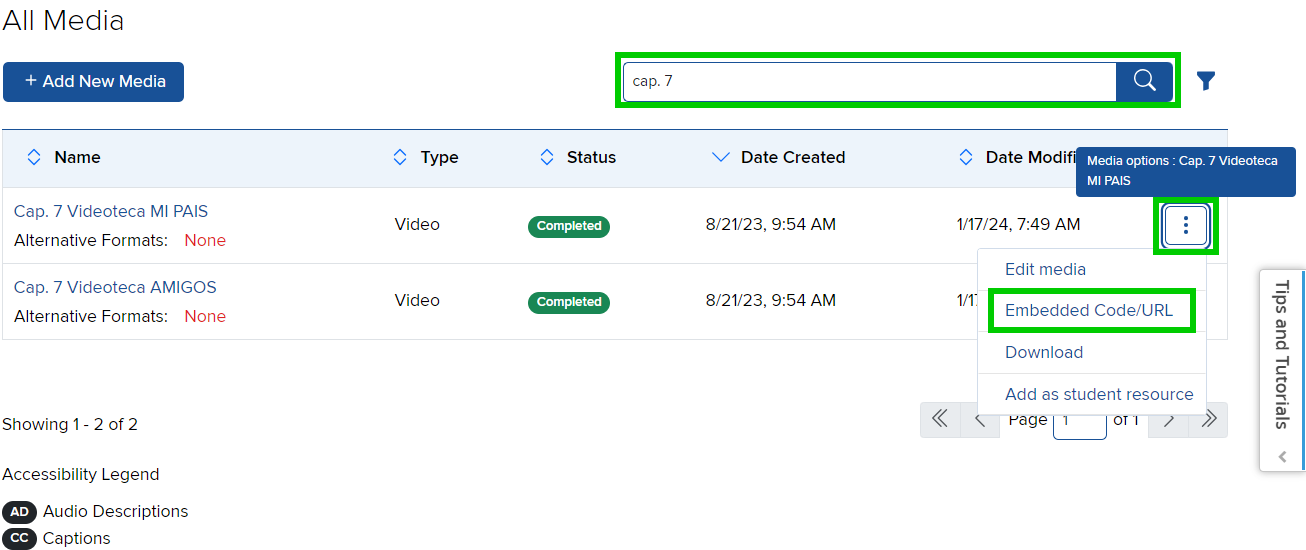
- Locate the recording you wish to share from your assignment, you may use the search function if you know the name of the recording
- Click the Kebab, three vertical dots, to the right of the recording and select "Embedded Code/UR"
- Click "Copy URL" from the pop-up window
- At this stage, open a notepad application and paste the URL
- If you wish to, at this stage you may copy all of the media URLs you plan to use in assignments, name them, and save the notepad for later use
- Close the "Share Recording" URL window
Note: Do not use Office applications for this type of scenario as Office documents may copy various formatting that will corrupt your assignment coding later.
Copy the code below to your notepad. The text highlighted red, between the "double quote", is where your media URL will be pasted. Do Not delete the Double Quote marks.
<p><a href=" YOUR MEDIA URL WILL GO HERE" style="font-size: 14pt;" target="_blank"><strong>Play the Video</strong></a></p>
Creating your Video Assignment:
- Enter the section where the assignment is required
- Click the "Assignments" link, at the top left of the page
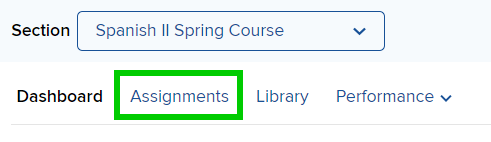
- Click "Add assignment" top right of the assignment list
- Click "Question Bank"
- Click the drop-down menu from the popup window and select "Create your own question"
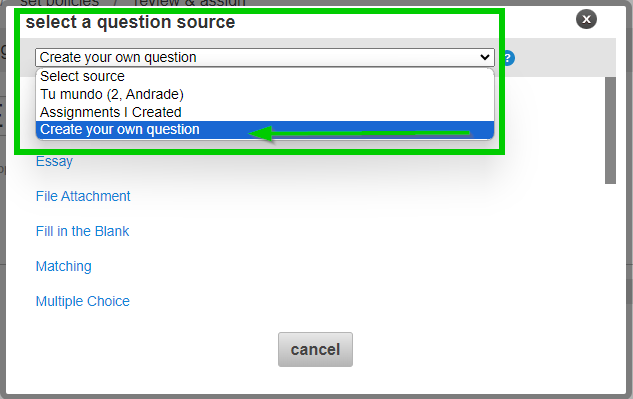
NOTE, in this example we are going to use "Multiple Choice"
- Click "Multiple Choice", this will launch the Question Editor
- Enter a Question Title
- Click into the window below "Multiple Choice Question (required)"
- This is where you will provide the Media link and a possible question for your students
- Copy the Code from your notepad: <p><a href="YOUR MEDIA URL WILL GO HERE" style="font-size: 14pt;" target="_blank"><strong>Play the Video</strong></a></p>
- Click into the question window and then click the "Source" button top left of the editing toolbar
- Press enter twice and paste the code
- Copy the media URL from your notepad, highlight and delete the text YOUR MEDIA URL WILL GO HERE
- Do not delete the double quotes
- Paste the media URL between the double quotes
- It should look like the below:
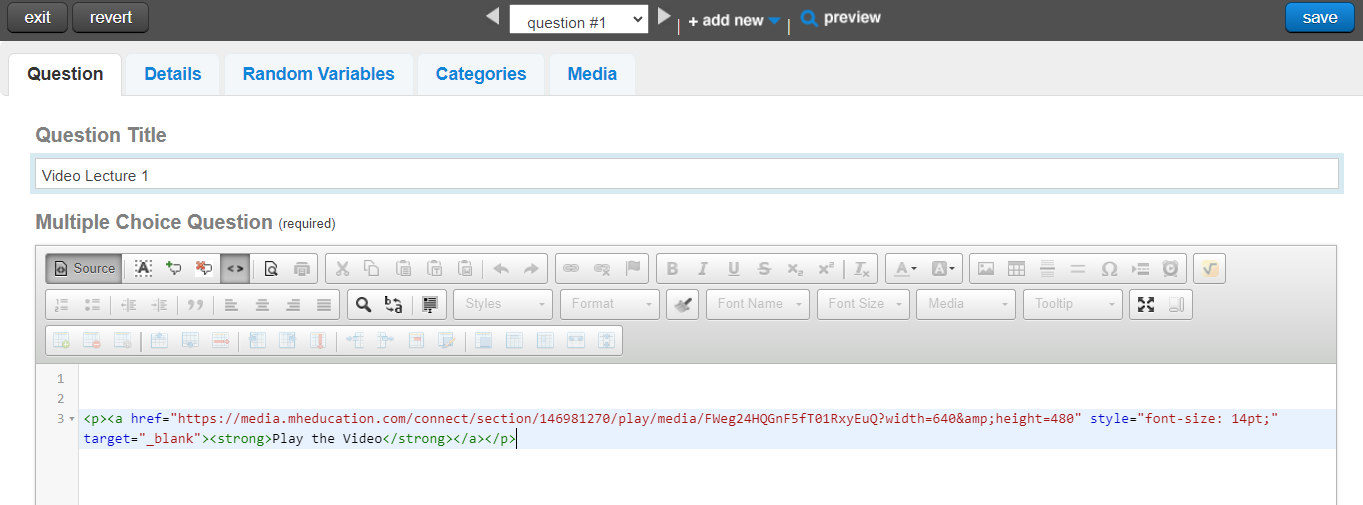
- Click the "Source" button to return to regular text editing functionality
- Please remember to Save, top right, before clicking Exit, top left
- If you have not done so already, please name your assignment when leaving the editor.
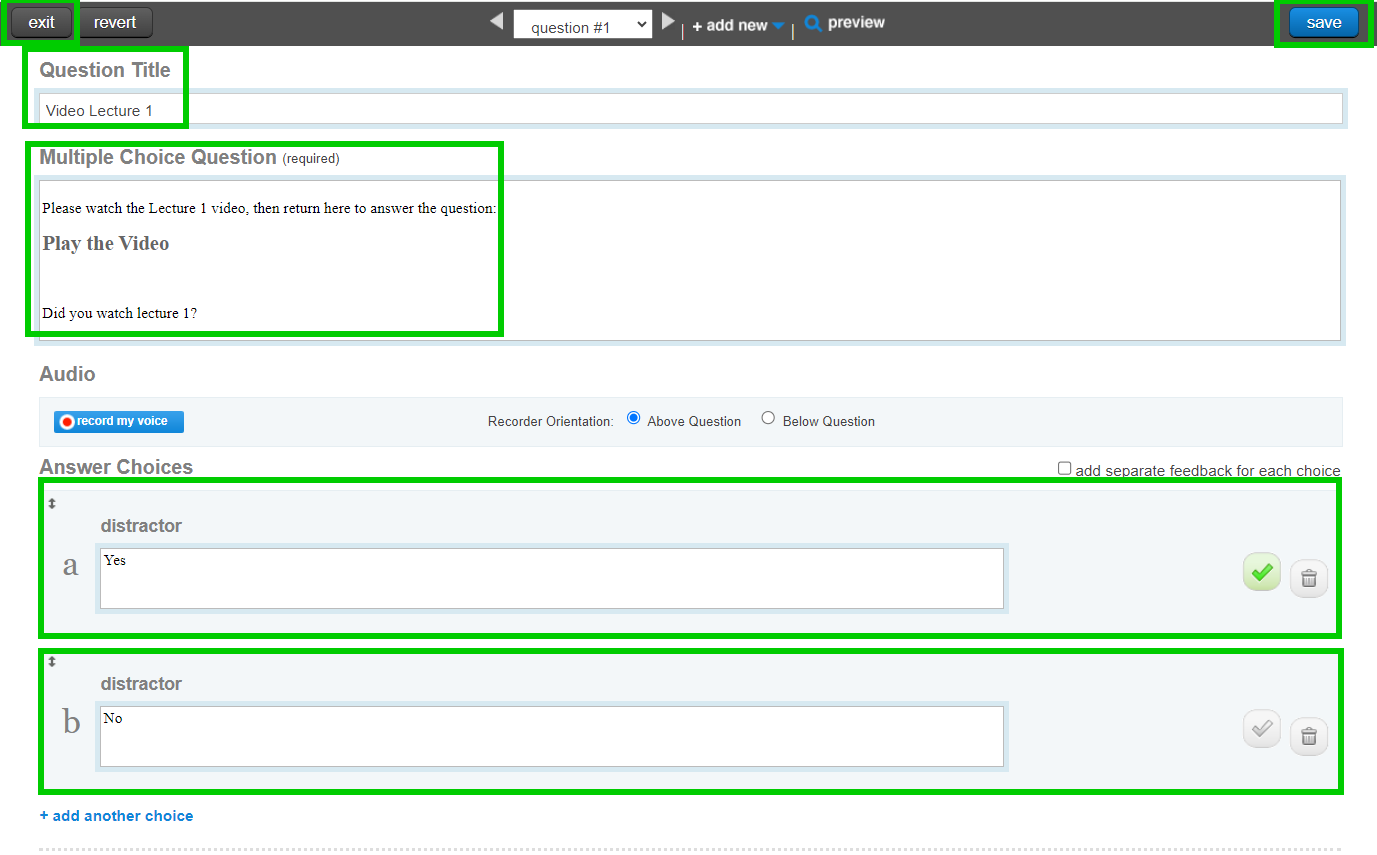
NOTE: MC questions auto-create 4 distractors, please remove unwanted distractors to help avoid student confusion.
At this stage, you may add additional questions from the test bank, or create your own questions based around the video.
In this example, I added one question for students to confirm they watched the video with Yes/No distractors:
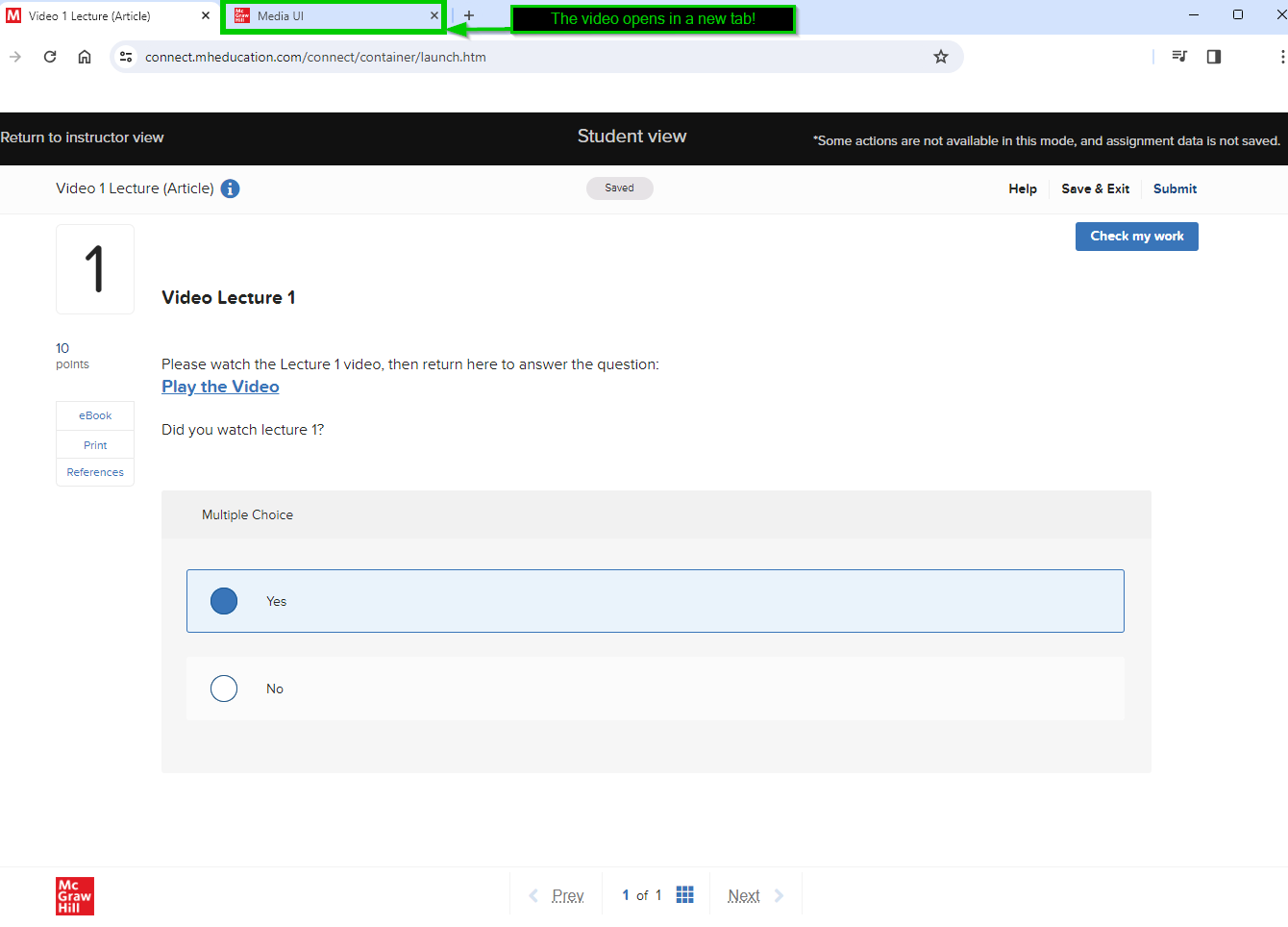
Creating a Media assignment in this way allows you to implement all of the assignment policies available to question bank assignments.
