
McGraw Hill Connect LTI Advantage using Auto Copy/Pair (ACP)
Learn how Connect uses LTI Advantage with Assignment and Content Placement (ACP).
- Higher Education
- Customer Support
- Connect
- Instructor


What is Auto Copy/Share Pair?
Auto Copy/Share Pair is a supplemental solution with our LTI Advantage integration that will automate:
Creating and pairing the Connect account
Copying or Sharing and pairing of a Connect section from the designated Template Connect section to a Learning Management System (LMS) course
Relinking the Connect assignments in the LMS
Auto Copy/Share Pair is enabled and managed within Connect at the section level.
What are the benefits of Auto Copy/Share Pair?
Offers faculty a quick and easy solution to integrate with Connect.
Minimizes faculty error during the pairing process by automating the provisioning.
Improves scalability and reuse from term-to-term.
What scenarios are best suited for Auto Copy/Share Pair?
Although Auto Copy/Share Pair can be enabled across any Connect section, we recommend the use of it in a template/child Connect course scenario. The benefit of Auto Copy/Share Pair is to provide a quick and easy solution for courses that run and scale frequently.
Auto Copy/Share Pair is a unique functionality that needs to account for your internal processes. If you’re unsure if Auto Copy/Share Pair is a good fit for you, you should reach out to your McGraw Hill representatives.
How do I enable Auto Copy/Share Pair in my Template?
The option to enable Auto Copy/Share Pair is within a Connect section.
After you integrate the Connect template section with your LMS course, take the below steps to enable Auto Copy/Share Pair.
Classic Experience
Launch over into your paired Connect section from the LMS.
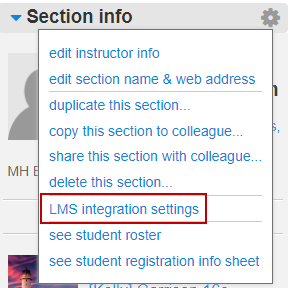
In your paired Connect section, locate and click on LMS integration settings (located under the Section Info gear).
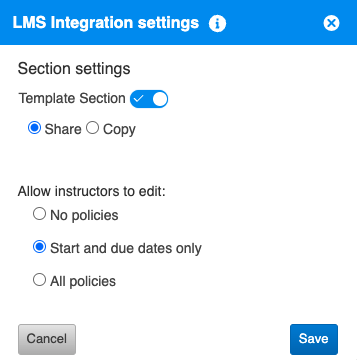
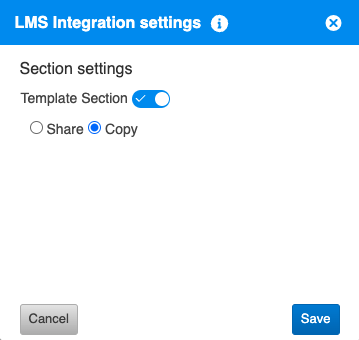
- Enable the Template Section option, and choose either Share or Copy.
 |
 |
Share
|
Copy
|
- If you select the Share option, also choose the appropriate policy setting (as this is the setting that your faculty will inherit), and click Save.
New Experience
Launch over into your paired Connect section from the LMS.
In your paired Connect section, locate and click on Set as Template Section for LMS (located under the Section Information gear).
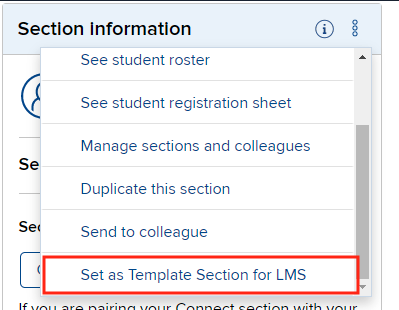
- Enable the Template Section option, and choose either Share or Copy.
Share
- Allow colleagues to use versions of your assignments, including edits you make later.
- Shared versions will include course features like eBook annotations.
- Identify which assignment settings colleagues can control.
- Monitor colleagues' student scores and reports.
Copy
- Create copies of assignments for colleagues or your other sections.
- Copies will include course features like eBook annotations.
- Colleagues can modify questions and policies on their copies of the assignments.
- If you select the Share option, also choose the appropriate policy setting (as this is the setting that your faculty will inherit), and click Save.
- A banner will display at the top of the page to indicate that it is a template section

Who can use Auto Copy/Share Pair?
Instructors can use ACP in their own account to automate the copying/sharing of their own sections or automate copying/sharing sections in their colleagues' accounts.
What are the downsides of Auto Share Pair vs Auto Copy Pair?
Instructors using Child sections (Shared from the Template) will have limited ability to change or manipulate the course content, assignment dates, and policies. The level of permission is determined and managed at the primary (Template) section level.
How do we know that a course is flagged as a Template using Auto Copy/Share Pair?
At the present time, the only way to verify if Auto Copy/Share Pair is enabled for a Connect section is to verify the LMS integration settings (located under the Section Info gear) at the Template section level.
Who can I still reach out to if I still have questions?
Any additional questions can be sent to the Platform Integration Consultants at integration@mheducation.com.
