
Connect - Enabling & Disabling the eBook
Install and use the Actively Learn Chrome extension for classroom reading.
Tags
- Assignment Issues
- Higher Ed Student
- Higher Education
- Customer Support
- Connect
- Instructor


This article explains how to enable & disable the eBook in Connect courses. You can enable or disable the eBook link throughout the entire duration of the course or for a specific timeframe. For example, you might want to disable the eBook link for an exam, so students are not able to access the eBook at that time.
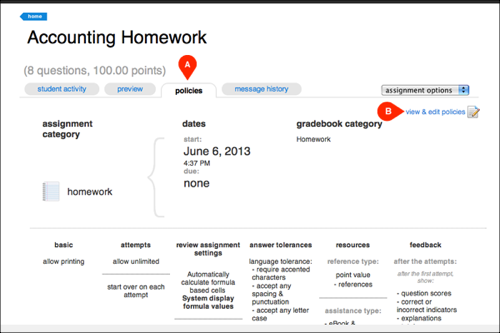
Select the assignment for which you want to enable or disable the eBook from your Section Home. Click policies (A) and then select view & edit policies (B).
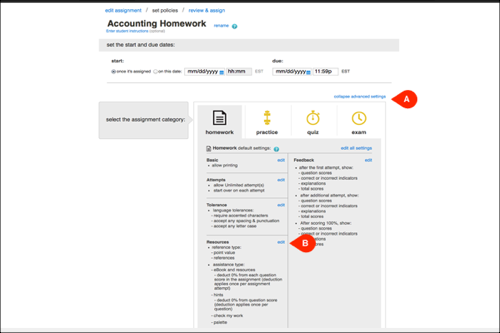
Click expand advanced settings (A) and then click edit (B) next to Resources.
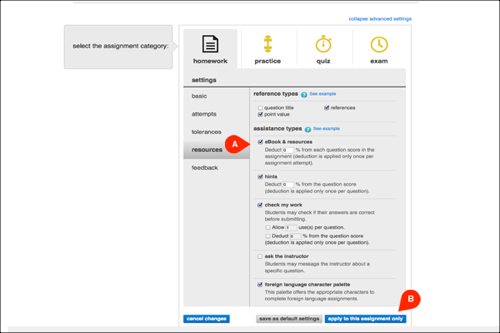
Under assistance types is eBook and resources Check this box (A) to enable or uncheck it to disable the eBook. Click apply to this assignment only (B) so it does not alter your default settings. If you want to set this policy for all assignments, click save as default settings. Then continue to review & assign the assignment.
Select the assignment for which you want to enable or disable the eBook from your Section Home. Click policies (A) and then select view & edit policies (B).
Click expand advanced settings (A) and then click edit (B) next to Resources.
Under assistance types is eBook and resources Check this box (A) to enable or uncheck it to disable the eBook. Click apply to this assignment only (B) so it does not alter your default settings. If you want to set this policy for all assignments, click save as default settings. Then continue to review & assign the assignment.
