Connect - Edit Course or Section Details
Edit course or section details to keep Connect information up to date.
Tags
- Higher Ed Student
- Higher Education
- Customer Support
- Connect
- Course Management
- Instructor


To Edit Course Details:
- Click Edit course details (pencil icon) on the course card
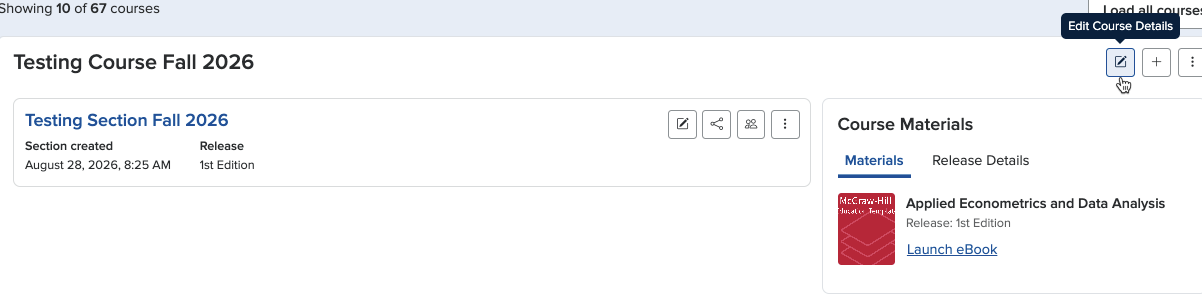
- In the pop-up window, you may edit the Course name and the Time Zone
- Click Save after making your changes
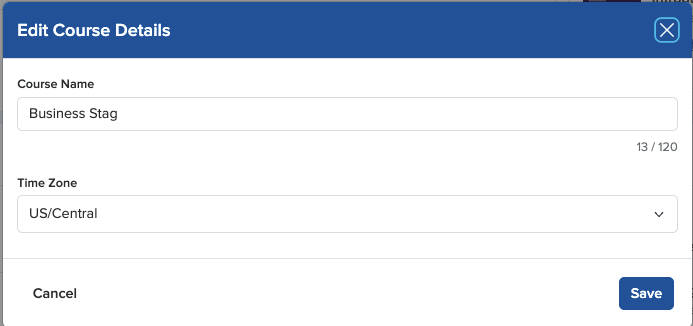
From the Course card kebab, you can:
- Delete course
- Note, deleting a course will delete all sections within the course
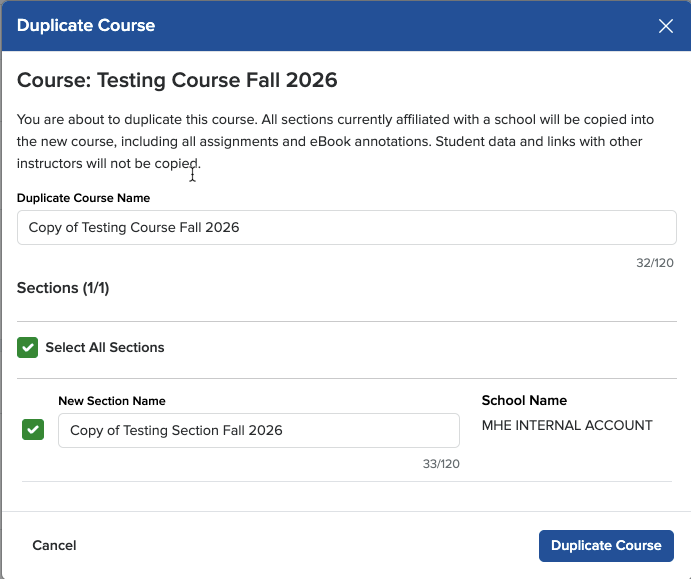
- Duplicate course
- This will duplicate the current course and the sections you wish to duplicate from within the current course
- You may update the course name, remove checks for sections you do not wish to duplicate
- You may also update the section names during this process
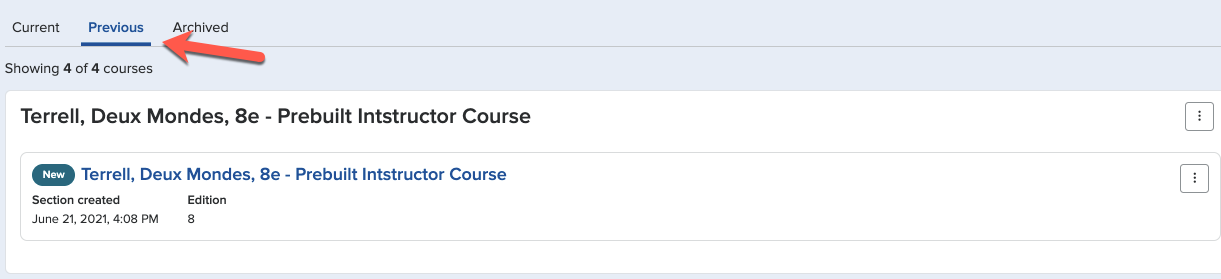
- Move sections to Previous
- This allows you to remove sections from your My Courses page to a new tab which is created when you select to move your first section
- This process helps you to keep your My Course page clutter-free while retaining easy access to past courses to review grades, assignments, etc...
From the course card
- Add new section (plus icon)
- This will add a section using the same title as the existing sections in the course
Duplicate Course Pop-up:
Previous Tab:
To Edit Course Details:
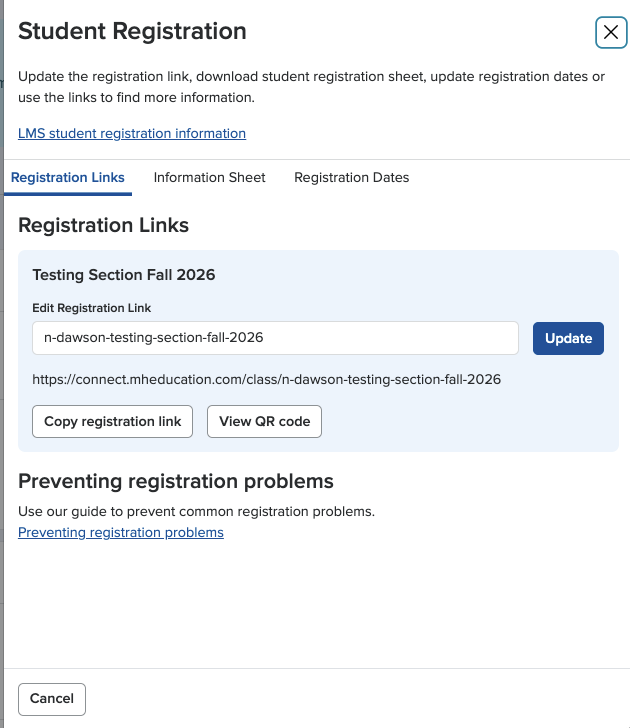
- Click the kebab, three vertical dots to the far right of the Section Name
- Click Student registration link
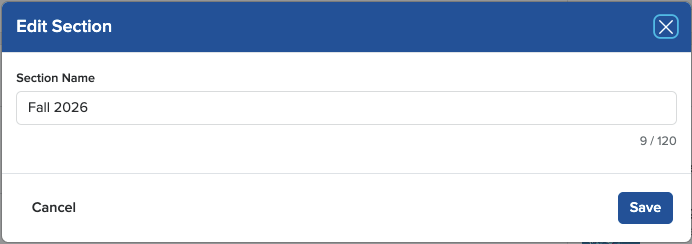
- Click Edit Section, pencil icon, to the right of the Section Name
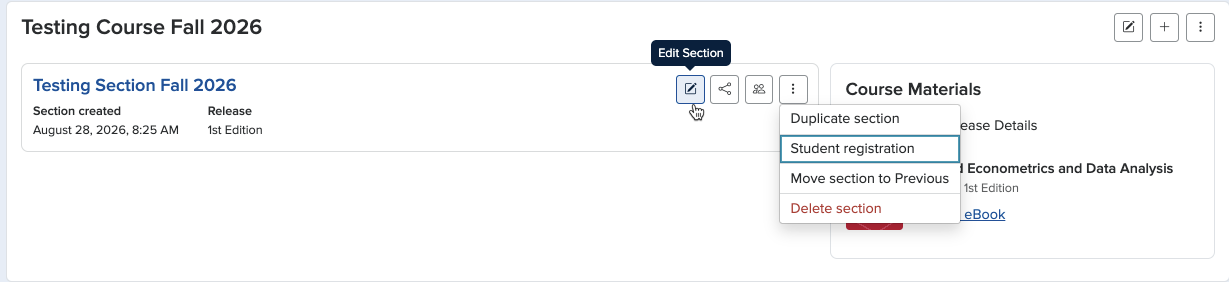
In the pop-up window, you may edit the Section name and the registration link
- Click Save after making your changes