
Connect - Edit an Existing Assignment
Edit an existing Connect assignment to update settings, questions, dates, or policies.
Tags
- Higher Ed Student
- Higher Education
- Customer Support
- Connect
- Instructor
- Assignment Management


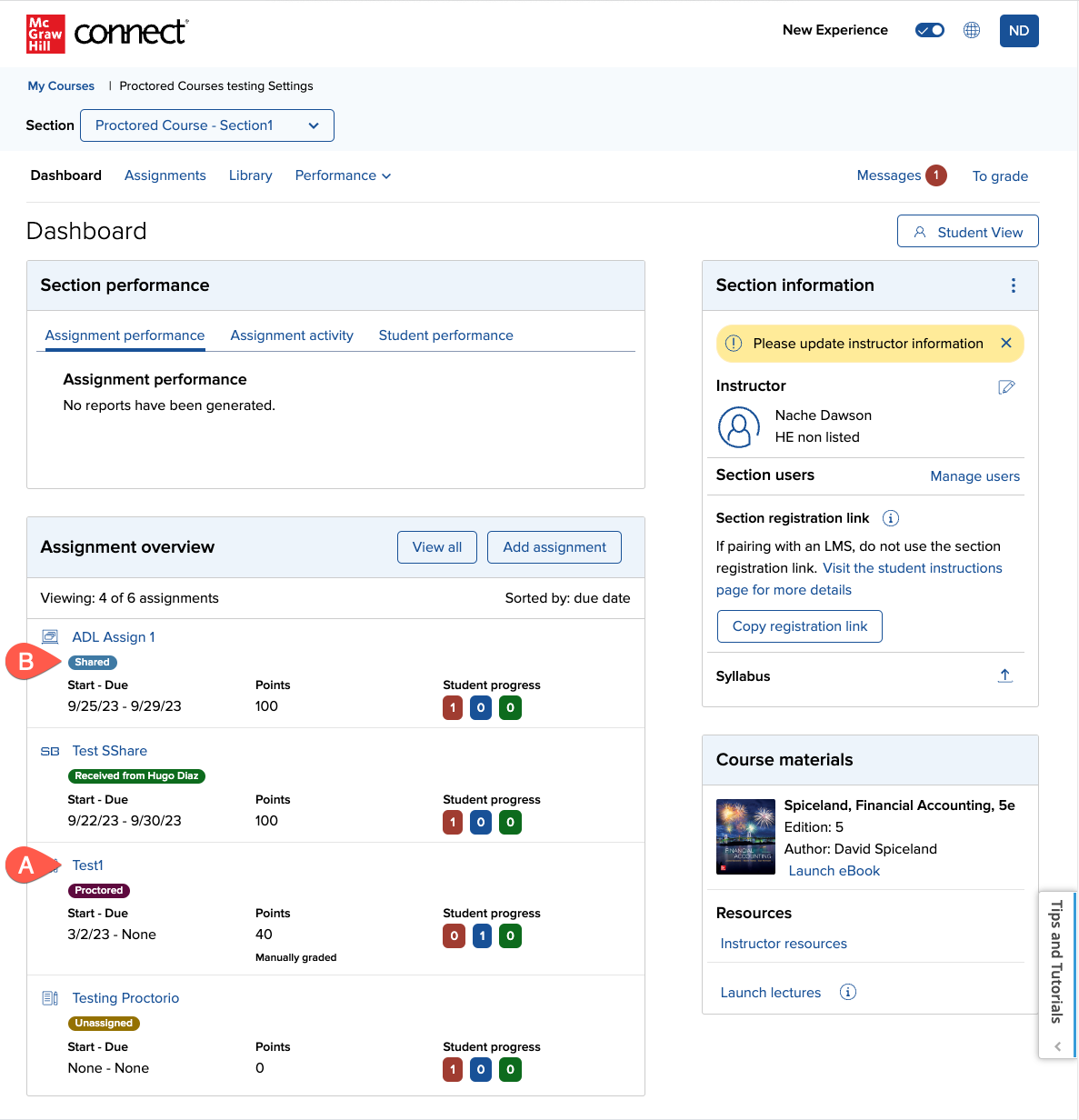
From your section home, select the assignment you want to edit (A). If the assignment is shared, indicated by the shared icon (B), your edits will be applied to the assignment in all shared sections. If not, you will have to edit the assignment in each section individually.
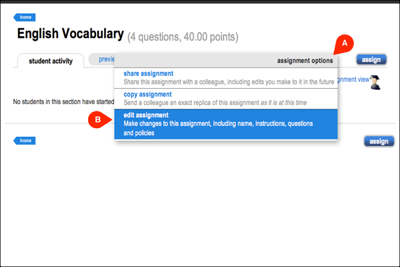
From the assignment options dropdown menu (A), select edit assignment (B).
If students have begun working on the assignment, you will receive a pop-up notification alerting you that the assignment is active and that editing options are limited.
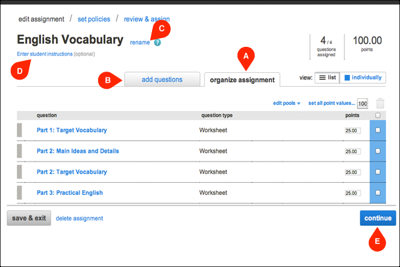
To adjust point values and edit question pools, click the organize assignment tab (A). To add more questions, click the add questions tab (B). You can rename the assignment (C) or enter student instructions (D) at any time. Click continue (E).
Note: If a colleague shared the assignment with you, your editing capabilities may be limited.
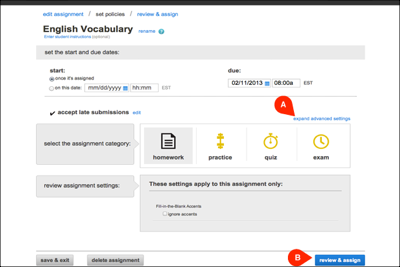
To edit policy settings, select expand advanced settings (A). If you created the assignment and it is inactive, you can edit dates, categories and policy settings. If the assignment is active or shared with you, a notification at the top of the page will alert you that your editing options are limited. When you’re finished, click review & assign (B).
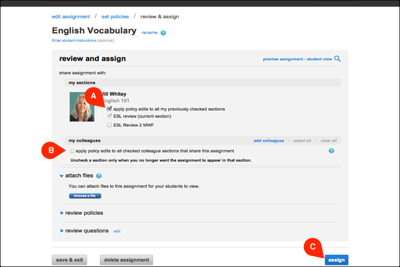
To apply your edits to the shared assignment across multiple sections within your own course, check apply policy edits to all my previously checked sections (A). To apply your edits to the shared assignment across your colleagues’ sections, check apply policy edits to all checked colleague sections that share this assignment (B). Review your changes and click assign (C).
Note: These options will only be available if the assignment is inactive. You can edit active assignments within each individual section.
From the assignment options dropdown menu (A), select edit assignment (B).
If students have begun working on the assignment, you will receive a pop-up notification alerting you that the assignment is active and that editing options are limited.
To adjust point values and edit question pools, click the organize assignment tab (A). To add more questions, click the add questions tab (B). You can rename the assignment (C) or enter student instructions (D) at any time. Click continue (E).
Note: If a colleague shared the assignment with you, your editing capabilities may be limited.
To edit policy settings, select expand advanced settings (A). If you created the assignment and it is inactive, you can edit dates, categories and policy settings. If the assignment is active or shared with you, a notification at the top of the page will alert you that your editing options are limited. When you’re finished, click review & assign (B).
To apply your edits to the shared assignment across multiple sections within your own course, check apply policy edits to all my previously checked sections (A). To apply your edits to the shared assignment across your colleagues’ sections, check apply policy edits to all checked colleague sections that share this assignment (B). Review your changes and click assign (C).
Note: These options will only be available if the assignment is inactive. You can edit active assignments within each individual section.
