Learn how instructors deploy Connect assignments to Canvas and sync grades using LMS integration.
Tags
Higher Education
Customer Support
Connect
Instructor
Share:
Here you'll learn about deploying assignments from your Connect section to your Canvas course.
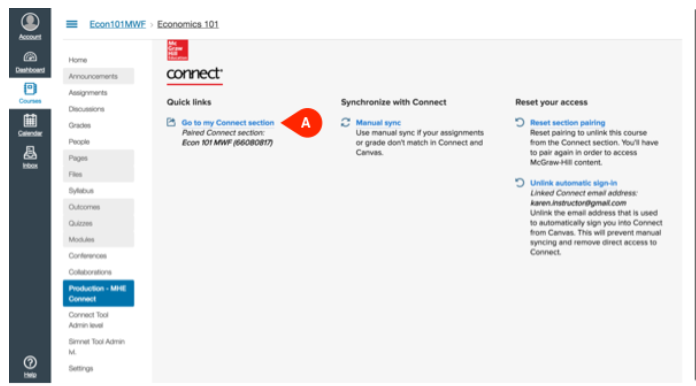
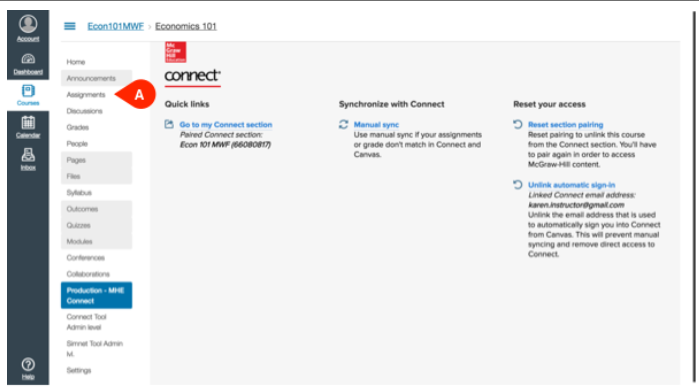
Begin by logging into Canvas and going to the McGraw-Hill page. Then click Go to my Connect section (A).
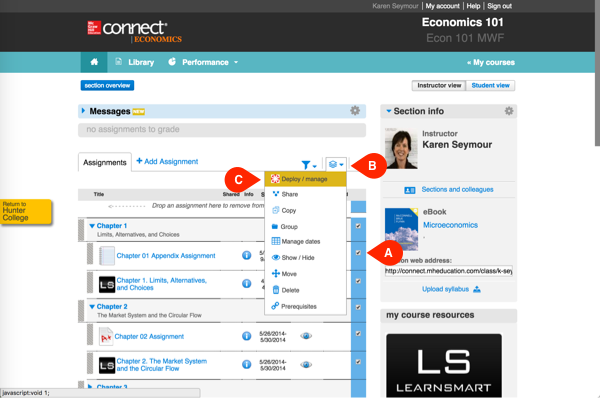
Once you're in your Connect section home, select the assignments you want to deploy by checking the checkbox in the right column (A). Then click the icon that resembles a stack of papers (B) and select Deploy / manage (C).
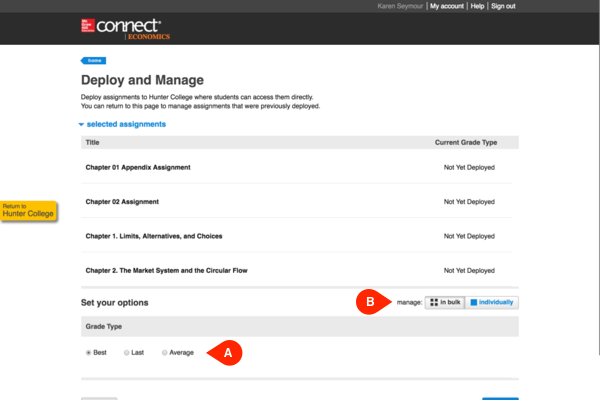
Set your grade type option (best, last, or average) (A). For assignments with multiple attempts, this setting determines which submission is sent to your Canvas gradebook. For assignments with one attempt, the grade for that one submission is sent.
You have the option of setting the option individually for each assignment. (B)
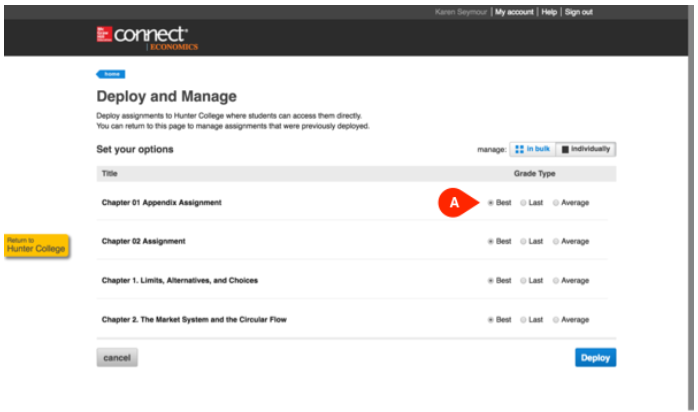
Select the grade type option for each assignment here. (A)
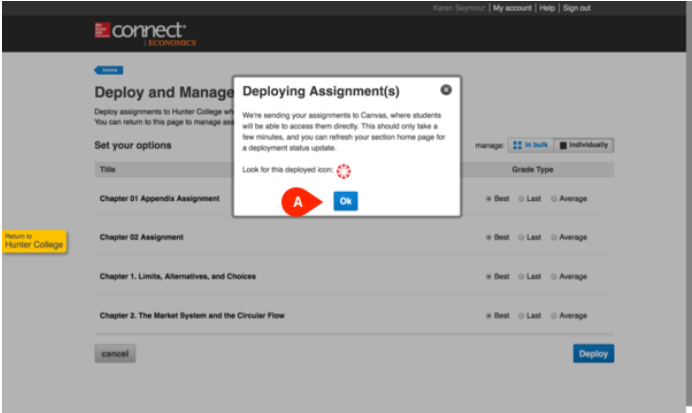
You'll receive a confirmation that your assignments are being deployed. Click Ok (A) to continue.
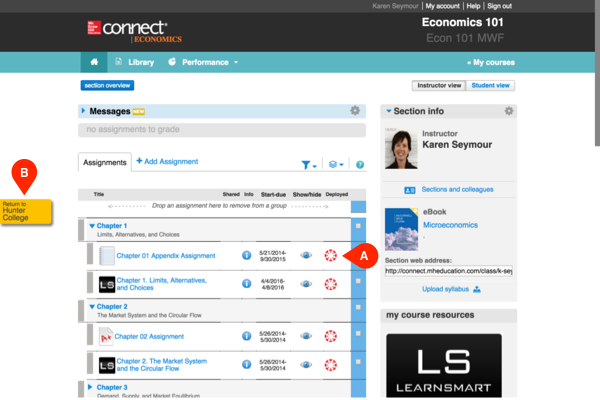
The Canvas icon (A) will appear next to each successfully deployed assignment, indicating that it is accessible in Canvas.
You may need to refresh the page in order to see whether your assignments deployed.
To check that the assignments made it to Canvas, click the Return to... button on the left side of the page (B).
When you return to the McGraw-Hill page in Canvas, select Assignments (A) from the menu.
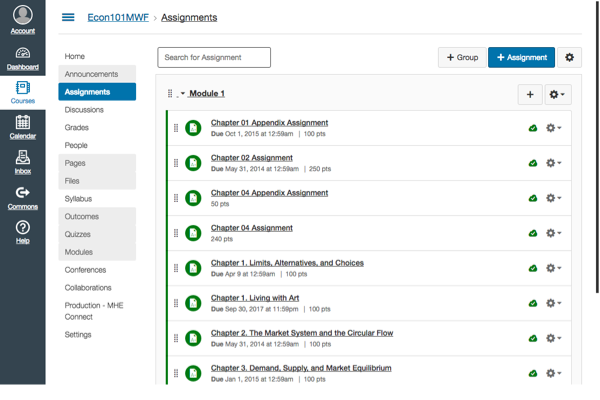
You'll see your list of assignments, which should include those you just deployed from Connect.
Help us improve!
Let us know how we can improve our support information by providing feedback in this short survey.
Top
Regional Page Available
It looks like you're outside the United States. Do you want to see your regional version of this page?
connect
instructor
Personas
Personas/Higher Ed Educator
Personas/Higher Ed Educator/Instructor
Asset Format Type
Asset Format Type/Customer Support
Business Unit
Business Unit/Higher Education
Programs & Solutions
Programs & Solutions/Connect
highered
2026-03-24T18:26:04.773-03:00
<p><span><span>Here you'll learn about deploying assignments from your Connect section to your Canvas course.<br> <br> Begin by logging into Canvas and going to the McGraw-Hill page. Then click <strong>Go to my Connect section</strong> (A).</span></span><br> <br> </p> <div><span><span><img alt="User-added image" height="277" src="/content/dam/mhe/support/support-images/migrated/rtaImage-129042144.png" width="500" data-assetref="rtaImage-129042144-1787334775979"></span></span><br> </div> <p><span><span>Once you're in your Connect section home, select the assignments you want to deploy by checking the checkbox in the right column (A). Then click the icon that resembles a stack of papers (B) and select <strong>Deploy / manage</strong> (C).</span></span><br> </p> <div><span><span><img alt="User-added image" height="333" src="/content/dam/mhe/support/support-images/migrated/rtaImage-129042149.png" width="500" data-assetref="rtaImage-129042149-1787334775979"></span></span><br> </div> <div><span><span>Set your grade type option (best, last, or average) (A). For assignments with multiple attempts, this setting determines which submission is sent to your Canvas gradebook. For assignments with one attempt, the grade for that one submission is sent.</span></span></div> <p><br> <span><span>You have the option of setting the option individually for each assignment. (B)</span></span><br> </p> <div><span><span><img alt="User-added image" height="333" src="/content/dam/mhe/support/support-images/migrated/rtaImage-129042110.png" width="500" data-assetref="rtaImage-129042110-1787334775979"></span></span><br> </div> <div><span><span>Select the grade type option for each assignment here. (A)</span></span><br> </div> <div><span><span><img alt="User-added image" height="295" src="/content/dam/mhe/support/support-images/migrated/rtaImage-129042115.png" width="500" data-assetref="rtaImage-129042115-1787334775979"></span></span><br> </div> <div><span><span>You'll receive a confirmation that your assignments are being deployed. Click <strong>Ok</strong> (A) to continue.</span></span><br> </div> <div><span><span><img alt="User-added image" height="298" src="/content/dam/mhe/support/support-images/migrated/rtaImage-129042127.png" width="500" data-assetref="rtaImage-129042127-1787334775979"></span></span><br> </div> <div><span><span>The Canvas icon (A) will appear next to each successfully deployed assignment, indicating that it is accessible in Canvas.</span></span></div> <p><br> <span><span>You may need to refresh the page in order to see whether your assignments deployed.<br> <br> To check that the assignments made it to Canvas, click the <strong>Return to</strong>... button on the left side of the page (B).</span></span><br> </p> <div><span><span><img alt="User-added image" height="333" src="/content/dam/mhe/support/support-images/migrated/rtaImage-129042132.png" width="500" data-assetref="rtaImage-129042132-1787334775979"></span></span><br> <br> </div> <div><span><span>When you return to the McGraw-Hill page in Canvas, select Assignments (A) from the menu.</span></span><br> <br> </div> <div><span><span><img alt="User-added image" height="277" src="/content/dam/mhe/support/support-images/migrated/rtaImage-129042137.png" width="500" data-assetref="rtaImage-129042137-1787334775979"></span></span><br> <br> </div> <div><span><span>You'll see your list of assignments, which should include those you just deployed from Connect.</span></span><br> <br> </div> <div><span><span><img alt="User-added image" height="333" src="/content/dam/mhe/support/support-images/migrated/rtaImage-129042142.png" width="500" data-assetref="rtaImage-129042142-1787334775980"></span></span></div> dts Learn how instructors deploy Connect assignments to Canvas and sync grades using LMS integration. 2025-11-19 Connect - Deploying Connect Assignment to Canvas Learn how instructors deploy Connect assignments to Canvas and sync grades using LMS integration. Learn how instructors deploy Connect assignments to Canvas and sync grades using LMS integration.
Learn how instructors deploy Connect assignments to Canvas and sync grades using LMS integration.
Here you'll learn about deploying assignments from your Connect section to your Canvas course. Begin by logging into Canvas and going to the McGraw-Hill page. Then click Go to my Connect section (A). Once you're in your Connect section home, select the assignments you want to deploy by checking the checkbox in the right column (A). Then click the icon that resembles a stack of papers (B) and select Deploy / manage (C). Set your grade type option (best, last, or average) (A). For assignments with multiple attempts, this setting determines which submission is sent to your Canvas gradebook. For assignments with one attempt, the grade for that one submission is sent. You have the option of setting the option individually for each assignment. (B) Select the grade type option for each assignment here. (A) You'll receive a confirmation that your assignments are being deployed. Click Ok (A) to continue. The Canvas icon (A) will appear next to each successfully deployed assignment, indicating that it is accessible in Canvas. You may need to refresh the page in order to see whether your assignments deployed. To check that the assignments made it to Canvas, click the Return to... button on the left side of the page (B). When you return to the McGraw-Hill page in Canvas, select Assignments (A) from the menu. You'll see your list of assignments, which should include those you just deployed from Connect.