
Connect - Deploying Connect Assignment to Canvas
Learn how instructors deploy Connect assignments to Canvas and sync grades using LMS integration.
Tags
- Higher Education
- Customer Support
- Connect
- Instructor


Here you'll learn about deploying assignments from your Connect section to your Canvas course.
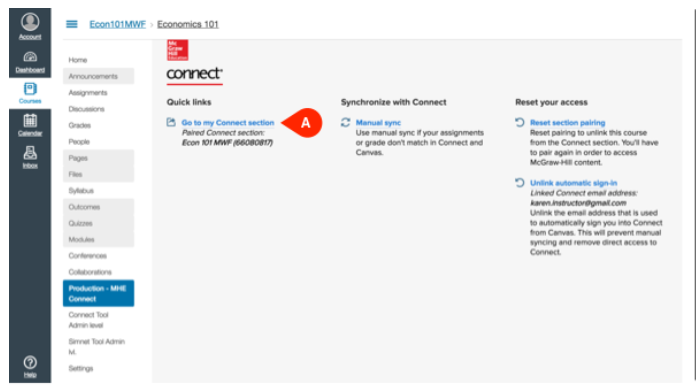
Begin by logging into Canvas and going to the McGraw-Hill page. Then click Go to my Connect section (A).
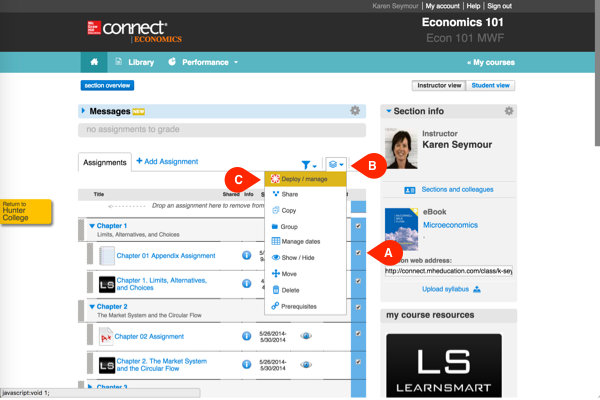
Once you're in your Connect section home, select the assignments you want to deploy by checking the checkbox in the right column (A). Then click the icon that resembles a stack of papers (B) and select Deploy / manage (C).
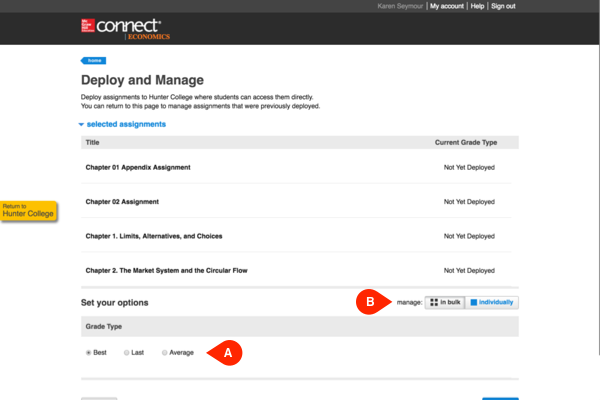
You have the option of setting the option individually for each assignment. (B)
You may need to refresh the page in order to see whether your assignments deployed.
To check that the assignments made it to Canvas, click the Return to... button on the left side of the page (B).
Begin by logging into Canvas and going to the McGraw-Hill page. Then click Go to my Connect section (A).
Set your grade type option (best, last, or average) (A). For assignments with multiple attempts, this setting determines which submission is sent to your Canvas gradebook. For assignments with one attempt, the grade for that one submission is sent.
You have the option of setting the option individually for each assignment. (B)
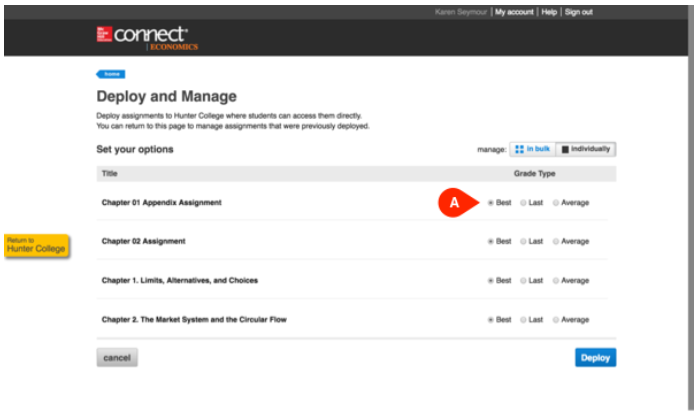
Select the grade type option for each assignment here. (A)
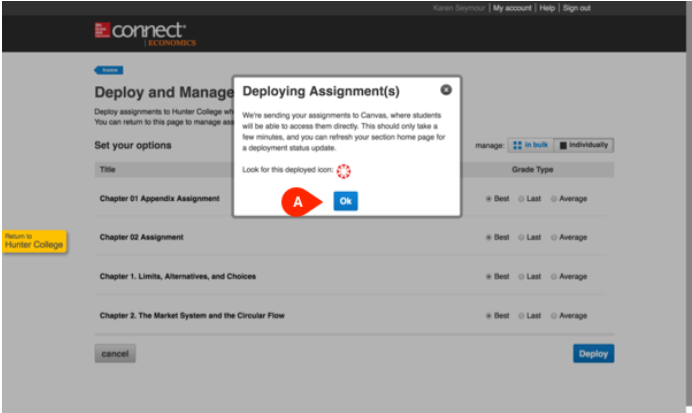
You'll receive a confirmation that your assignments are being deployed. Click Ok (A) to continue.
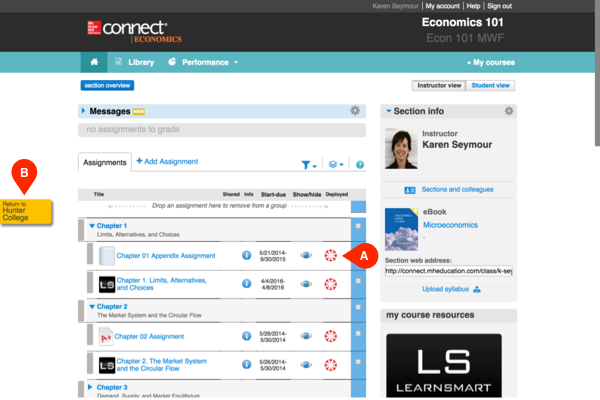
The Canvas icon (A) will appear next to each successfully deployed assignment, indicating that it is accessible in Canvas.
You may need to refresh the page in order to see whether your assignments deployed.
To check that the assignments made it to Canvas, click the Return to... button on the left side of the page (B).
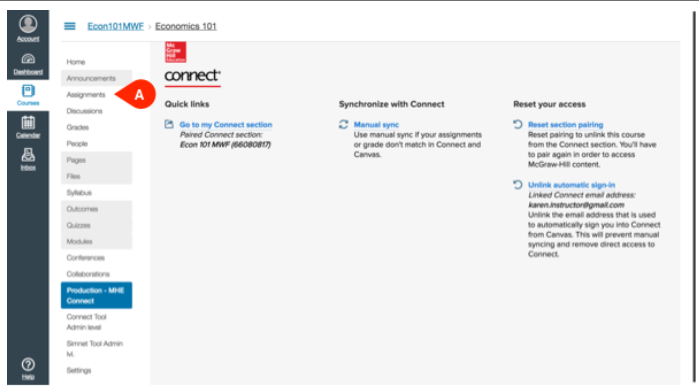
When you return to the McGraw-Hill page in Canvas, select Assignments (A) from the menu.
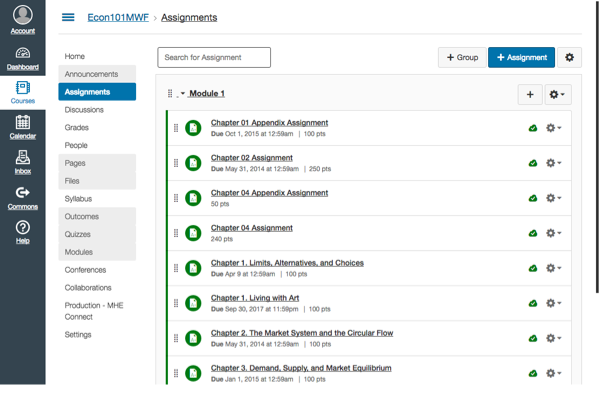
You'll see your list of assignments, which should include those you just deployed from Connect.
