Connect - Creating student performance reports
Learn how instructors create student performance reports in Connect.
Tags
- Higher Education
- Customer Support
- Connect
- Instructor


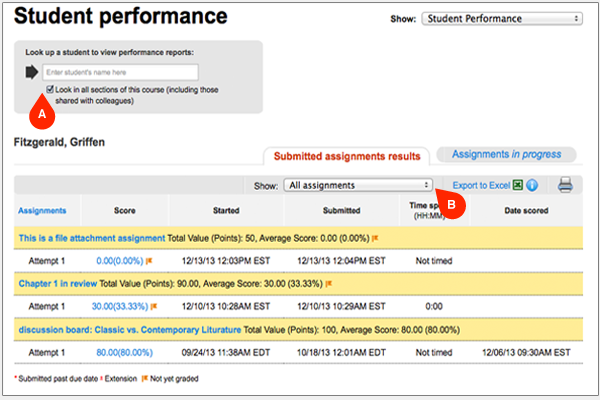
The Student Performance Report displays individual student performance across all assignments. To view a report of a student, type a student’s name in the search text box in the page.
You'll see the matching student names in the current section by default.
If you select look in all sections of this course (including those shared with colleagues) (A), the system searches the student in all sections in this course. Click on the relevant student for whom you want to see the report.
Displayed assignments can be filtered by assignment type using the Show (B) drop-down menu.
If multiple attempts are allowed for an assignment, each attempt is listed with the assignment heading row and includes the score, start date, submission date and the date the assignment was scored. A red asterisk (*) next to a score indicates if a student submitted the assignment past the due date.
You'll see the matching student names in the current section by default.
If you select look in all sections of this course (including those shared with colleagues) (A), the system searches the student in all sections in this course. Click on the relevant student for whom you want to see the report.
Displayed assignments can be filtered by assignment type using the Show (B) drop-down menu.
If multiple attempts are allowed for an assignment, each attempt is listed with the assignment heading row and includes the score, start date, submission date and the date the assignment was scored. A red asterisk (*) next to a score indicates if a student submitted the assignment past the due date.
- Click the assignment name to open a new window containing an assignment preview along with the assignment policies and other base information.
- Click the score to view student performance on the assignment.
- The initial view shows the students assignment correct/incorrect answers.
- The Info tab shows assignment type, due date and when the assignment was submitted.
- The Performance tab provides a performance chart based on different question categories. This scrollable frame contains a Performance Summary graph at the top, followed by question and answer details.