
Connect - Creating assignment statistics reports
Learn how instructors create and interpret assignment statistics reports in Connect to analyze student performance.
Tags
- Higher Education
- Customer Support
- Connect
- Instructor


The Assignment Statistics report provides a set of common assignment report statistics. If multiple attempts were allowed for assignments, statistics for each attempt can be viewed by clicking the assignment name link.
Available report options are:
The Assignment Statistics (C) include:
Click the assignment name to expand the list of attempts for that assignment.
Use the expand all | collapse all links above the assignment column (D) to expand/collapse the assignments listed.
When more than one section is selected, the report contains summary data for each section instead of the detailed data for each attempt shown when only one section is selected.
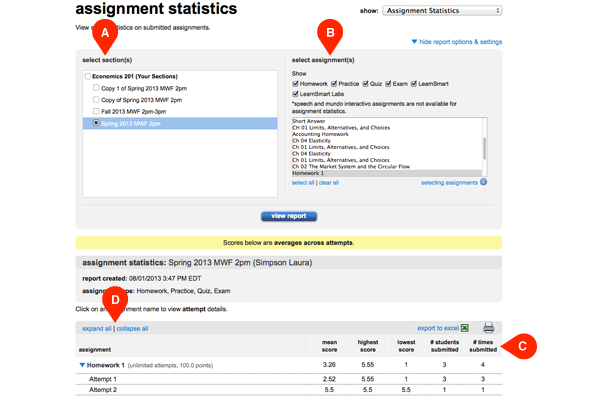
Available report options are:
- Select Section(s) (A) – Allows you to select which sections will be on the report. Choose from the current section, linked sections within the same course and secondary instructor’s linked sections.
- Select Assignment(s) (B) – Allows you to filter the assignment list and select which assignments will be on the report. Filter assignments by type using the checkboxes next to each type of assignment you want to appear in the select assignment(s) list box. You can also select and deselect assignments by using the CTRL key while clicking assignment names in the list box. Convenient select All and clear All links are also available at the bottom of the list box.
The Assignment Statistics (C) include:
- Mean Score – Calculated mean score value from all assignment attempts.
- Highest Score – Highest of all assignment attempt scores.
- Lowest Score – Lowest of all assignment attempt scores
- # Student Submitted – Number of students who accessed the assignment.
- # Times Submitted – Number of times the assignment was accessed.
Click the assignment name to expand the list of attempts for that assignment.
Use the expand all | collapse all links above the assignment column (D) to expand/collapse the assignments listed.
When more than one section is selected, the report contains summary data for each section instead of the detailed data for each attempt shown when only one section is selected.