
Connect - Creating Assignment Results Report
Learn how to generate assignment results reports in Connect for detailed performance analysis.
- Higher Education
- Customer Support
- Connect
- Instructor


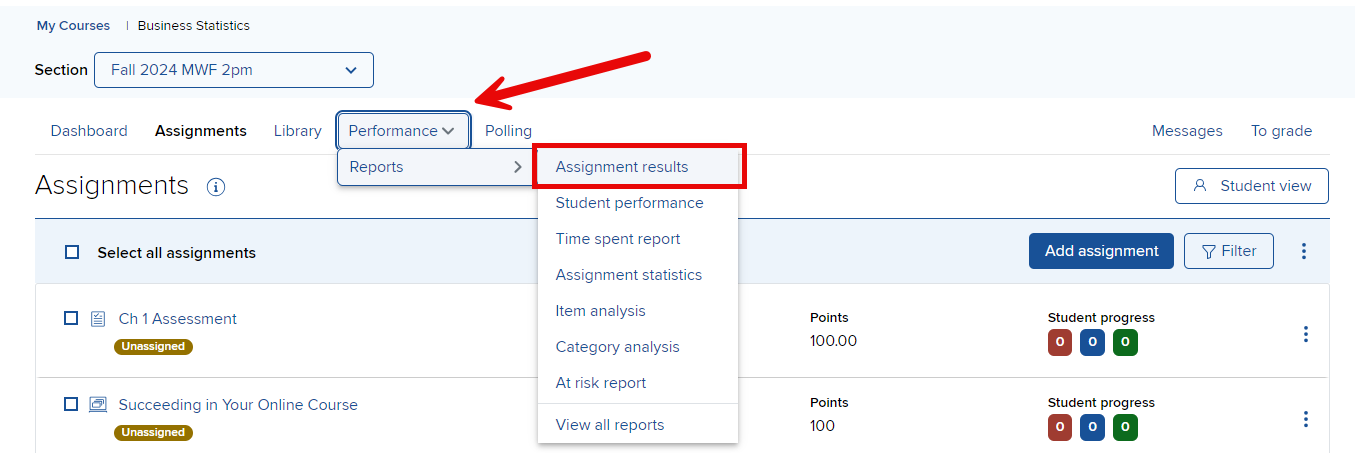
In your Course-Section home page, click Assignment results from the Performance > Reports drop down list.
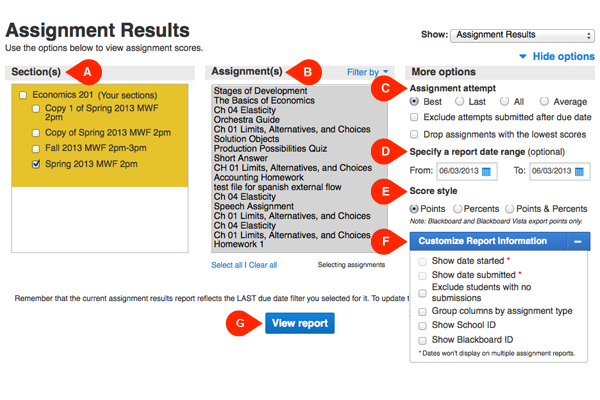
There are a variety of options from which you can choose to customize the report to best fit your needs.
Select Section(s) (A) – Select which sections of your course will be on the report. Choose from the current section, sections within the same course, and secondary instructor’s shared sections (if applicable).
Select Assignment(s) (B) – Select which assignments will be on the report. You can filter assignments by type and select or deselect multiple assignments by using the CTRL or Command keys while clicking assignment names.
Select Attempt (C) – Specify how the student assignment score is calculated and displayed when your students are allowed multiple attempts for an assignment:
Specify Report Date Range (D) – Specify an optional date range for the report. Select a From and To date using the calendar icon. Note: if you don’t see any scores when you click “view report” ensure the date range is wide enough to encompass the assignments you wish to view or the entire term.
Score style (E) – Choose whether you want to view scores as points or percents, or both.
Customize Report Information (F) – Refine your report further with a variety of options.
View report (G) when you're ready to move on.
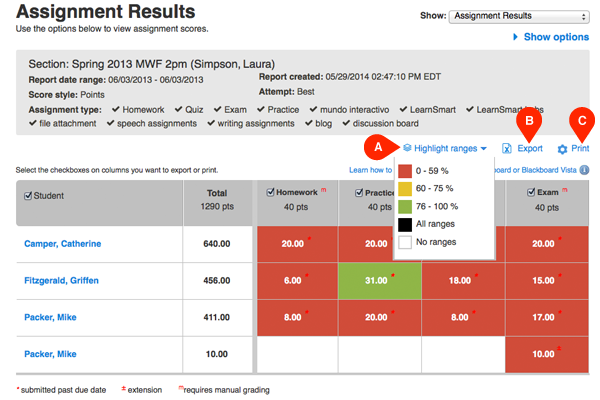
The assignment results report will display with a list of your students in the first column and a subsequent column for each assignment with corresponding student scores.
Customize or turn off optional grade range highlights in the highlights menu (A).
Export (B) or Print (C) the report.
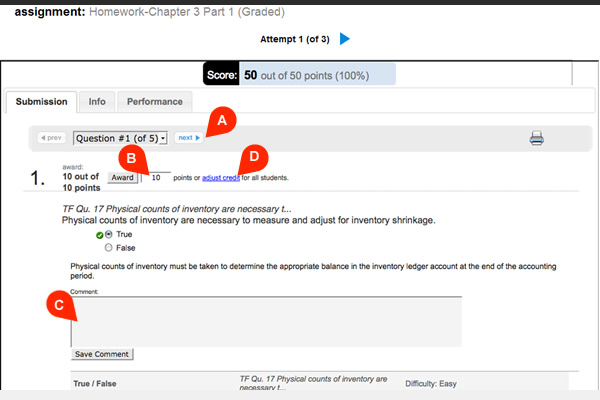
Click in a score allows you to view the questions received, the student’s responses, and the correct answers.
The student performance report opens, enabling you to navigate through an individual student’s assignment (A), adjust the points received for a question (B), and/or leave comments for the student (C).
Note: The ability to adjust credit (D) is also available to disqualify a question from an assignment and automatically adjust assignment scores for all students.
Tip: You can also drill-down to an individual student’s assignment directly via the student performance report option under the reports tab.
Best Practices:
The assignment results report is the default report, providing access to an aggregate of student scores on the assignments you’ve created. Assignment results provides a list of all students, in one or more sections of your course, and their corresponding scores on all or selected assignments. The assignment results report can be exported to excel for further management outside of Connect.
