
Connect - Copy Your Canvas Course For the Next Term
Learn how instructors copy a Canvas course with Connect content for a new academic term.
Tags
- Higher Education
- Customer Support
- Connect
- Instructor


Here you'll learn about copying a course in your LMS (Learning Management System such as Canvas or Brightspace), pairing it to a new Connect section and syncing the resulting assignments.
Begin by making a copy of your LMS course. Then create a new Connect section. This Connect section can be created from scratch, copied or shared to you, or duplicated from an existing section. Review assignments in both courses and ensure that they have the same exact titles. Finally, pair your copied course and your Connect section.
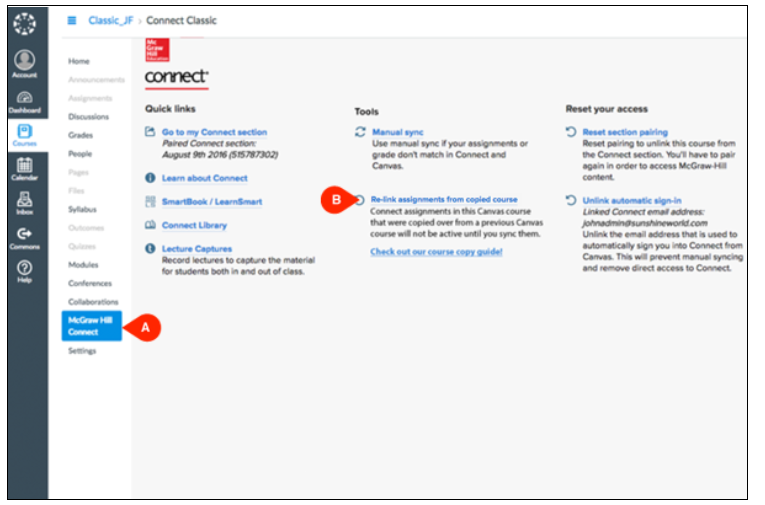
In your LMS, find the McGraw-Hill Connect homepage (A) and the link titled Re-link assignments from copied course (B). This link will sync assignments between your copied LMS course and its paired Connect section as long as the assignments have the same title.
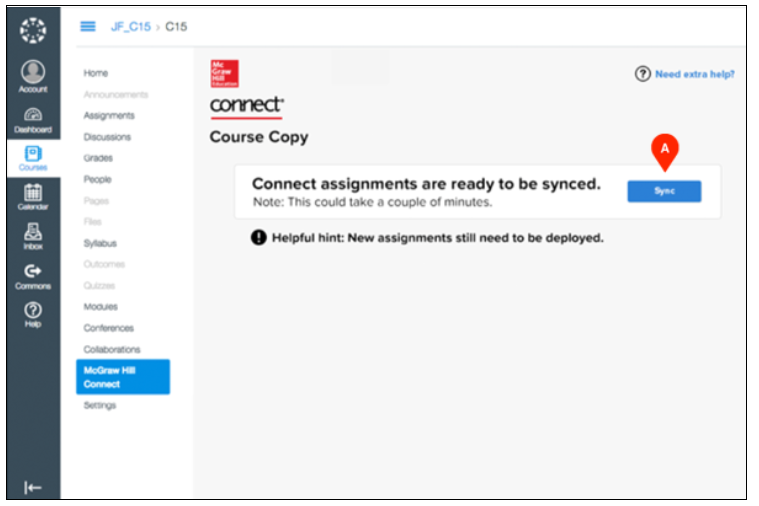
Once you click the link in the previous step, you'll be prompted once more to sync assignments. Click Sync (A) to finalize the syncing process. Any assignments in the Connect section that do not have corresponding counterparts (matching titles) in the copied LMS section will not sync and must be deployed.
Remember that it could take several minutes for the sync to complete.
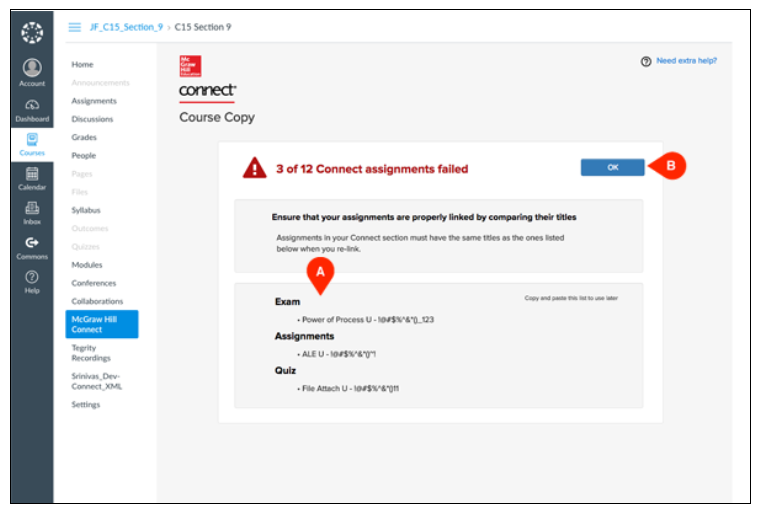
If after syncing assignments you receive this error message, some or all of your assignments did not sync because their titles did not match in the copied LMS course and paired Connect section. Please note that the title matching is case sensitive.
Make sure to note or copy and paste the list of assignments that did not sync (A) before clicking OK (B). Once you click OK you'll be removed from this page and returned to the McGraw-Hill Connect homepage in your LMS, where you will be able to repeat the sync process. Do not repeat the sync process until you have reviewed assignments in your copied LMS course and paired Connect section and ensured that they have the same exact titles.
Best Practices:
Related Topics
Begin by making a copy of your LMS course. Then create a new Connect section. This Connect section can be created from scratch, copied or shared to you, or duplicated from an existing section. Review assignments in both courses and ensure that they have the same exact titles. Finally, pair your copied course and your Connect section.
In your LMS, find the McGraw-Hill Connect homepage (A) and the link titled Re-link assignments from copied course (B). This link will sync assignments between your copied LMS course and its paired Connect section as long as the assignments have the same title.
Once you click the link in the previous step, you'll be prompted once more to sync assignments. Click Sync (A) to finalize the syncing process. Any assignments in the Connect section that do not have corresponding counterparts (matching titles) in the copied LMS section will not sync and must be deployed.
Remember that it could take several minutes for the sync to complete.
If after syncing assignments you receive this error message, some or all of your assignments did not sync because their titles did not match in the copied LMS course and paired Connect section. Please note that the title matching is case sensitive.
Make sure to note or copy and paste the list of assignments that did not sync (A) before clicking OK (B). Once you click OK you'll be removed from this page and returned to the McGraw-Hill Connect homepage in your LMS, where you will be able to repeat the sync process. Do not repeat the sync process until you have reviewed assignments in your copied LMS course and paired Connect section and ensured that they have the same exact titles.
Best Practices:
- Any changes you make to Connect assignments in the copied Connect section will not be accounted for until after you sync, even if you have paired.
- All new Connect assignments created in the copied Connect section still have to be deployed.
- Make sure that your parent (original) Canvas course and Connect section remain paired.
- Visit the following links for help copying courses in Canvas:
Related Topics
