
Connect - Copy your Brightspace course for the next term
Copy a Brightspace course and reuse Connect content for a new term.
- Higher Education
- Customer Support
- Connect
- Instructor


Here you’ll learn how to copy a course in your LMS (Learning Management System, such as Canvas or Brightspace), pair it to a new Connect section, and sync the resulting assignments.
Step 1a
Begin by making a copy of your LMS course with the existing Connect assignments.
Step 1b
Create a new Connect section by copying, sharing, or duplicating an existing section.
Step 1c
Change the assignment dates in your new Connect section as needed. The assignment dates in Canvas will automatically be updated with the Connect assignment dates when the sync process is completed.
Step 1d
Pair your copied LMS course and your new Connect section.
Step 1e
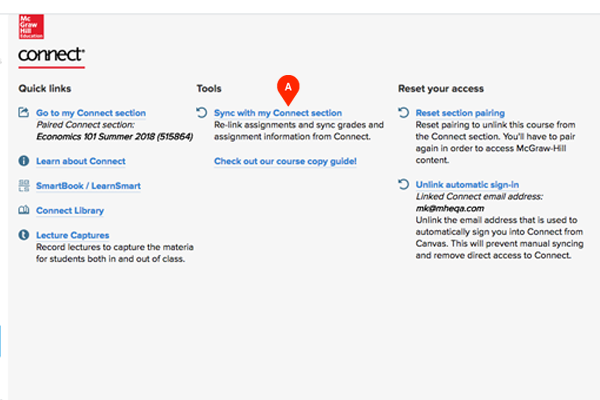
In your LMS course, find the McGraw-Hill Connect link and click on Sync with my Connect section (A). This will sync assignments between your copied LMS course and the paired Connect section as long as the assignments have the same title.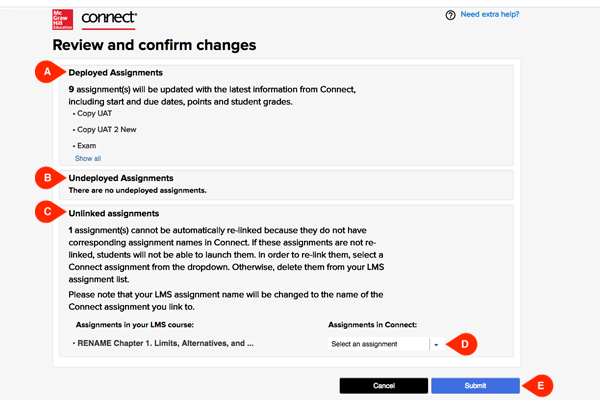
-
Here you’ll review and confirm the assignments you’re syncing.
Step 2a
If you manually deployed any assignments, they will appear under the Deployed section (A).
Step 2b
If you did not deploy assignments, they will be automatically deployed for you as a result of this sync. Those assignments will appear under the Undeployed section (B).
Step 2c
Assignments that have experienced a title change in either the LMS course or the Connect section cannot be synced automatically and will appear under the Unlinked section (C). You can either manually select an assignment to sync to (D) or delete these assignments from your LMS course.
Step 2d
Click Submit (E) when you’re ready to sync.
-
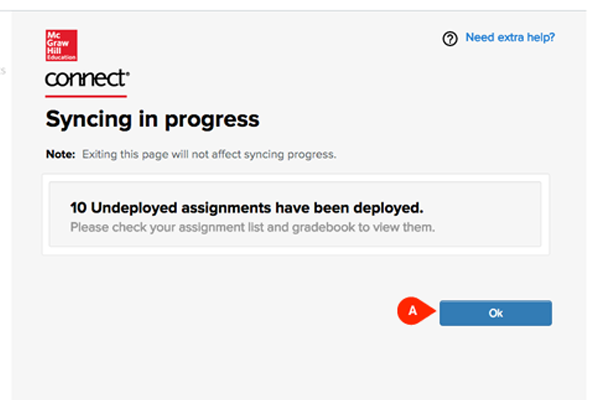
Your assignments have been synced! Click OK (A) to return to the McGraw-Hill dashboard within your LMS course.
