
Connect Canvas Migration Tool
Review the PRoPL security policy outlining data protection, privacy, and platform safeguards.
- Higher Ed Student
- Higher Education
- Customer Support
- Connect
- Instructor


Connect Canvas Migration Overview
Our Canvas LMS Migration Tool streamlines the transition of Connect's LTI 1.1 assignment links to the advanced LTI 1.3 standard. Designed for efficiency and reliability, the tool ensures seamless migration with minimal disruption to instructors and students. By upgrading to LTI 1.3, users gain enhanced security, improved integration capabilities, and access to the latest features that foster a more intuitive and connected learning experience.
The migration process
Here are a few paths, depending on how your course is set up with LTI 1.1, for how the migration will proceed
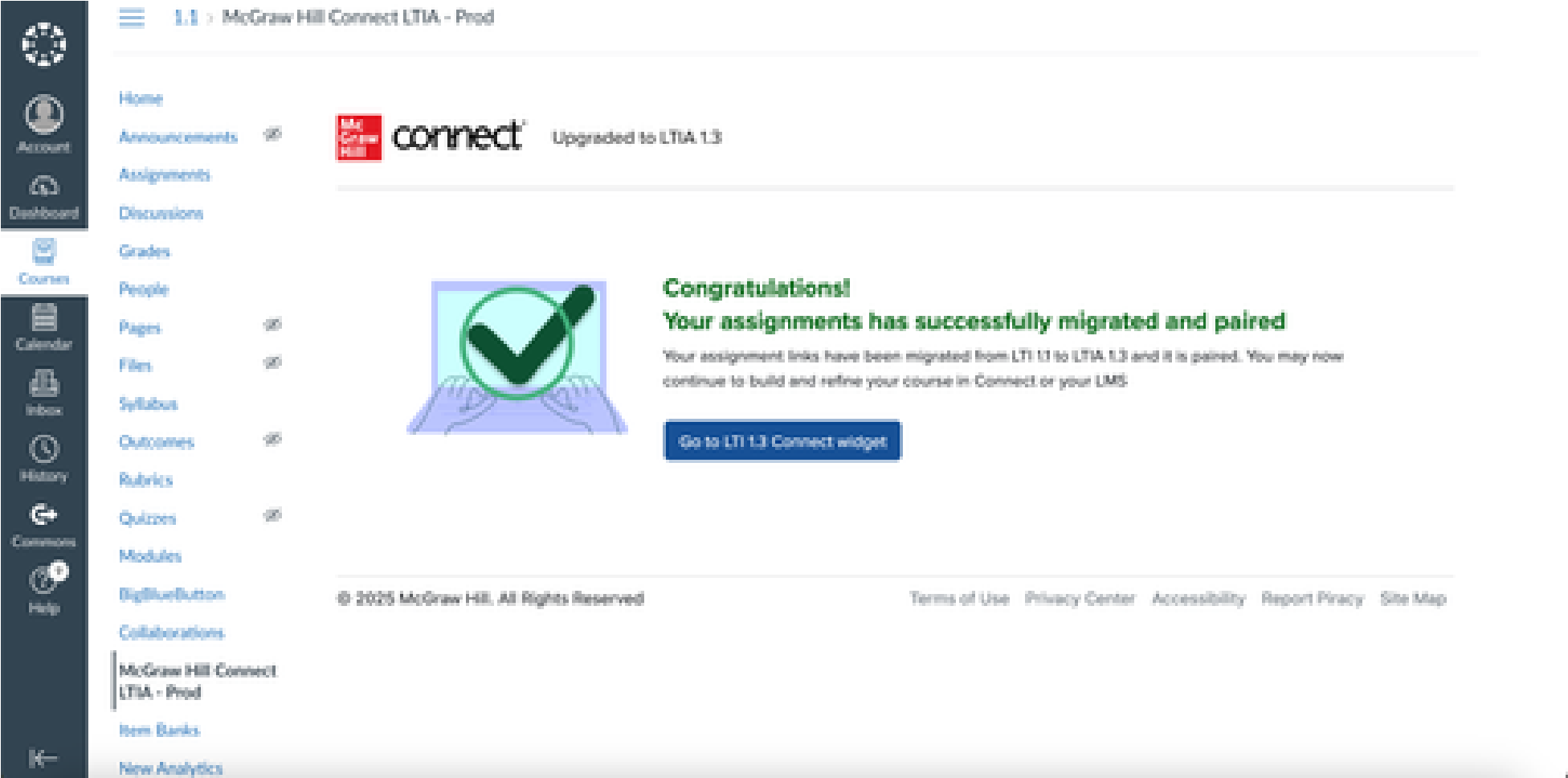
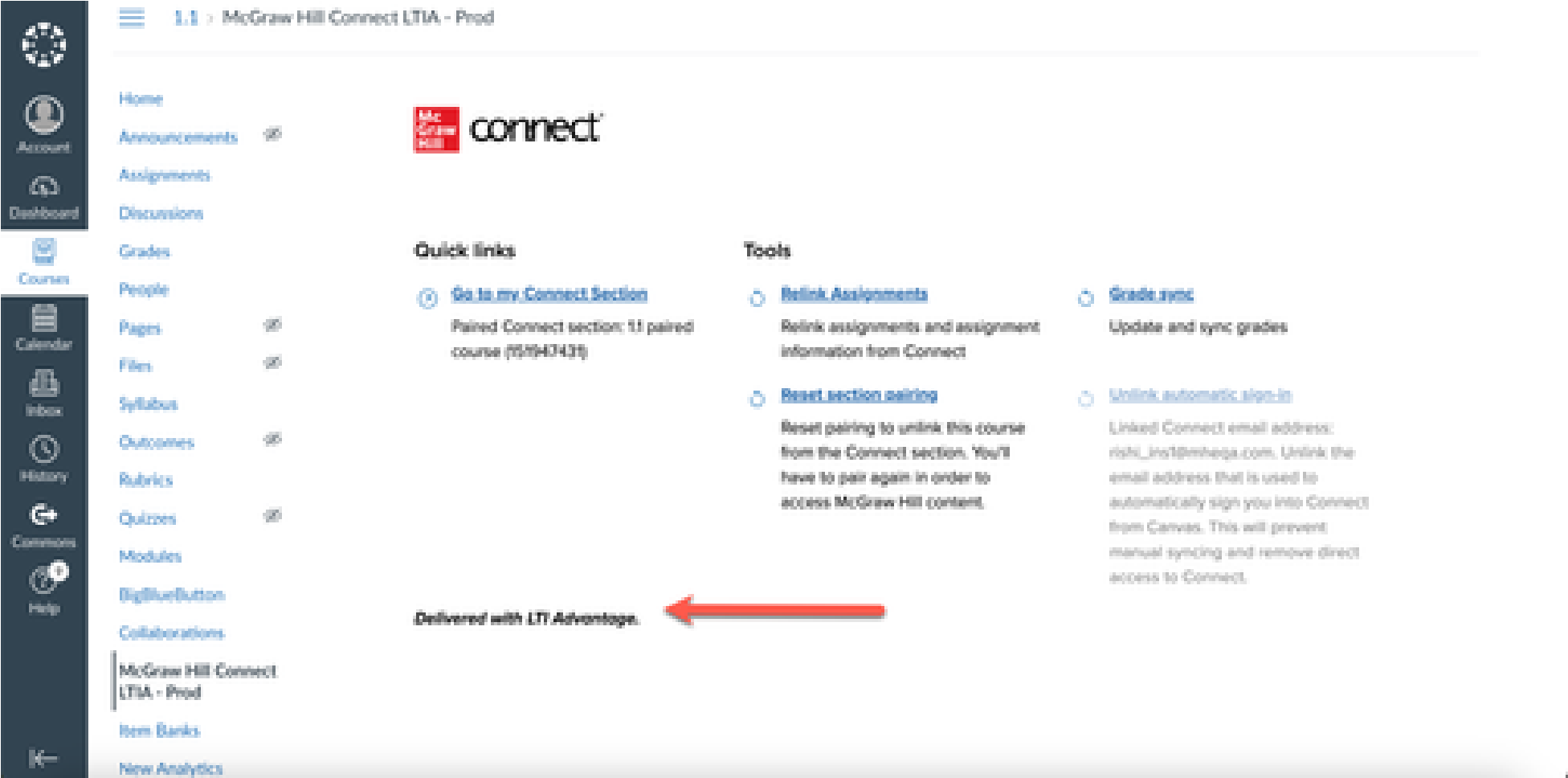
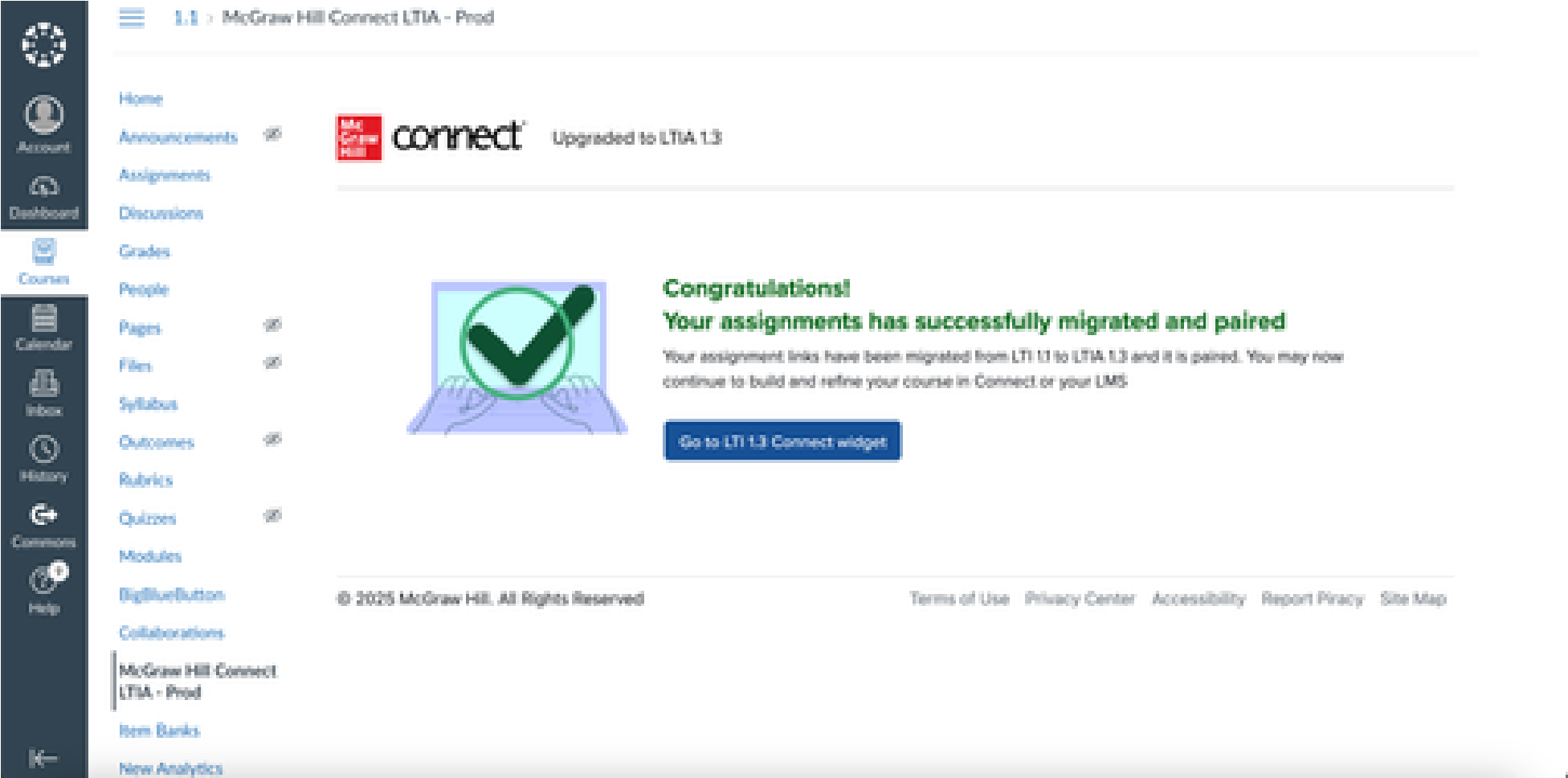
- If your LMS course is paired and has LTI 1.1 assignment links, it will be migrated to LTI 1.3; therefore, you do not need to unpair your 1.1 LMS course. The migration tool will automatically unpair it after successfully migrating your course.
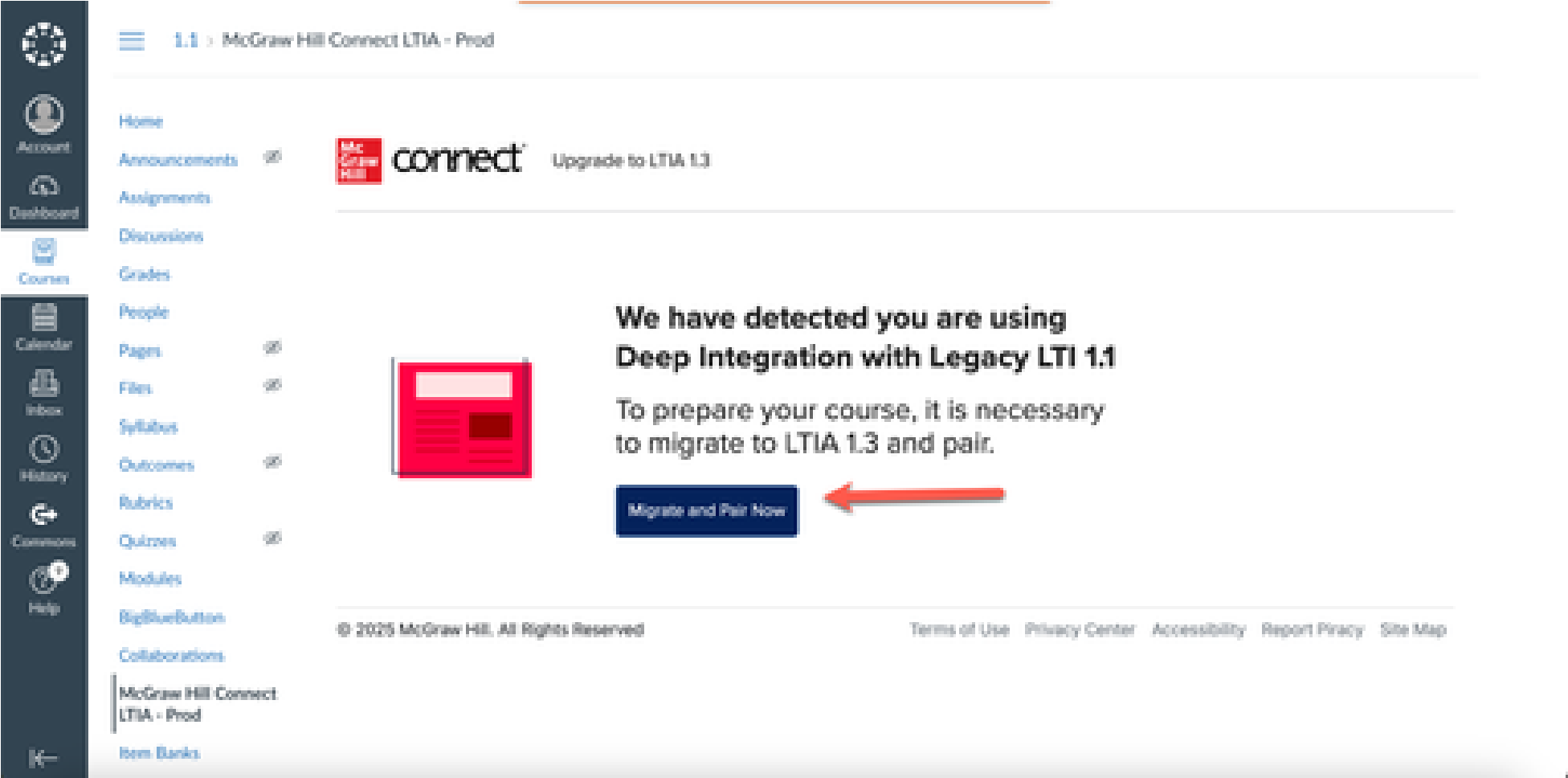
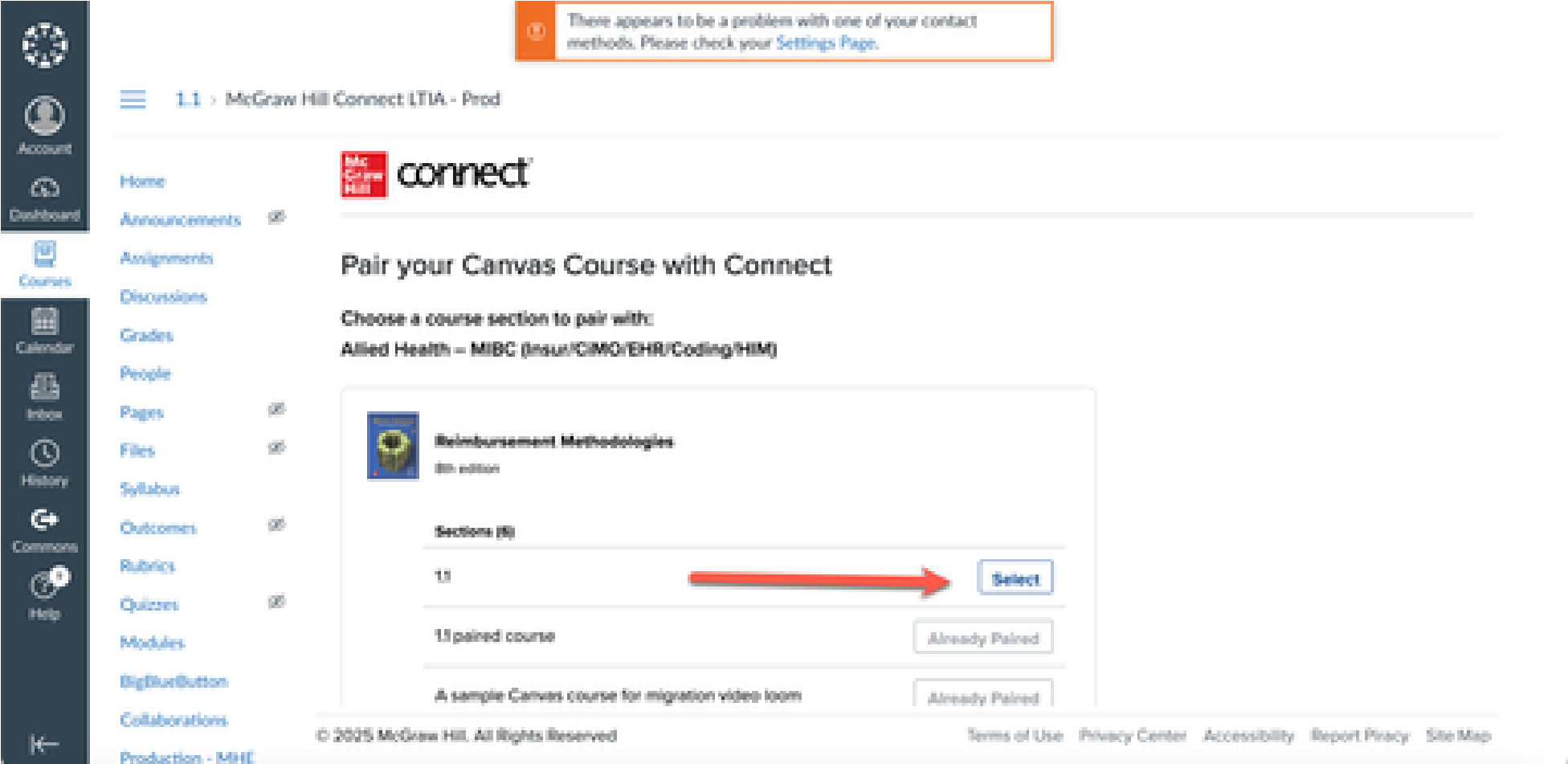
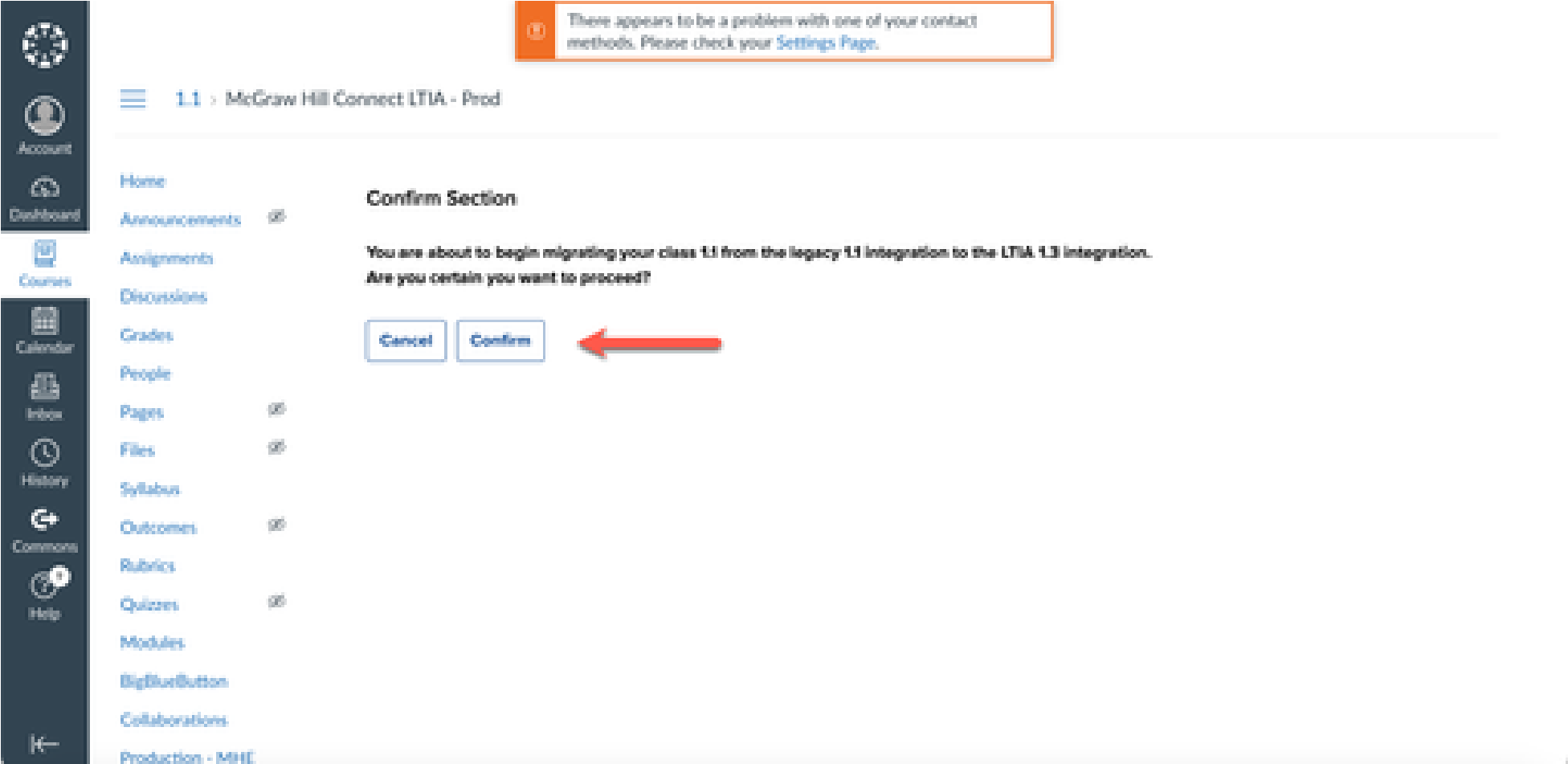
- If your LMS course is not paired but has LTI 1.1 assignment links, the migration tool will ask you to select a Connect section to pair and migrate to LTI 1.3. Once a Connect section is selected, the migration process will look similar.
- If your LMS course is paired, has LTI 1.1 assignment links, and contains student activity (at least one student has started an assignment), then the migration workflow will not be initiated, as we do not want to migrate an active course. The workaround here is to unpair your 1.1 course and then pair it using LTI 1.3. When pairing, the migration tool will be initiated.
Important note about post-migration
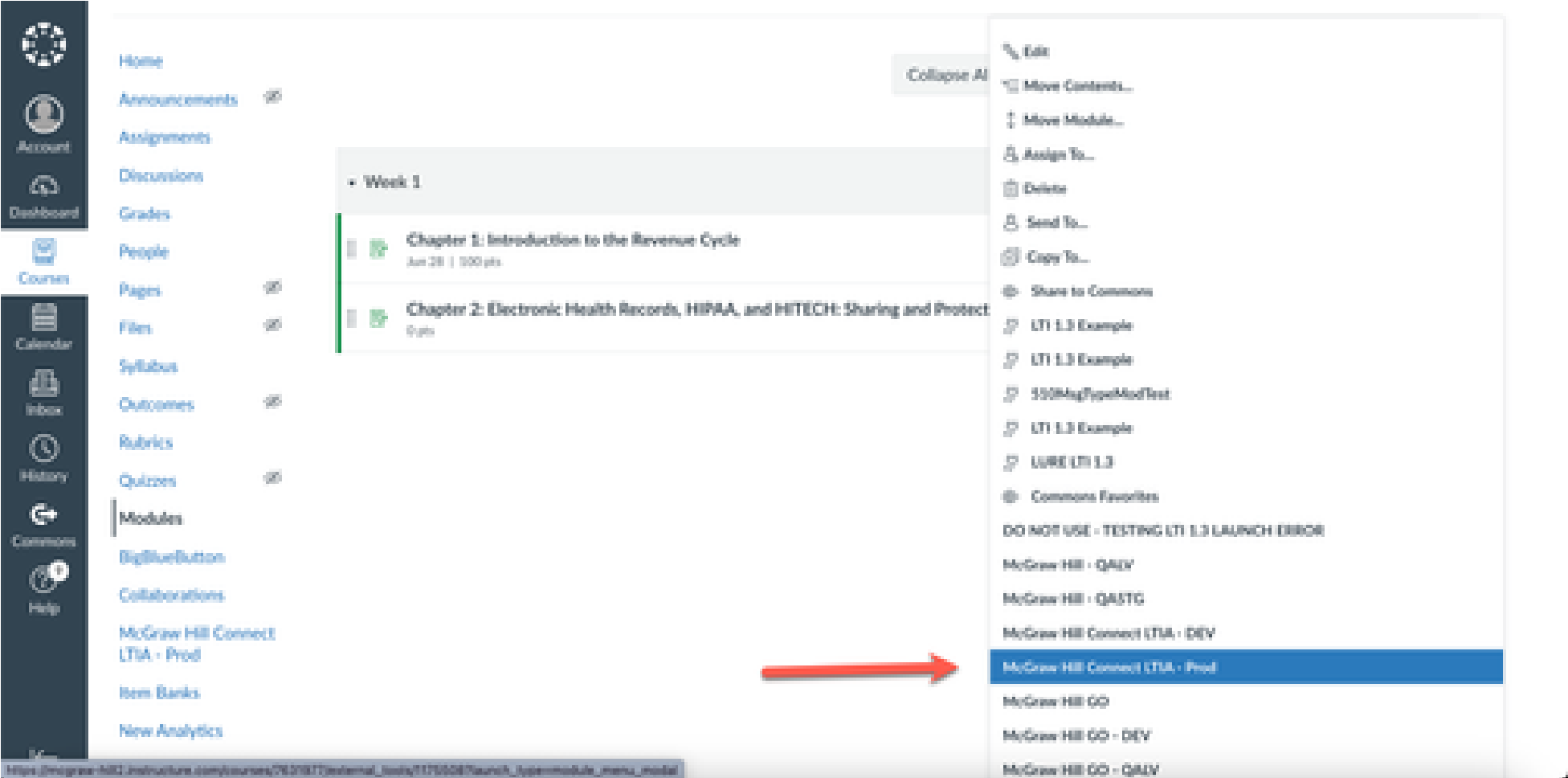
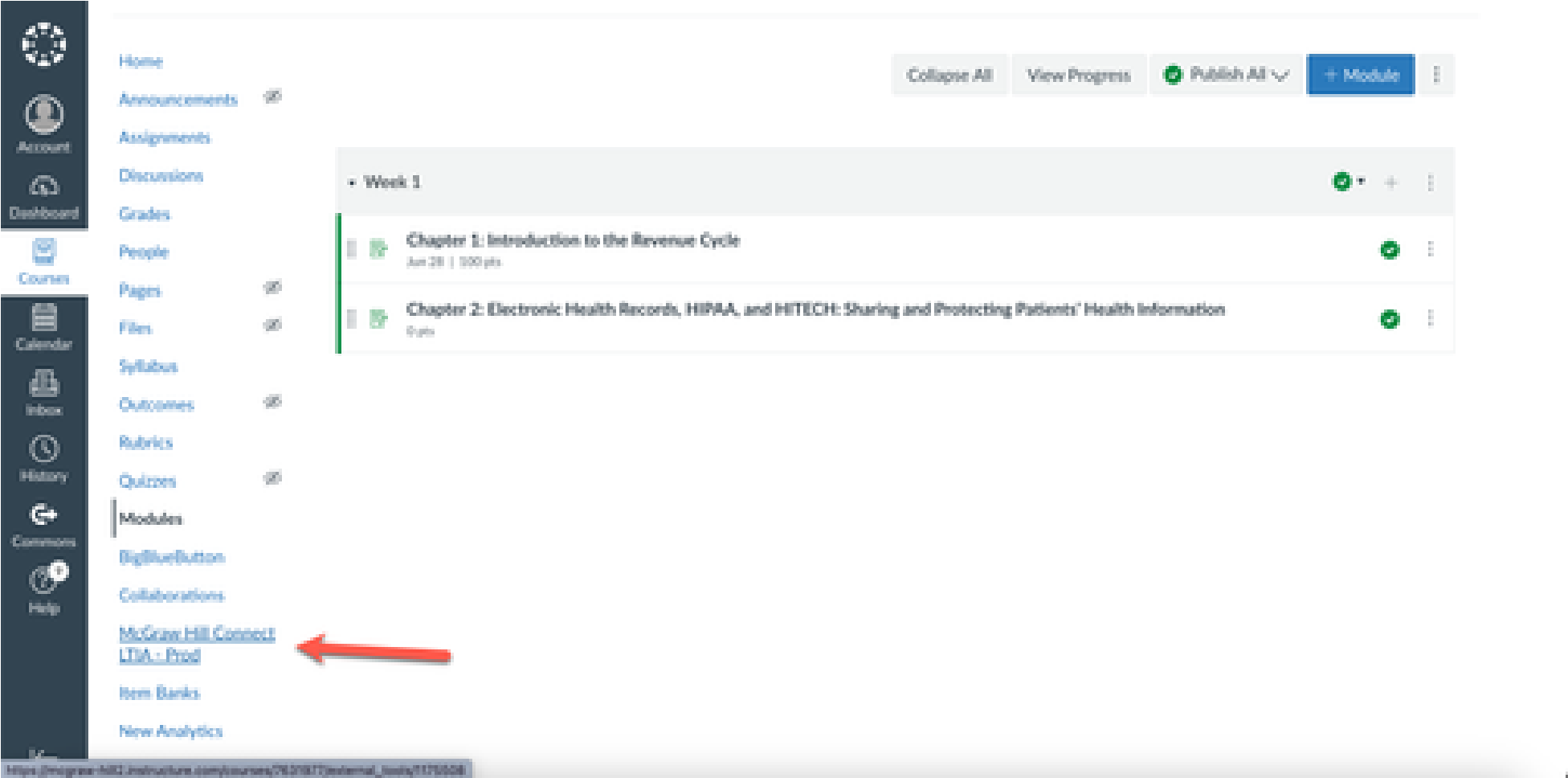
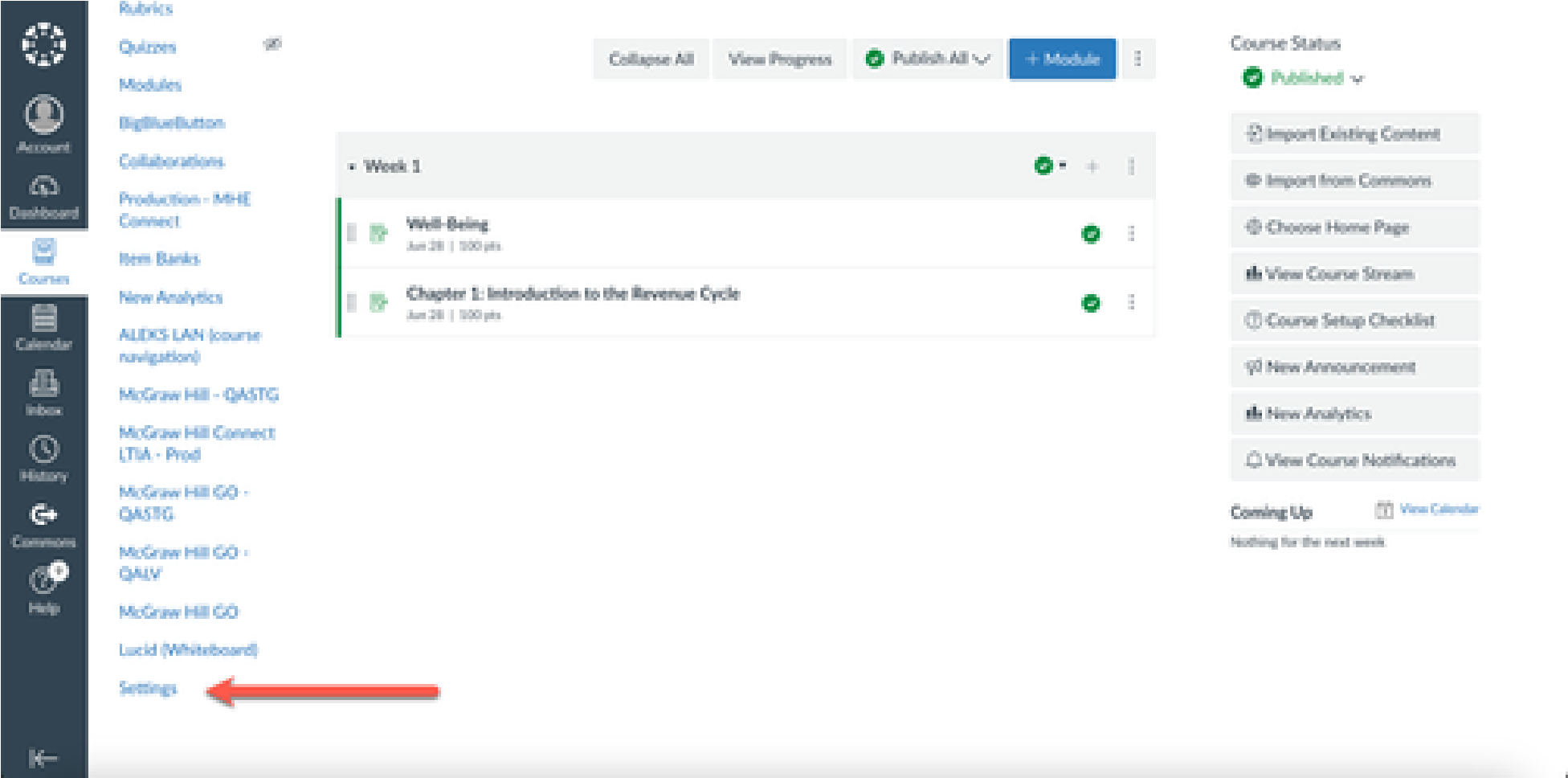
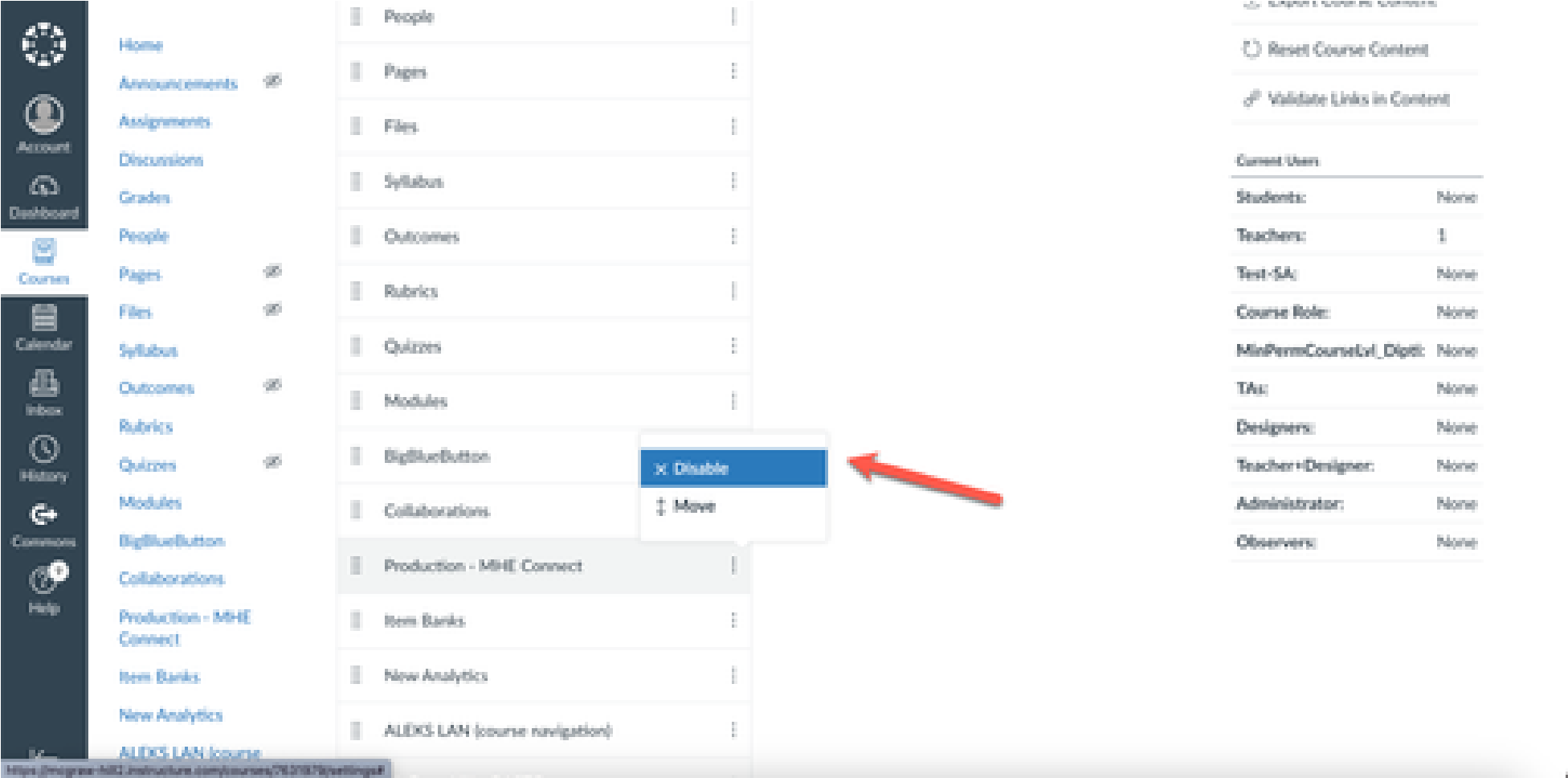
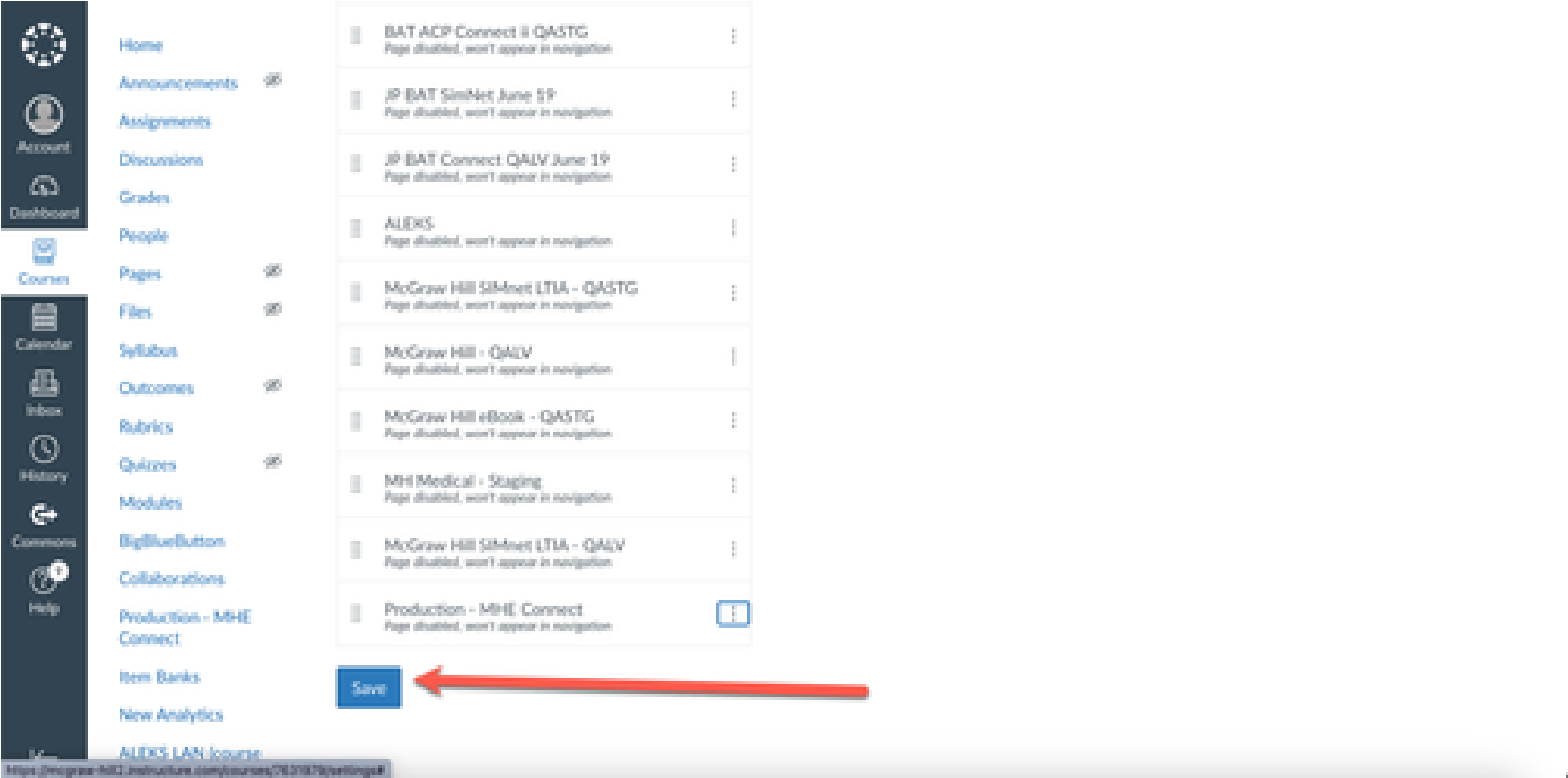
Once your LMS course has successfully migrated from LTI 1.1 to LTI 1.3, we recommend that you or your LMS admin disable the McGraw Hill Connect 1.1 tool in your LMS course. You can do this by navigating to your course settings, selecting the Navigation tab, locating the Connect 1.1 tool, disabling it, and then clicking Save. We have also provided screenshots in a later section of this guide to illustrate this process.
Migrating an LTI 1.1 paired course
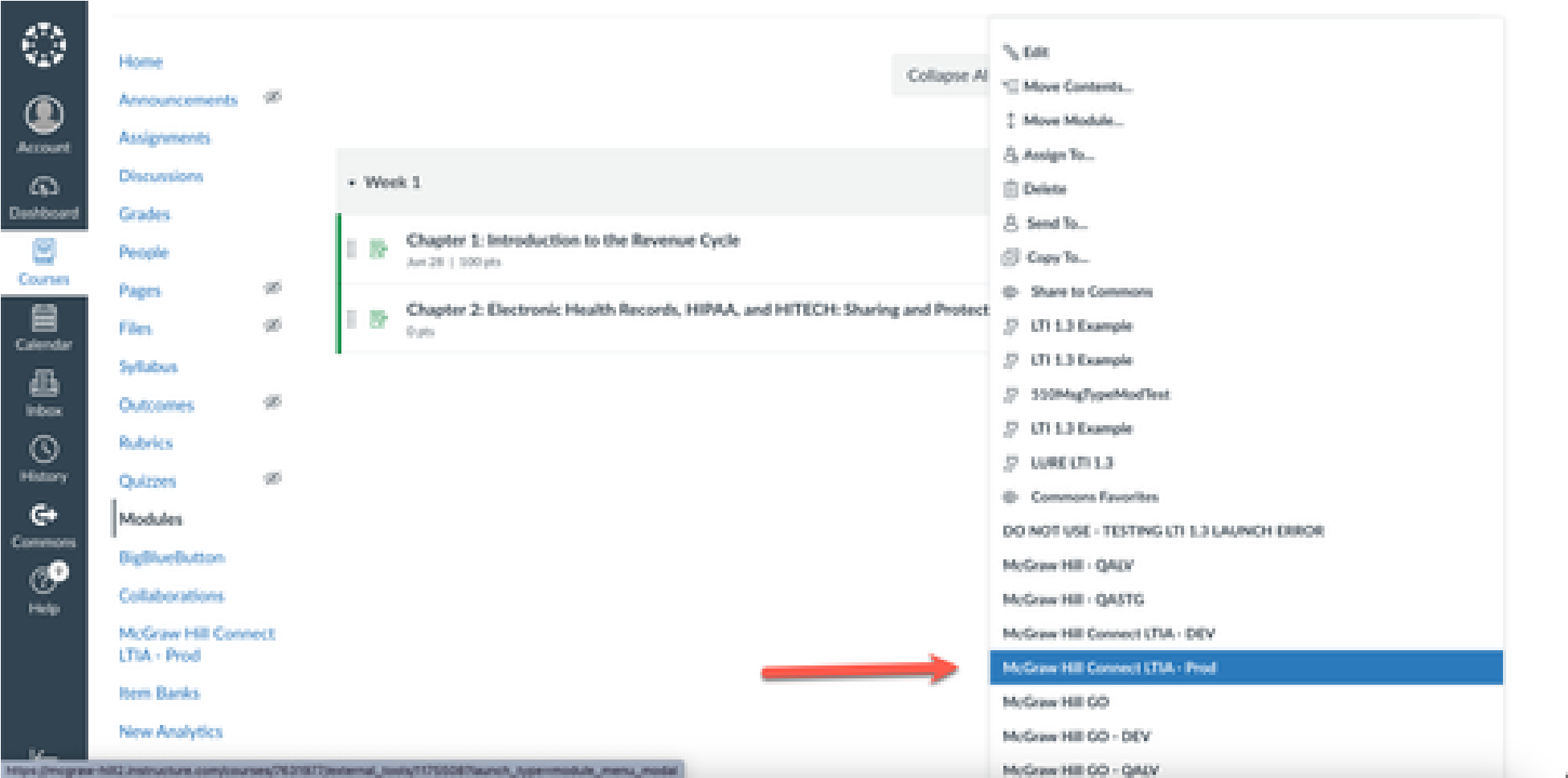
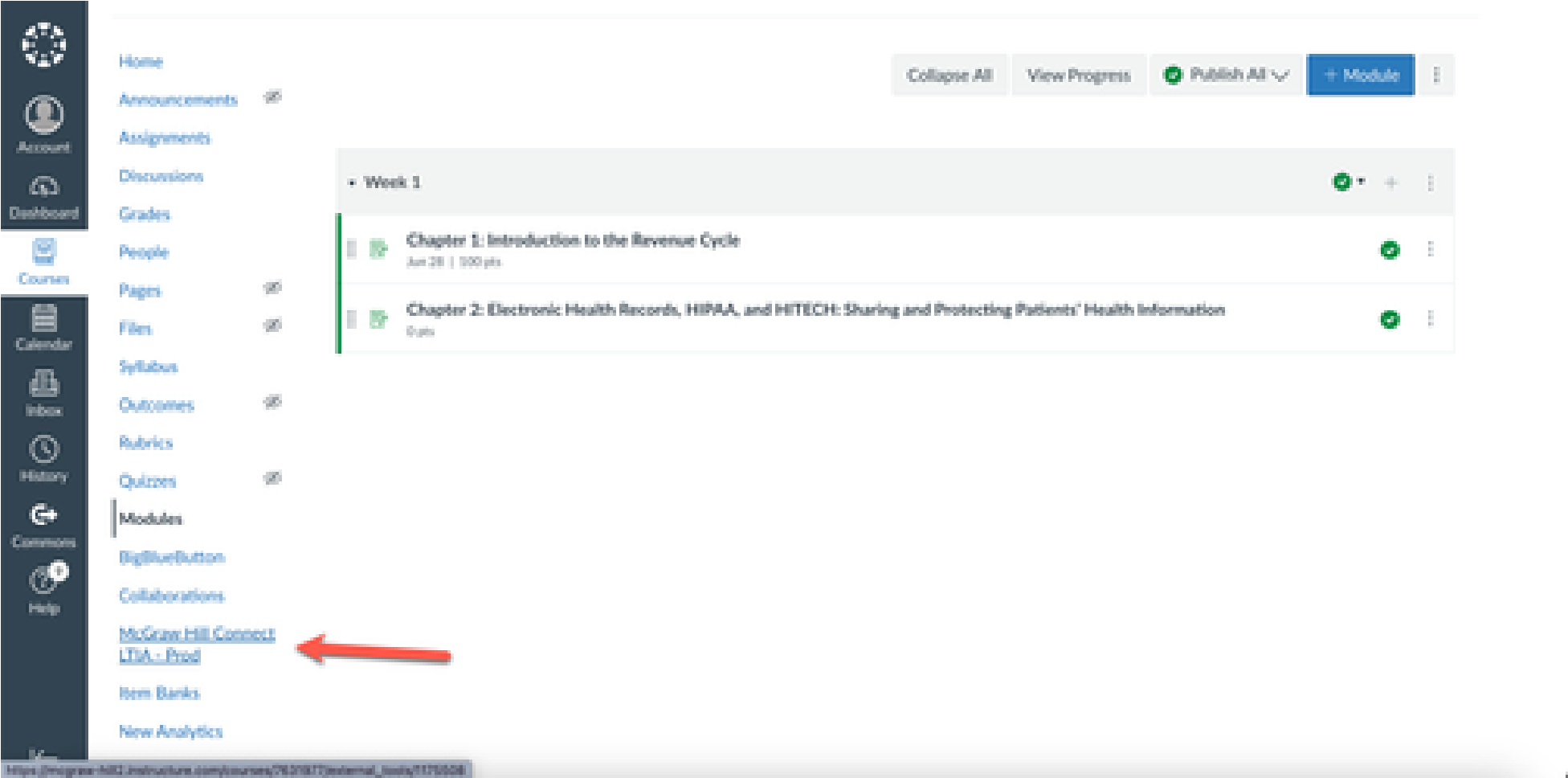
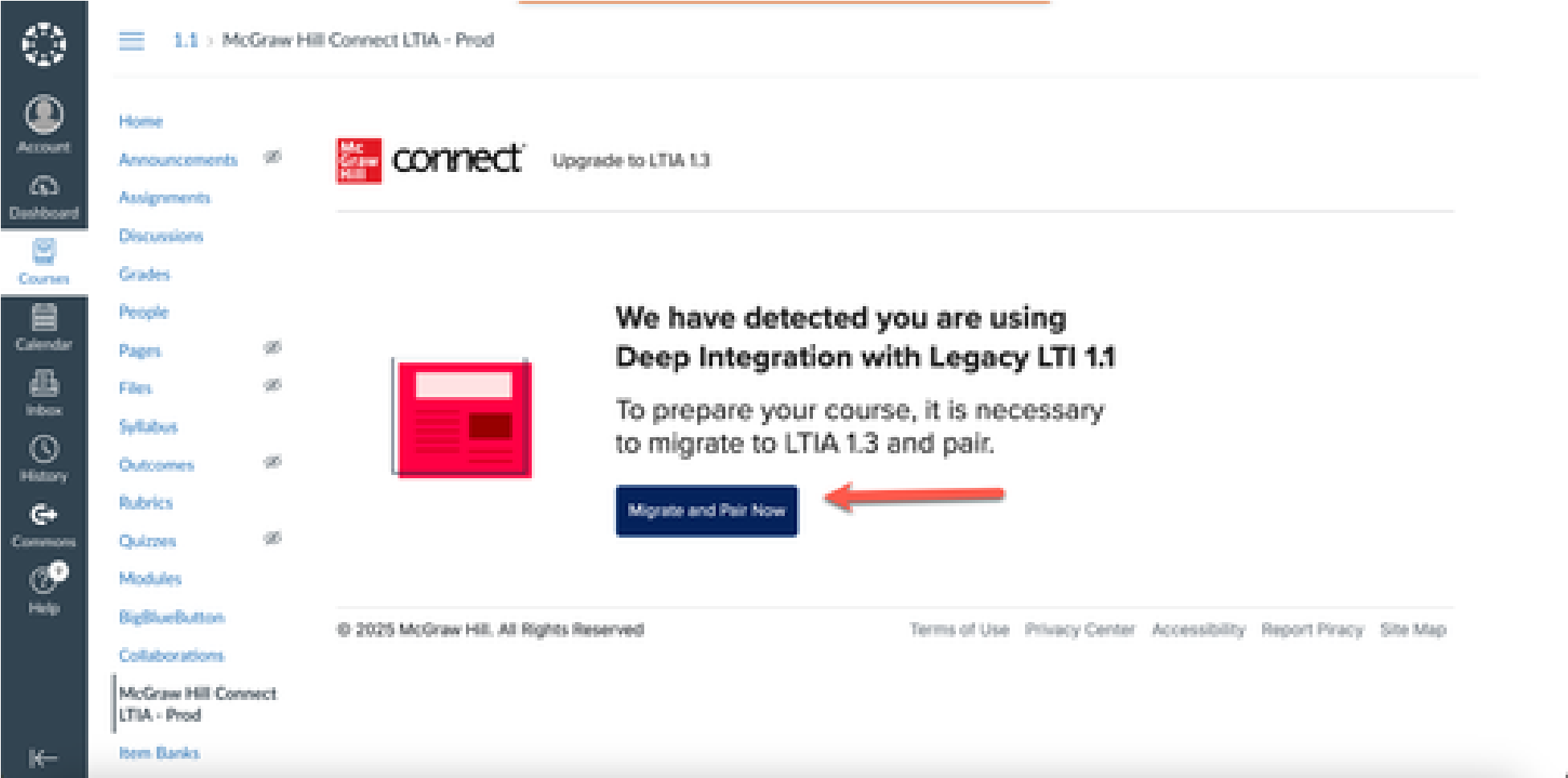
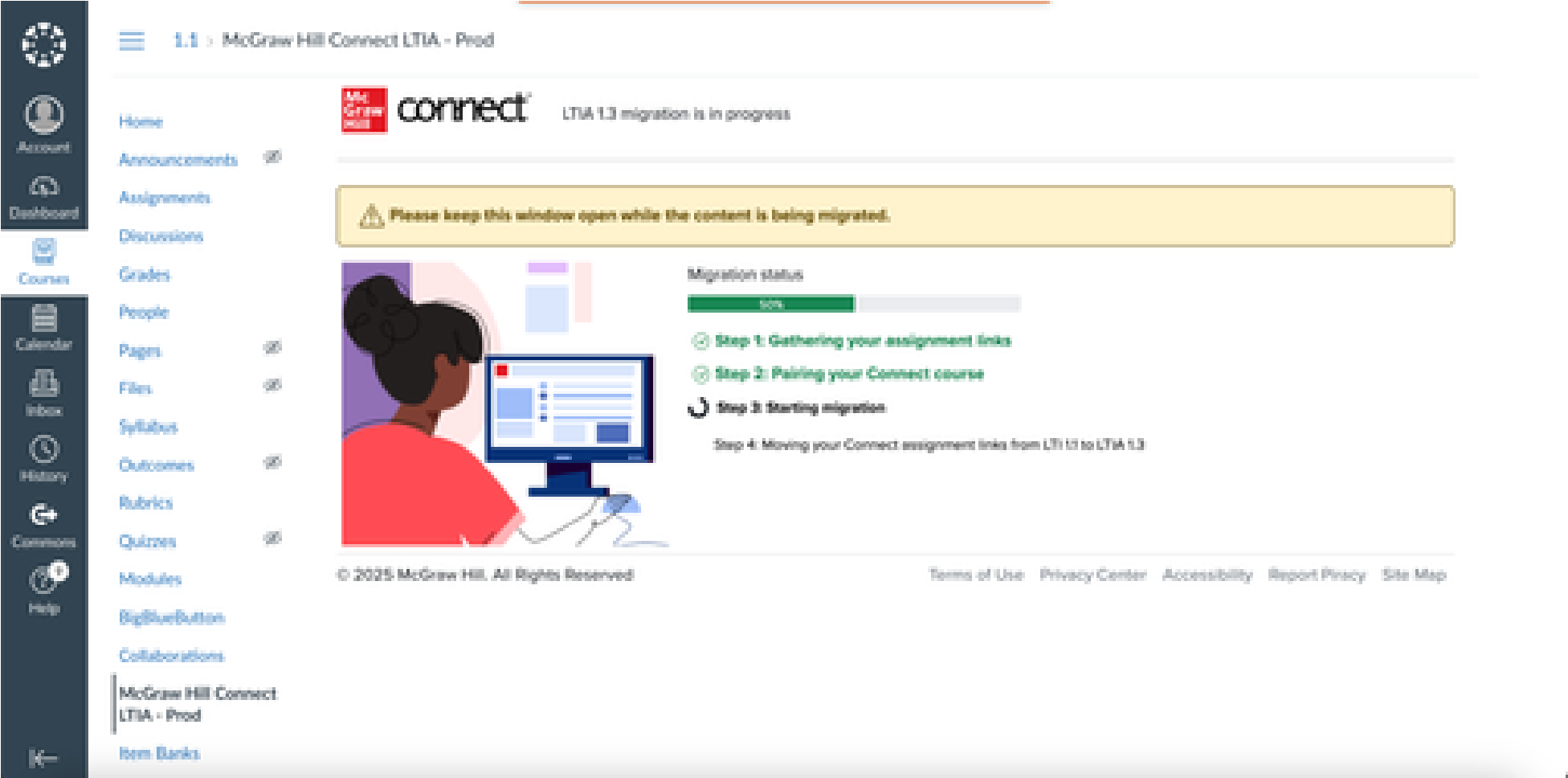
Migrating an LTI 1.1 course that is not paired
IMPORTANT: Before proceeding to the next step, make sure to copy your Connect section.
Disable LTI 1.1 tool post migration
Once migration is completed in your LMS course, please disable the 1.1 tool so that you do not get confused between the 2 LTI tools. If you do not have permission to disable the tool, then please contact your Canvas Admin.
Video Overview
Watch a walkthrough of the migration process.
FAQs
What if an error occurs during the migration?
Please get in touch with our support group https://mh.my.site.com/CXG/s/ContactUs
What if I closed the migration modal?
Please restart the migration by opening the LTIA tool. Depending on which step you closed the modal, it might result in an error upon restart. If that happens, please get in touch with our support group https://mh.my.site.com/CXG/s/ContactUs
What if I use Canvas pages?
'Pages' in Canvas enable users to create formatted HTML pages that allow them to insert text, images, and links from other locations within Canvas. An assignment link on these pages serves as a reference to the specific assignment. After migration, this link must be updated manually to reflect the 1.3 version link.
Note: After migration, if the instructor uses the course, copies it, and relinks it, the page link will automatically direct to the 1.3 copied link (there is no need to replace it).
What if there is a student activity in my course, but the LTI 1.1 tool is no longer available?
If you remove the LTI 1.1 tool, you will encounter an authentication error when attempting to launch any 1.1 assignments or tools. Please contact our support team at
https://mh.my.site.com/CXG/s/ContactUs so we can fully unpair your LTI 1.1 course, allowing you to initiate the migration by opening the LTIA tool.
What if the migration was never initiated?
There are a few reasons for this. Your class has a student activity, so the migration did not start because we do not want to migrate courses with a student activity. Your class does not have any LTI 1.1 assignment links necessary to initiate migration. Additionally, your Canvas instance was not set up for migration. If you were expecting migration to begin but it did not, please get in touch with our support group https://mh.my.site.com/CXG/s/ContactUs
What about the available until date?
If the due date for your Canvas Connect assignments is after the due date for the Connect assignments, the migration will fail because Canvas does not permit assignments with conflicting due dates to be migrated. Please adjust your Canvas or Connect due dates and then restart the migration.
Who can migrate the courses?
An instructor or administrator impersonating the instructor can migrate.
What if my course has concluded?
Canvas will not allow migration of courses that have been concluded.
My Connect assignments are hidden?
We cannot migrate hidden Connect assignments. The migration will proceed for any assignments that are visible in Connect. To migrate the hidden ones after the initial migration, unhide them in Connect, then use the Relink tool (https://mh.my.site.com/CXG/s/article/Deployed-AssignmentDisplays-Refresh-Icon-in-LTI-Advantage) to migrate and relink them.
My Connect assignments are unassigned?
We cannot migrate Connect assignments that are unassigned. The migration will proceed for any assignments that are assigned in Connect. To migrate the unassigned ones after the initial migration, assign them in Connect, then use the Relink tool
(https://mh.my.site.com/CXG/s/article/Deployed-Assignment-Displays-Refresh-Icon-in-LTIAdvantage) to migrate and relink them.
What if the names of my Connect and LMS assignments do not match?
We migrate the assignments based on their names; therefore, if the names between the LMS and Connect don't match, those assignments will not migrate. The migration will not fail; however, you will need to delete the assignments from the LMS and redeploy them after the migration.
Why did some of my assignments not migrate?
There are a few reasons why assignments fail to migrate
- Your LMS assignment name and the Connect assignment name do not match. We migrate the assignments based on their names, so a mismatch in names will result in the assignment not being migrated.
- You will need to delete the assignment from the LMS and redeploy it postmigration
- Your Connect assignment is in hidden state.
- Please unhide the assignment in Connect and then perform relinking.
- Your Connect assignment is in an unassigned state.
- Please assign the assignment in Connect and then perform relinking.
- You have deleted the assignment in the LMS but not in Connect.
- You will need to delete the assignment in Connect.
- You have deleted the assignment in Connect but not in the LMS.
- You will need to delete the assignment in the LMS.
