Connect - Attaching documents to assignments
Learn how instructors attach documents to assignments in Connect.
Tags
- Higher Ed Student
- Higher Education
- Customer Support
- Connect
- Instructor


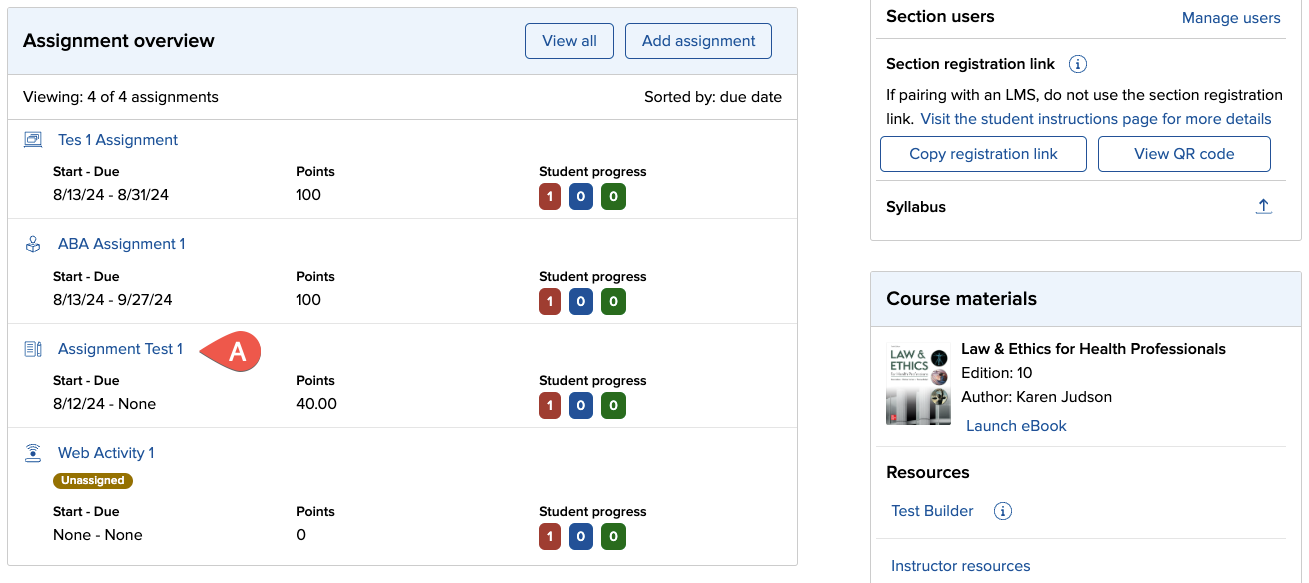
- From your Section Home page, click on the assignment (A) to which you want to attach documents. You can also attach documents while creating assignments.
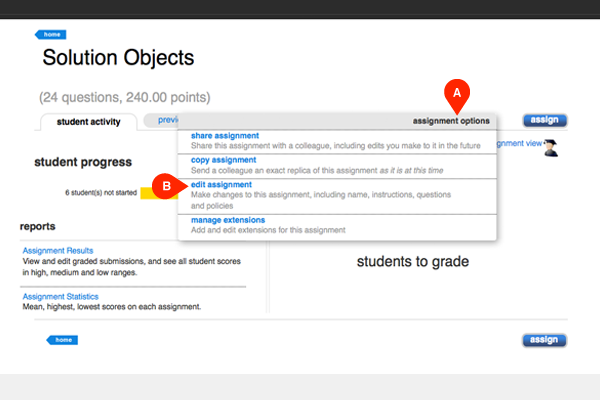
- Click assignment options (A) and select edit assignment (B).
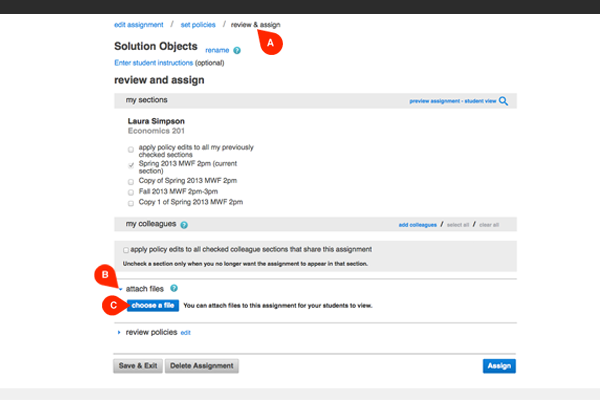
- Click review & assign (A) to get to the attach files section. If you want to attach documents while creating assignments, this is the step in the creating assignments process to do so.
- Click the blue drop down arrow (B) next to attach files. Then click choose a file (C)
.
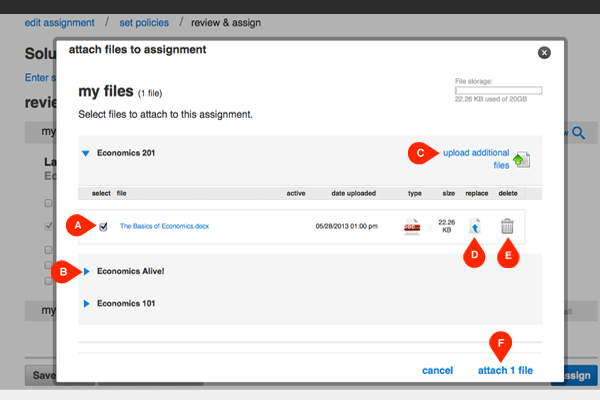
- From the pop-up window, select the file (A) that you want to attach. You can select files from other courses by clicking the blue drop down arrow (B) next to other course names. Click upload additional files (C) to browse and upload a file from your computer. You can replace an existing file with a new one by clicking replace (D) or delete a file by clicking the trash icon (E).
- Click attach files (F) when finished.
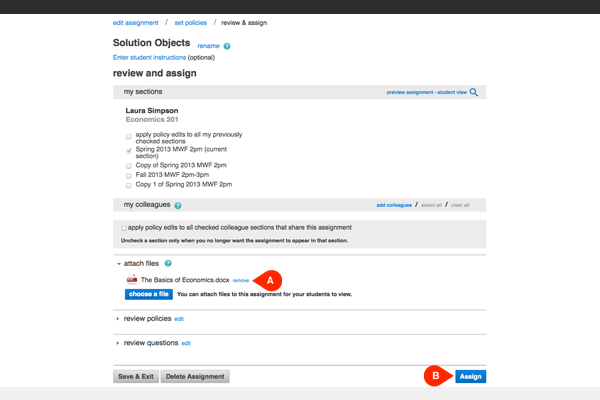
- The attached files will be listed under attach files (A). Click remove (A) to delete the file. Click assign (B) to assign and make the attached files visible to students. Students will be notified when they begin an assignment that files are attached.