
Connect - Add Connect Assignments to Blackboard
Add and manage Connect assignments directly within a Blackboard course.
Tags
- Higher Education
- Customer Support
- Connect
- Instructor


This article explains how to add Connect assignments to a course in Blackboard.
- Log in to your Blackboard account.
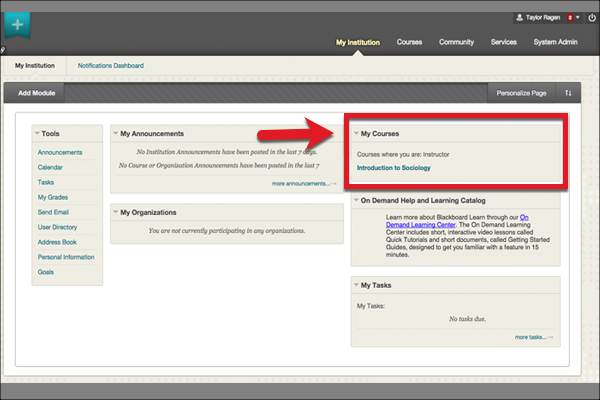
- Select the course to which you'd like to add your Connect assignment(s).
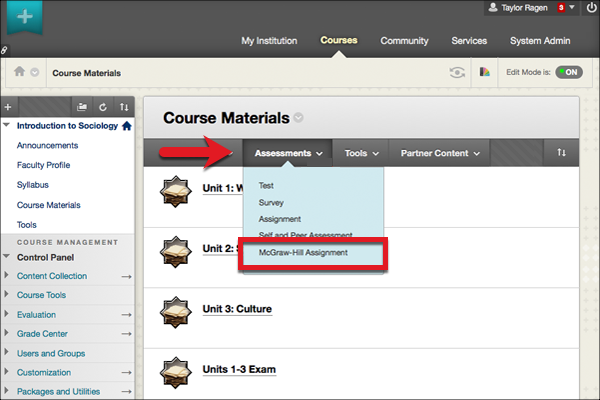
- From the Assessments menu, select McGraw-Hill Assignment.
- Check the box next to each assignment you wish to add to Blackboard.
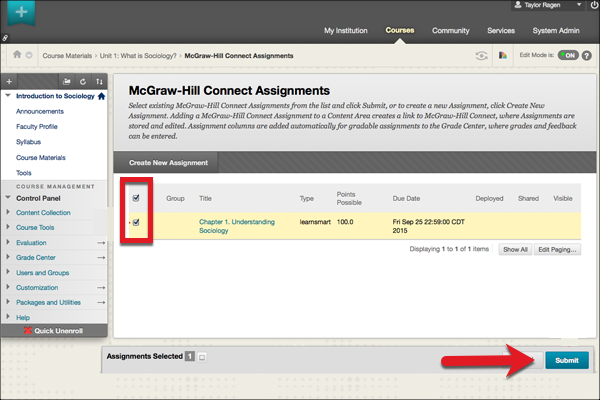
- Click Submit.
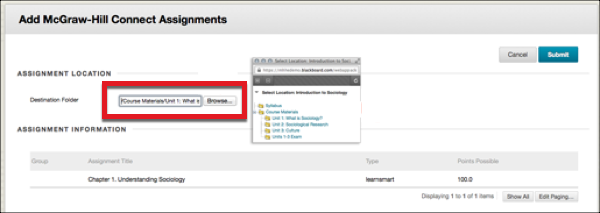
- Next, select a destination folder for the assignments. Click Browse… and select the desired folder from the pop-up window.
- Next to Score attempts using, select which assignment attempt Blackboard’s Grade Center will score.
- Select a Category for the selected assignment(s).
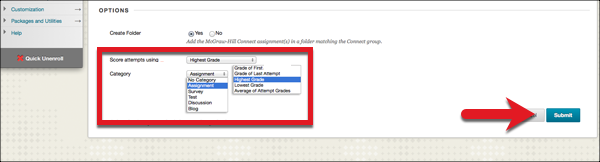
- Click Submit to deploy your Connect assignment(s).
