
Connect - Add Non-Connect Assignments to the Connect Gradebook
Add non-Connect assignments to the Connect gradebook to track offline or external work.
Tags
- Higher Education
- Customer Support
- Connect
- Instructor


Note: The Connect Gradebook is only available in a few World Languages titles.
This article explains how to create and edit non-Connect assignments. Non-Connect assignments are assignments administered in the classroom or anywhere outside of Connect. These can include reading assignments, in-class activities (such as handouts or group work), or pop quizzes. You can enter scores for non-Connect assignments in your Connect gradebook in order to have them count toward the students' grade to date, and they can be added to any gradebook category — both smart and custom.
1. From your instructor dashboard, launch your course.
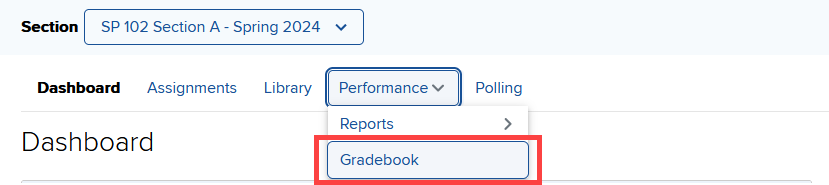
2. From the Performance menu, select Gradebook.
This article explains how to create and edit non-Connect assignments. Non-Connect assignments are assignments administered in the classroom or anywhere outside of Connect. These can include reading assignments, in-class activities (such as handouts or group work), or pop quizzes. You can enter scores for non-Connect assignments in your Connect gradebook in order to have them count toward the students' grade to date, and they can be added to any gradebook category — both smart and custom.
Create Non-Connect Assignments
1. From your instructor dashboard, launch your course.2. From the Performance menu, select Gradebook.
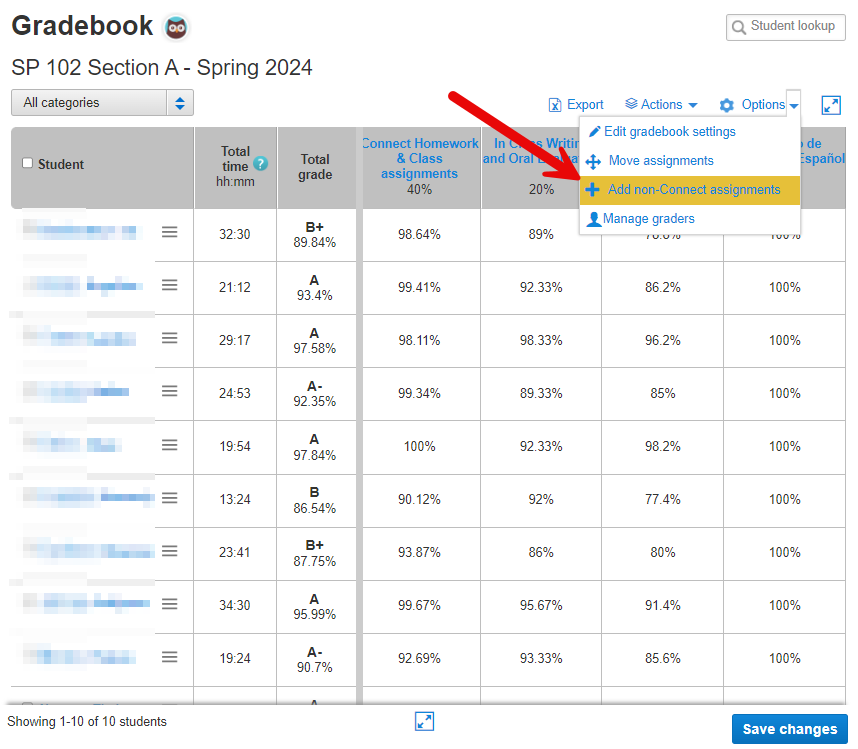
3. From the Options menu at the top right, select Add non-Connect assignments from the drop-down menu.
4.
Enter the following details for the assignment:
- Assignment Name
- Point Value
- Gradebook Category
Note: You can only add assignments to one category at a time. To add assignments to other categories, repeat step 2 after saving.
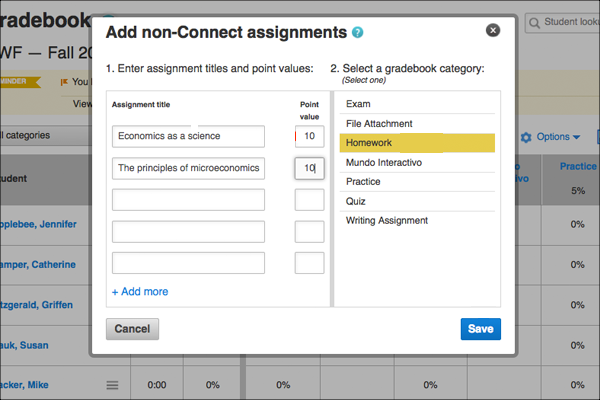
5. Click Save to create the assignment.
5. Click Save to create the assignment.
Edit Non-Connect Assignments
1. From your gradebook, select the assignment category that contains the assignment you wish to edit.
2. Select the assignment you wish to edit.
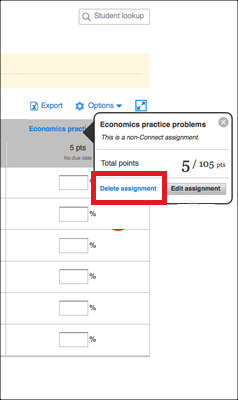
3. In the pop-up window, select Edit assignment. From here you can modify the assignment's title, point value, or assignment category.
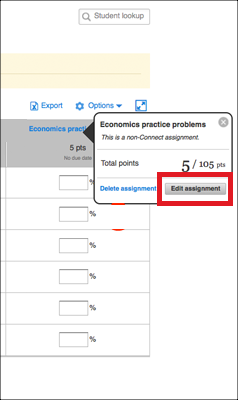
4. Alternatively, to delete the assignment from your gradebook, select Delete assignment.
2. Select the assignment you wish to edit.
3. In the pop-up window, select Edit assignment. From here you can modify the assignment's title, point value, or assignment category.
4. Alternatively, to delete the assignment from your gradebook, select Delete assignment.
5. Click Save to save your changes.