
Connect - Add, Invite, and Manage Graders for World Language Titles
Add, invite, and manage graders in Connect to help with grading and course administration.
Tags
- Higher Education
- Customer Support
- Connect
- Instructor
- Reports & Analytics


Note: The Connect Gradebook is only available in a few World Languages titles.
If you have colleagues assisting you with course instruction and grading, you can add them to your section as graders. Follow the steps below to add and remove graders from a course section.
1. From your instructor dashboard, select the section that needs additional graders.
2. Open the Performance menu and select Gradebook.
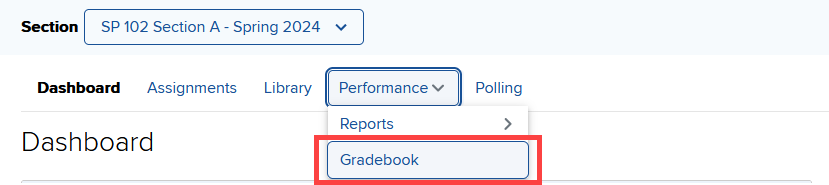
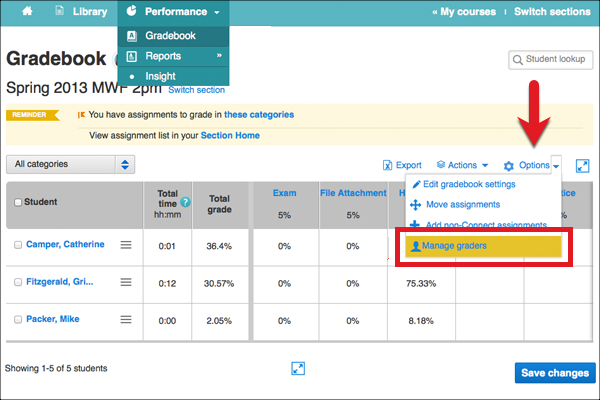
3. Open the Options menu and select Manage graders.
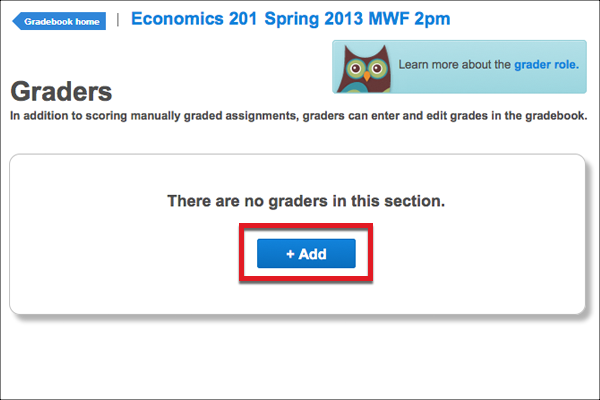
4. Select +Add to begin adding graders to your section.
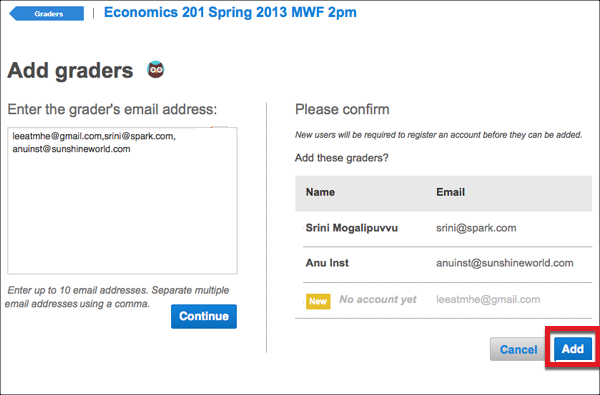
5. Enter each grader's email address in the space provided. Once finished, select Continue.
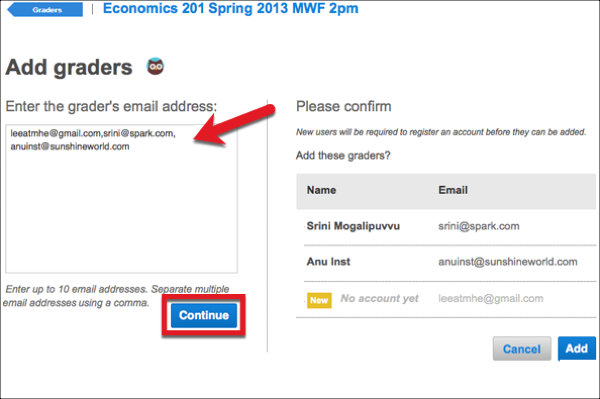
6. If your colleagues already have Connect accounts, their names will appear in the list on the right. For those who do not yet have Connect accounts, they'll receive an invitation to register for an account. Select Add to continue.
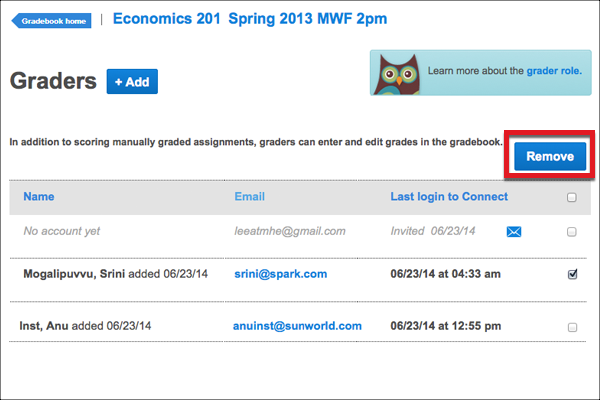
7. To remove any graders from the section, check the box to the right of their name, and select Remove at the top right.
If you have colleagues assisting you with course instruction and grading, you can add them to your section as graders. Follow the steps below to add and remove graders from a course section.
1. From your instructor dashboard, select the section that needs additional graders.
2. Open the Performance menu and select Gradebook.
3. Open the Options menu and select Manage graders.
4. Select +Add to begin adding graders to your section.
5. Enter each grader's email address in the space provided. Once finished, select Continue.
6. If your colleagues already have Connect accounts, their names will appear in the list on the right. For those who do not yet have Connect accounts, they'll receive an invitation to register for an account. Select Add to continue.
7. To remove any graders from the section, check the box to the right of their name, and select Remove at the top right.
