Connect - EHRClinic
Use PRoPL practice tests to prepare students for testing day.
- Higher Ed Student
- Higher Education
- Customer Support
- Connect


EHRClinic
This article covers the following for EHRClinic Assignments:
- Navigating through Questions in an EHRClinic Assignment
- EHRClinic Modes
- Assignment Scoring
- Commonly Reported Issues
Navigating through Questions in an EHRClinic Assignment
A “question” or exercise in EHRClinic assignments refers to one exercise mode. In assignments that have more than one exercise and/or mode assigned, then ALL of the “questions” need to be completed before clicking “submit.” Submit should be clicked only when all exercises/modes are complete.
For example, if an assignment is created for Exercise 12.22 and the Demo and Practice mode are both added to the assignment, it has two “questions.”
The student should complete the Demo mode and will get this message, “Click the X to close the message and move on.” Do not click submit at this point because the assignment is not finished.
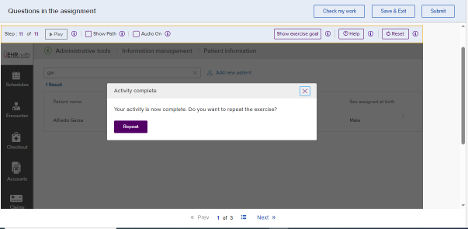
Then, go to the navigation area at the bottom of the assignment. Click “next” to move to the second “question” in the assignment. Complete the next mode, which is Practice mode in this example.
When this “question” is complete, the “repeat” box will appear again. Click the X to close the message. Notice the navigation panel at the bottom of the assignment. It states “2 of 2,” indicating completion of the last “question.”
If there are more modes/questions, then use the navigation buttons to move through and complete them all. Once the last question is complete, the student can click “Submit” in the upper right corner.
If the, “you have unfinished questions,” message appears, that means that the student is missing completion of one or more modes or exercises. Cancel this message and use the navigation bar to go back to the incomplete exercise(s).
If all of the questions are complete, the student can click “Submit” for the assignment to be graded.
EHR Clinic Modes
- Demo mode: Students watch a video of the task being completed.
- Demo mode is a completion grade. If the student watches the entire video, they get full credit.
- Practice mode: Students use guided steps to click through the task themselves.
- Practice mode is a completion grade. If the student completes the full activity, they get full credit.
- Text fields – The students must enter the text exactly as it is in the step window, including spelling, spacing, punctuation, and capitalization. If there are any errors, the student will receive an error forcing them to re-enter the text before moving forward.
- Assessment mode: Students complete the task without assistance.
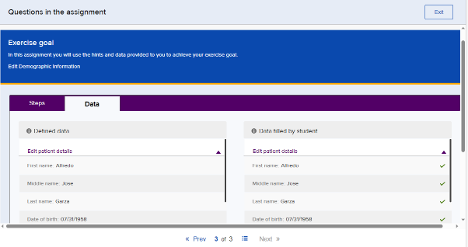
- Assessment mode is graded on the data collected as opposed to the steps taken. If students have concerns about their score, they can see the data collected by going into the assignment results, clicking on the attempt, and then clicking on the data tab. The student will see the correct data on the left and their data on the right.
Assignment Scoring
Assignment scores are calculated based on the number of “questions” in the assignment and the results earned on each.
For example, if an assignment has a Demo, Practice, and Assessment mode (3 “questions), then each “question” (mode) is 1/3 of the assignment grade.
- Demo = 100% for completion, which equates to 33.3% of the overall assignment grade.
- Practice = 100% for completion, which equates to 33.3% of the overall assignment grade.
- Assessment = percentage of 33.3% of the overall grade based on data. If the student is 100% correct with the data, then the full 33.3% is awarded. If there are mistakes, then a portion of the 33.3% is awarded.
The more “questions” assigned in one assignment, the more diluted the grading becomes.
Because Demo and Practice are graded at 100% for each mode completed, it is a best practice to assign these modes separately from the Assessment modes.
Commonly Reported Issues
- “I can’t move forward in the assignment.”: If the student makes an incorrect step in a Practice mode exercise, they won’t be able to move on to the next step.
- In some cases, the student may have just not followed the steps correctly. Advise students to carefully follow the steps.
- If it’s a text entry field, the text must be entered exactly as it is in the step box, including spacing, punctuation, capitalization, and spelling or else the student won’t be able to move forward.
- “My assessment mode exercise received a 0, but I followed the steps exactly.”: Assessment mode is graded on the data collected as opposed to the steps taken. If students have concerns about their score, they can see the data collected by going into the assignment results, clicking on the attempt, and then clicking on the data tab of the mode in question. The student will see the correct data on the left and their data on the right.