maravillas
wonders
instructor
Context
Context/Education Level
Context/Education Level/Preschool
Context/Curriculum Type
Context/Curriculum Type/Core
Context/Integration Type
Context/Integration Type/Direct Login & Manual-Rostering
Business Unit
Business Unit/PreK-12
Context/Education Level/Elementary School
Context/Education Level/Elementary School/Kindergarten
Context/Education Level/Elementary School/3rd Grade
Context/Education Level/Elementary School/5th Grade
Context/Subject
Context/Subject/Literacy
Support Topics
Support Topics/Tools & Product Integrations
Support Topics/Tools & Product Integrations/Tools & Resources
Context/Education Level/Elementary School/4th Grade
Support Topics/Getting Started & Orientation
Context/Education Level/Middle School
Context/Education Level/Middle School/6th Grade
Context/Integration Type/Direct Login & Auto-Rostering
Context/Integration Type/SSO & Auto-Rostering
Personas
Personas/School Educator
Personas/School Educator/Classroom Teacher
Context/Education Level/Elementary School/2nd Grade
Context/Education Level/Elementary School/1st Grade
Asset Format Type
Asset Format Type/Customer Support
Support Topics/Assessments & Reporting
Support Topics/Assessments & Reporting/Grades & Assignments
Programs & Solutions
Programs & Solutions/Wonders
Programs & Solutions/Wonders/Wonders 2023 2020 2017
Programs & Solutions/Maravillas
Programs & Solutions/Maravillas/Maravillas 2020 & 2017
Context/Integration Type/SSO & Manual-Rostering
prek-12
2026-03-24T18:55:12.279-03:00
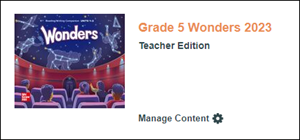
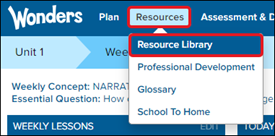
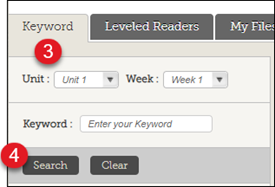
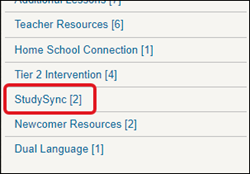
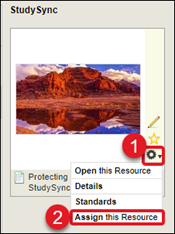
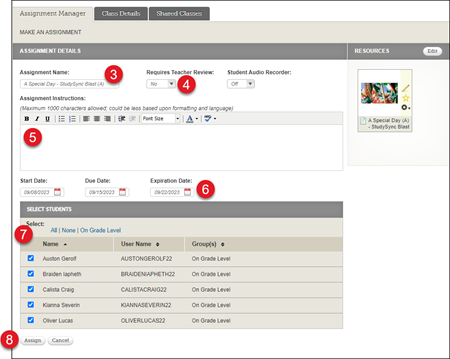
<p>StudySync Blasts engage students in critical thinking activities. By integrating the knowledge they've gained throughout the week, students will respond to fun, thought-provoking questions that will enhance their reading, writing, and research skills through a digital platform.<br> <br> <strong>Note:</strong> StudySync Blasts are only available for Wonders Grades 2-6/copyrights 2020 and 2023. <br> <br> If students are receiving a message when they launch into their StudySync Blast assignment that they do not yet have access, this means that the teacher has not yet accessed the StudySync site as a teacher. To do so, the teacher needs to click on any of the available StudySync Blast resources.<br> <br> </p> <h3>Locating the StudySync Blasts:</h3> <p>1. Click on the <strong>Teacher Edition</strong> of Wonders<br> <br> <img alt="image.png" src="/content/dam/mhe/support/support-images/migrated/rtaImage--1184927545.jpeg" data-assetref="rtaImage--1184927545-1778686484670"><br> <br> 2. Hover over <strong>Resources </strong>in the Navigation Menu. Select <strong>Resource Library</strong> from the drop-down menu.<br> <br> <img alt="image.png" src="/content/dam/mhe/support/support-images/migrated/rtaImage--1184927020.jpeg" data-assetref="rtaImage--1184927020-1778686484671"><br> <br> 3. On the <strong>Keyword</strong> tab, select the <strong>Unit </strong>and <strong>Week</strong> you want the StudySync Blast for. <br> <br> 4. Click the <strong>Search </strong>button to filter the resources to your selection.<br> <br> <img alt="image.png" src="/content/dam/mhe/support/support-images/migrated/rtaImage--1184927004.jpeg" data-assetref="rtaImage--1184927004-1778686484671"><br> <br> <strong>Note: </strong>If the grade level of material you are accessing has 10 days of lessons, the Blasts are only found for the first of the two weeks of lessons. This means that the Blasts can be found for Weeks 1, 3, and 5 for each Unit.<br> <br> <strong>Example:</strong> Unit 1 Week 1 has Weekly Lessons for Days 1-5, while Unit 1 Week 2 has Weekly Lessons for Days 6-10. You will want to select Unit 1 Week 1 from the drop-down menus to find the StudySync Blasts.<br> <br> 5. Click on <strong>StudySync</strong> from the resource filter menu.<br> <br> <img alt="image.png" src="/content/dam/mhe/support/support-images/migrated/rtaImage--1184926994.jpeg" data-assetref="rtaImage--1184926994-1778686484671"><br> <br> </p> <h3>Assigning the StuySync Blasts:</h3> <p>1. On the resource tile, click the <strong>Tools</strong> icon (gear symbol).<br> <br> 2. Select <strong>Assign this Resource</strong> from the drop-down menu. The page will then navigate automatically to the Assignment Manager. The resource will be added to the Resources section on the right of the page.<br> <br> <img alt="image.png" src="/content/dam/mhe/support/support-images/migrated/rtaImage--1184926878.jpeg" data-assetref="rtaImage--1184926878-1778686484672"><br> <br> 3. Enter an <strong>Assignment Name</strong>.<br> <br> 4. Select an option from the <strong>Requires Teacher Review</strong> drop-down. The default is set to <strong>No</strong>.<br> <br> 5. Enter any <strong>Assignment Instructions</strong> for the students you want them to follow.<br> <br> 6. Select a <strong>Start Date</strong>, <strong>Due Date</strong>, and <strong>Expiration Date</strong> by clicking on the <strong>Calendar</strong> icon for each field.<br> <br> 7. Click the check box next to the student(s) you want to assign the resource to.<br> <br> 8. Click the <strong>Assign</strong> button.<br> <br> <img alt="image.png" src="/content/dam/mhe/support/support-images/migrated/rtaImage--1184926875.jpeg" data-assetref="rtaImage--1184926875-1778686484672"><br> <br> For steps on how to assign the resource directly from the Assignment Manager, or for steps on how to view and grade the assignment, follow the <a href="/content/mheducation/us/en/prek-12/support/knowledge/wonders-2020-assignment-manager" target="_blank">Wonders/Maravillas - Assignment Management</a> document.</p> dts Wonders Maravillas StudySync Blasts: step-by-step guidance, requirements, and tips to help you complete this task successfully. 2025-11-21 Access and Assign StudySync Blasts in Wonders/Maravillas Wonders Maravillas StudySync Blasts: step-by-step guidance, requirements, and tips to help you complete this task successfully. Explore how StudySync Blasts are used in Wonders and Maravillas instruction.
Explore how StudySync Blasts are used in Wonders and Maravillas instruction.
StudySync Blasts engage students in critical thinking activities. By integrating the knowledge they've gained throughout the week, students will respond to fun, thought-provoking questions that will enhance their reading, writing, and research skills through a digital platform. Note: StudySync Blasts are only available for Wonders Grades 2-6/copyrights 2020 and 2023. If students are receiving a message when they launch into their StudySync Blast assignment that they do not yet have access, this means that the teacher has not yet accessed the StudySync site as a teacher. To do so, the teacher needs to click on any of the available StudySync Blast resources. Locating the StudySync Blasts: 1. Click on the Teacher Edition of Wonders 2. Hover over Resources in the Navigation Menu. Select Resource Library from the drop-down menu. 3. On the Keyword tab, select the Unit and Week you want the StudySync Blast for. 4. Click the Search button to filter the resources to your selection. Note: If the grade level of material you are accessing has 10 days of lessons, the Blasts are only found for the first of the two weeks of lessons. This means that the Blasts can be found for Weeks 1, 3, and 5 for each Unit. Example: Unit 1 Week 1 has Weekly Lessons for Days 1-5, while Unit 1 Week 2 has Weekly Lessons for Days 6-10. You will want to select Unit 1 Week 1 from the drop-down menus to find the StudySync Blasts. 5. Click on StudySync from the resource filter menu. Assigning the StuySync Blasts: 1. On the resource tile, click the Tools icon (gear symbol). 2. Select Assign this Resource from the drop-down menu. The page will then navigate automatically to the Assignment Manager. The resource will be added to the Resources section on the right of the page. 3. Enter an Assignment Name. 4. Select an option from the Requires Teacher Review drop-down. The default is set to No. 5. Enter any Assignment Instructions for the students you want them to follow. 6. Select a Start Date, Due Date, and Expiration Date by clicking on the Calendar icon for each field. 7. Click the check box next to the student(s) you want to assign the resource to. 8. Click the Assign button. For steps on how to assign the resource directly from the Assignment Manager, or for steps on how to view and grade the assignment, follow the Wonders/Maravillas - Assignment Management document.
dts
Getting Started & Orientation, Literacy, SSO & Manual-Rostering, Customer Support, Direct Login & Auto-Rostering, Maravillas 2020 & 2017, Tools & Resources, Core, Direct Login & Manual-Rostering, Classroom Teacher, Wonders 2023 2020 2017, SSO & Auto-Rostering, PreK-12, Preschool, Elementary School, Grades & Assignments, Kindergarten, 1st Grade, 2nd Grade, 3rd Grade, 4th Grade, 5th Grade, 6th Grade, Middle School