We're making updates to improve your experience. Some products and checkout may be unavailable on Saturday, November 21 and Sunday, November 22. Thanks for your patience. Check our status page for updates.
Access and Review Student Work in the Wonders/Maravillas Binder
Overview of how to access and manage work using the Wonders Binder.
Tags
Literacy
SSO & Manual-Rostering
Customer Support
Grades & Assignments
Direct Login & Auto-Rostering
Wonders 2014
Maravillas 2020 & 2017
Core
Direct Login & Manual-Rostering
Classroom Teacher
Wonders Balanced Literacy 2016
Wonders 2023 2020 2017
SSO & Auto-Rostering
PreK-12
Elementary School
Middle School
Kindergarten
1st Grade
2nd Grade
3rd Grade
4th Grade
5th Grade
6th Grade
Share:
Access the Binder
1. Hover over Binder in the Navigation Banner.
2. Select My Work from the menu.
My Work
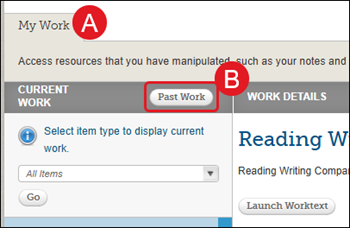
Access your work for the week on the My Work tab. This includes your notes, edits you made to the Presentation eBook, or Interactive White Board lessons this week.
A. Your Binder resources for the current Unit and Week is displayed on the My Work tab.
B. Click Past Work to view your notes from another unit and week.
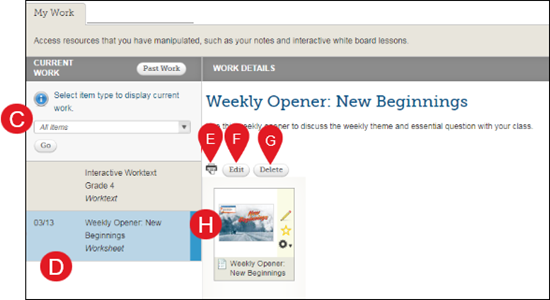
C. Filter the types of work by selecting the type of item from the drop-down list and clicking the Go button.
D. Click the item name to view the instructions and associated resources.
E. Click the print icon to print this item.
F. Click the Edit button to make changes to the item.
G. Click the Delete button to delete it.
H. Click the resources icon to view it.
My Students' Work
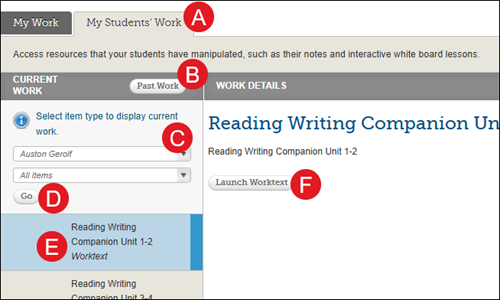
A. Access your students' work on the My Students Work tab. This includes your notes, edits you made to the Presentation eBook, or Interactive White Board lessons this week.
B. Click the Past Work button to view their work from another unit and week.
C. Select a student from the drop-down list.
D. Filter the types of work by selecting the type of item from the drop-down list and clicking the Go button.
E .Select an item to view it.
F. Click the Launch button to view the student's work.
Help us improve!
Let us know how we can improve our support information by providing feedback in this short survey.
Top
Regional Page Available
It looks like you're outside the United States. Do you want to see your regional version of this page?
<h3>Access the Binder</h3> <p>1. Hover over <strong>Binder </strong>in the Navigation Banner.</p> <p>2. Select<strong> My Work</strong> from the menu.<br> <br> <img src="/content/dam/mhe/support/support-images/migrated/rtaImage-1915506924.jpeg" data-assetref="rtaImage-1915506924-1779993526302"></p> <h3>My Work</h3> <p>Access your work for the week on the <strong>My Work</strong> tab. This includes your notes, edits you made to the Presentation eBook, or Interactive White Board lessons this week.</p> <p>A. Your Binder resources for the current Unit and Week is displayed on the <strong>My Work</strong> tab.</p> <p>B. Click <strong>Past Work</strong> to view your notes from another unit and week.</p> <p><img src="/content/dam/mhe/support/support-images/migrated/rtaImage-1915505465.jpeg" data-assetref="rtaImage-1915505465-1779993526303"></p> <p>C. <strong>Filter </strong>the types of work by selecting the type of item from the drop-down list and clicking the <strong>Go</strong> button. </p> <p>D. Click the item name to view the instructions and associated resources.</p> <p>E. Click the <strong>print </strong>icon to print this item.</p> <p>F. Click the <strong>Edit</strong> button to make changes to the item.</p> <p>G. Click the <strong>Delete</strong> button to delete it.</p> <p>H. Click the resources icon to view it. </p> <p><img src="/content/dam/mhe/support/support-images/migrated/rtaImage-1915507317.jpeg" data-assetref="rtaImage-1915507317-1779993526303"></p> <h3>My Students' Work</h3> <p>A. Access your students' work on the <strong>My Students Work</strong> tab. This includes your notes, edits you made to the Presentation eBook, or Interactive White Board lessons this week.</p> <p>B. Click the <strong>Past Work</strong> button to view their work from another unit and week.</p> <p>C. Select a student from the drop-down list.</p> <p>D. Filter the types of work by selecting the type of item from the drop-down list and clicking the <strong>Go</strong> button. </p> <p>E .Select an item to view it.</p> <p>F. Click the <strong>Launch</strong> button to view the student's work. </p> <p><img src="/content/dam/mhe/support/support-images/migrated/rtaImage-1915498502.jpeg" data-assetref="rtaImage-1915498502-1779993526303"></p> dts Wonders 2020 Binder: step-by-step guidance, requirements, and tips to help you complete this task successfully. 2025-10-27 Access and Review Student Work in the Wonders/Maravillas Binder Wonders 2020 Binder: step-by-step guidance, requirements, and tips to help you complete this task successfully. Overview of how to access and manage work using the Wonders Binder.
Overview of how to access and manage work using the Wonders Binder.
Access the Binder 1. Hover over Binder in the Navigation Banner. 2. Select My Work from the menu. My Work Access your work for the week on the My Work tab. This includes your notes, edits you made to the Presentation eBook, or Interactive White Board lessons this week. A. Your Binder resources for the current Unit and Week is displayed on the My Work tab. B. Click Past Work to view your notes from another unit and week. C. Filter the types of work by selecting the type of item from the drop-down list and clicking the Go button. D. Click the item name to view the instructions and associated resources. E. Click the print icon to print this item. F. Click the Edit button to make changes to the item. G. Click the Delete button to delete it. H. Click the resources icon to view it. My Students' Work A. Access your students' work on the My Students Work tab. This includes your notes, edits you made to the Presentation eBook, or Interactive White Board lessons this week. B. Click the Past Work button to view their work from another unit and week. C. Select a student from the drop-down list. D. Filter the types of work by selecting the type of item from the drop-down list and clicking the Go button. E .Select an item to view it. F. Click the Launch button to view the student's work.