View eAssessment Assignment Statuses and Manage Access
Quickly track student progress on eAssessment assignments and manage access with ease.
Tags
- Customer Support
- PreK-12
- Classroom Teacher
- Preschool
- Elementary School
- Middle School
- High School
- Direct Login & Auto-Rostering
- Direct Login & Manual-Rostering
- SSO & Auto-Rostering
- SSO & Manual-Rostering
- Core
- Intervention
- Supplemental
- AP, Honors & Electives
- Literacy
- Math
- Science
- Social Studies
- Health
- Visual & Performing Arts
- World Languages
- Asi se Dice 2016
- Building Blocks 2015
- Core Plus Math 2015
- Glencoe Health 2014
- Glencoe Algebra 1 2014
- Glencoe Algebra 1 2018
- Glencoe Algebra 2 2014
- Glenoce Algebra 2 2018
- Glencoe Geometry 2014
- Glencoe Geometry 2018
- Glencoe Math Accelerated
- Glencoe Math
- Glencoe Math Course 1
- Glencoe Math Course 2
- Glencoe Math Course 3
- Glencoe Science
- Glencoe Science 2017
- Inspire Science 2017
- iScience 2017
- McGraw Hill My Math 2013 & 2016
- Networks 2014 & 2016
- Networks 2014 (K-5)
- Pre-Algebra 2012
- Wonders 2014
- Number Worlds 2015
- Online Assessments
- Grades & Assignments


Article Contents
View Assignment Statuses
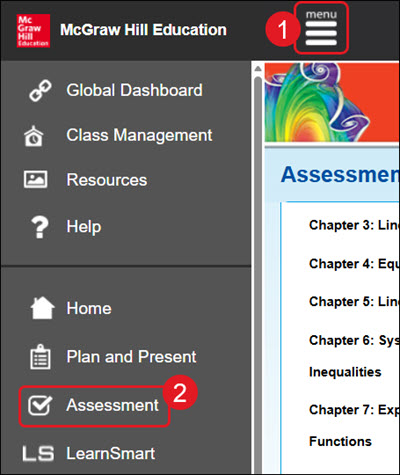
- Click Menu at the top left.
- Click on Assessment from the menu.
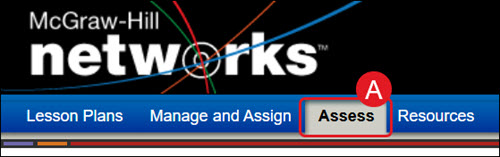
A. For certain programs, such as Networks, you will want to click on Assess from the navigation menu.
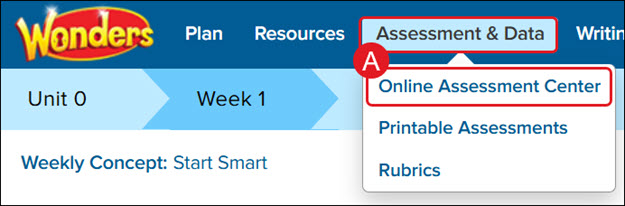
For Wonders ©2014, hover over Assessment & Data and select Online Assessment Center from the menu.
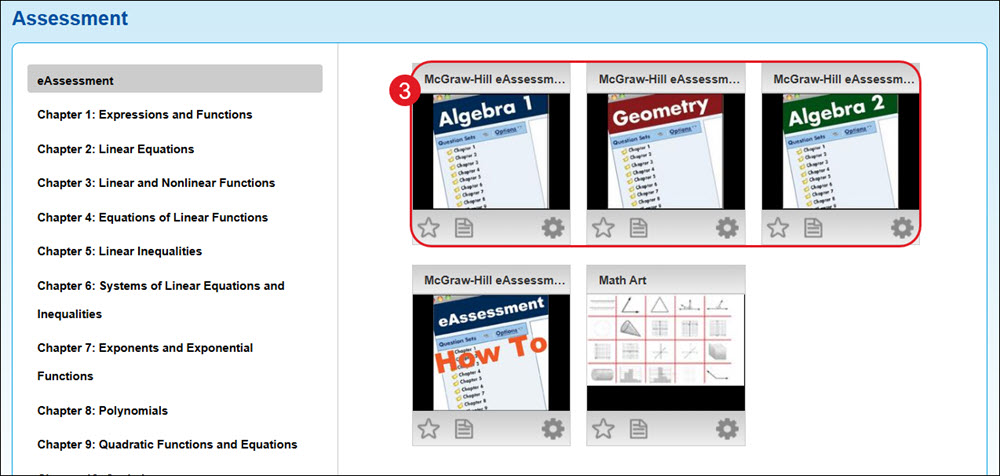
- Click on the eAssessment tile. The program will open in a separate browser tab.
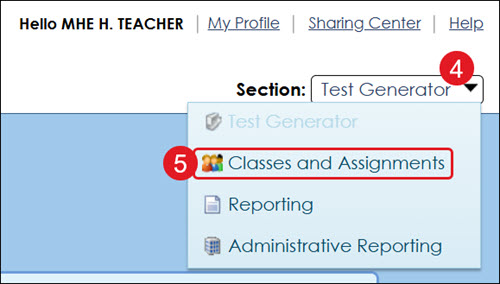
- Click on Section at the top left.
- Click on Classes and Assignments from the menu.
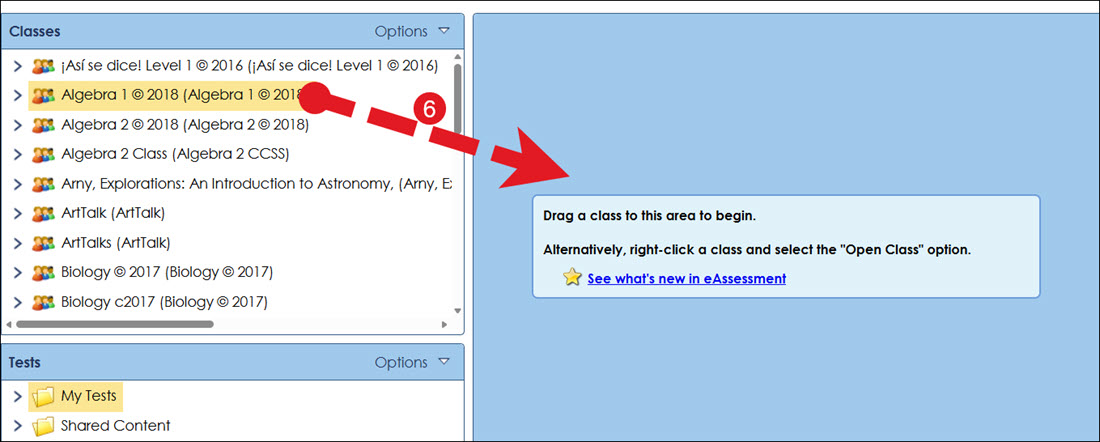
- Click on the Class and drag it to the center of the page (blue area).
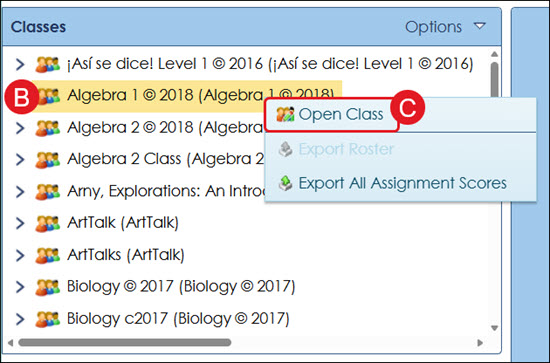
You can also right-click on the class name (B) and select Open Class (C) from the menu.
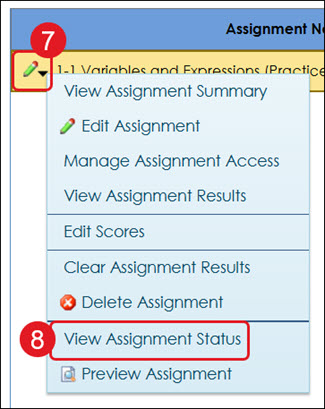
- Click on the pencil icon to the left of the assignment name.
- Click View Assignment Status on the menu.
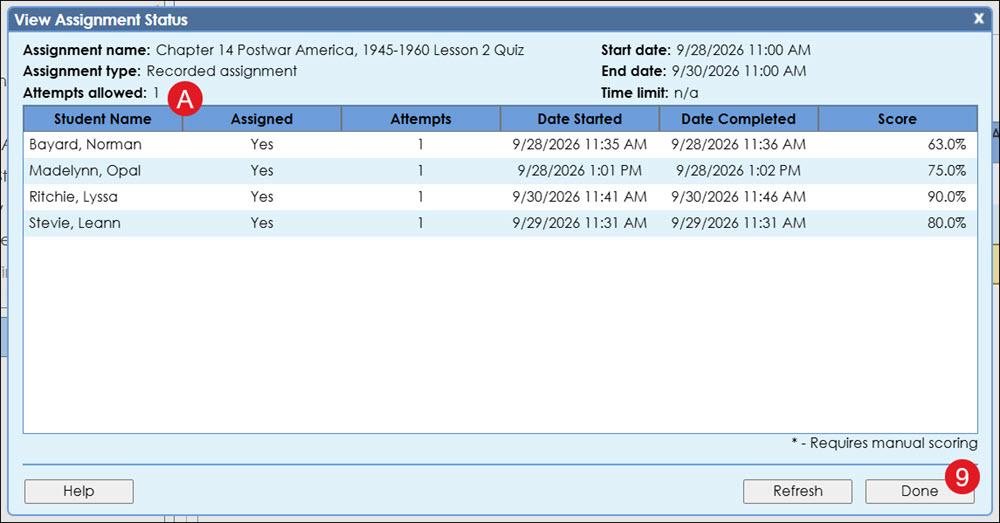
D. The pop-up provides information on the Assignment name, Assignment type, Attempts allowed, as well as the Start and End dates and Time limit that are set in the details section at the top.
For each student, it shows their Name, whether the assignment is Assigned to them, the number of Attempts taken, the Date Started and Completed, and the Score they received.
- Click the Done button to close out of the View Assignment Status view.
Manage Assignment Access
- Click Menu at the top left.
- Click on Assessment from the menu.
A. For certain programs, such as Networks, you will want to click on Assess from the navigation menu.
- Click on the eAssessment tile. The program will open in a separate browser tab.
- Click on Section at the top left.
- Click on Classes and Assignments from the menu.
- Click on the Class and drag it to the center of the page (blue area).
You can also right-click on the class name (B) and select Open Class (C) from the menu.
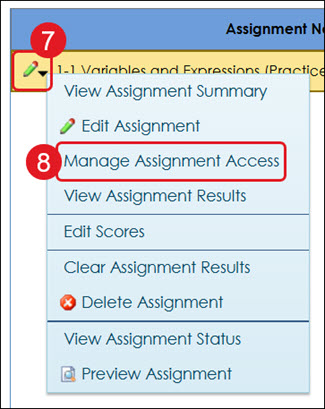
- Click on the pencil icon to the left of the assignment name.
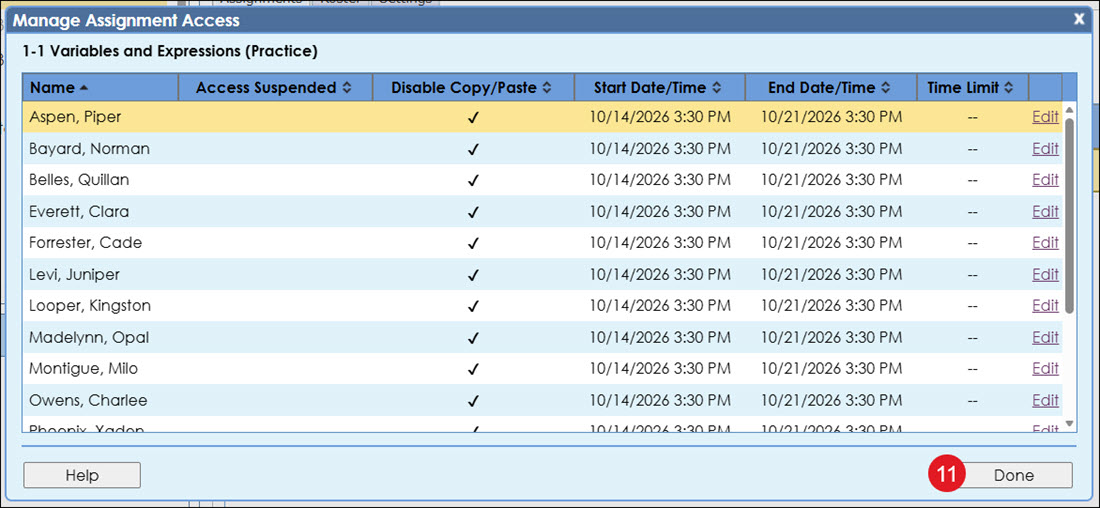
- Click Manage Assignment Access on the menu.
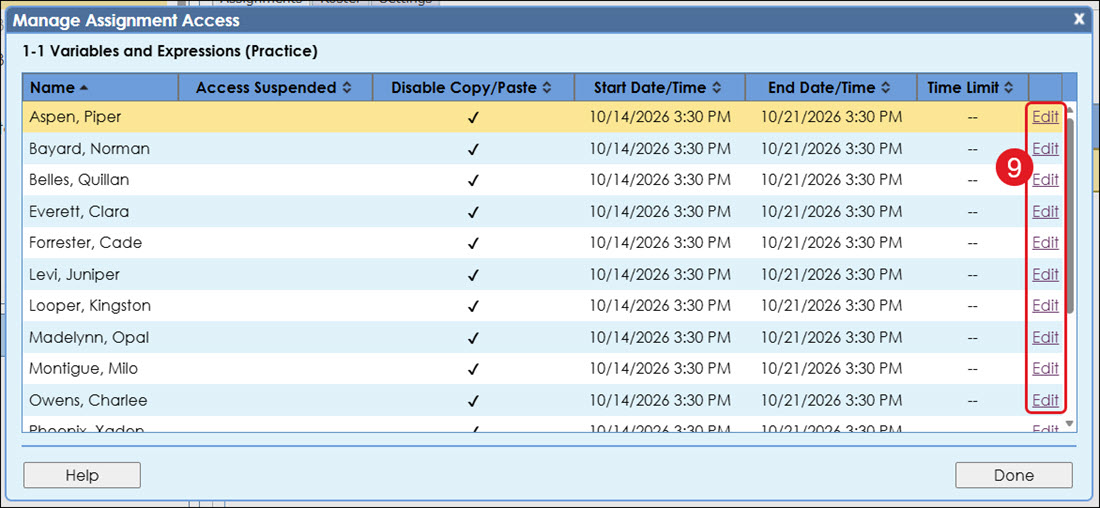
- On the pop-up, click the Edit link to the right of the student name.
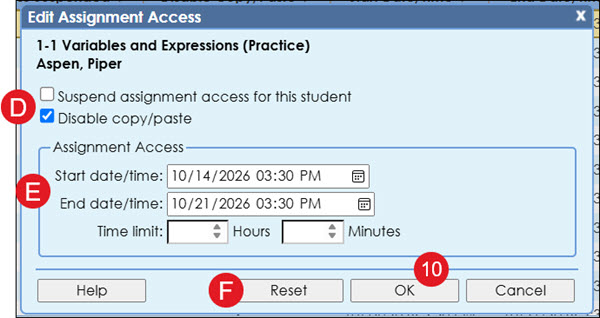
D. Check/uncheck to Suspend assignment access for the selected student and/or Disable copy/paste.
E. You can make adjustments for the selected student on when they can access the assignment by setting a different Start and End date/time, as well as setting a specific Time limit for when the assessment is available to the student.
F. Click the Reset button to remove all changes made.
- Click the OK button to confirm changes.
- Click the Done button to exit the Manage Assignment Access pop-up.