
Using the Gather My Students Feature
Gather My Students allows teachers to lead synchronous, guided digital lessons by pulling students directly into a shared learning experience.
Tags
- Customer Support
- PreK-12
- Classroom Teacher
- Elementary School
- Direct Login & Auto-Rostering
- Direct Login & Manual-Rostering
- SSO & Auto-Rostering
- SSO & Manual-Rostering
- Core
- Literacy
- McGraw Hill Literacy Emerge!
- Tools & Resources
- Dashboard & Navigation Overview


Gather My Students is a live instruction and presentation feature available within McGraw Hill Literacy Emerge!. It lets teachers lead synchronous, guided digital lessons by bringing students directly into a shared learning experience.
Teachers can initiate a "Gather" to invite all students or specific small groups into an active presentation or digital activity. As the teacher navigates through lesson slides, text, or interactive activities, students’ screens automatically advance in sync.
Note: The functionality may be temporarily disabled during an active poll.
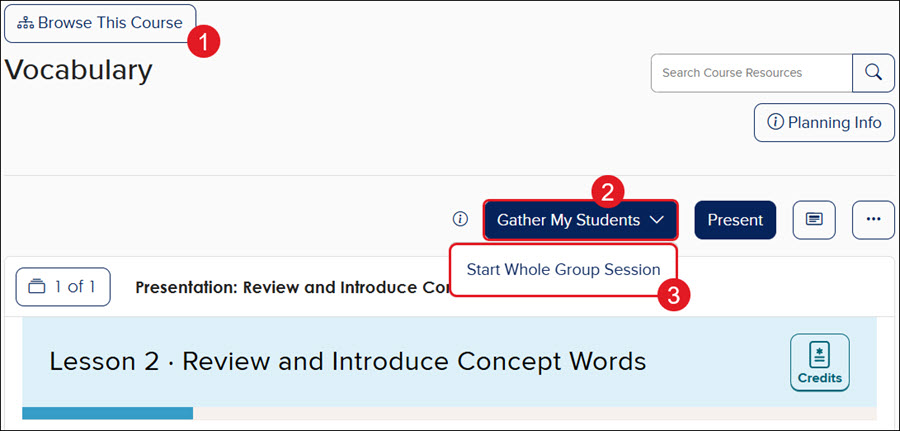
- Navigate to the lesson within your Emerge course using Browse This Course.
Note: This option is not available on all lesson pages.
- Click the Gather My Students button.
- Click Start Whole Group Session from the menu.
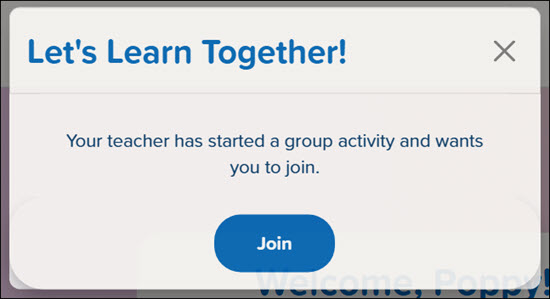
Once the students have clicked on their class, they will get a Let's Learn Together pop-up prompting them to Join the session.
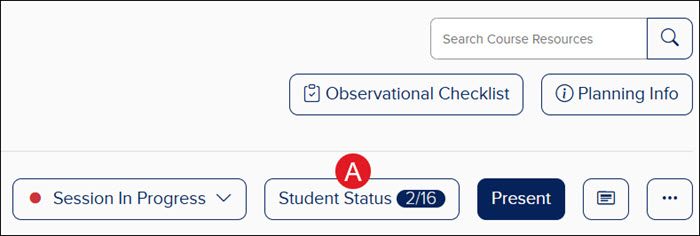
A. On your teacher lesson page, you'll have a button with the Student Status, showing how many students from your roster have joined the session.
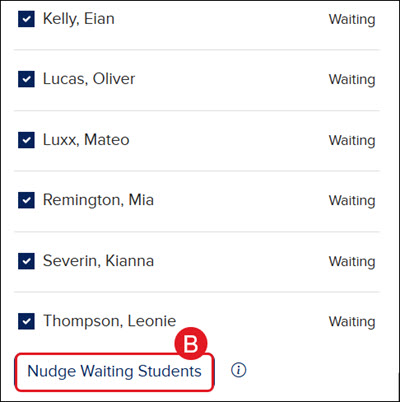
B. Click the Student Status button (A) to send a "Nudge" to students by checking the box next to the name and clicking the Nudge Waiting Students button.
Small Group Sessions: To host a small group session, simply uncheck the students you want to exclude, then click the Update Session button at the bottom.
If a student attempts to navigate away from the current page during a session, a pop-up will appear asking them to confirm whether they want to Stay in Activity or Leave Activity.
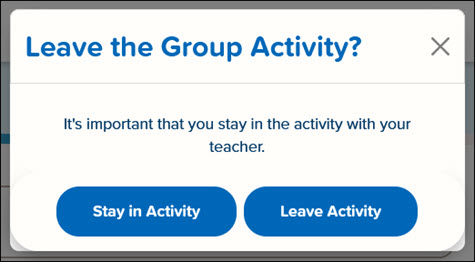
If they have left the session while it's still in progress, the student will be sent to their home page for the course. They will then see a Join button at the top of the screen to re-enter the session.

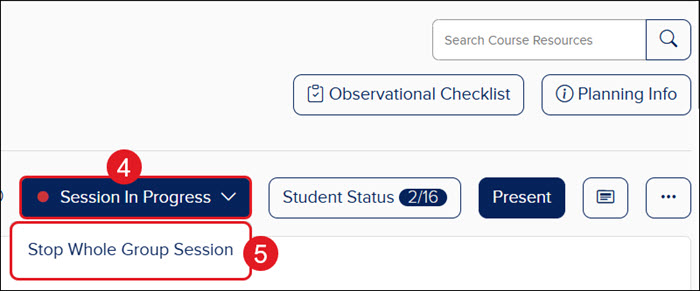
- To end the session, click the Session in Progress button.
- Click Stop Whole Group Session from the menu.
- Click the End Session button on the pop-up.
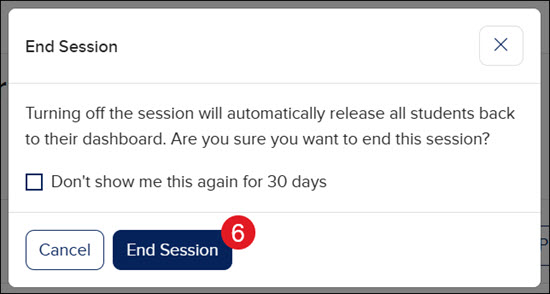
The students will then be taken back to their home page for the course.
