If you come across an issue within SmartBook program, such as a correct answer being marked as incorrect, or a typo/grammatical error, follow these steps on how to submit feedback about the mistake.
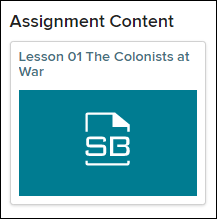
1. Launch the SmartBook assignment.
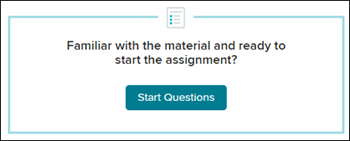
2. Click on Start Questions.
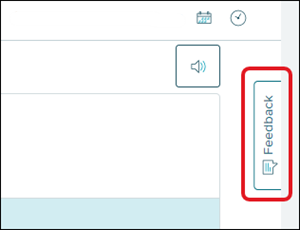
For the Feedback tab to display, you need to answer the current question.
3. Click on Feedback to expand the panel.
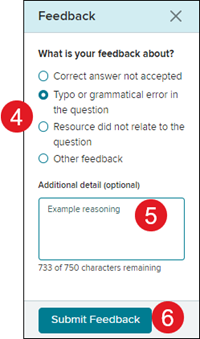
4. Select the radio button next to the reason for the feedback.
5. Enter in any Additional details. This is optional but helpful if additional information is provided.
6. Click the Submit Feedback button.
Note: Due to user information not being captured when the feedback is submitted, you will not receive further communication about the reported issue. If you would like to be notified further about an issue you have come across in the program, you will need to contact our PreK-12 Technical Support team to report the issue instead of using the Feedback option.
ap-edition
ap-connect
inspire-science
impact
networks
glencoe-science
mh-social-studies
mcgraw-hill-science
instructor
student
school-parent
prek-12
Customer Support, PreK-12, Classroom Teacher, School Student, School Parent, Middle School, High School, Direct Login & Auto-Rostering, Direct Login & Manual-Rostering, SSO & Auto-Rostering, SSO & Manual-Rostering, Core, AP, Honors & Electives, Math, Science, Social Studies, AP Biology, AP Chemistry, AP History & Geography, AP Economics, AP African American Studies, AP Precalculus, AP Statistics, AP Computer Science, AP Connect, Inspire Science 2020, CA Impact 2019, Impact Social Studies, Networks 2018, CA Inspire Science 2020, Glencoe Science 2017, Glencoe Science, FL Social Studies 2024 (K-12), Networks 2014 & 2016, TX Science 2025 (K-12), Smartbook® Integration
dts
2026-03-24T18:50:01.768-03:00
View the demo in a separate tab. View the Spanish version of the demo. If you come across an issue within SmartBook program, such as a correct answer being marked as incorrect, or a typo/grammatical error, follow these steps on how to submit feedback about the mistake. 1. Launch the SmartBook assignment. 2. Click on Start Questions. For the Feedback tab to display, you need to answer the current question. 3. Click on Feedback to expand the panel. 4. Select the radio button next to the reason for the feedback. 5. Enter in any Additional details. This is optional but helpful if additional information is provided. 6. Click the Submit Feedback button. Note: Due to user information not being captured when the feedback is submitted, you will not receive further communication about the reported issue. If you would like to be notified further about an issue you have come across in the program, you will need to contact our PreK-12 Technical Support team to report the issue instead of using the Feedback option.
Top
Regional Page Available
It looks like you're outside the United States. Do you want to see your regional version of this page?