Set Assignment Extensions in New ALEKS
Set assignment exceptions in the new ALEKS view for individual students.
Tags
- Customer Support
- PreK-12
- Classroom Teacher
- Elementary School
- Middle School
- High School
- Direct Login & Auto-Rostering
- Direct Login & Manual-Rostering
- SSO & Auto-Rostering
- SSO & Manual-Rostering
- Supplemental
- Math
- ALEKS
- Grades & Assignments


View the demo in a separate tab.
View the Spanish version of the demo.
1. SSO or log in at my.mheducation.com.
2. Launch your ALEKS course.
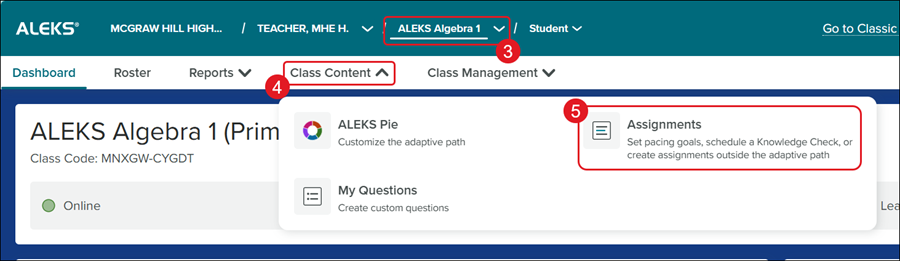
3. Select the Class from the drop-down.
4. Click on Class Content.
5. Click Assignments from the menu.
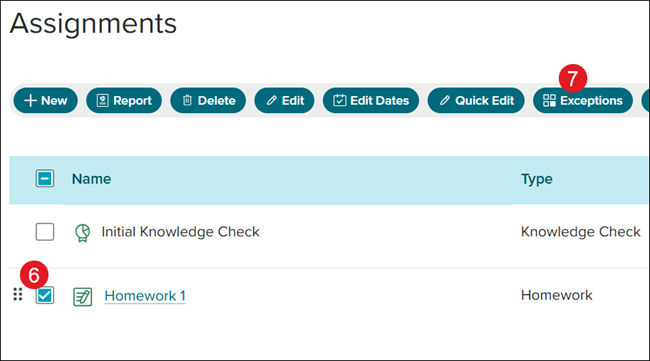
6. Check the box next to the assignment you want to set exceptions for.
7. Click the Exceptions button.
Note: Goal assignments will not have this option.
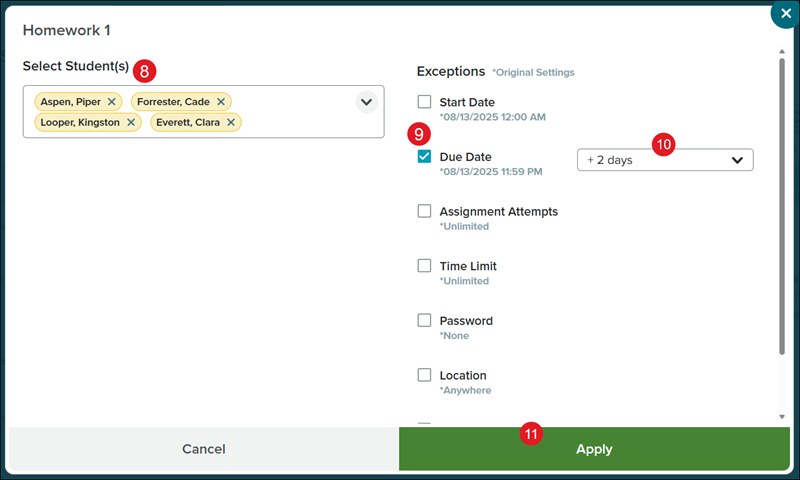
8. Select the Student(s) from the drop-down.
9. Check the box next to the Exceptions you want to provide.
10. Select the preferred option from the drop-down, if applicable.
11. Click the Apply button.