Make adjustments to start and due dates for assignments.
Tags
Customer Support
PreK-12
Classroom Teacher
High School
Direct Login & Auto-Rostering
Direct Login & Manual-Rostering
SSO & Auto-Rostering
SSO & Manual-Rostering
AP, Honors & Electives
AP Connect
Grades & Assignments
Share:
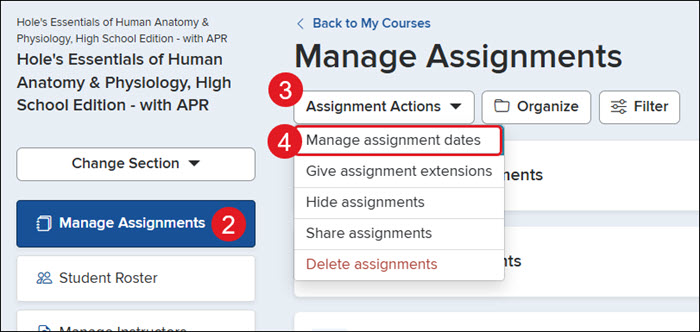
1. Click on the Section name.
2. Click on Manage Assignments from the left-hand menu.
3. Click on the Assignment Actions drop-down.
4. Click Manage assignment dates on the menu.
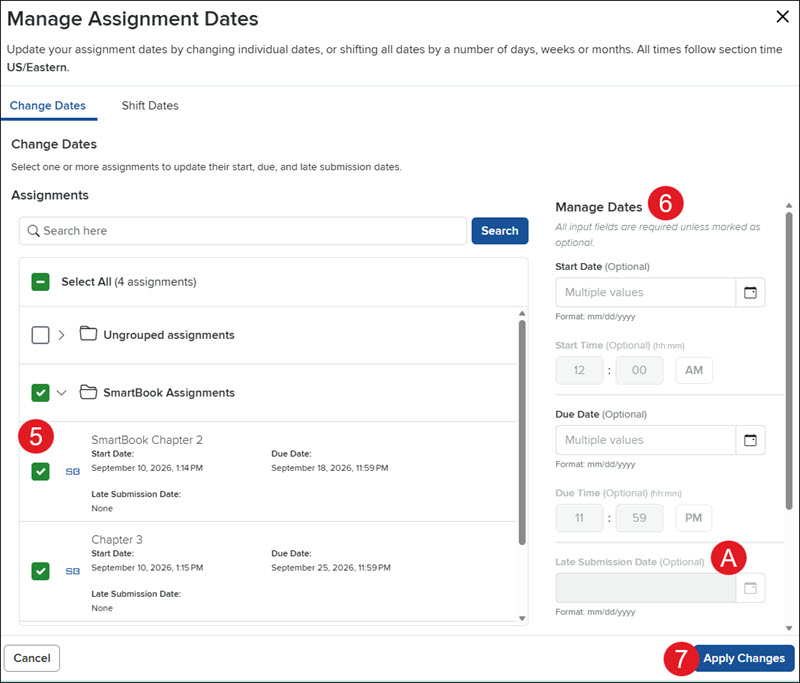
5. Select the Assignments you want to adjust dates for.
6. Enter the Start Date and Time and the Due Date and Time.
A. If Late Submission was checked when the assignment was created, you can also select the date and time for this. If it wasn't selected, it will be grayed out.
7. Click the Apply Changes button.
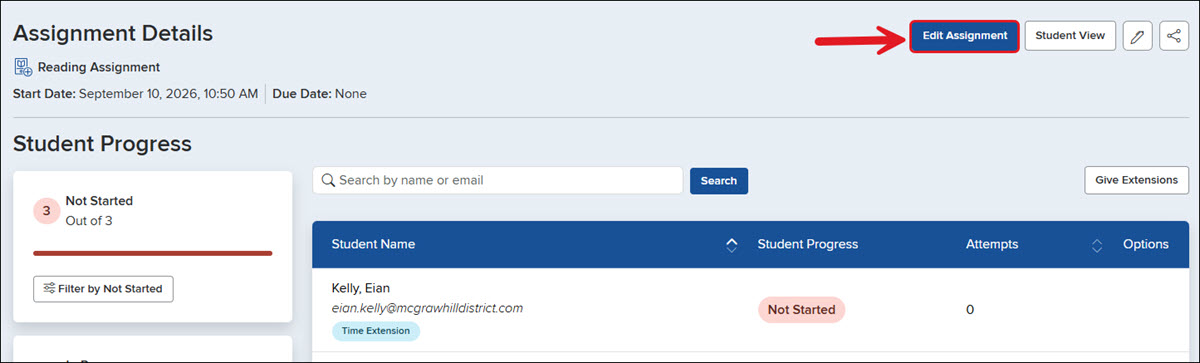
You can also adjust individual assignment dates by clicking on the assignment name and clicking the Edit Assignment button.
Help us improve!
Let us know how we can improve our support information by providing feedback in this short survey.
Top
Regional Page Available
It looks like you're outside the United States. Do you want to see your regional version of this page?
Support Topics/Assessments & Reporting/Grades & Assignments
Personas
Personas/School Educator
Personas/School Educator/Classroom Teacher
Context/Integration Type/SSO & Manual-Rostering
prek-12
2026-09-10T15:38:46.065-04:00
<p>1. Click on the Section name.</p> <p>2. Click on <strong>Manage Assignments</strong> from the left-hand menu.</p> <p>3. Click on the <strong>Assignment Actions</strong> drop-down.</p> <p>4. Click <strong>Manage assignment dates</strong> on the menu.</p> <p><img src="/content/dam/mhe/support/support-images/dts-k12-images/manage-k12-connect-assignment-dates/k12-connect-assignment-dates-1.jpg" data-assetref="k12-connect-assignment-dates-1-1789068354731"></p> <p>5. Select the <strong>Assignments </strong>you want to adjust dates for.</p> <p>6. Enter the <strong>Start Date</strong> and <strong>Time</strong> and the <strong>Due Date</strong> and <strong>Time</strong>.</p> <p>A. If <strong>Late Submission</strong> was checked when the assignment was created, you can also select the date and time for this. If it wasn't selected, it will be grayed out.</p> <p>7. Click the <strong>Apply Changes</strong> button.</p> <p><img src="/content/dam/mhe/support/support-images/dts-k12-images/manage-k12-connect-assignment-dates/k12-connect-assignment-dates-2.jpg" data-assetref="k12-connect-assignment-dates-2-1789068758021"></p> <p>You can also adjust individual assignment dates by clicking on the assignment name and clicking the <strong>Edit Assignment </strong>button.</p> <p><img src="/content/dam/mhe/support/support-images/dts-k12-images/manage-k12-connect-assignment-dates/k12-connect-assignment-dates-3.jpg" data-assetref="k12-connect-assignment-dates-3-1789069027144"></p> dts Make adjustments to start and due dates for assignments. 2026-09-10 Manage K-12 Connect® Assignment Dates Make adjustments to start and due dates for assignments. Make adjustments to start and due dates for assignments.
Make adjustments to start and due dates for assignments.
1. Click on the Section name. 2. Click on Manage Assignments from the left-hand menu. 3. Click on the Assignment Actions drop-down. 4. Click Manage assignment dates on the menu. 5. Select the Assignments you want to adjust dates for. 6. Enter the Start Date and Time and the Due Date and Time. A. If Late Submission was checked when the assignment was created, you can also select the date and time for this. If it wasn't selected, it will be grayed out. 7. Click the Apply Changes button. You can also adjust individual assignment dates by clicking on the assignment name and clicking the Edit Assignment button.
dts
Customer Support, PreK-12, Classroom Teacher, High School, Direct Login & Auto-Rostering, Direct Login & Manual-Rostering, SSO & Auto-Rostering, SSO & Manual-Rostering, AP, Honors & Electives, AP Connect, Grades & Assignments