mh-social-studies
ocr-foundational-skills-kit
spotlight-on-music
illustrative-math
5-steps-to-a-5-test-prep
impact
arrive-math
music-its-role
open-court-reading
reveal-math
ap-edition
glencoe-health
teen-health
building-blocks
number-worlds
everyday-math
reading-laboratory
reading-mastery
mcgraw-hill-literacy
mcgraw-hill-math
inspire-science
mcgraw-hill-science
asi-se-dice
maravillas
my-math
networks
wonders
mcgraw-hill-cte
level-up
student
school-parent
Programs & Solutions
Programs & Solutions/McGraw Hill Social Studies
Business Unit
Business Unit/PreK-12
Programs & Solutions/AP Edition
Programs & Solutions/AP Edition/AP Precalculus
Context
Context/Education Level
Context/Education Level/High School
Programs & Solutions/OCR Foundational Skills Kit
Context/Subject
Context/Subject/Science
Programs & Solutions/AP Edition/AP Music Theory
Programs & Solutions/AP Edition/AP Biology
Context/Integration Type
Context/Integration Type/Direct Login & Auto-Rostering
Context/Integration Type/SSO & Auto-Rostering
Programs & Solutions/Spotlight on Music
Programs & Solutions/Glencoe Health
Programs & Solutions/Glencoe Health/Glencoe Health 2022
Programs & Solutions/Impact Social Studies
Programs & Solutions/Impact Social Studies/CA Impact 2019
Programs & Solutions/McGraw Hill Social Studies/FL Social Studies 2024 (K-12)
Programs & Solutions/Open Court Reading
Programs & Solutions/Open Court Reading/Open Court Reading 2025
Context/Subject/World Languages
Programs & Solutions/Illustrative Math
Programs & Solutions/McGraw Hill CTE
Programs & Solutions/McGraw Hill CTE/CTE - Culinary Arts
Asset Format Type
Asset Format Type/Customer Support
Context/Curriculum Type
Context/Curriculum Type/Supplemental
Programs & Solutions/AP Edition/AP Statistics
Programs & Solutions/McGraw Hill Science
Programs & Solutions/McGraw Hill Science/TX Science 2025 (K-12)
Support Topics
Support Topics/Assessments & Reporting
Support Topics/Assessments & Reporting/Online Assessments
Programs & Solutions/Wonders
Programs & Solutions/Wonders/Wonders 2023 2020 2017
Programs & Solutions/AP Edition/AP Public Speaking
Context/Subject/Health
Programs & Solutions/Asi Se Dice
Programs & Solutions/Asi Se Dice/Asi se Dice 2024
Programs & Solutions/5 Steps to a 5 - AP Test Prep
Programs & Solutions/Level Up
Programs & Solutions/Level Up/Level Up 9–12
Personas
Personas/School Student
Context/Curriculum Type/Career & Technical Education
Programs & Solutions/Open Court Reading/Open Court Reading 2016, 2018, 2023
Programs & Solutions/McGraw Hill Literacy
Programs & Solutions/McGraw Hill Literacy/McGraw Hill Literacy Soar!
Programs & Solutions/McGraw Hill CTE/CTE - Agriculture
Context/Subject/Math
Programs & Solutions/McGraw Hill Math
Programs & Solutions/McGraw Hill Math/Texas Math
Programs & Solutions/AP Edition/AP Chemistry
Context/Curriculum Type/AP, Honors & Electives
Context/Curriculum Type/Intervention
Programs & Solutions/McGraw Hill CTE/CTE - Computing and Technology
Programs & Solutions/Building Blocks
Programs & Solutions/Building Blocks/Building Blocks 2024
Programs & Solutions/Arrive Math
Programs & Solutions/Everyday Mathematics
Programs & Solutions/Everyday Mathematics/Everyday Mathematics 4 (K-6)
Programs & Solutions/Open Court Reading/OCR Word Analysis Kit
Context/Curriculum Type/Core
Context/Integration Type/Direct Login & Manual-Rostering
Programs & Solutions/AP Edition/AP Language and Composition
Context/Subject/Literacy
Programs & Solutions/McGraw Hill CTE/CTE - Health Science
Programs & Solutions/AP Edition/AP History & Geography
Programs & Solutions/Inspire Science
Programs & Solutions/Inspire Science/Inspire Science 2020
Programs & Solutions/Networks
Programs & Solutions/Networks/Networks 2018
Programs & Solutions/Music! Its Role
Context/Subject/Visual & Performing Arts
Programs & Solutions/AP Edition/AP Computer Science
Programs & Solutions/McGraw Hill My Math
Programs & Solutions/McGraw Hill My Math/McGraw Hill My Math 2018
Context/Subject/Social Studies
Programs & Solutions/Reveal Math (K-12)
Programs & Solutions/Reveal Math (K-12)/CA Reveal Math (K-12)
Context/Education Level/Middle School
Programs & Solutions/McGraw Hill CTE/CTE - Early Childhood Education
Programs & Solutions/Maravillas
Programs & Solutions/Maravillas/Maravillas 2020 & 2017
Programs & Solutions/McGraw Hill Literacy/McGraw Hill Literacy Emerge!
Personas/School Parent
Context/Education Level/Preschool
Programs & Solutions/AP Edition/AP African American Studies
Programs & Solutions/McGraw Hill Science/FL Science 2025 (K-12)
Programs & Solutions/McGraw Hill CTE/CTE - Business, Marketing, and Finance
Programs & Solutions/Number Worlds
Programs & Solutions/Number Worlds/Number Worlds 2024
Context/Education Level/Elementary School
Programs & Solutions/Level Up/Level Up K–5
Programs & Solutions/McGraw Hill Literacy/McGraw Hill Literacy Summit!
Programs & Solutions/Reading Laboratory
Programs & Solutions/Reading Laboratory/SRA Reading Laboratory 2025
Programs & Solutions/Building Blocks/Building Blocks PreK 2025
Programs & Solutions/AP Edition/AP Economics
Programs & Solutions/AP Edition/AP Psychology
Programs & Solutions/McGraw Hill Science/TN Science (K-12)
Programs & Solutions/McGraw Hill CTE/CTE - Criminal Justice
Programs & Solutions/Teen Health
Programs & Solutions/Teen Health/Teen Health 2021
Support Topics/Assessments & Reporting/Grades & Assignments
Programs & Solutions/Inspire Science/CA Inspire Science 2020
Programs & Solutions/Reading Mastery
Programs & Solutions/Reading Mastery/SRA Reading Mastery Transformations
Programs & Solutions/Level Up/Level Up 6–8
Context/Integration Type/SSO & Manual-Rostering
prek-12
2026-03-24T18:28:55.015-03:00
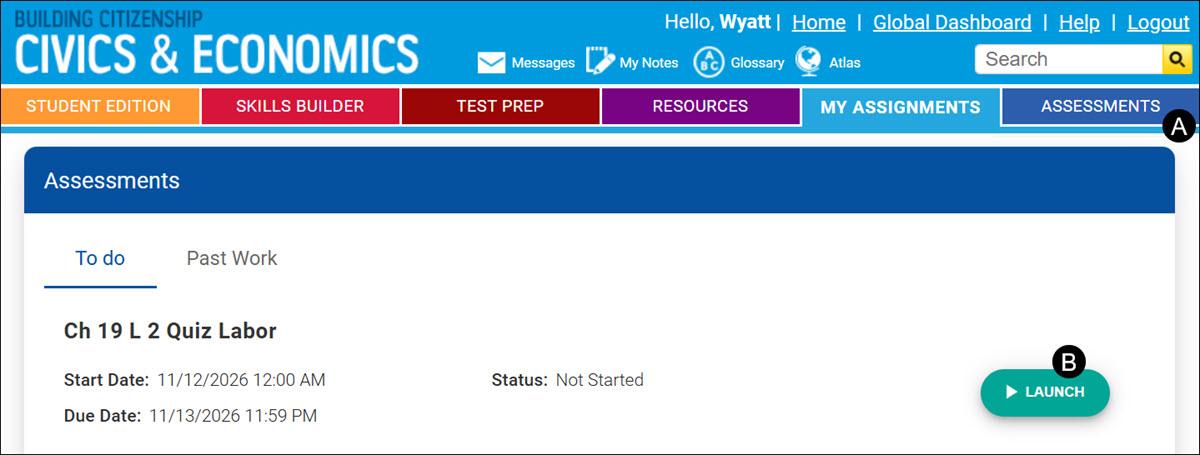
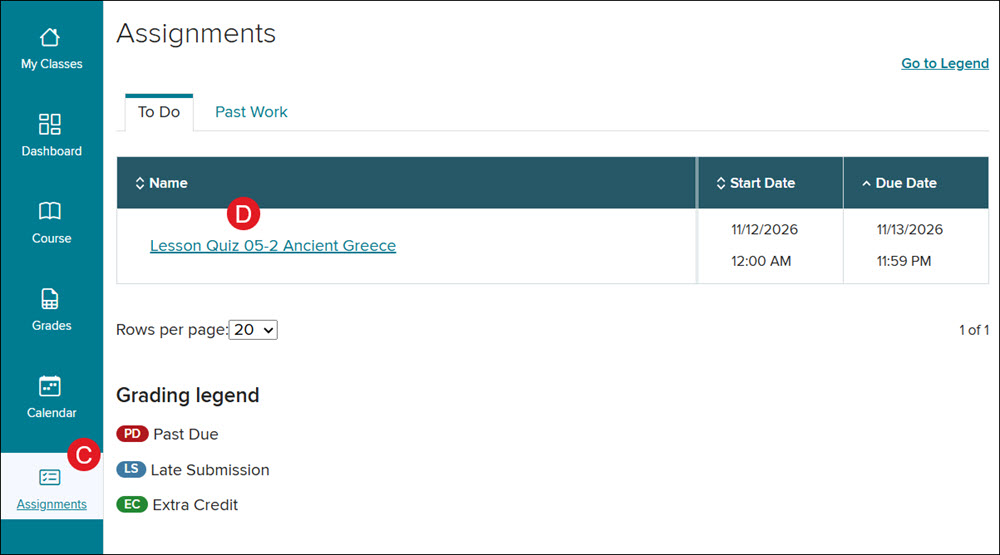
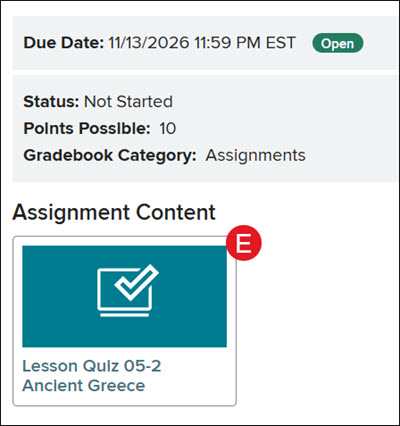
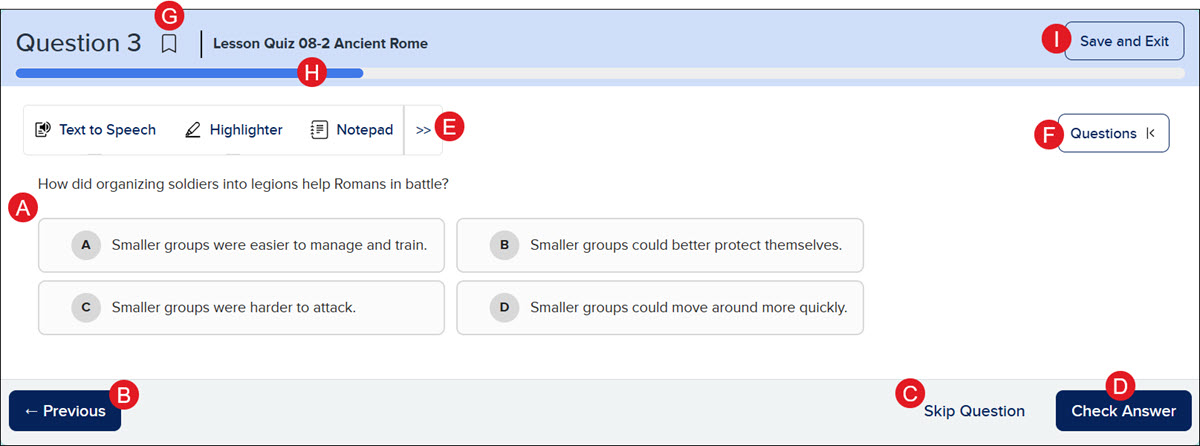
<p><a href="https://hub.mheducation.com/share/vzyigpf6vdzx" target="_blank">View the demo in a separate tab.</a></p> <p><a href="https://hub.mheducation.com/share/v4jlkntnwhaq" target="_blank">View the Spanish version of the demo.</a></p> <p> </p> <h2><span class="fs-5">Article Contents</span></h2> <p>Access an Online Assessment</p> <ul> <li><a href="#k5_student">K-5 Students</a></li> </ul> <ul> <li><a href="#612_student">6-12 Students</a></li> </ul> <p><a href="#assessment_navigation" target="_self">Assessment Navigation</a></p> <p><a href="#view_scores" target="_self">View Scores</a></p> <p><a href="#multiple_attempts" target="_self">Multiple Attempts</a></p> <p> </p> <h3 class="fs-5"><a id="k5_student"></a>Access an Online Assessment as a K-5 Student</h3> <ol> <li>SSO or log in at <a href="https://my.mheducation.com/" target="_blank">my.mheducation.com</a>.<br> <br> </li> <li>Launch your class.<br> <br> For students accessing <em><strong>Wonders</strong></em>, click on the <strong>To Do</strong> button (A), click the <strong>My Tests</strong> tab (B), and then click the <strong>Launch Assessment</strong> button (C).<br> <br> <img src="/content/dam/mhe/support/support-images/dts-k12-images/complete-mh-assessment/complete-assessment-1.jpg" data-assetref="complete-assessment-1-1794511762220"><br> <br> <img src="/content/dam/mhe/support/support-images/dts-k12-images/complete-mh-assessment/complete-assessment-2.jpg" data-assetref="complete-assessment-2-1794511930943"><br> <br> For some programs, click <strong>Assessments </strong>(D)<strong> </strong>from the home page or menu.<br> <br> <img src="/content/dam/mhe/support/support-images/dts-k12-images/complete-mh-assessment/complete-assessment-3.jpg" data-assetref="complete-assessment-3-1794512738244"><br> <br> Other programs will show the assessment in the <strong>To Do</strong> list on the Home page. Click the <strong>Let's Go</strong> button (E) to access the assessment.<br> <br> <img src="/content/dam/mhe/support/support-images/dts-k12-images/complete-mh-assessment/complete-assessment-4.jpg" data-assetref="complete-assessment-4-1794512811961"></li> </ol> <p> </p> <h3 class="fs-5"><a id="612_student"></a>Access an Online Assessment as a 6-12 Student</h3> <ol> <li>SSO or log in at <a href="https://my.mheducation.com/" target="_blank">my.mheducation.com</a>.<br> <br> </li> <li>Launch your class.<br> <br> For students accessing <strong>Networks</strong>, click the <strong>Assessments </strong>tab (A) and then click the <strong>Launch </strong>button (B).<br> <br> <img src="/content/dam/mhe/support/support-images/dts-k12-images/complete-mh-assessment/complete-assessment-5.jpg" data-assetref="complete-assessment-5-1794513035046"><br> <br> For other programs, click on <strong>Assignments </strong>in the navigation menu (C), click on the assessment <strong>Name </strong>(D), and then click on the <strong>Assignment Content</strong> tile (E).<br> <br> <img src="/content/dam/mhe/support/support-images/dts-k12-images/complete-mh-assessment/complete-assessment-6.jpg" data-assetref="complete-assessment-6-1794513254244"><br> <br> <img src="/content/dam/mhe/support/support-images/dts-k12-images/complete-mh-assessment/complete-assessment-7.jpg" data-assetref="complete-assessment-7-1794513305611"></li> </ol> <p> </p> <h3 class="fs-5"><a id="assessment_navigation"></a>Assessment Navigation</h3> <p style="margin-left: 40.0px;"><img src="/content/dam/mhe/support/support-images/dts-k12-images/complete-mh-assessment/complete-assessment-8.jpg" data-assetref="complete-assessment-8-1794513914887"></p> <ol class="list-type-alphabet-uppercase"> <li><strong>Question </strong>and <strong>Answer </strong>selections/fields.<br> <br> </li> <li>Click the <strong>Previous </strong>and <strong>Next </strong>buttons to navigate back and forth between questions.<br> <br> <strong>Note:</strong> If your teacher has enabled you to be able to check your answers for each question, you will not see the <strong>Next </strong>button until you've used all your <strong>Check Answer </strong>times.<br> <br> </li> <li>Click the *<strong>Skip Question</strong> button to navigate to the next question without providing an answer to the current question.<br> <br> </li> <li>Click the *<strong>Check Answer</strong> button to verify if the answer entered/selected is correct.<br> <br> *These options are only available if the teacher has enabled the Check Answer option for the assessment.<br> <br> <strong>Note:</strong> The Check Answer and Skip Question buttons are not available for essay or short answer questions.<br> <br> </li> <li>Any <strong>Assessment Tools</strong> enabled by your teacher will appear in this toolbar. Use the double arrow to expand or collapse it.<br> <br> </li> <li>The <strong>Question Progress Bar</strong> updates as you move through the assessment, showing how far along you are.<br> <br> </li> <li>To mark a question as a reminder to return to later, click the <strong>Bookmark </strong>icon. If the icon is marked, it will turn blue/solid.<br> <br> </li> <li>Click the <strong>Questions </strong>button to expand or collapse the question panel.<br> <br> <strong>Note:</strong> If there are three or fewer questions on the assessment, the Questions panel is not viewable.<br> <br> The panel shows the number of questions within the assessment. Students can click on a specific question number in the panel to return to that specific question.<br> <br> - Answered questions will show in solid gray.<br> <br> - Any questions that were marked with the bookmark icon will show the solid blue bookmark icon.<br> <br> - Any questions that have not been answered will show with a dashed line around the question number.<br> <br> - Once all questions are answered, students can click the <strong>I'm Done</strong> button in the question panel. This button is also available at the end of the assessment.<br> <br> <img src="/content/dam/mhe/support/support-images/dts-k12-images/complete-mh-assessment/complete-assessment-9.jpg" data-assetref="complete-assessment-9-1794514455463"><br> <br> Once the <strong>I'm Done</strong> button is clicked in either location, a <strong>Check Your Work</strong> pop-up will show.<br> <br> If there are any <strong>unanswered questions</strong>, the number of questions unanswered will be provided and a <strong>Go Back</strong> button will be available to be able to return to those questions. Otherwise, the student will want to click <strong>Submit</strong>.<br> <br> <img src="/content/dam/mhe/support/support-images/dts-k12-images/complete-mh-assessment/complete-assessment-10.jpg" data-assetref="complete-assessment-10-1794514568756"><br> <br> If all questions have been answered, a <strong>Submit </strong>button and a <strong>Close </strong>button will be available. Clicking <strong>Close </strong>will allow students to return to the assessment to look over the questions/answers.<br> <br> <img src="/content/dam/mhe/support/support-images/dts-k12-images/complete-mh-assessment/complete-assessment-11.jpg" data-assetref="complete-assessment-11-1794514959504"><br> <br> </li> <li>Click the <strong>Save and Exit</strong> button to leave the assessment. This allows students to exit the assessment and come back to it at a later time to complete it as long as it is within the time frame set by the teacher.</li> </ol> <p> </p> <h3 class="fs-5"><a id="view_scores"></a>View Scores</h3> <p>This option is only available if the teacher has allowed students to view their scores after completing the assessment, once the assessment has closed, or after a certain date has passed.</p> <p>The scoresheet will show all questions that were on the assessment, the answers given, the correct answer, and the overall percentage/score received.</p> <p><strong>Note:</strong> If there are any <strong>To Be Graded</strong> questions - such as essay and short answer questions - the Scoresheet will show a "<strong>Waiting for Teacher Review</strong>" message at the top.</p> <ol class="list-type-alphabet-uppercase"> <li>If the teacher allowed for <a href="#multiple_attempts" target="_self"><strong>multiple attempts</strong></a>, students can toggle between the attempt results page by clicking on the <strong>Attempt </strong>drop-down.<br> <br> </li> <li>Click the <strong>Close </strong>button to exit the scoresheet.<br> <br> <img src="/content/dam/mhe/support/support-images/dts-k12-images/complete-mh-assessment/complete-assessment-13.jpg" data-assetref="complete-assessment-13-1794516210817"></li> </ol> <p> </p> <h3 class="fs-5"><a id="multiple_attempts"></a>Multiple Attempts</h3> <p>Sometimes, teachers allow multiple attempts with an assessment, adding an additional one or two tries for the assessment.</p> <p>The number of attempts provided and the number completed for an assessment will show in the <strong>Details </strong>section before clicking the <strong>Get Started</strong> button.</p> <p><img src="/content/dam/mhe/support/support-images/dts-k12-images/complete-mh-assessment/complete-assessment-12.jpg" data-assetref="complete-assessment-12-1794515198576"></p> dts Learn how to navigate and complete a McGraw Hill assessment. 2026-11-12 Take a McGraw Hill Online Assessment Learn how to navigate and complete a McGraw Hill assessment. Learn how to navigate and complete a McGraw Hill assessment.
Learn how to navigate and complete a McGraw Hill assessment.
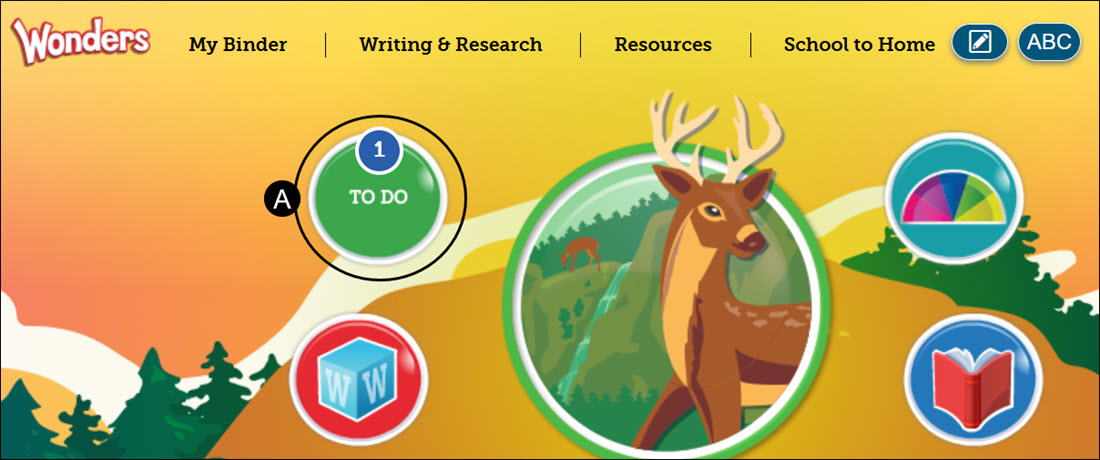
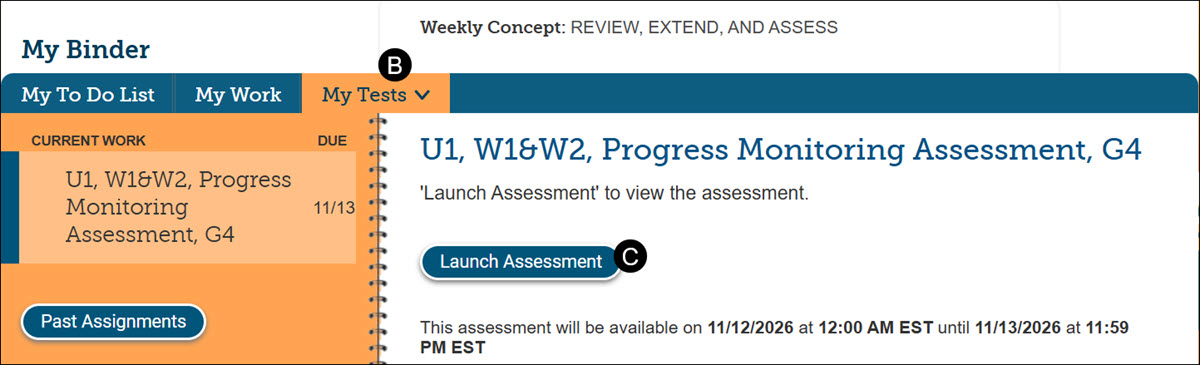
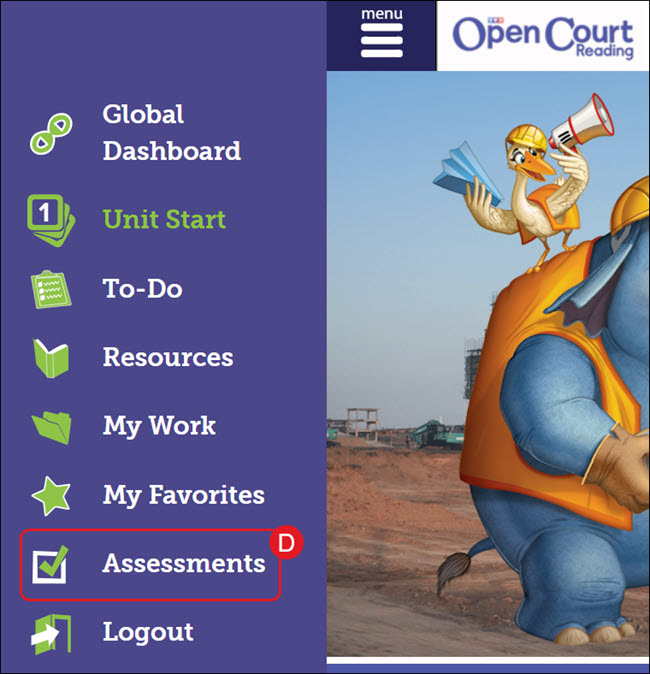
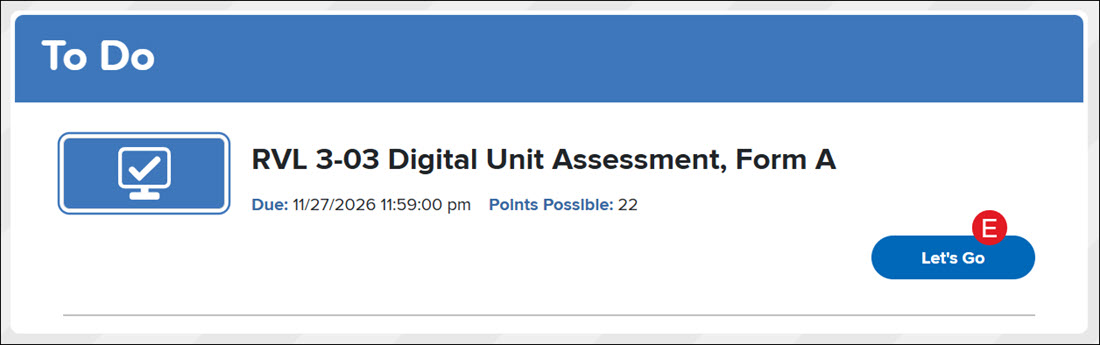
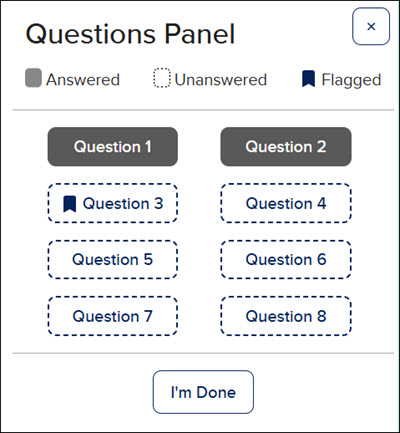
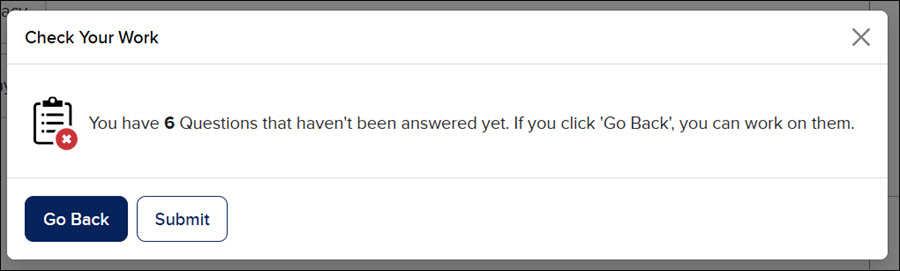
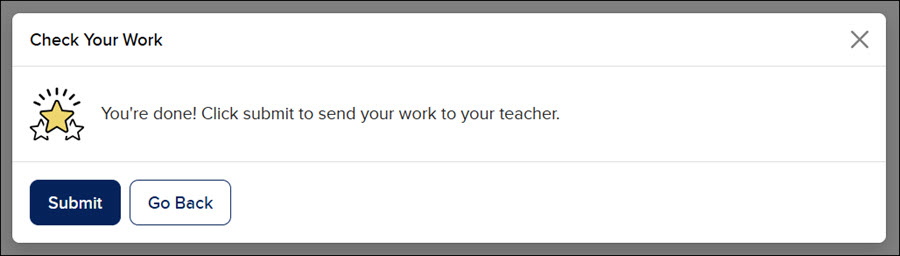
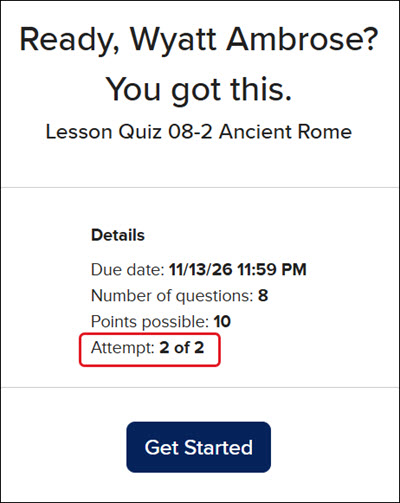
View the demo in a separate tab. View the Spanish version of the demo. Article Contents Access an Online Assessment K-5 Students 6-12 Students Assessment Navigation View Scores Multiple Attempts Access an Online Assessment as a K-5 Student SSO or log in at my.mheducation.com. Launch your class. For students accessing Wonders, click on the To Do button (A), click the My Tests tab (B), and then click the Launch Assessment button (C). For some programs, click Assessments (D) from the home page or menu. Other programs will show the assessment in the To Do list on the Home page. Click the Let's Go button (E) to access the assessment. Access an Online Assessment as a 6-12 Student SSO or log in at my.mheducation.com. Launch your class. For students accessing Networks, click the Assessments tab (A) and then click the Launch button (B). For other programs, click on Assignments in the navigation menu (C), click on the assessment Name (D), and then click on the Assignment Content tile (E). Assessment Navigation Question and Answer selections/fields. Click the Previous and Next buttons to navigate back and forth between questions. Note: If your teacher has enabled you to be able to check your answers for each question, you will not see the Next button until you've used all your Check Answer times. Click the *Skip Question button to navigate to the next question without providing an answer to the current question. Click the *Check Answer button to verify if the answer entered/selected is correct. *These options are only available if the teacher has enabled the Check Answer option for the assessment. Note: The Check Answer and Skip Question buttons are not available for essay or short answer questions. Any Assessment Tools enabled by your teacher will appear in this toolbar. Use the double arrow to expand or collapse it. The Question Progress Bar updates as you move through the assessment, showing how far along you are. To mark a question as a reminder to return to later, click the Bookmark icon. If the icon is marked, it will turn blue/solid. Click the Questions button to expand or collapse the question panel. Note: If there are three or fewer questions on the assessment, the Questions panel is not viewable. The panel shows the number of questions within the assessment. Students can click on a specific question number in the panel to return to that specific question. - Answered questions will show in solid gray. - Any questions that were marked with the bookmark icon will show the solid blue bookmark icon. - Any questions that have not been answered will show with a dashed line around the question number. - Once all questions are answered, students can click the I'm Done button in the question panel. This button is also available at the end of the assessment. Once the I'm Done button is clicked in either location, a Check Your Work pop-up will show. If there are any unanswered questions, the number of questions unanswered will be provided and a Go Back button will be available to be able to return to those questions. Otherwise, the student will want to click Submit. If all questions have been answered, a Submit button and a Close button will be available. Clicking Close will allow students to return to the assessment to look over the questions/answers. Click the Save and Exit button to leave the assessment. This allows students to exit the assessment and come back to it at a later time to complete it as long as it is within the time frame set by the teacher. View Scores This option is only available if the teacher has allowed students to view their scores after completing the assessment, once the assessment has closed, or after a certain date has passed. The scoresheet will show all questions that were on the assessment, the answers given, the correct answer, and the overall percentage/score received. Note: If there are any To Be Graded questions - such as essay and short answer questions - the Scoresheet will show a "Waiting for Teacher Review" message at the top. If the teacher allowed for multiple attempts, students can toggle between the attempt results page by clicking on the Attempt drop-down. Click the Close button to exit the scoresheet. Multiple Attempts Sometimes, teachers allow multiple attempts with an assessment, adding an additional one or two tries for the assessment. The number of attempts provided and the number completed for an assessment will show in the Details section before clicking the Get Started button.
dts
Customer Support, PreK-12, School Student, School Parent, Preschool, Elementary School, Middle School, High School, Direct Login & Auto-Rostering, Direct Login & Manual-Rostering, SSO & Auto-Rostering, SSO & Manual-Rostering, Core, Intervention, Supplemental, AP, Honors & Electives, Career & Technical Education, Literacy, Math, Science, Social Studies, Health, Visual & Performing Arts, World Languages, AP Biology, AP Chemistry, AP History & Geography, AP Psychology, AP Economics, AP African American Studies, AP Precalculus, AP Statistics, AP Computer Science, AP Language and Composition, AP Public Speaking, AP Music Theory, 5 Steps to a 5 - AP Test Prep, Glencoe Health 2022, Teen Health 2021, Arrive Math, Building Blocks 2024, Building Blocks PreK 2025, Number Worlds 2024, Everyday Mathematics 4 (K-6), SRA Reading Laboratory 2025, SRA Reading Mastery Transformations, McGraw Hill Literacy Emerge!, McGraw Hill Literacy Summit!, McGraw Hill Literacy Soar!, Open Court Reading, Open Court Reading 2016, 2018, 2023, Open Court Reading 2025, CA Reveal Math (K-12), Illustrative Math, Reveal Math (K-12), Texas Math, CA Inspire Science 2020, FL Science 2025 (K-12), Inspire Science 2020, TN Science (K-12), TX Science 2025 (K-12), CA Impact 2019, FL Social Studies 2024 (K-12), Impact Social Studies, McGraw Hill Social Studies, Asi se Dice 2024, Maravillas 2020 & 2017, Music! Its Role, McGraw Hill My Math 2018, Networks 2018, OCR Foundational Skills Kit, OCR Word Analysis Kit, Spotlight on Music, Wonders 2023 2020 2017, CTE - Business, Marketing, and Finance, CTE - Health Science, CTE - Computing and Technology, CTE - Agriculture, CTE - Culinary Arts, CTE - Early Childhood Education, CTE - Criminal Justice, Level Up K–5, Level Up 6–8, Level Up 9–12, Online Assessments, Grades & Assignments