
Using ALEKS Adventure Greetings
How students send and receive ALEKS Adventure greetings.
- Customer Support
- PreK-12
- School Student
- School Parent
- Elementary School
- Direct Login & Auto-Rostering
- Direct Login & Manual-Rostering
- SSO & Auto-Rostering
- SSO & Manual-Rostering
- Supplemental
- Math
- ALEKS Adventure
- Student Resources


View the demo in a separate tab.
View the Spanish version of the demo.
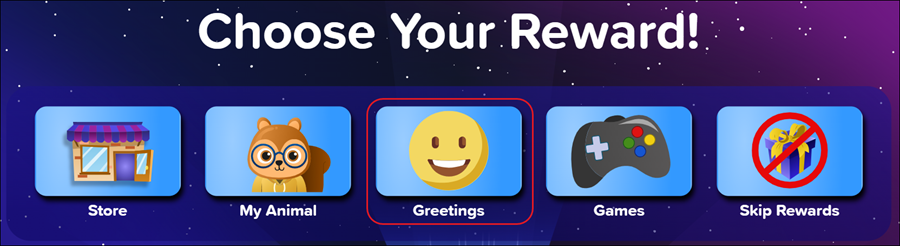
Students access the Greetings page from the Topic Rewards page after successfully learning a new topic. On the Greetings page, students can view the profiles of their classmates and send a classmate an emoji greeting. Students may only send one greeting per new topic completed.
Note: Greetings are not available for kindergarten students and do not show on the Topic Rewards page.
Article Contents
Send a Greeting
1. Click the Greetings button on the Topic Rewards page.
2. Click on a classmate from the My Class section on the right.
A. Click on the navigation arrows at the bottom to move through the My Class pages.
3. Click on a Greetings button at the bottom of the page.
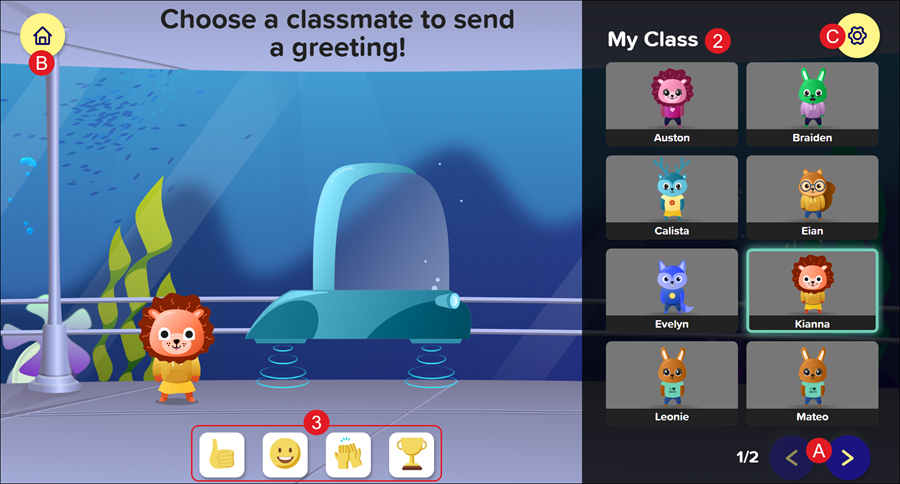
B. Home Button: Returns students to the ALEKS Adventure Homepage.
C. Settings: Opens the Settings panel where students can toggle buttons on and off to change their environment in ALEKS Adventure. The Settings button is available in the top-right corner of every page in ALEKS Adventure.
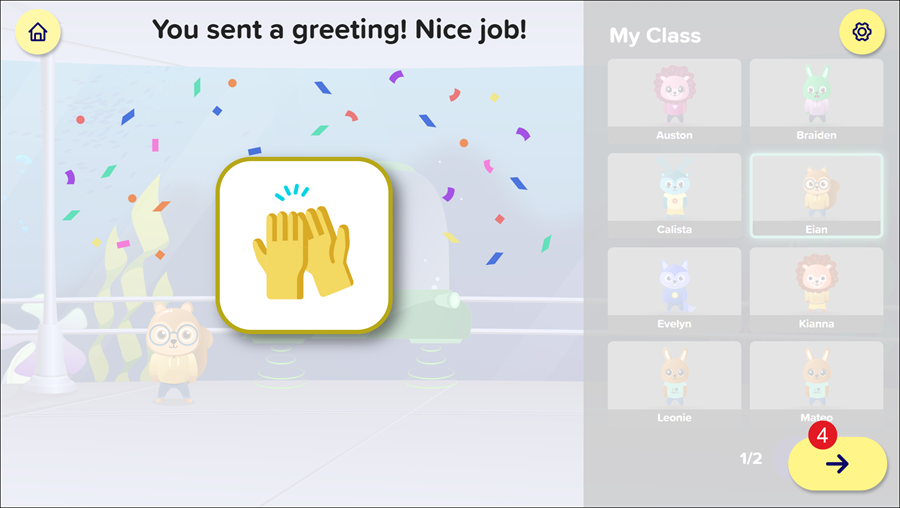
When the student selects a greeting option, they receive a confirmation screen showing that they sent the greeting.
4. Click the forward arrow button on the lower right-hand side of the screen to continue to the Progress Knowledge Check.
Receive a Greeting
When students receive a greeting, the greeting appears after they have successfully learned a topic. Three greetings can be seen at a time. If they receive more than three greetings, the greeting page notifies them that other students sent them greetings, but the greetings are not shown.
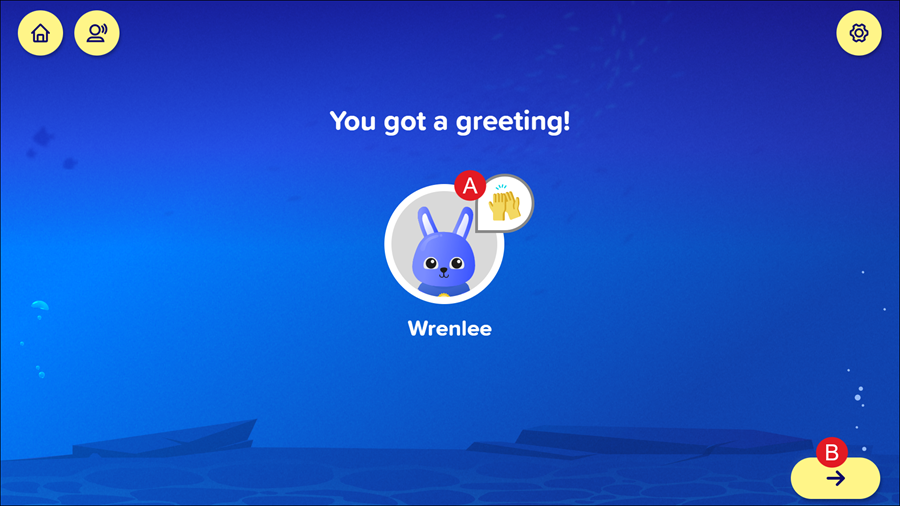
A. The page displays the name and character of the person who sent them the greeting, as well as the emoji greeting the sender sent.
B. To move forward within the program, click the forward arrow button to progress to the Topics Rewards page.
