Switch to Student Mode in Actively Learn
Switch to student mode in Actively Learn to preview the learner experience.
- Customer Support
- PreK-12
- Classroom Teacher
- Elementary School
- Middle School
- High School
- Direct Login & Auto-Rostering
- Direct Login & Manual-Rostering
- SSO & Auto-Rostering
- SSO & Manual-Rostering
- Supplemental
- Literacy
- Science
- Social Studies
- Actively Learn
- Dashboard & Navigation Overview
- Plan & Present


View the Spanish version of the demo.
Article Contents
Access Student Mode
1. SSO or log in at my.mheducation.com.
2. Launch Actively Learn.
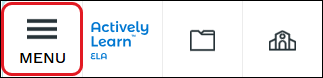
3. Click on Menu at the top-left.
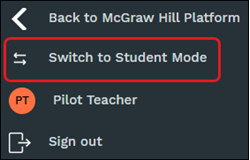
4. At the bottom of the Menu panel, click Switch to Student Mode.
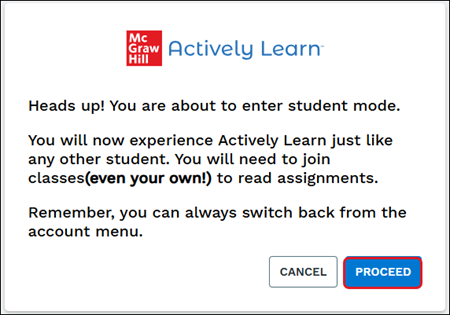
5. On the Actively Learn pop-up, click the Proceed button.
Join Your Class
To view assignments that you've made for you class as a student, you can join your class in Student Mode.
2. Click Menu at the top-left.
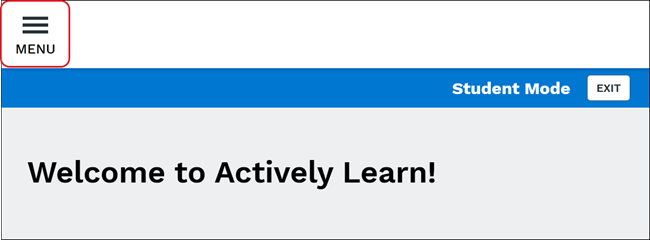
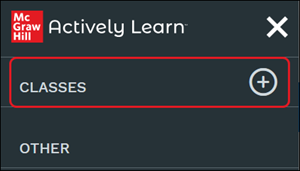
3. Click the + (plus) icon next to Classes.
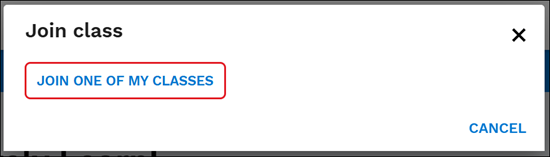
4. On the Join class pop-up, click the Join One of My Classes button.
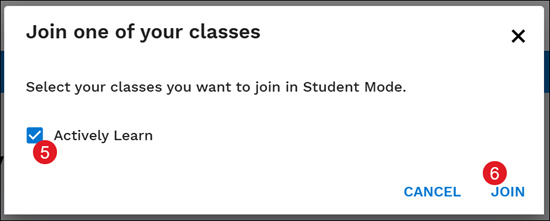
5. Click the check box next to the class you want to join.
6. Click the Join button.
Exit Student Mode
There are two options on how to exit Student Mode:
Option 1:
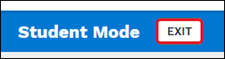
Click the Exit button in the Student Mode bar at the top of the screen.
Option 2:
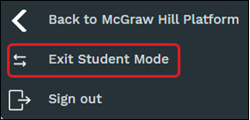
Click on Menu in the top-left and click Exit Student Mode at the bottom.