Assign Students to Small Groups in Actively Learn
Learn how to assign students to small groups within Actively Learn.
- Customer Support
- PreK-12
- Classroom Teacher
- Elementary School
- Middle School
- High School
- Direct Login & Auto-Rostering
- Direct Login & Manual-Rostering
- SSO & Auto-Rostering
- SSO & Manual-Rostering
- Supplemental
- Literacy
- Science
- Social Studies
- Actively Learn
- Account Management
- User Management
- Class Management


Teachers can assign students to small groups within their classes, helping create a more informal atmosphere for student discussions. Small groups can be set up at the class level or the assignment level.
Class level small group settings will apply for all assignments in that class, while assignment level settings will only apply for groups for the selected assignment.
Note: Assignment small group settings will override class small group settings.
For steps on creating assignments, refer to the Create, Duplicate, Merge, and Import Actively Learn Assignments article.
1. Click Menu at the top-left.
2. Select the class you want to manage small groups for.
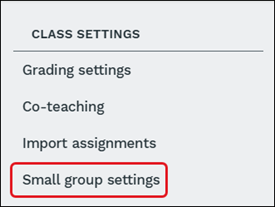
3. For class small groups, click Small groups settings under Class Settings on the panel on the right.
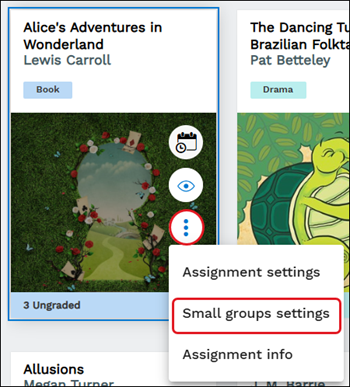
For assignment small groups, hover over the assignment tile and click on the more info button. Click Small groups settings from the menu.
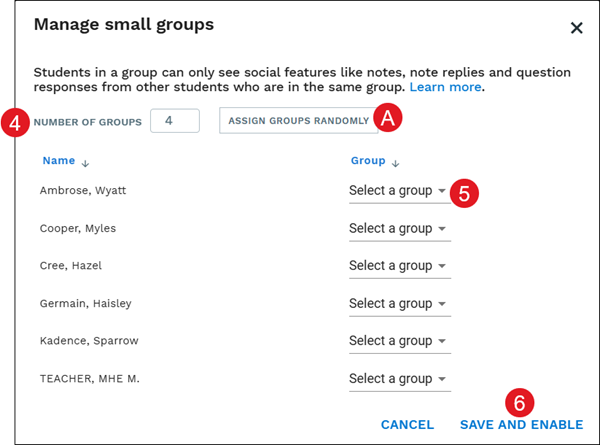
4. Enter the Number of Groups you want to create.
A. Click the Assign Groups Randomly button to have the system select what student is assigned to a certain group.
5. Click on the Group drop-down to assign a student to a group.
6. Click the Save and Enable button.