Our SIMnet Canvas Migration Tool streamlines the transition of SIMnet's LTI 1.1 assignment links to McGraw Hill Integration (MHI). Designed for efficiency and reliability, the tool ensures seamless migration with minimal disruption to instructors and students. By upgrading to MHI, users gain enhanced security, improved integration capabilities, and access to the latest features that foster a more intuitive and connected learning experience.
Part 1: Migration setup
Ensure all tools are installed and enabled
You must have a current LTI 1.1 consumer key.
The McGraw Hill Integration (MHI) LTIA 1.3 tool must be installed and enabled for your organization.
The appropriate migration tool must be enabled for your organization.
If your course uses both SIMnet and Connect, multi-platform pairing support must also be enabled.
A member of the Platform Integrations (PIC) team will be able to assist with this.
Check your email address
The email address being used in SIMnet needs to match the email address being used in your Canvas profile.
Check your assignment links
Your course needs to be in a paired state with assignments linked for the migration to be successful.
You will not see the migration interface when launching the MHI tool if there are no 1.1 assignment links in the LMS course.
Check for Student Activity
If at least one student has a grade in the class, then the migration tool will still initiate if the 1.1 section is paired. We do not want to migrate courses that are ‘active.ʼ However, we have steps below in cases where this is unavoidable.
Notethis is different than Connect functionality which automatically blocks the migration if there is student activity detected.
Part 2: The Migration Process
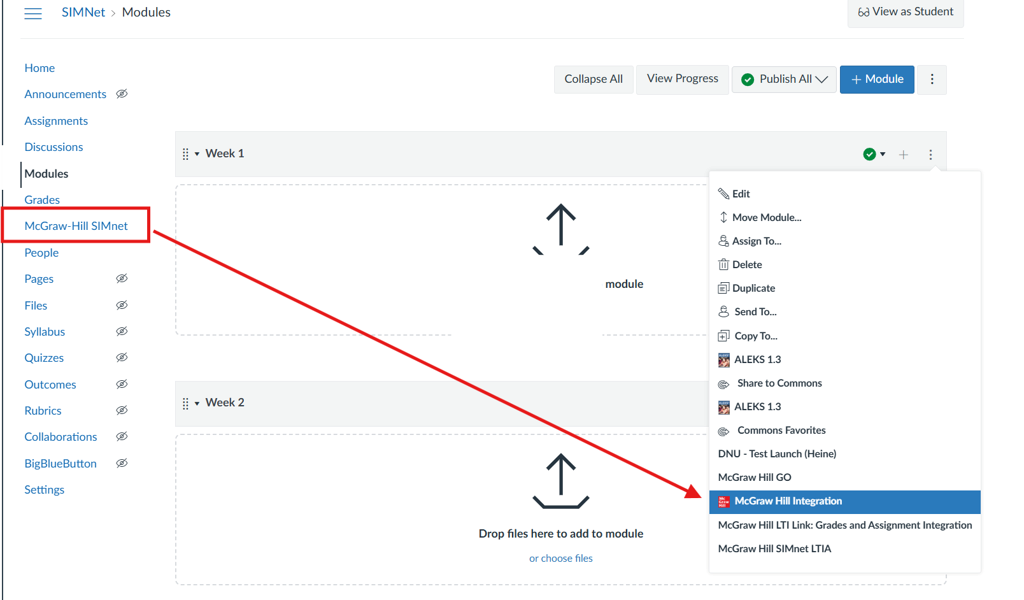
Within your Canvas course, navigate to the modules area. (You will already have the “McGraw Hill SIMnet LTI 1.1” Tool.)
Add a module if needed or use the 3 dots to the right of any module to select the “McGraw Hill Integration” Tool.
Notethat your tool may be labeled slightly different as McGraw Hill or McGraw Hill Connect LTIA.
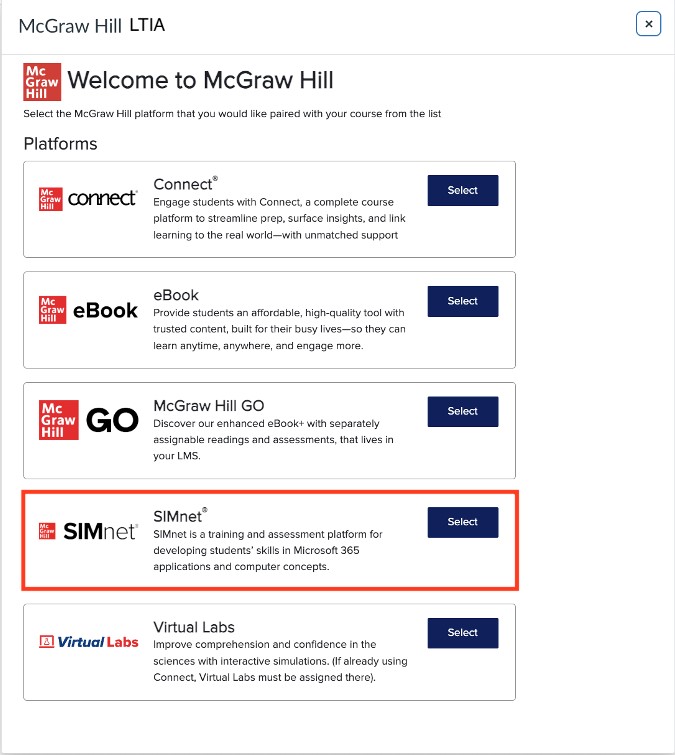
Customers with access to more than one platform (e.g. Connect & SIMnet) may see an additional screen. In this screen, choose SIMnet.
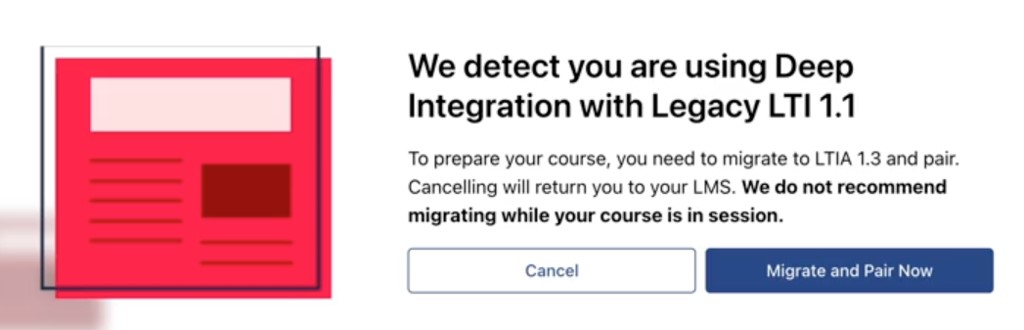
If your course is ready for migration, you will see this window. Click Cancel to exit or Migrate and Pair Now.
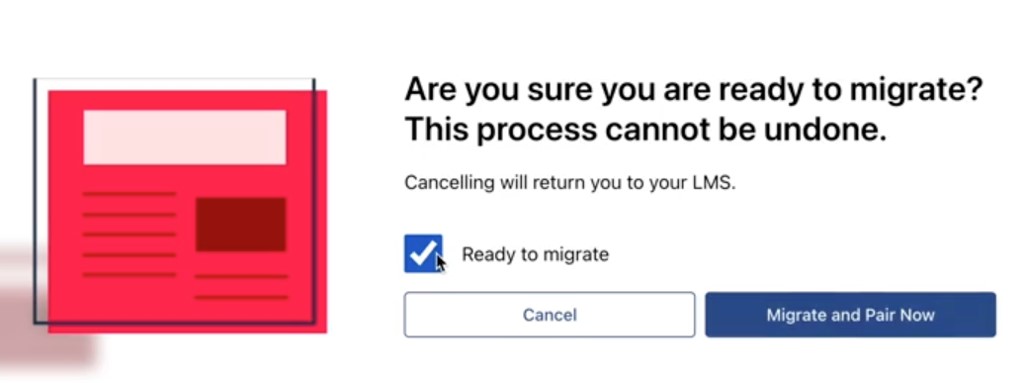
Check the Ready to migrate box and click Migrate and Pair Now.
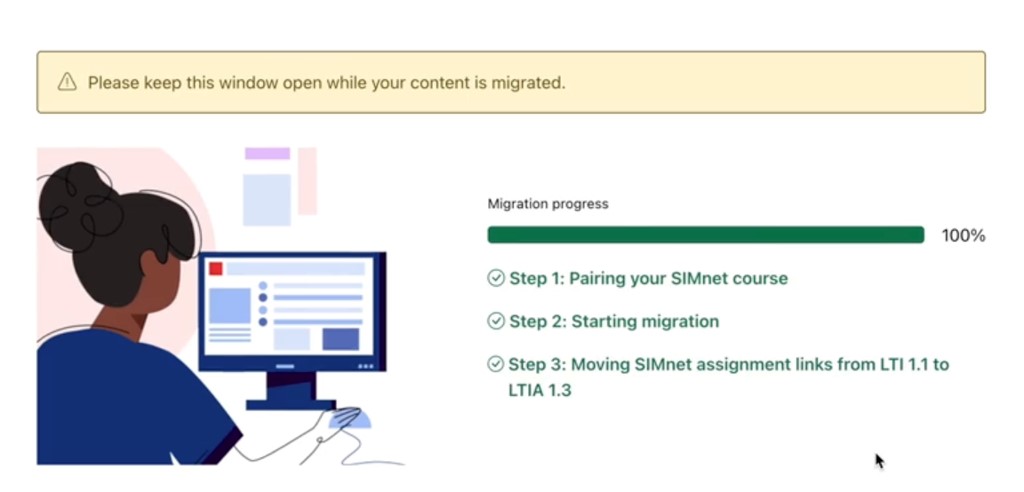
Be sure to keep the migration window open until the process is complete.
The migration of a large number of assignments (over 100) will take a few minutes. Please be patient during the third step!
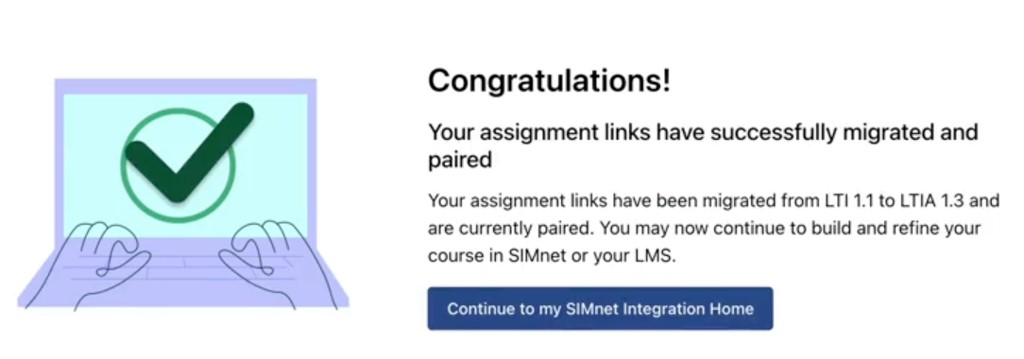
When the process is complete, you will receive confirmation and be directed to the SIMnet Integration page.
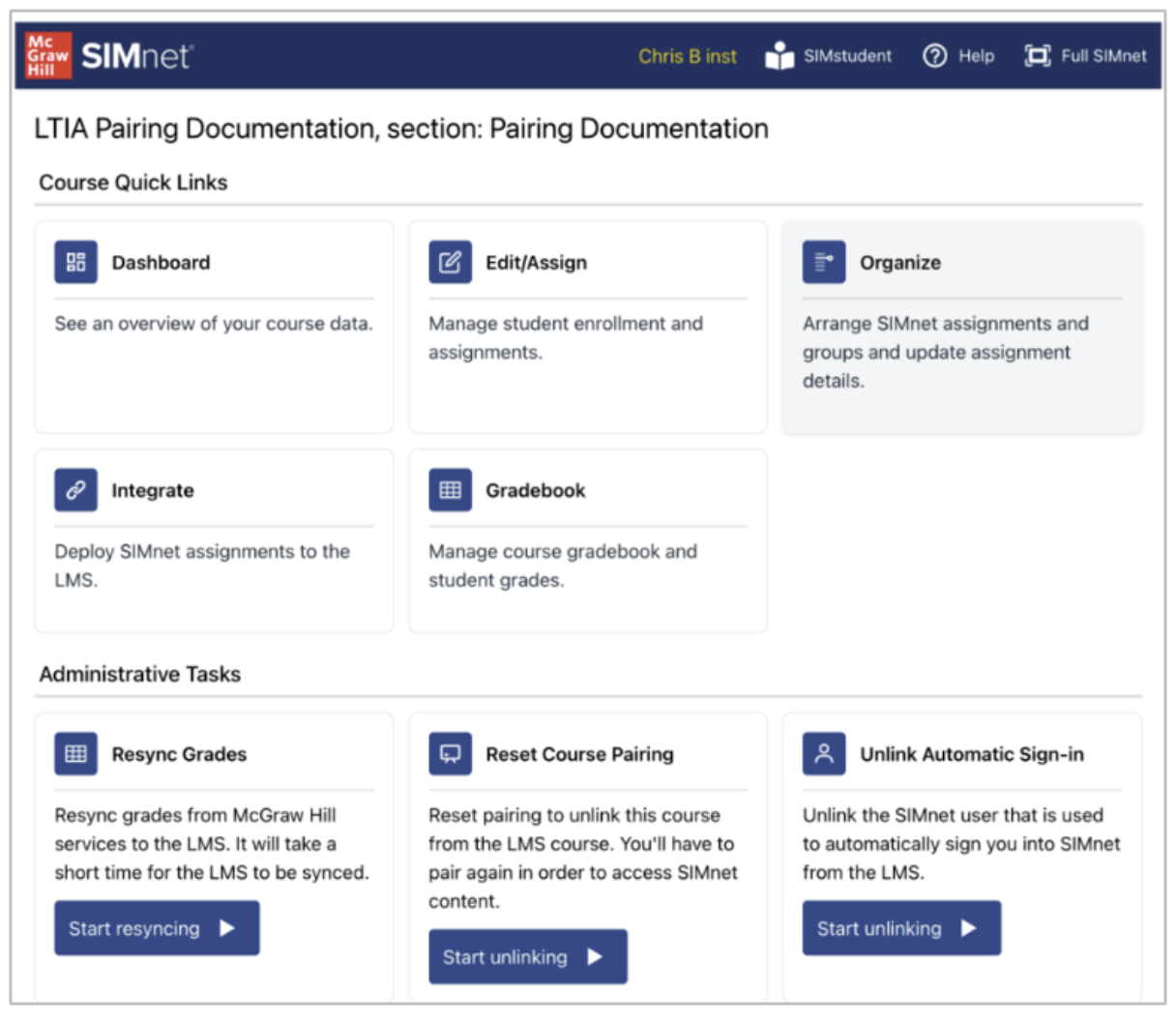
Proceed with your normal integration activities.
Part 3: After Migration
Important note about post-migration
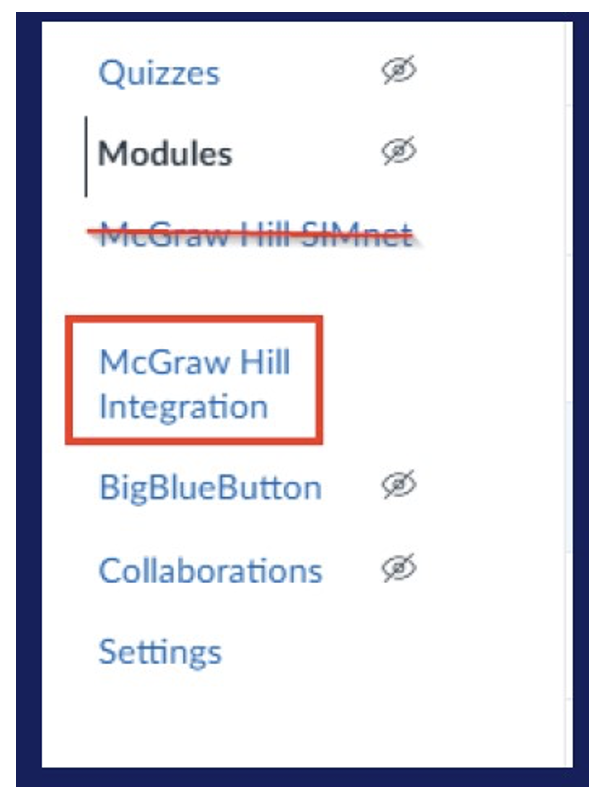
Once your LMS course has successfully migrated from SIMnet LTI 1.1 to McGraw Hill integration, we recommend that you or your LMS admin disable the “McGraw Hill SIMnet” 1.1 tool in your LMS.
You can do this by navigating to your course settings, selecting the Navigation tab, locating the SIMnet 1.1 tool, disabling it, and then clicking Save.
You should also replace the “McGraw Hill SIMnet” course navigation link with the new “McGraw Hill Integration” link.
Migrating an LTI 1.1 course that is active
Migration during an active course is not recommended. It can create confusion for instructors and students.
Follow the steps above and then check the following items.
Assignments
Duplicate assignments may appear in some cases. Delete the old assignments (i.e. the assignments with broken links).
For students, assignment links will appear broken. Students must launch SIMnet to pair their Canvas and SIMnet accounts.
Grades
Upon migration, grades will disappear from the gradebook. These grades are not lost. Student must login to Canvas and launch an assignment in order for grades to appear.
Modules
LTIA sends assignments to Canvas in a module. Courses that did not previously use modules will start to see a module called “NEW SIMnet Assignments” populate.
Instructors can rename this module
Modules behave like typical Canvas modules--Instructors must publish modules in order for students to see them.
Default to Unpublished
Assignment inside are unpublished.
McGraw Hill Higher Education Digital Support
If you run into trouble with your migration or if you need any additional support, agents are standing by to assist.
Let us know how we can improve our support information by providing feedback in this short survey.
Top
Regional Page Available
It looks like you're outside the United States. Do you want to see your regional version of this page?
simnet
student
instructor
Personas
Personas/Higher Ed Educator
Personas/Higher Ed Educator/Instructor
Asset Format Type
Asset Format Type/Customer Support
Business Unit
Business Unit/Higher Education
Personas/Higher Ed Student
highered
2026-03-24T19:19:03.492-03:00
<h2>SIMnet Canvas Migration tool guide: Deep Integration (LTI 1.1) to McGraw Hill Integration (LTIA 1.3)</h2> <ul> <li><a href="#a" target="_self">SIMnet Canvas Migration overview</a></li> <li><a href="#b" target="_self">Part 1: Migration setup</a></li> <li><a href="#c" target="_self">Part 2: The Migration Process</a></li> <li><a href="#d" target="_self">Part 3: After Migration</a></li> <li><a href="#e" target="_self">Migrating an LTI 1.1 course that is active </a></li> <li><a href="#f" target="_self">McGraw Hill Higher Education Digital Support</a></li> </ul> <h2><a id="a"></a>SIMnet Canvas Migration overview</h2> <p>Our SIMnet Canvas Migration Tool streamlines the transition of SIMnet's LTI 1.1 assignment links to McGraw Hill Integration (MHI). Designed for efficiency and reliability, the tool ensures seamless migration with minimal disruption to instructors and students. By upgrading to MHI, users gain enhanced security, improved integration capabilities, and access to the latest features that foster a more intuitive and connected learning experience.</p> <h2><a id="b"></a>Part 1: Migration setup</h2> <h2>Ensure all tools are installed and enabled</h2> <ul> <li>You must have a current LTI 1.1 consumer key.</li> <li>The McGraw Hill Integration (MHI) LTIA 1.3 tool must be installed and enabled for your organization.</li> <li>The appropriate migration tool must be enabled for your organization.</li> <li>If your course uses both SIMnet and Connect, multi-platform pairing support must also be enabled.</li> </ul> <p><em>A member of the Platform Integrations (PIC) team will be able to assist with this.</em></p> <h2>Check your email address</h2> <p>The email address being used in SIMnet needs to match the email address being used in your Canvas profile.</p> <h2>Check your assignment links</h2> <ul> <li>Your course <strong>needs </strong>to be in a paired state with assignments linked for the migration to be successful.</li> </ul> <p><em>You will not see the migration interface when launching the MHI tool if there are no 1.1 assignment links in the LMS course.</em></p> <h2>Check for Student Activity</h2> <ul> <li>If at least one student has a grade in the class, then the migration tool will still initiate if the 1.1 section is paired. We do not want to migrate courses that are ‘active.ʼ However, we have steps below in cases where this is unavoidable.</li> </ul> <p><strong>Note</strong> <em>this is different than Connect functionality which automatically blocks the migration if there is student activity detected.</em></p> <h2><a id="c"></a>Part 2: The Migration Process</h2> <ol> <li>Within your Canvas course, navigate to the modules area. (You will already have the “McGraw Hill SIMnet LTI 1.1” Tool.)</li> </ol> <ul> <li><ul> <li>Add a module if needed or use the 3 dots to the right of any module to select the <strong>“McGraw Hill Integration”</strong> Tool.</li> </ul> </li> </ul> <p><strong>Note</strong> <em>that your tool may be labeled slightly different as McGraw Hill or McGraw Hill Connect LTIA.</em></p> <p><br> <img alt="canvas 1-1.png" src="/content/dam/mhe/support/support-images/migrated/rtaImage--1462535981.jpeg" height="282" width="481" data-assetref="rtaImage--1462535981-1788187920497"><br> </p> <ol start="2"> <li>Customers with access to more than one platform (e.g. Connect & SIMnet) may see an additional screen. In this screen, choose SIMnet.</li> </ol> <p><br> <img src="/content/dam/mhe/support/support-images/migrated/rtaImage--1462536119.jpeg" height="385" width="344" data-assetref="rtaImage--1462536119-1788187920497"></p> <ol start="3"> <li>If your course is ready for migration, you will see this window. Click Cancel to exit or <strong>Migrate and Pair Now</strong>.</li> </ol> <p><br> <img src="/content/dam/mhe/support/support-images/migrated/rtaImage--1462536044.jpeg" height="155" width="480" data-assetref="rtaImage--1462536044-1788187920497"><br> </p> <ol start="4"> <li>Check the <strong>Ready to migrate</strong> box and click <strong>Migrate and Pair Now</strong>.</li> </ol> <p><br> <img src="/content/dam/mhe/support/support-images/migrated/rtaImage--1462536151.jpeg" height="180" width="480" data-assetref="rtaImage--1462536151-1788187920497"><br> </p> <ol start="5"> <li>Be sure to keep the migration window open until the process is complete.</li> </ol> <p><em>The migration of a large number of assignments (over 100) will take a few minutes. Please be patient during the third step!</em></p> <p><br> <img alt="1.1progress.png" src="/content/dam/mhe/support/support-images/migrated/rtaImage--1462536012.jpeg" height="231" width="481" data-assetref="rtaImage--1462536012-1788187920497"><br> </p> <ol start="5"> <li>When the process is complete, you will receive confirmation and be directed to the SIMnet Integration page.</li> </ol> <p><br> <img src="/content/dam/mhe/support/support-images/migrated/rtaImage--1462535899.jpeg" height="169" width="481" data-assetref="rtaImage--1462535899-1788187920497"><br> </p> <ol start="6"> <li>Proceed with your normal integration activities.</li> </ol> <p><br> <img src="/content/dam/mhe/support/support-images/migrated/rtaImage--1462534154.jpeg" width="564" height="489" data-assetref="rtaImage--1462534154-1788187920497"><br> </p> <h2><a id="d"></a>Part 3: After Migration</h2> <h2>Important note about post-migration</h2> <p>Once your LMS course has successfully migrated from SIMnet LTI 1.1 to McGraw Hill integration, we recommend that you or your LMS admin<strong> disable the “McGraw Hill SIMnet” 1.1 tool </strong>in your LMS.</p> <p>You can do this by navigating to your course settings, selecting the Navigation tab, locating the SIMnet 1.1 tool, disabling it, and then clicking Save.</p> <p>You should also replace the “McGraw Hill SIMnet” course navigation link with the new “<strong>McGraw Hill Integration</strong>” link.</p> <p><br> <img src="/content/dam/mhe/support/support-images/migrated/rtaImage--1462532664.jpeg" width="200" height="263" data-assetref="rtaImage--1462532664-1788187920497"></p> <h2><a id="e"></a>Migrating an LTI 1.1 course that is active</h2> <p><em>Migration during an active course is not recommended. It can create confusion for instructors and students.</em></p> <p>Follow the steps above and then check the following items.</p> <h2>Assignments</h2> <ul> <li>Duplicate assignments may appear in some cases. Delete the old assignments (i.e. the assignments with broken links).</li> <li>For students, assignment links will appear broken. Students must launch SIMnet to pair their Canvas and SIMnet accounts.</li> </ul> <h2>Grades</h2> <p>Upon migration, grades will disappear from the gradebook. <strong>These grades are not lost</strong>. Student must login to Canvas and launch an assignment in order for grades to appear.</p> <h2>Modules</h2> <p>LTIA sends assignments to Canvas in a module. Courses that did not previously use modules will start to see a module called “NEW SIMnet Assignments” populate.</p> <ul> <li>Instructors can rename this module</li> <li>Modules behave like typical Canvas modules--Instructors must publish modules in order for students to see them.<ul> <li>Default to Unpublished</li> <li>Assignment inside are unpublished.</li> </ul> </li> </ul> <h2><a id="f"></a>McGraw Hill Higher Education Digital Support</h2> <p>If you run into trouble with your migration or if you need any additional support, agents are standing by to assist.</p> <p><strong>Phone</strong>: 800.331.5094</p> <p><strong>Chat: </strong><a target="_blank" href="https://mh.my.site.com/CXG/s/ContactUs">https</a><a target="_blank" href="https://mh.my.site.com/CXG/s/ContactUs">:</a><a target="_blank" href="https://mh.my.site.com/CXG/s/ContactUs">//mh</a><a target="_blank" href="https://mh.my.site.com/CXG/s/ContactUs">.</a><a target="_blank" href="https://mh.my.site.com/CXG/s/ContactUs">m</a><a target="_blank" href="https://mh.my.site.com/CXG/s/ContactUs">y</a><a target="_blank" href="https://mh.my.site.com/CXG/s/ContactUs">.</a><a target="_blank" href="https://mh.my.site.com/CXG/s/ContactUs">site</a><a target="_blank" href="https://mh.my.site.com/CXG/s/ContactUs">.</a><a target="_blank" href="https://mh.my.site.com/CXG/s/ContactUs">com/CXG/s/ContactUs</a></p> <p><strong>Email: </strong><a target="_blank" href="https://mh.my.site.com/CXG/s/ContactUs">https</a><a target="_blank" href="https://mh.my.site.com/CXG/s/ContactUs">:</a><a target="_blank" href="https://mh.my.site.com/CXG/s/ContactUs">//mh</a><a target="_blank" href="https://mh.my.site.com/CXG/s/ContactUs">.</a><a target="_blank" href="https://mh.my.site.com/CXG/s/ContactUs">m</a><a target="_blank" href="https://mh.my.site.com/CXG/s/ContactUs">y</a><a target="_blank" href="https://mh.my.site.com/CXG/s/ContactUs">.</a><a target="_blank" href="https://mh.my.site.com/CXG/s/ContactUs">site</a><a target="_blank" href="https://mh.my.site.com/CXG/s/ContactUs">.</a><a target="_blank" href="https://mh.my.site.com/CXG/s/ContactUs">com/CXG/s/ContactUs</a></p> dts Use this SIMnet Canvas migration guide to transition from LTI 1.1 to LTI Advantage 1.3. 2025-11-19 SIMnet Canvas Migration Guide - LTI 1.1 to LTIA 1.3 Use this SIMnet Canvas migration guide to transition from LTI 1.1 to LTI Advantage 1.3. Use this SIMnet Canvas migration guide to transition from LTI 1.1 to LTI Advantage 1.3.
Use this SIMnet Canvas migration guide to transition from LTI 1.1 to LTI Advantage 1.3.
SIMnet Canvas Migration tool guide: Deep Integration (LTI 1.1) to McGraw Hill Integration (LTIA 1.3) SIMnet Canvas Migration overview Part 1: Migration setup Part 2: The Migration Process Part 3: After Migration Migrating an LTI 1.1 course that is active McGraw Hill Higher Education Digital Support SIMnet Canvas Migration overview Our SIMnet Canvas Migration Tool streamlines the transition of SIMnet's LTI 1.1 assignment links to McGraw Hill Integration (MHI). Designed for efficiency and reliability, the tool ensures seamless migration with minimal disruption to instructors and students. By upgrading to MHI, users gain enhanced security, improved integration capabilities, and access to the latest features that foster a more intuitive and connected learning experience. Part 1: Migration setup Ensure all tools are installed and enabled You must have a current LTI 1.1 consumer key. The McGraw Hill Integration (MHI) LTIA 1.3 tool must be installed and enabled for your organization. The appropriate migration tool must be enabled for your organization. If your course uses both SIMnet and Connect, multi-platform pairing support must also be enabled. A member of the Platform Integrations (PIC) team will be able to assist with this. Check your email address The email address being used in SIMnet needs to match the email address being used in your Canvas profile. Check your assignment links Your course needs to be in a paired state with assignments linked for the migration to be successful. You will not see the migration interface when launching the MHI tool if there are no 1.1 assignment links in the LMS course. Check for Student Activity If at least one student has a grade in the class, then the migration tool will still initiate if the 1.1 section is paired. We do not want to migrate courses that are ‘active.ʼ However, we have steps below in cases where this is unavoidable. Note this is different than Connect functionality which automatically blocks the migration if there is student activity detected. Part 2: The Migration Process Within your Canvas course, navigate to the modules area. (You will already have the “McGraw Hill SIMnet LTI 1.1” Tool.) Add a module if needed or use the 3 dots to the right of any module to select the “McGraw Hill Integration” Tool. Note that your tool may be labeled slightly different as McGraw Hill or McGraw Hill Connect LTIA. Customers with access to more than one platform (e.g. Connect & SIMnet) may see an additional screen. In this screen, choose SIMnet. If your course is ready for migration, you will see this window. Click Cancel to exit or Migrate and Pair Now. Check the Ready to migrate box and click Migrate and Pair Now. Be sure to keep the migration window open until the process is complete. The migration of a large number of assignments (over 100) will take a few minutes. Please be patient during the third step! When the process is complete, you will receive confirmation and be directed to the SIMnet Integration page. Proceed with your normal integration activities. Part 3: After Migration Important note about post-migration Once your LMS course has successfully migrated from SIMnet LTI 1.1 to McGraw Hill integration, we recommend that you or your LMS admin disable the “McGraw Hill SIMnet” 1.1 tool in your LMS. You can do this by navigating to your course settings, selecting the Navigation tab, locating the SIMnet 1.1 tool, disabling it, and then clicking Save. You should also replace the “McGraw Hill SIMnet” course navigation link with the new “McGraw Hill Integration” link. Migrating an LTI 1.1 course that is active Migration during an active course is not recommended. It can create confusion for instructors and students. Follow the steps above and then check the following items. Assignments Duplicate assignments may appear in some cases. Delete the old assignments (i.e. the assignments with broken links). For students, assignment links will appear broken. Students must launch SIMnet to pair their Canvas and SIMnet accounts. Grades Upon migration, grades will disappear from the gradebook. These grades are not lost. Student must login to Canvas and launch an assignment in order for grades to appear. Modules LTIA sends assignments to Canvas in a module. Courses that did not previously use modules will start to see a module called “NEW SIMnet Assignments” populate. Instructors can rename this module Modules behave like typical Canvas modules--Instructors must publish modules in order for students to see them. Default to Unpublished Assignment inside are unpublished. McGraw Hill Higher Education Digital Support If you run into trouble with your migration or if you need any additional support, agents are standing by to assist. Phone: 800.331.5094 Chat: https://mh.my.site.com/CXG/s/ContactUs Email: https://mh.my.site.com/CXG/s/ContactUs
dts
Higher Ed Student, Higher Education, Customer Support, Instructor