
Proctorio - Quick Tips & Student Guide
Review quick Proctorio tips for students, including setup checks, browser requirements, and best practices before starting an exam.
- Higher Ed Student
- Resources
- Higher Education
- Proctorio
- Customer Support
- Connect



Student Quick Tips - Start Guide
For proctored McGraw Hill Connect assignments, Proctorio tracks certain events to support academic integrity, such as if you leave the page or your camera disconnects. Proctorio doesn’t judge or grade anything. Your instructor reviews the details and makes all final decisions.
1 | Setup
System Requirements
- Device: Windows, Mac, or Chromebook (no mobile)
- Browser: Chrome
 or Edge
 only
only - Connection: Ethernet or stable Wi-Fi
- Hardware: Webcam & microphone (for some exams)
- Tips: Find the most stable internet connection you can. Hotspots (aka tethering to your phone) tend to be unstable.
Get Proctorio
- Open getproctorio.com in a supported browser (Google Chrome or Microsoft Edge).
- Follow the instructions on the page to add the extension to your browser.
- Pin the Proctorio extension to your browser toolbar to make it visible at all times.
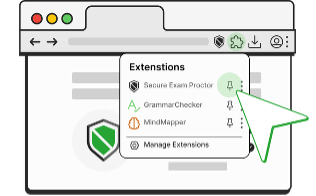
Having trouble?
Your school might not allow installing browser extensions on school devices. If so, reach out to your school’s IT team for help.
2 | Get Ready
Before You Begin
- Make sure your device meets the requirements.
- Install the Proctorio extension from getproctorio.com.
- Restart your device; close all other apps.
- Disable all other browser extensions.
- Choose a quiet space with no distractions.
- Check the assignment instructions, gather what’s allowed, and clear away anything that’s not permitted.
Know Who Contact for Help
Proctorio Support (Available 24/7/365)
- Click on the Secure Exam Proctor extension
 anytime after beginning your assignment to start a Live Chat.
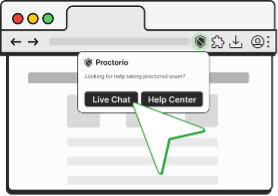
- Click the chat icon
 on the exam toolbar during your assessment to start a Live Chat.
 - Visit chat.proctorio.com to start a Live Chat.
- Email: support@proctorio.com
MHE Connect Support
Visit https://mh.my.site.com/CXG/s/ContactUs for McGraw Hill support options (Email, Chat, or Phone).
3 | Complete Assignment |
|
Start Your Assignment 1. Select your proctored assignment and click Begin. |
Can’t Begin Assignment
|
Complete Pre-Checks *Not all Pre-Checks may be required for your exam. 1. Before You Begin: Lets you know what your instructor has enabled and any actions you must take before beginning your assignment. |
Can’t Click “Continue”
Can’t Disable Extensions
|
|
Restarting your device and modem can often resolve most hardware and connection issues. Webcam / Microphone
Connection
Desktop (Screen Share)
|
3. Webcam Image Test*: Takes a few photos to confirm your face is clear and centered. |
Face Not Detected
|
4. Identification Card*: Used to capture your ID when needed. Proctorio will try automatically first, then offer a manual option. |
Blurry Image
|
5. Desk Scan*: Lets you know a desk scan is required. You’ll do the scan once the assignment opens. |
Move your camera or device slowly, making sure to show all areas requested by your instructor. |
| 6. Exam Agreement & Payment: Lets you review the terms and, if needed, submit payment. | |
Submit Your Assignment Submit your assignment when you’re done. Proctorio will turn off automatically, and you can remove or disable the extension until your next assignment. |
Kicked Out / Removed from Assignment
|

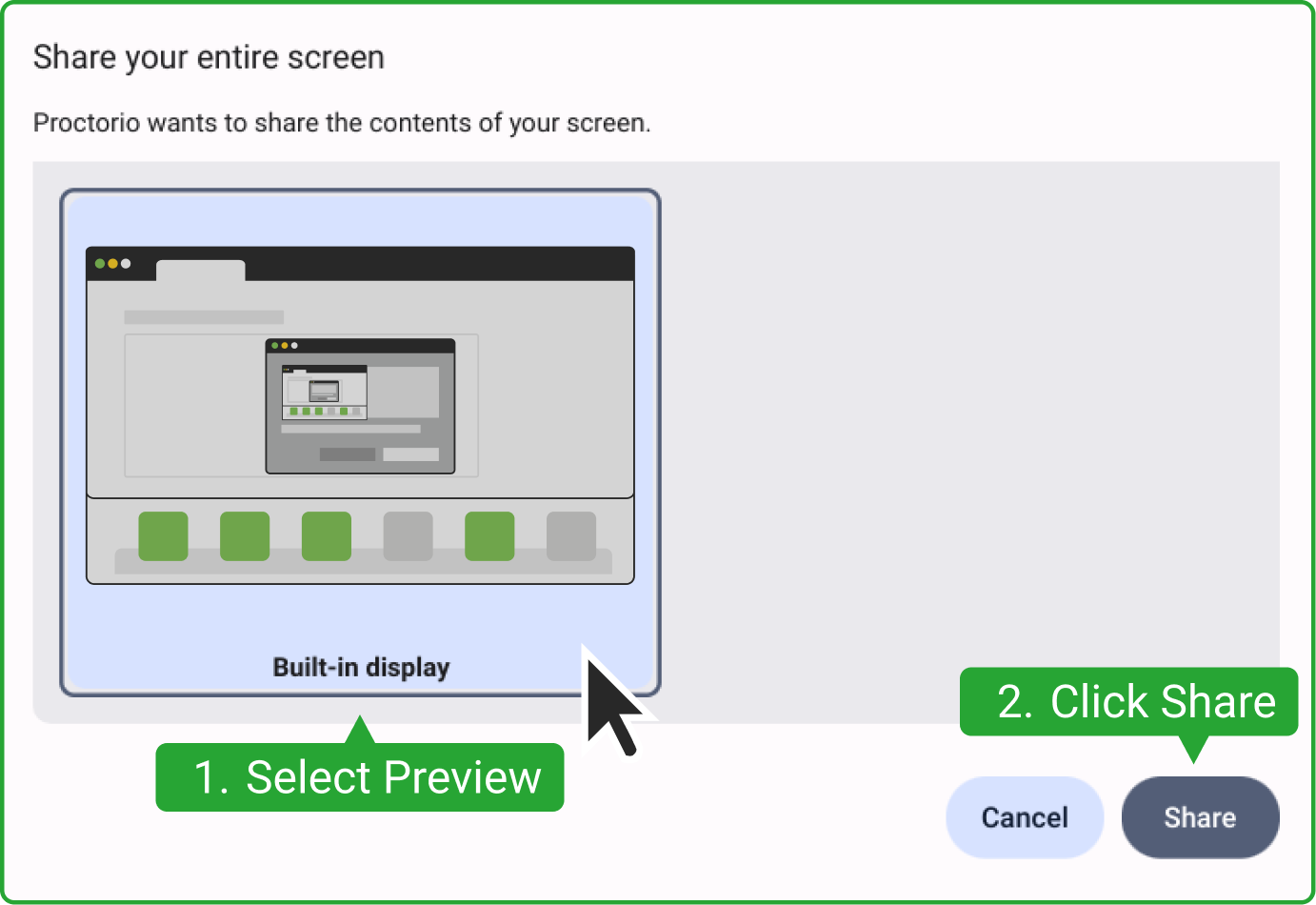
 System Settings > Privacy & Security > Screen & System Audio Recording).