Assignment Relink - Troubleshoot Assignment Deployment in LTI Advantage
Understand why a deployed assignment shows a refresh icon in LTI Advantage and how to resolve sync updates.
Tags
Higher Education
Customer Support
Connect
Instructor
Share:
If you encounter an issue deploying your Connect assignments to your LMS, please utilize the Relink Assignments option in the LTI Advantage widget.
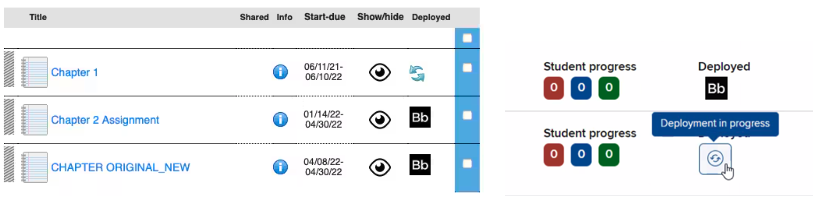
Sometimes, you may see a refresh or pending status icon upon deployment. It may take up to five minutes to deploy the assignment to the LMS. If the refresh icon remains after five minutes, please try the relink option.
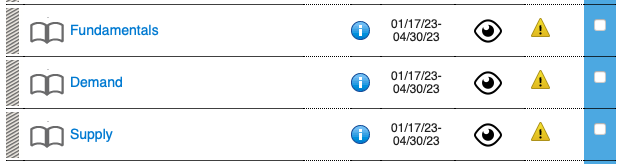
If you see a caution icon next to your assignment, this means something went wrong during deployment and we were unable to successfully deploy the assignment. However, we may be able to resolve that using the relink option.
If you are using the New Experience view in Connect, the assignment deployment failure will display with an exclamation icon.
If your assignments deployed successfully but your students encounter issues launching those assignments, the relink option may correct the problem as well.
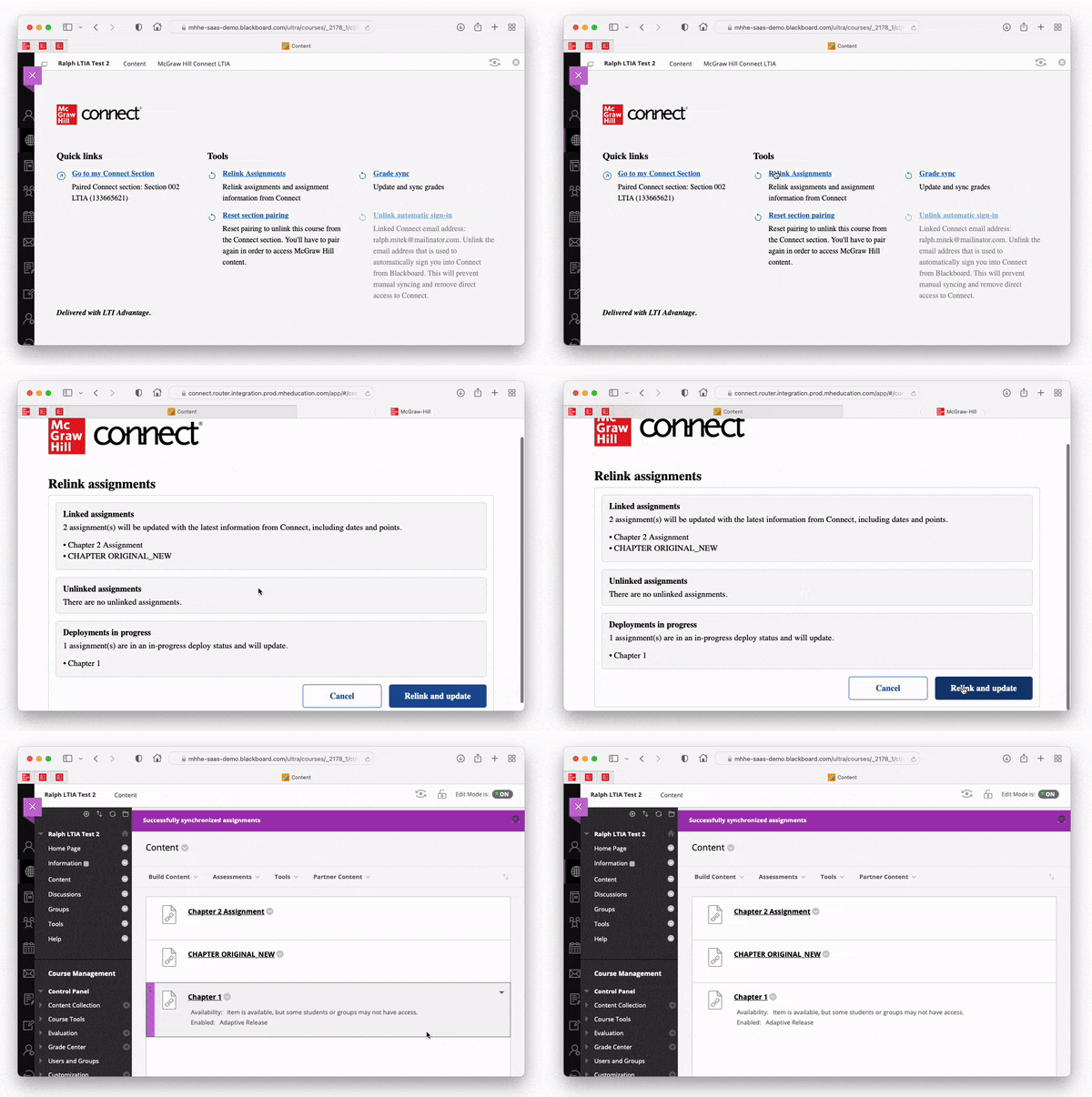
Let's try relinking your assignments...
Navigate to the LTI Advantage widget in your LMS
Click on Relink Assignments
Click on Relink and update
Click on Ok
Still not working?
If relinking assignments does not resolve the issue, you may try removing the assignment(s) from your LMS (including the grade column for D2L) and then try re-deploying them from Connect. If you are deploying multiple assignments at a time, you may also try deploying a single assignment to help isolate the issue.
If that does not work or you prefer not to try this step, please contact our Customer Experience Group by visiting https://mh.my.site.com/CXG/s/ContactUs.
Help us improve!
Let us know how we can improve our support information by providing feedback in this short survey.
Top
Regional Page Available
It looks like you're outside the United States. Do you want to see your regional version of this page?
connect
instructor
Personas
Personas/Higher Ed Educator
Personas/Higher Ed Educator/Instructor
Asset Format Type
Asset Format Type/Customer Support
Business Unit
Business Unit/Higher Education
Programs & Solutions
Programs & Solutions/Connect
highered
2026-03-24T18:42:08.514-03:00
<p>If you encounter an issue deploying your Connect assignments to your LMS, please utilize the <strong>Relink Assignments</strong> option in the LTI Advantage widget. <br> <br> Sometimes, you may see a refresh or pending status icon upon deployment. It may take up to five minutes to deploy the assignment to the LMS. If the refresh icon remains after five minutes, please try the relink option.<br> <br> <img src="/content/dam/mhe/support/support-images/migrated/rtaImage-778197871.jpeg" data-assetref="rtaImage-778197871-1787775585865"><br> <br> If you see a caution icon next to your assignment, this means something went wrong during deployment and we were unable to successfully deploy the assignment. However, we may be able to resolve that using the relink option.<br> <br> <img alt="Screen Shot 2023-02-02 at 3.59.02 PM.png" src="/content/dam/mhe/support/support-images/migrated/rtaImage-1404539981.jpeg" data-assetref="rtaImage-1404539981-1787775585865"><br> <br> If you are using the New Experience view in Connect, the assignment deployment failure will display with an exclamation icon.<br> <br> <img alt="Screen Shot 2023-02-02 at 3.59.49 PM.png" src="/content/dam/mhe/support/support-images/migrated/rtaImage-1404540012.jpeg" data-assetref="rtaImage-1404540012-1787775585865"><br> <br> If your assignments deployed successfully but your students encounter issues launching those assignments, the relink option may correct the problem as well. <br> <br> <br> </p> <h3><strong>Let's try relinking your assignments...</strong></h3> <ol> <li>Navigate to the LTI Advantage widget in your LMS</li> <li>Click on <strong>Relink Assignments</strong></li> <li>Click on <strong>Relink and update</strong> </li> <li>Click on <strong>Ok</strong></li> </ol> <h3><img alt="ltia_relink.gif" src="/content/dam/mhe/support/support-images/migrated/rtaImage-1404544894.jpeg" data-assetref="rtaImage-1404544894-1787775585865"><br> <br> <br> <strong>Still not working?</strong></h3> <p>If relinking assignments does not resolve the issue, you may try removing the assignment(s) from your LMS (including the grade column for D2L) and then try re-deploying them from Connect. If you are deploying multiple assignments at a time, you may also try deploying a single assignment to help isolate the issue. <br> <br> If that does not work or you prefer not to try this step, please contact our Customer Experience Group by visiting https://mh.my.site.com/CXG/s/ContactUs.</p> <div> </div> dts Understand why a deployed assignment shows a refresh icon in LTI Advantage and how to resolve sync updates. 2026-02-23 Assignment Relink - Troubleshoot Assignment Deployment in LTI Advantage Understand why a deployed assignment shows a refresh icon in LTI Advantage and how to resolve sync updates. Understand why a deployed assignment shows a refresh icon in LTI Advantage and how to resolve sync updates.
Understand why a deployed assignment shows a refresh icon in LTI Advantage and how to resolve sync updates.
If you encounter an issue deploying your Connect assignments to your LMS, please utilize the Relink Assignments option in the LTI Advantage widget. Sometimes, you may see a refresh or pending status icon upon deployment. It may take up to five minutes to deploy the assignment to the LMS. If the refresh icon remains after five minutes, please try the relink option. If you see a caution icon next to your assignment, this means something went wrong during deployment and we were unable to successfully deploy the assignment. However, we may be able to resolve that using the relink option. If you are using the New Experience view in Connect, the assignment deployment failure will display with an exclamation icon. If your assignments deployed successfully but your students encounter issues launching those assignments, the relink option may correct the problem as well. Let's try relinking your assignments... Navigate to the LTI Advantage widget in your LMS Click on Relink Assignments Click on Relink and update Click on Ok Still not working? If relinking assignments does not resolve the issue, you may try removing the assignment(s) from your LMS (including the grade column for D2L) and then try re-deploying them from Connect. If you are deploying multiple assignments at a time, you may also try deploying a single assignment to help isolate the issue. If that does not work or you prefer not to try this step, please contact our Customer Experience Group by visiting https://mh.my.site.com/CXG/s/ContactUs.