
Connect - Pairing your Canvas Course with a new account - Instructor
Learn how instructors pair a Canvas course with a new Connect account for seamless access.
Tags
- Higher Education
- Customer Support
- Connect
- Instructor


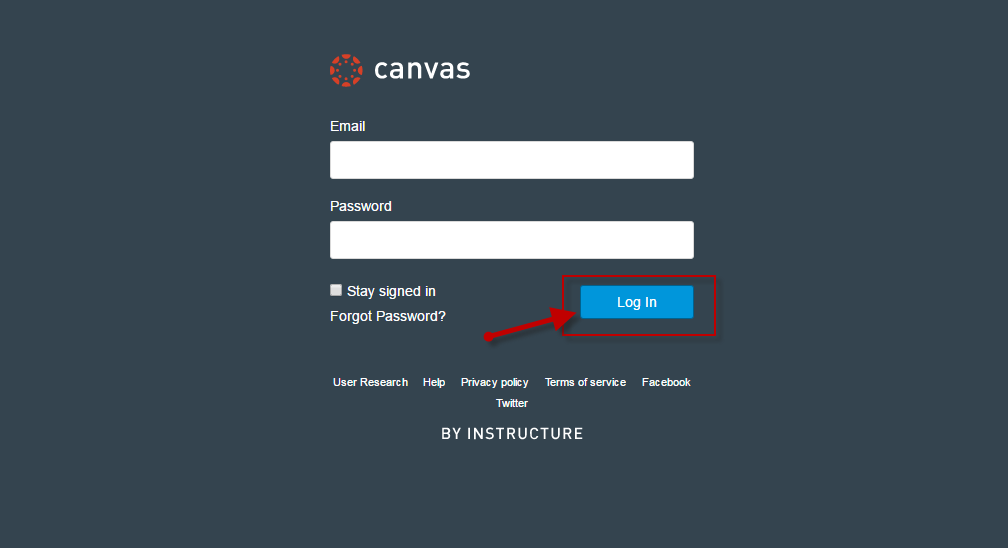
Step 1: Log into Canvas (as an instructor)
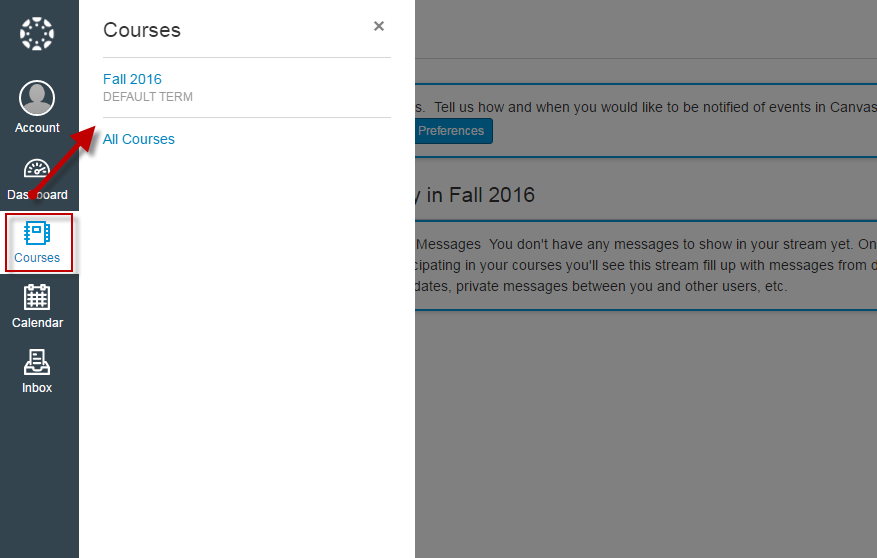
Step 2: Under Courses, locate and enter Canvas course
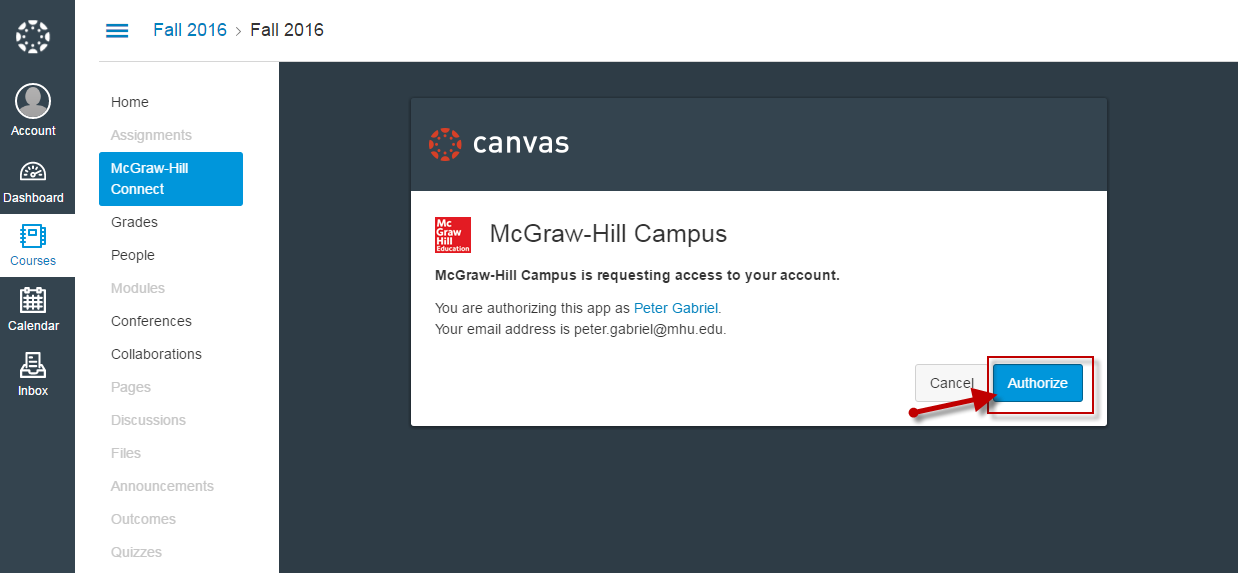
Step 4: Click on Authorize (prompted upon first launch)
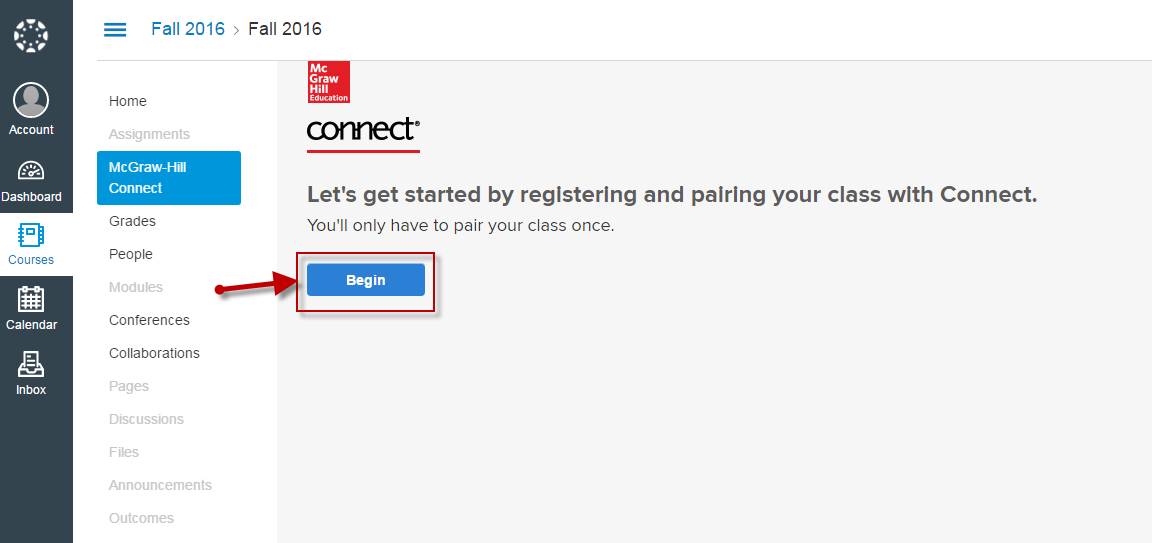
Step 5: Click on Begin
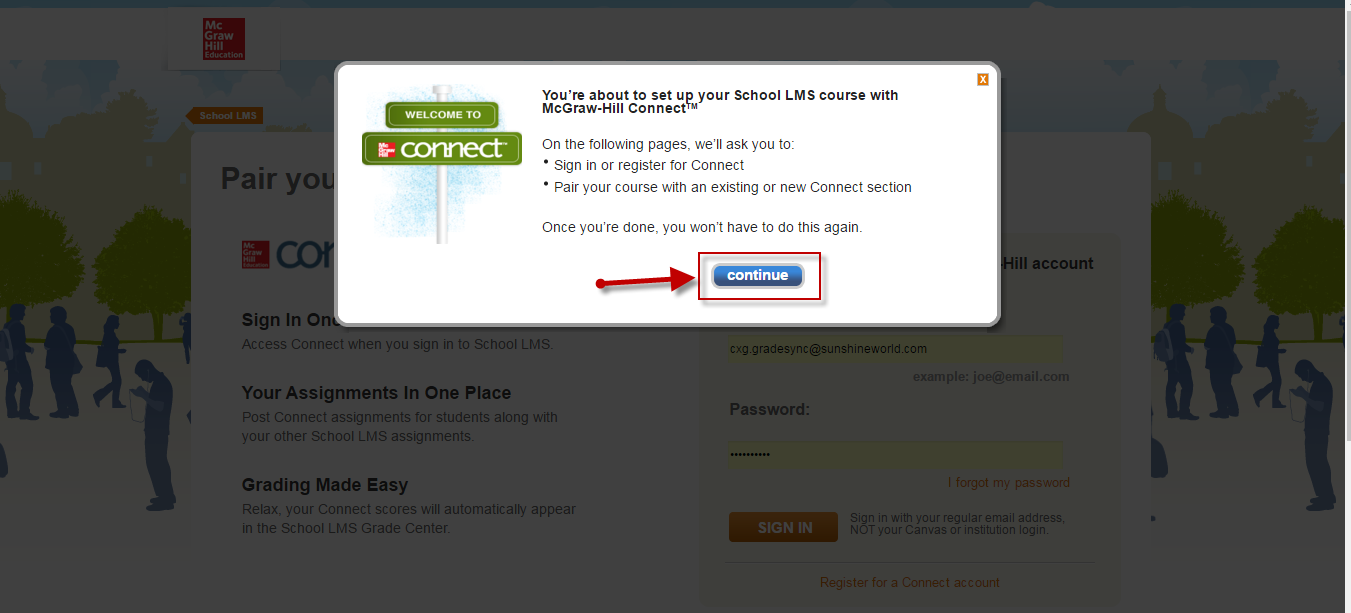
Step 6: Click Continue
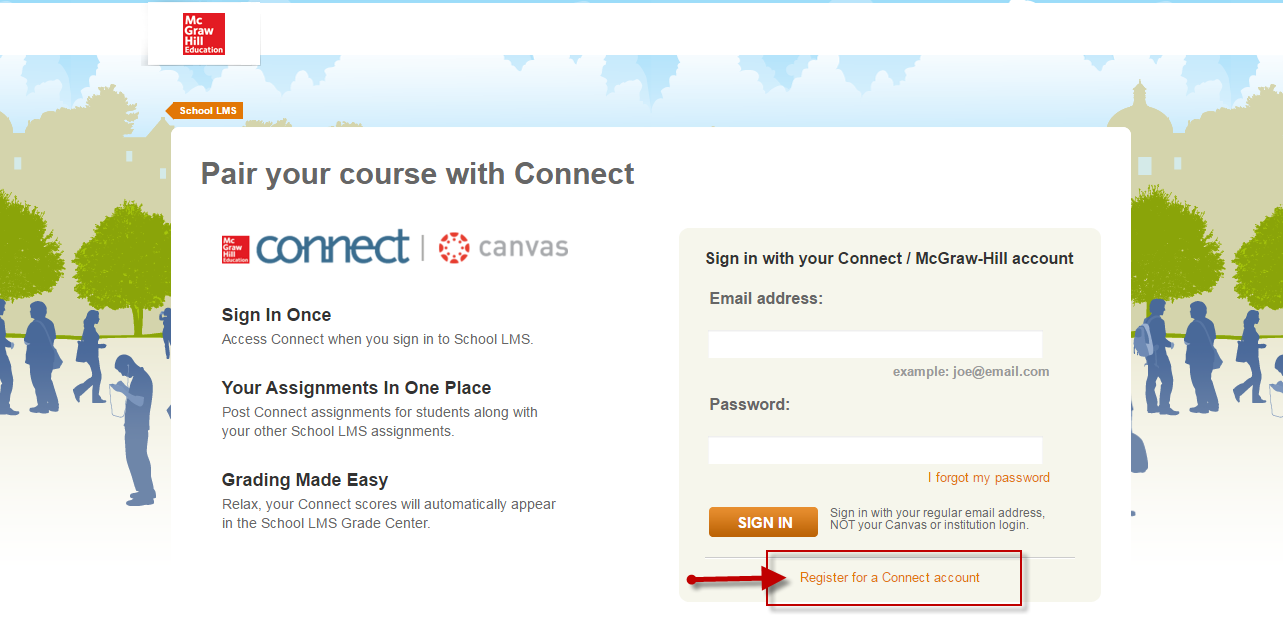
Step 7: If a new Connect user, click on Register for a Connect account
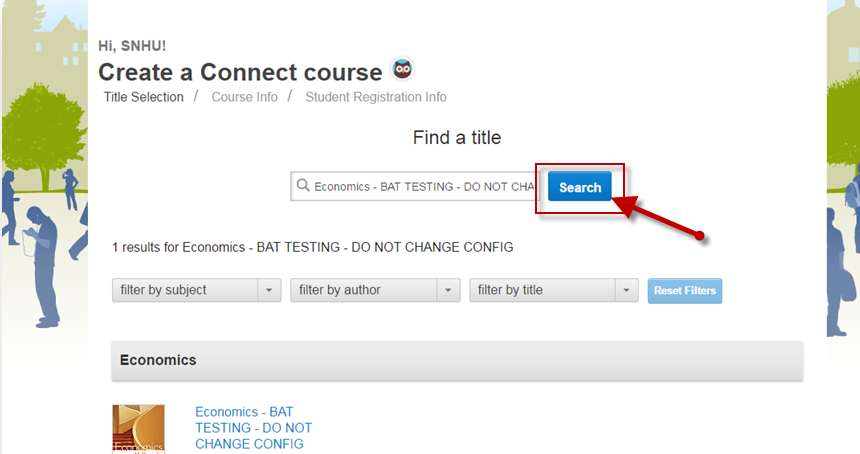
Step 9: To locate your Connect title, search by Connect title, author, or subject.
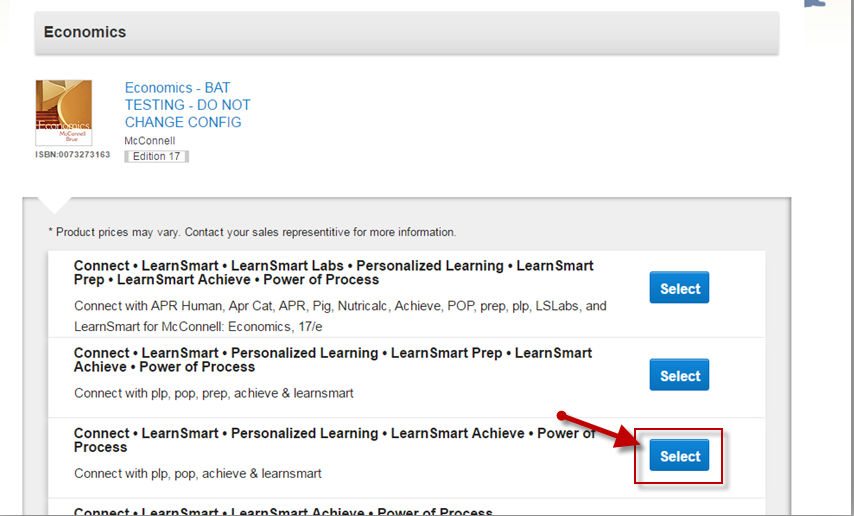
Step 10: After locating your Connect title, select the appropriate product.
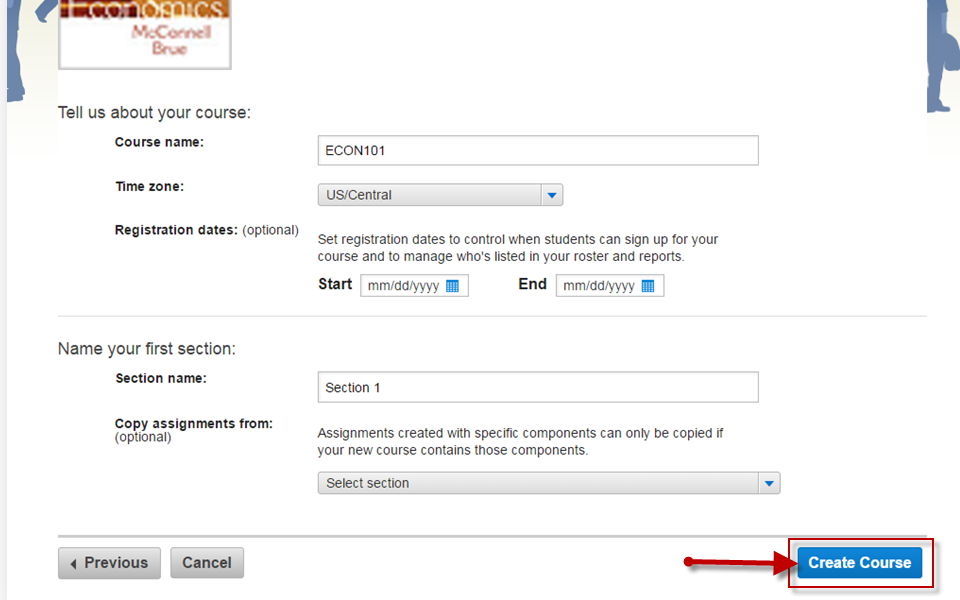
Step 11: Enter course and section name; then, click on Create Course
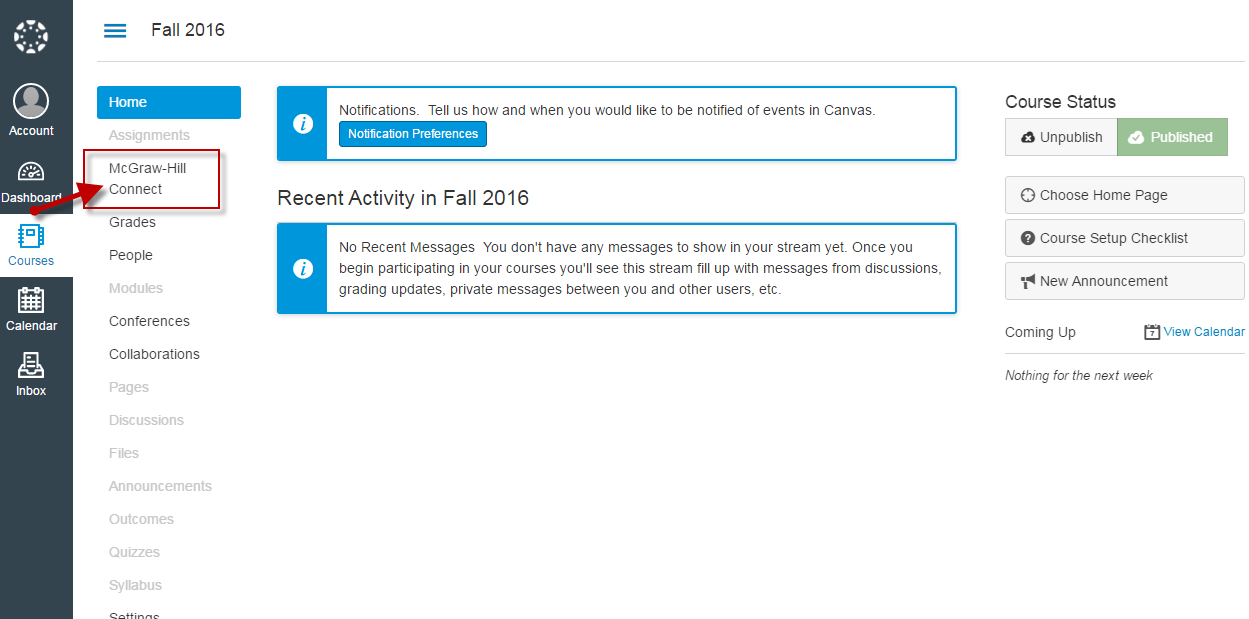
Step 3: On Canvas course home page, locate and click on the McGraw Hill Connect deep integration link (via course navigation menu).
Step 4: Click on Authorize (prompted upon first launch)
Step 5: Click on Begin
Step 6: Click Continue
Step 7: If a new Connect user, click on Register for a Connect account
*If an
existing Connect user, enter your Connect email address (username) and password; click Sign In.
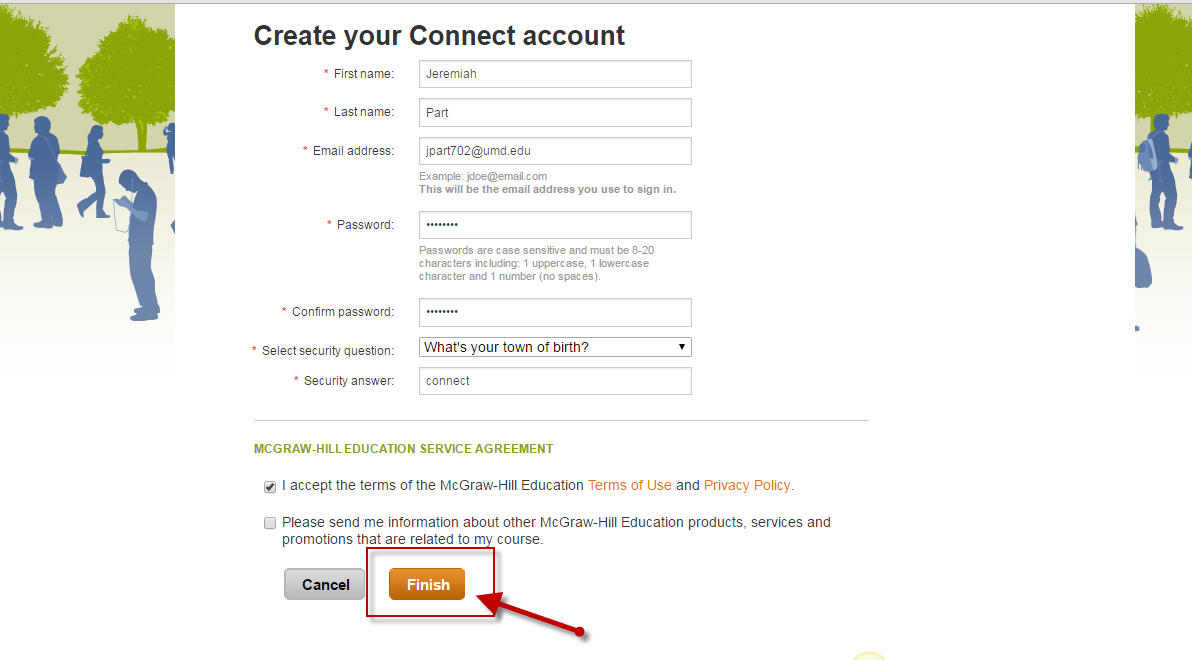
Step 8: Enter all required information, accept the Terms of Use; click Finish
Step 8: Enter all required information, accept the Terms of Use; click Finish
Step 9: To locate your Connect title, search by Connect title, author, or subject.
Step 10: After locating your Connect title, select the appropriate product.
Step 11: Enter course and section name; then, click on Create Course
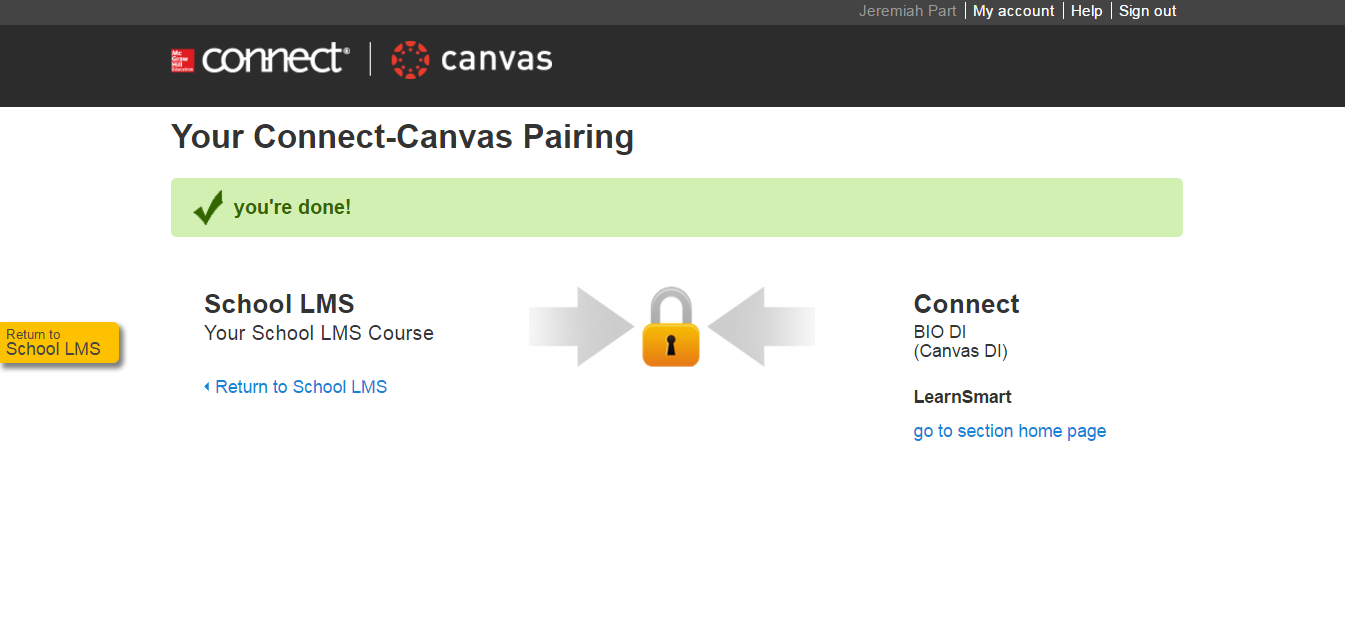
Step 12: Your Canvas-Connect course has been paired. Once you receive pairing confirmation, click
go to section home page in order to begin using Connect
*If pairing an existing Connect course/section, you will receive a similar confirmation message.
