
Connect - Grading by question or student
Compare grading by question versus by student within Connect assignments.
Tags
- Higher Education
- Customer Support
- Connect
- Instructor
- Assignment Management


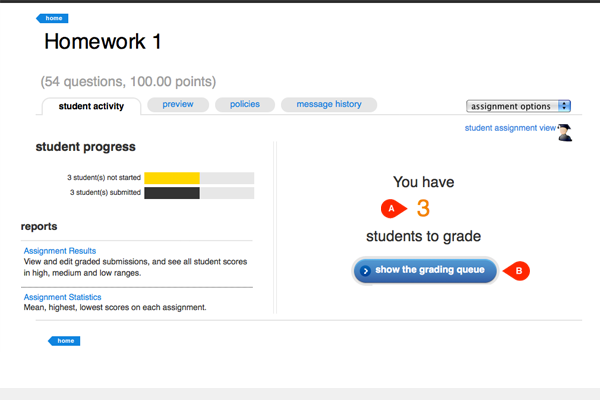
After clicking on the assignment you want to grade from your Section Home, you’ll see how many students need to be graded (A) in the student activity tab. To proceed, click show the grading queue (B).
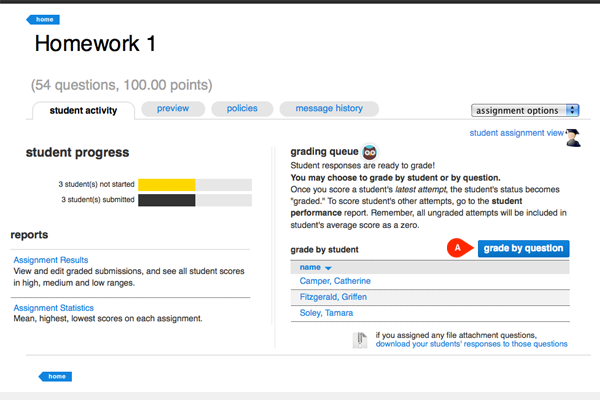
To grade all student responses to each question individually, choose to grade by question (A).
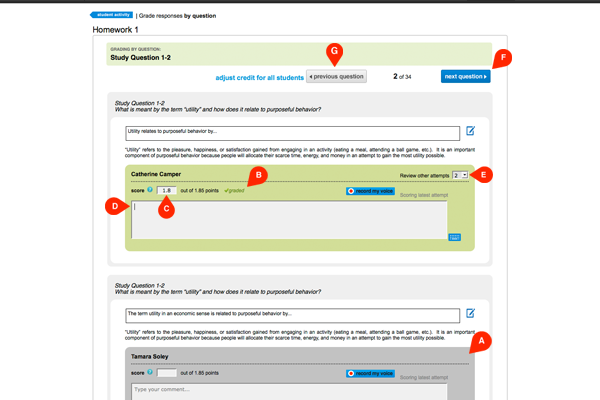
You’ll see all your students' responses to one question at a time. Responses that have not been graded are gray (A). Graded responses are green and display a checkmark (B). To grade a student response, enter a score (C). Add comments if you’d like (D). You can also select which student attempt you’d like to view (E). After grading each student’s respond to the question, click next question (F) to proceed. If you missed a student response or want to return to the previous question, click previous question (G).
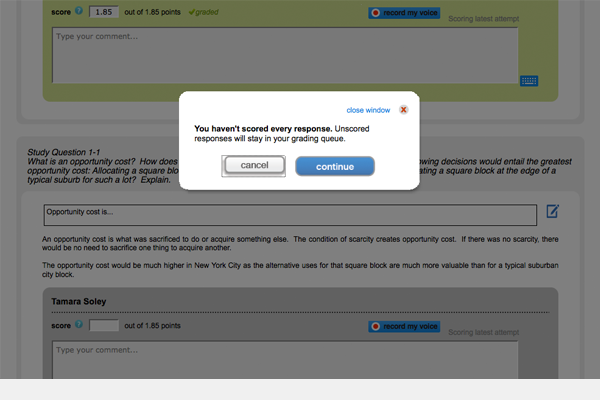
If you move on to the next question without grading all student responses you’ll be notified with a pop-up window. All ungraded responses will remain in the grading queue.
To grade all student responses to each question individually, choose to grade by question (A).
You’ll see all your students' responses to one question at a time. Responses that have not been graded are gray (A). Graded responses are green and display a checkmark (B). To grade a student response, enter a score (C). Add comments if you’d like (D). You can also select which student attempt you’d like to view (E). After grading each student’s respond to the question, click next question (F) to proceed. If you missed a student response or want to return to the previous question, click previous question (G).
If you move on to the next question without grading all student responses you’ll be notified with a pop-up window. All ungraded responses will remain in the grading queue.
