Utilizing the Observational Checklist
Use the Observational Checklist to record student mastery of skills for the lesson.
- PreK-12
- Customer Support
- Classroom Teacher
- Elementary School
- Middle School
- High School
- Direct Login & Auto-Rostering
- Direct Login & Manual-Rostering
- SSO & Auto-Rostering
- SSO & Manual-Rostering
- Core
- Literacy
- McGraw Hill Literacy Emerge!
- McGraw Hill Literacy Summit!
- McGraw Hill Literacy Soar!
- Tools & Resources


Teachers are able to use the Observational Checklist to gauge skills, concepts, and practices that aren't formally assessed to measure student understanding and progress. This allows for a single, organized tool to easily capture data to be used instead of having to use multiple different tools to track student progress.
The Observational Data Report is a teacher-facing report designed to provide teachers with centralized access to observational checklist data for personalized learning strategies. For details on accessing and navigating this report, see the Open Learning Observational Data Report article.
1. SSO or log in at my.mheducation.com.
2. Launch your course.
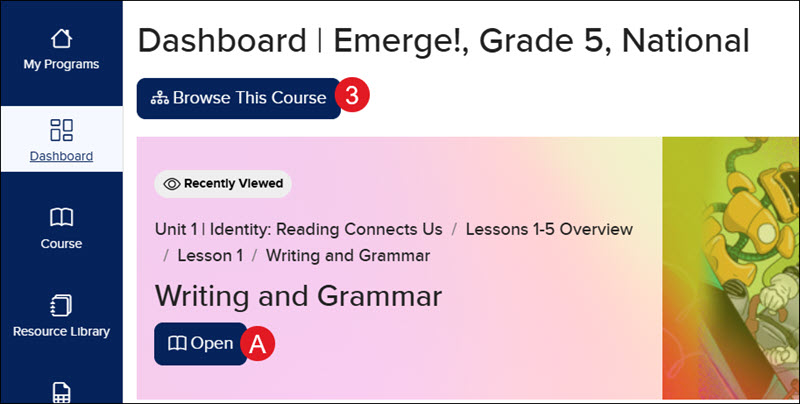
3. Click Browse This Course on the Dashboard or Course page and select the lesson.
A. You can also click the Open button on the Dashboard to navigate to your latest selected lesson.
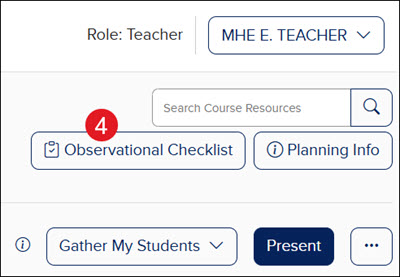
4. Click the Observational Checklist button.
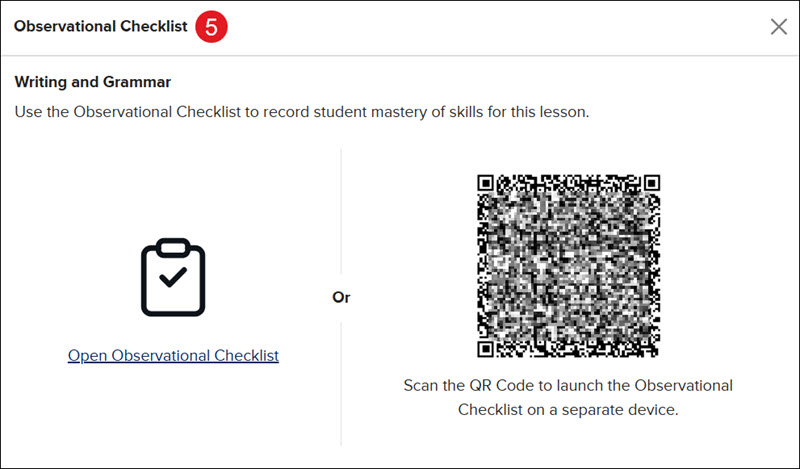
5. On the Observational Checklist pop-up, click the Open Observational Checklist link to open the tool in a secondary browser tab or Scan the QR Code to launch the checklist on a separate device.
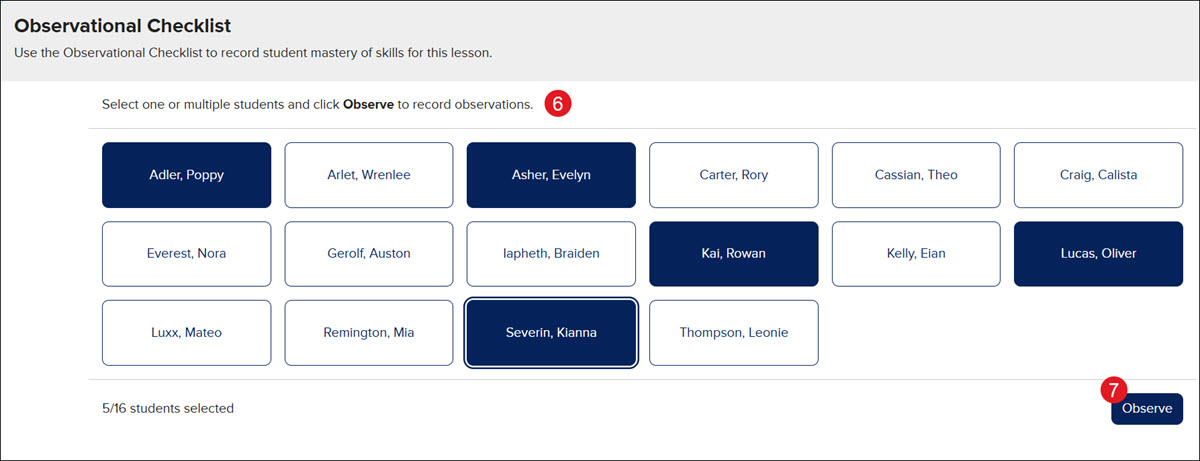
6. On the Observational Checklist tab, select one or more students from the listed roster.
7. Click the Observe button.
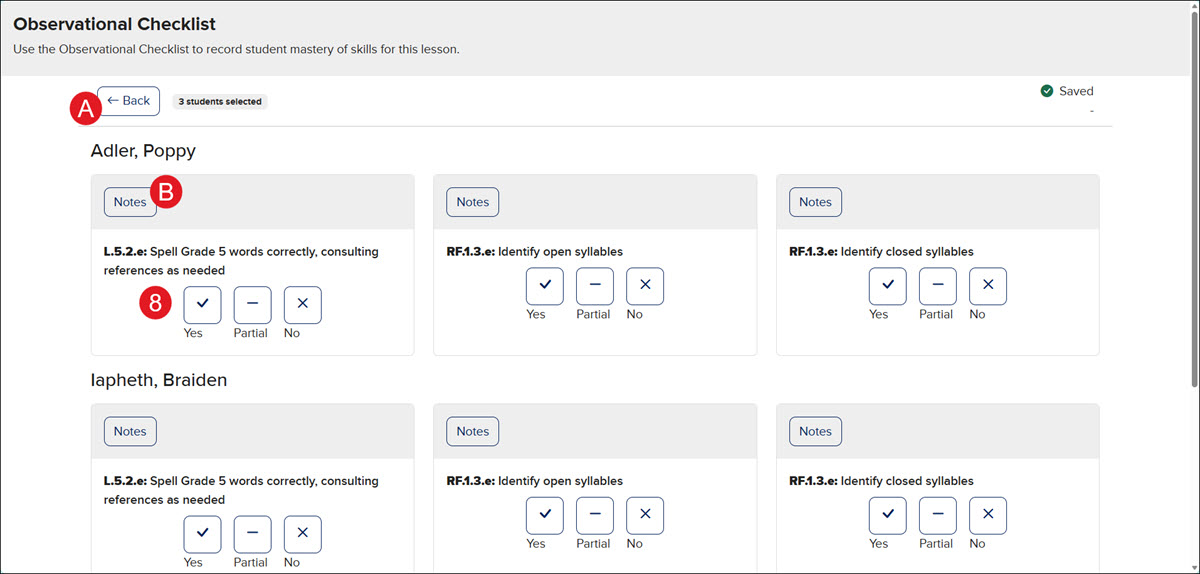
8. Select Yes, Partial, or No for each standard and student that is being observed. Selections will automatically save.
A. Click the Back button to add or remove students from the list.
B. Click the Notes button to add comments.