Support Topics/Assessments & Reporting/Grades & Assignments
Personas
Personas/School Educator
Personas/School Educator/Classroom Teacher
Context/Integration Type/SSO & Manual-Rostering
prek-12
2026-03-24T18:48:51.746-03:00
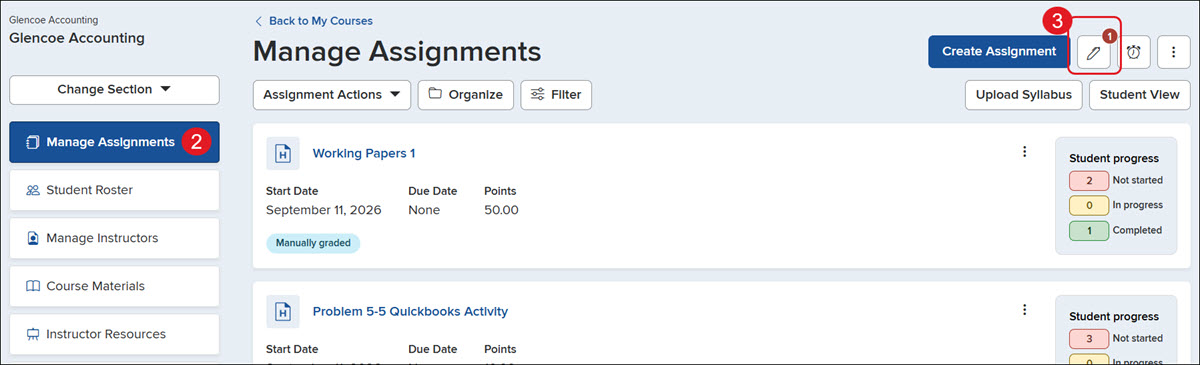
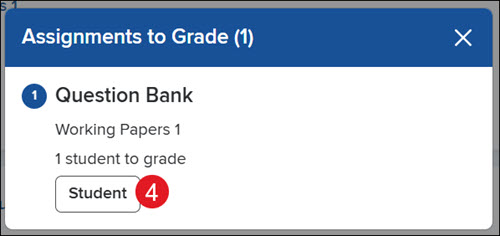
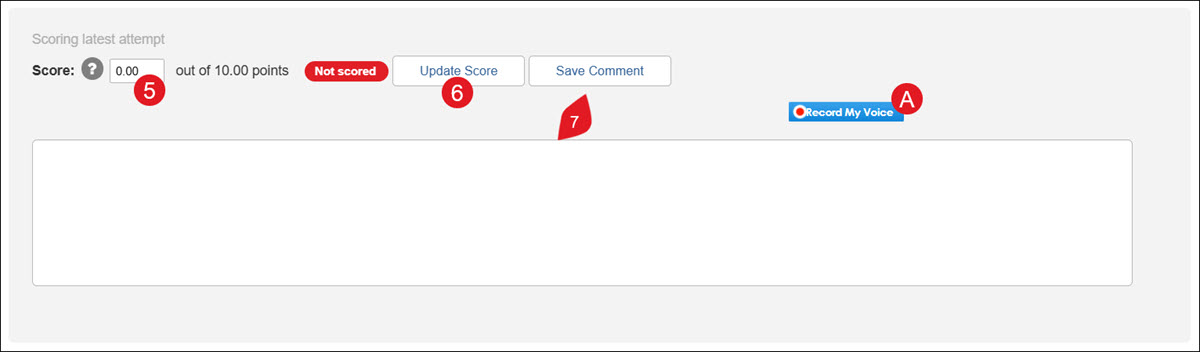
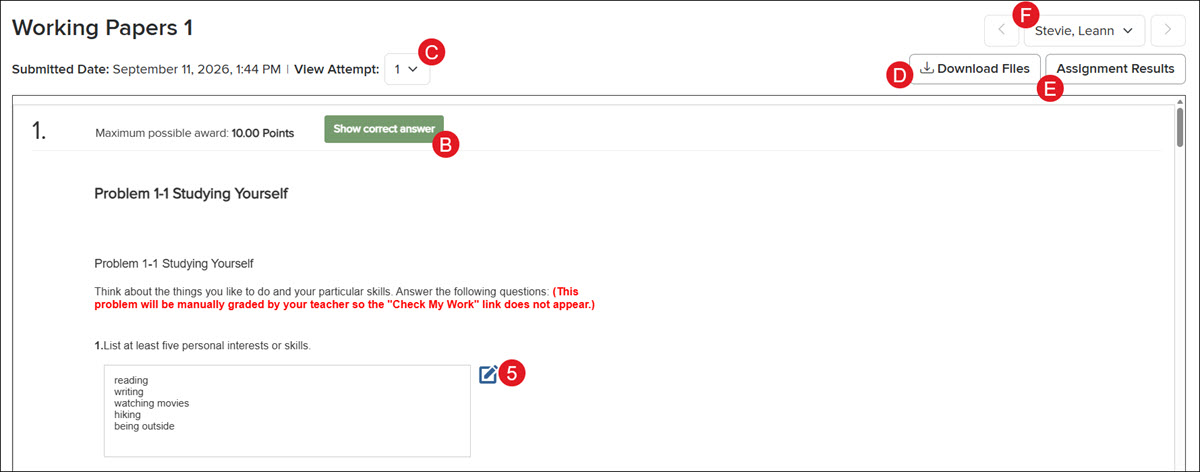
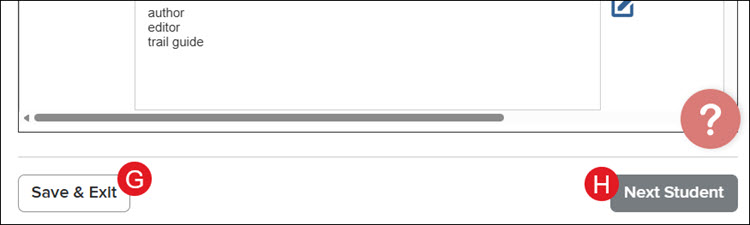
<p>1. Click on the Section name.</p> <p>2. Click <strong>Manage Assignments</strong> from the left-hand menu.</p> <p>3. Click the <strong>Grade Assignments</strong> button (pencil icon).</p> <p>You can also access the grading option by clicking on the assignment name and then clicking on the <strong>Grade Assignments</strong> button.</p> <p>If there are any assignments to grade, there will be a number icon that appears on the button.</p> <p><img src="/content/dam/mhe/support/support-images/dts-k12-images/grade-k12-connect-assignments/grade-k12-connect-assignments-1.jpg" data-assetref="grade-k12-connect-assignments-1-1789148920632"></p> <p>4. Click the <strong>Student </strong>button on the pop-up.</p> <p><img src="/content/dam/mhe/support/support-images/dts-k12-images/grade-k12-connect-assignments/grade-k12-connect-assignments-2.jpg" data-assetref="grade-k12-connect-assignments-2-1789148990701"></p> <p>5. In the Scoring last attempt box beneath the question, enter the <strong>Score</strong>.</p> <p>6. Click the <strong>Update Score</strong> button.</p> <p>7. Enter any <strong>comments </strong>you want to provide to the student and click the<strong> Save Comment </strong>button. This is optional.</p> <p>A. Click the Record My Voice button to add an audio file for the question.</p> <p><img src="/content/dam/mhe/support/support-images/dts-k12-images/grade-k12-connect-assignments/grade-k12-connect-assignments-3.jpg" data-assetref="grade-k12-connect-assignments-3-1789149375483"></p> <p>B. Click the <strong>Show correct answer</strong> button to view an Explanation for the question.</p> <p>C. Use the <strong>View Attempt</strong> drop-down to switch between a student's completed attempts.</p> <p>D. Click the <strong>Download Files</strong> button to save/print any attached files for the assignment.</p> <p>E. Click the <strong>Assignment Results</strong> button to navigate to the <a href="https://www.mheducation.com/prek-12/support/knowledge/k-12-connect-creating-assignment-results-report.html" target="_blank">Assignment Results report</a>.</p> <p>F. Click the back-and-forth arrows or select a student from the drop-down to navigate to that student's scoresheet.</p> <p><img src="/content/dam/mhe/support/support-images/dts-k12-images/grade-k12-connect-assignments/grade-k12-connect-assignments-4.jpg" data-assetref="grade-k12-connect-assignments-4-1789149730587"></p> <p>G. Click the <strong>Save & Exit</strong> button to navigate back to the <strong>Assignment Details</strong> page.</p> <p>H. Click the <strong>Next Student</strong> button to navigate to the next scoresheet.</p> <p><img src="/content/dam/mhe/support/support-images/dts-k12-images/grade-k12-connect-assignments/grade-k12-connect-assignments-5.jpg" data-assetref="grade-k12-connect-assignments-5-1789149867524"></p> dts K-12 Connect Assignment Management: step-by-step guidance for Connect, including key requirements, tips, and troubleshooting where needed. 2026-09-11 Grade K-12 Connect® Assignments K-12 Connect Assignment Management: step-by-step guidance for Connect, including key requirements, tips, and troubleshooting where needed. Learn how to manually grade assignments within Connect.
Learn how to manually grade assignments within Connect.
1. Click on the Section name. 2. Click Manage Assignments from the left-hand menu. 3. Click the Grade Assignments button (pencil icon). You can also access the grading option by clicking on the assignment name and then clicking on the Grade Assignments button. If there are any assignments to grade, there will be a number icon that appears on the button. 4. Click the Student button on the pop-up. 5. In the Scoring last attempt box beneath the question, enter the Score. 6. Click the Update Score button. 7. Enter any comments you want to provide to the student and click the Save Comment button. This is optional. A. Click the Record My Voice button to add an audio file for the question. B. Click the Show correct answer button to view an Explanation for the question. C. Use the View Attempt drop-down to switch between a student's completed attempts. D. Click the Download Files button to save/print any attached files for the assignment. E. Click the Assignment Results button to navigate to the Assignment Results report. F. Click the back-and-forth arrows or select a student from the drop-down to navigate to that student's scoresheet. G. Click the Save & Exit button to navigate back to the Assignment Details page. H. Click the Next Student button to navigate to the next scoresheet.
dts
Customer Support, PreK-12, Classroom Teacher, High School, Direct Login & Auto-Rostering, Direct Login & Manual-Rostering, SSO & Auto-Rostering, SSO & Manual-Rostering, AP, Honors & Electives, AP Connect, Grades & Assignments