
ALEKS Adventure Fact Fluency Games
Explore the ALEKS Adventure fact fluency games that builds math fluency through practice.
- Supplemental
- ALEKS Adventure
- Math
- SSO & Manual-Rostering
- Customer Support
- Direct Login & Auto-Rostering
- School Student
- Direct Login & Manual-Rostering
- School Parent
- SSO & Auto-Rostering
- PreK-12
- Elementary School
- Student Resources
- Dashboard & Navigation Overview


For a full page view of the demo, click here.
For a Spanish version of the demo, click here.
Article Contents
Accessing the Fact Fluency Games
Playing the Fact Fluency Games
Accessing the Fact Fluency Games
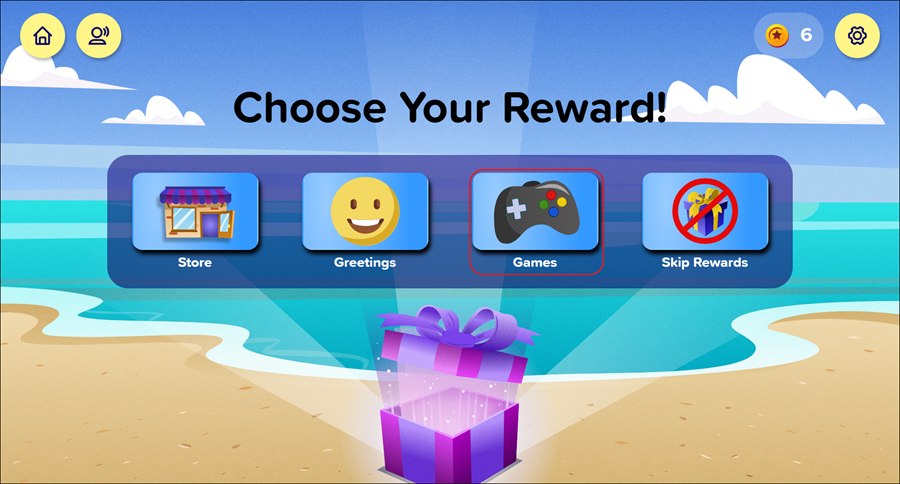
Students can access the game selection screen either from the ALEKS Adventure Homepage or from the Topic Rewards page.
From the Homepage
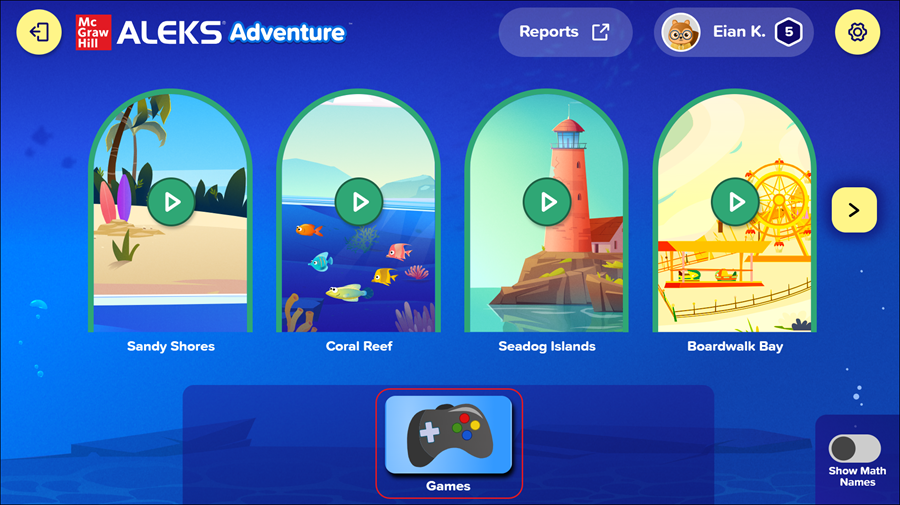
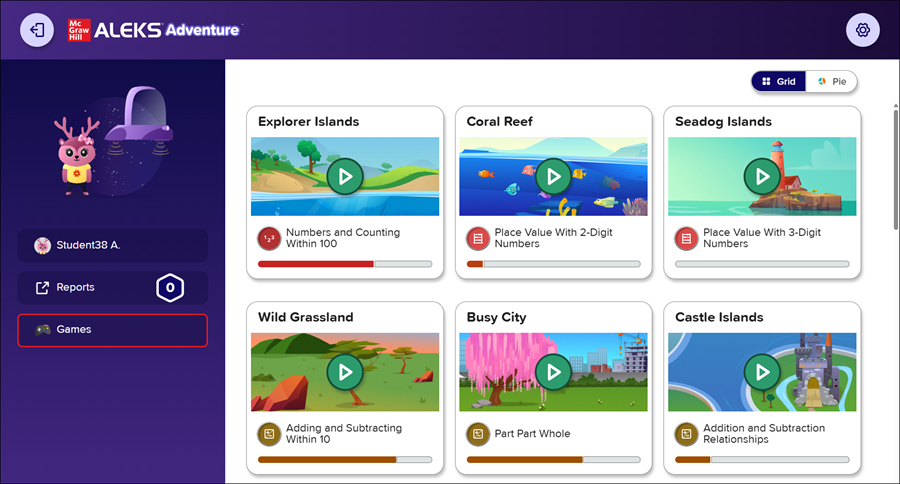
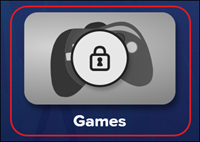
Students can access the games once upon logging in by selecting Games from the ALEKS Adventure Homepage and then selecting the game they want to play from the game selection screen. After they complete one game (default) from the ALEKS Adventure Homepage, the icon appears locked and cannot be accessed from the homepage again until the next day.
Grades K-2 students will be able to access the Games at the bottom of their homepage.
Grade 3 students can access the Games from the lefthand panel of their homepage.
For grades K-2, when the games are not available the button will be greyed out with an image of a lock on it.
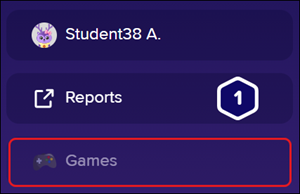
For grade 3, when the games are not available the button will be greyed out.
From the Topic Rewards Page
Students can access the game after each new topic they learn by selecting Games from the Topic Rewards page and then selecting the game they want to play from the game selection screen. This page does not appear when revisiting topics or after failing to learn a topic.
Playing the Fact Fluency Games
Game Selection Screen
The game selection screen allows students to choose which game they want to play.
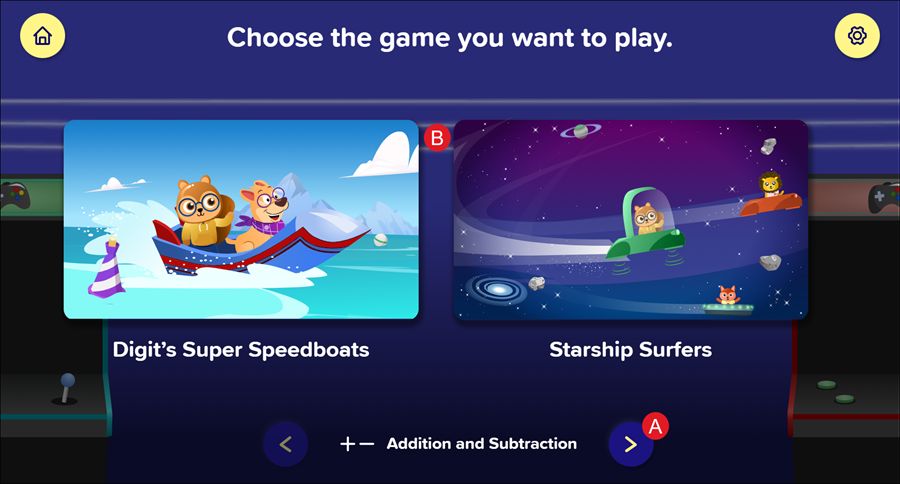
A. Use the arrow buttons on the bottom of the screen to determine if they want the game to focus on addition and subtraction or multiplication and division.
B. Selecting the image for a game navigates the student to the game start page.
Playing the Games
Once the game is selected, students are navigated to the start page for the game. The game starts as soon as students select Start.
The examples in this section use the Starship Surfers game, but both games function the same way with the only difference being whether the student is traveling in a speedboat across water or a spaceship through space.
In the game, the student’s avatar appears in a speedboat or spaceship and “competes” against other student characters in the class to reach the finish line by solving the problems that appear at the bottom of the screen. For each correct answer, the student's character progresses across the screen until they reach the finish line.
When the student answers a question incorrectly, the speedboats/spaceships on the screen slow to a stop until the student answers a question correctly, at which point the speedboats/spaceships continue to move forward. Questions become progressively more difficult the more times students play the game. Once the student gets nine questions correct, the finish line appears. Once they get 10 questions correct, they reach the finish line and the game is complete.
Note: The fact fluency games are single-player games. The other student characters are only present for aesthetic purposes.
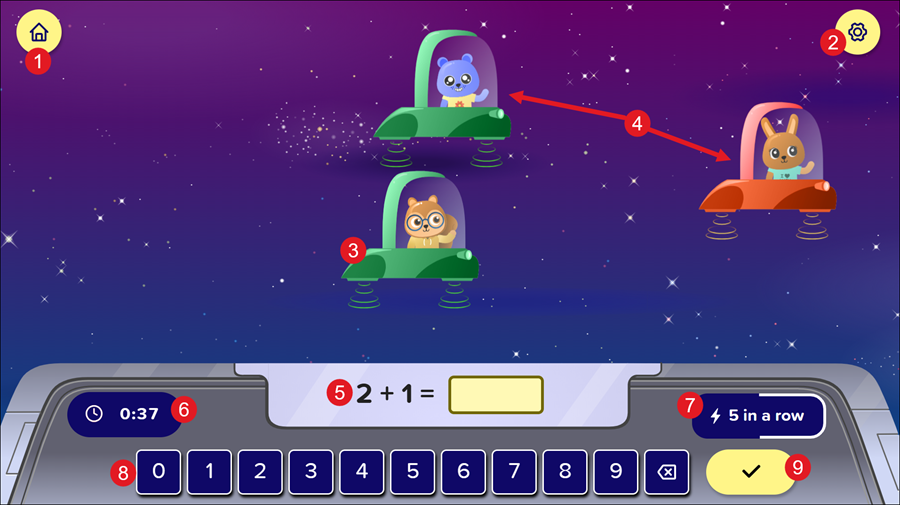
1. Home Button: Returns students to the ALEKS Adventure Homepage.
2. Settings: Opens the Settings panel where students can toggle buttons on and off to change their environment in ALEKS Adventure. The Settings button is available in the top-right corner of every page in ALEKS Adventure.
3. Student Character: The student’s character starts in the lower left-hand corner of the screen and progresses in a straight line across the screen, occasionally passing or being passed by other student characters, as the student answers the questions at the bottom of the screen.
4. Classmate Characters: The student’s classmates' avatars may appear in the other speedboats/ships. However, the game is not multiplayer and the game’s progression is only affected by the answers provided by the one student who selected the game to play.
5. Current Question: Students must solve the question at the bottom of the screen to progress their speedboat/ship across the screen. They can enter their answers in the answer field using the keyboard or using the button bar below.
6. Timer: The timer shows the amount of time that has elapsed while the student plays the game.
7. Streak Counter: Students can see how many questions they answered correctly in a row. A white bar progresses around the Streak Counter with each consecutive correct answer a student gives, starting with two in a row. When the student gets a question incorrect, the streak counter resets and starts again at two. The maximum streak a student can get is 10 correct answers in a row.
8. Button Bar: Students can select numbers to answer the question. They select the number buttons on the button bar using their mouse or a touch screen. They can also navigate through them using Tab on their keyboard to move to the right and Shift + Tab on their keyboard to move to the left, and then pressing Enter when they have highlighted the appropriate button.
9. Submit Answer: Students select this button to submit their answer. This button is inactive until students provide an answer for the question.
Game Completion
Once students answer 10 questions correctly, their speedboat crosses the finish line and they are taken to the Game Completion Page.
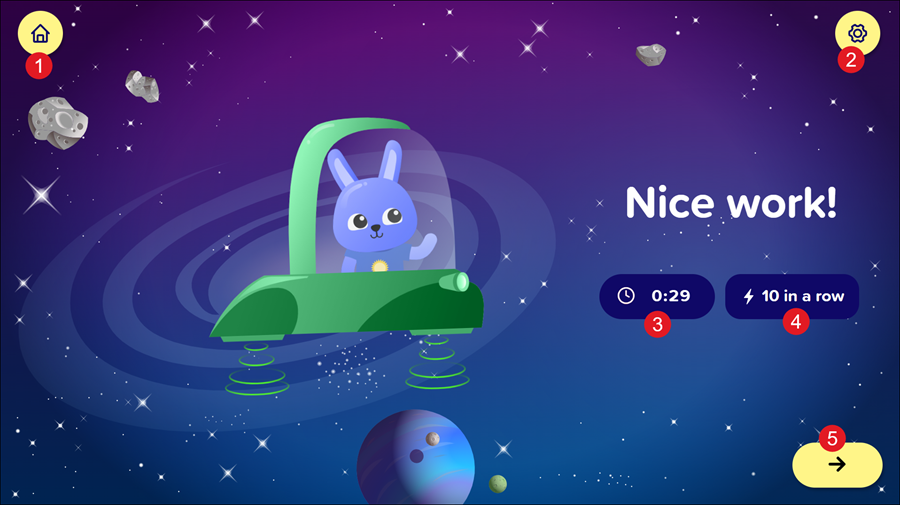
1. Home: Returns students to the ALEKS Adventure Homepage. If they haven’t completed the onboarding narrative, this button is replaced with an X button that returns them to the ALEKS Adventure Start Page.
2. Settings: Opens the Settings panel where students can toggle buttons on and off to change their environment in ALEKS Adventure. The Settings button is available in the top-right corner of every page in ALEKS Adventure.
3. Timer: The timer shows how long the student took to complete the game.
4. Biggest Streak: Students can see what their biggest streak of correct answers in a row was for the game they just played.
5. Next Button: Students select the Next button to exit the game. If they accessed the game via the ALEKS Adventure Homepage, selecting the Next button returns them to the ALEKS Adventure Homepage. If they accessed the game via the Topic Rewards page, selecting the Next button progresses them to the Progress Knowledge Check.
