mcgraw hill social studies
ocr foundational skills kit
spotlight on music
illustrative math
5 steps to a 5 - ap test prep
impact social studies
arrive math
music! its role
open court reading
reveal math (k-12)
ap-edition
5-steps-to-a-5-test-prep
glencoe-health
teen-health
arrive-math
building-blocks
number-worlds
everyday-math
reading-laboratory
reading-mastery
mcgraw-hill-literacy
open-court-reading
reveal-math
illustrative-math
mcgraw-hill-math
inspire-science
mcgraw-hill-science
impact
mh-social-studies
asi-se-dice
wonders
maravillas
music-its-role
my-math
networks
ocr-foundational-skills-kit
spotlight-on-music
mcgraw-hill-cte
level-up
instructor
Programs & Solutions
Programs & Solutions/McGraw Hill Social Studies
Business Unit
Business Unit/PreK-12
Programs & Solutions/AP Edition
Programs & Solutions/AP Edition/AP Precalculus
Context
Context/Education Level
Context/Education Level/High School
Programs & Solutions/OCR Foundational Skills Kit
Context/Subject
Context/Subject/Science
Programs & Solutions/AP Edition/AP Music Theory
Programs & Solutions/AP Edition/AP Biology
Context/Integration Type
Context/Integration Type/Direct Login & Auto-Rostering
Context/Integration Type/SSO & Auto-Rostering
Programs & Solutions/Spotlight on Music
Programs & Solutions/Glencoe Health
Programs & Solutions/Glencoe Health/Glencoe Health 2022
Programs & Solutions/Impact Social Studies
Programs & Solutions/Impact Social Studies/CA Impact 2019
Programs & Solutions/McGraw Hill Social Studies/FL Social Studies 2024 (K-12)
Programs & Solutions/Open Court Reading
Programs & Solutions/Open Court Reading/Open Court Reading 2025
Context/Subject/World Languages
Programs & Solutions/Illustrative Math
Programs & Solutions/McGraw Hill CTE
Programs & Solutions/McGraw Hill CTE/CTE - Culinary Arts
Asset Format Type
Asset Format Type/Customer Support
Context/Curriculum Type
Context/Curriculum Type/Supplemental
Programs & Solutions/AP Edition/AP Statistics
Programs & Solutions/McGraw Hill Science
Programs & Solutions/McGraw Hill Science/TX Science 2025 (K-12)
Support Topics
Support Topics/Assessments & Reporting
Support Topics/Assessments & Reporting/Online Assessments
Programs & Solutions/Wonders
Programs & Solutions/Wonders/Wonders 2023 2020 2017
Programs & Solutions/AP Edition/AP Public Speaking
Context/Subject/Health
Programs & Solutions/Asi Se Dice
Programs & Solutions/Asi Se Dice/Asi se Dice 2024
Programs & Solutions/5 Steps to a 5 - AP Test Prep
Programs & Solutions/Level Up
Programs & Solutions/Level Up/Level Up 9–12
Context/Curriculum Type/Career & Technical Education
Programs & Solutions/Open Court Reading/Open Court Reading 2016, 2018, 2023
Programs & Solutions/McGraw Hill Literacy
Programs & Solutions/McGraw Hill Literacy/McGraw Hill Literacy Soar!
Programs & Solutions/McGraw Hill CTE/CTE - Agriculture
Context/Subject/Math
Programs & Solutions/McGraw Hill Math
Programs & Solutions/McGraw Hill Math/Texas Math
Programs & Solutions/AP Edition/AP Chemistry
Context/Curriculum Type/AP, Honors & Electives
Context/Curriculum Type/Intervention
Programs & Solutions/McGraw Hill CTE/CTE - Computing and Technology
Programs & Solutions/Building Blocks
Programs & Solutions/Building Blocks/Building Blocks 2024
Programs & Solutions/Arrive Math
Programs & Solutions/Everyday Mathematics
Programs & Solutions/Everyday Mathematics/Everyday Mathematics 4 (K-6)
Programs & Solutions/Open Court Reading/OCR Word Analysis Kit
Context/Curriculum Type/Core
Context/Integration Type/Direct Login & Manual-Rostering
Programs & Solutions/AP Edition/AP Language and Composition
Context/Subject/Literacy
Programs & Solutions/McGraw Hill CTE/CTE - Health Science
Programs & Solutions/AP Edition/AP History & Geography
Programs & Solutions/Inspire Science
Programs & Solutions/Inspire Science/Inspire Science 2020
Programs & Solutions/Networks
Programs & Solutions/Networks/Networks 2018
Programs & Solutions/Music! Its Role
Context/Subject/Visual & Performing Arts
Programs & Solutions/AP Edition/AP Computer Science
Programs & Solutions/McGraw Hill My Math
Programs & Solutions/McGraw Hill My Math/McGraw Hill My Math 2018
Context/Subject/Social Studies
Programs & Solutions/Reveal Math (K-12)
Programs & Solutions/Reveal Math (K-12)/CA Reveal Math (K-12)
Context/Education Level/Middle School
Programs & Solutions/McGraw Hill CTE/CTE - Early Childhood Education
Programs & Solutions/Maravillas
Programs & Solutions/Maravillas/Maravillas 2020 & 2017
Programs & Solutions/McGraw Hill Literacy/McGraw Hill Literacy Emerge!
Context/Education Level/Preschool
Programs & Solutions/AP Edition/AP African American Studies
Programs & Solutions/McGraw Hill Science/FL Science 2025 (K-12)
Programs & Solutions/McGraw Hill CTE/CTE - Business, Marketing, and Finance
Programs & Solutions/Number Worlds
Programs & Solutions/Number Worlds/Number Worlds 2024
Context/Education Level/Elementary School
Programs & Solutions/Level Up/Level Up K–5
Programs & Solutions/McGraw Hill Literacy/McGraw Hill Literacy Summit!
Personas
Personas/School Educator
Personas/School Educator/Classroom Teacher
Programs & Solutions/Reading Laboratory
Programs & Solutions/Reading Laboratory/SRA Reading Laboratory 2025
Programs & Solutions/Building Blocks/Building Blocks PreK 2025
Programs & Solutions/AP Edition/AP Economics
Programs & Solutions/Wonders/Wonders Balanced Literacy 2016
Programs & Solutions/AP Edition/AP Psychology
Programs & Solutions/McGraw Hill Science/TN Science (K-12)
Programs & Solutions/McGraw Hill CTE/CTE - Criminal Justice
Programs & Solutions/Teen Health
Programs & Solutions/Teen Health/Teen Health 2021
Programs & Solutions/Inspire Science/CA Inspire Science 2020
Programs & Solutions/Reading Mastery
Programs & Solutions/Reading Mastery/SRA Reading Mastery Transformations
Programs & Solutions/Level Up/Level Up 6–8
Context/Integration Type/SSO & Manual-Rostering
prek-12
2026-03-24T18:41:24.189-03:00
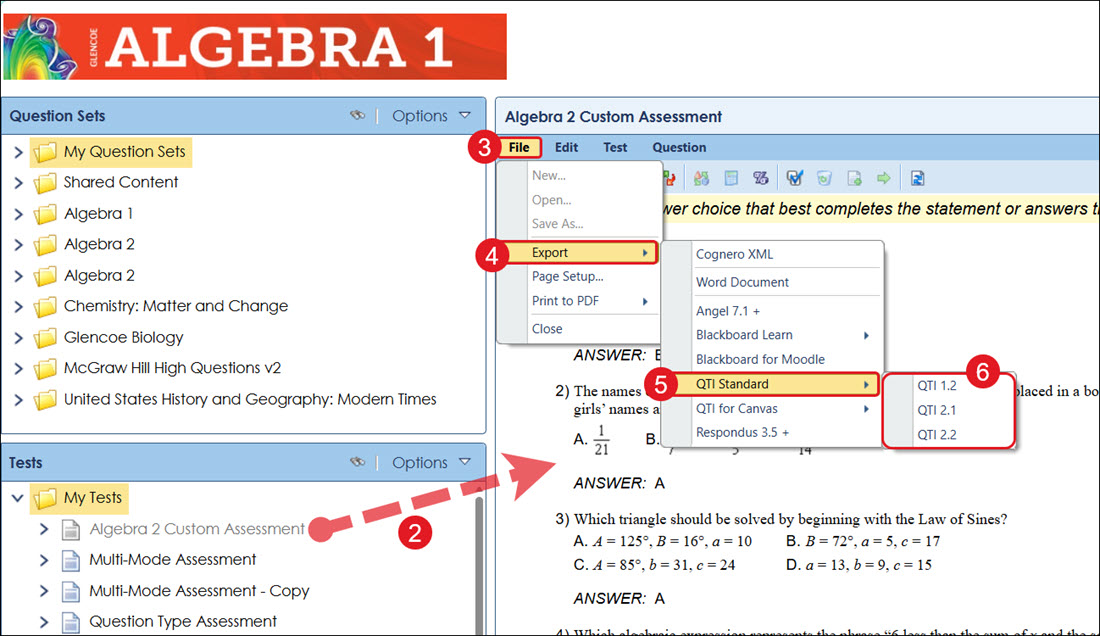
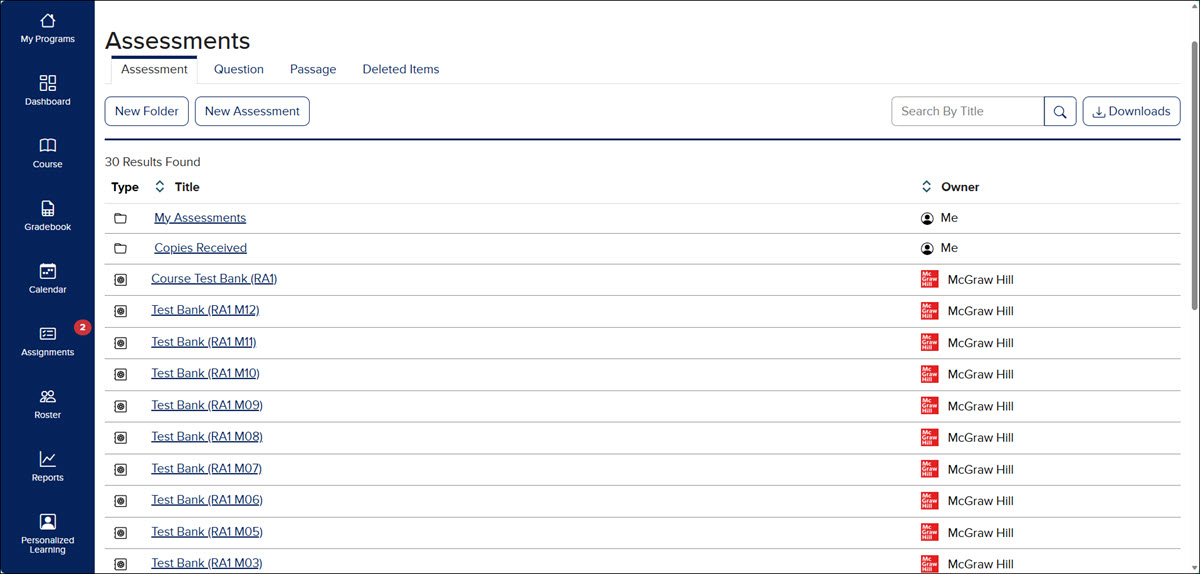
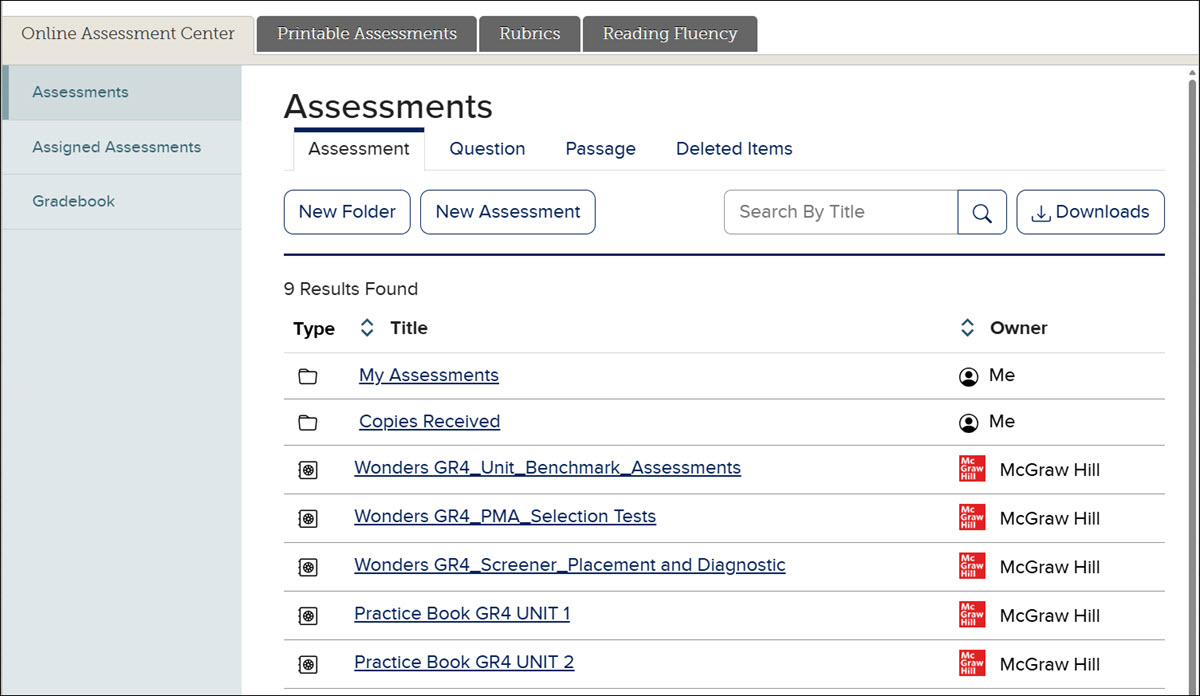
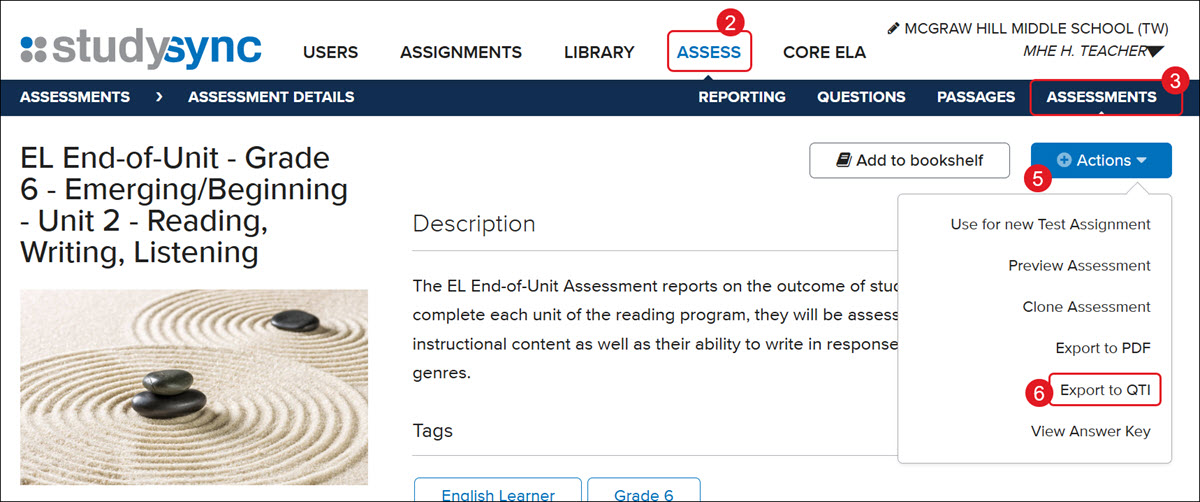
<p><span><span><strong>What is QTI?</strong></span></span></p> <p>QTI stands for Question and Test Interoperability. McGraw Hill provides questions and test items from our assessment systems in an exported format for import into a 3rd party assessment system. Exports only include test items that are QTI compliant. All tech-enhanced or interactive questions are skipped in this process, as they are not QTI compatible. McGraw Hill will also remove any permissioned images from the export.</p> <p> </p> <p><strong>Does the use of QTI require Single Sign-On (SSO) or Auto-Rostering?</strong></p> <p>No, this is not a requirement for QTI.</p> <p> </p> <p><strong>Is QTI a Thin Common Cartridge?</strong></p> <p>QTI is not a Thin Common Cartridge (TCC), nor is it included in a Thin Common Cartridge export. QTI files will be delivered in the IMS Global Learning Consortium® 2.1 standard (or 1.2 for eAssessment). This provides a collection of individual assessment items to be imported and used in the district’s assessment system. This does not include any data passback; scores will only be available in the McGraw Hill system if the students take their online assessment through our platform(s).</p> <p> </p> <p><strong>Will QTI work with my McGraw Hill product?</strong></p> <p>McGraw Hill products use 4 different assessment systems. The QTI request is dependent on the assessment system where the question and test currently reside. See the different assessment systems below to help determine how to make a QTI request.</p> <p><strong>eAssessment</strong></p> <p>You can export by test in QTI 2.1 and 1.2 using the following instructions: </p> <ol> <li><span>Launch eAssessment.<br> <br> </span></li> <li>In the <strong>Test Generator</strong>, click and drag the test into the middle screen (blue section).<br> <br> </li> <li>Click <strong>File </strong>at the top left.<br> <br> </li> <li>Click on <strong>Export</strong>.<br> <br> </li> <li>Click on <strong>QTI Standard</strong>.<br> <br> </li> <li>Click on <strong>QTI 1.2</strong>, <strong>QTI 2.1</strong>, or <strong>QTI 2.2</strong>. <br> <br> This will download a zipped file containing the data in the desired format.<br> <br> <img src="/content/dam/mhe/support/support-images/dts-k12-images/qti-faq/faq-qti-1.jpg" data-assetref="faq-qti-1-1793732304077"></li> </ol> <p> </p> <p><strong>MH Assess</strong></p> <p>If you use the McGraw Hill Assessment platform, you will need to request an export from <a href="https://www.mheducation.com/support.html#rep" target="_blank">your McGraw Hill Sales Representative</a>. Exports only include test items that are QTI compliant. All tech-enhanced or interactive questions are skipped in this process, as they are not QTI-compatible. McGraw Hill will also remove any permissioned images from the export</p> <p><img src="/content/dam/mhe/support/support-images/dts-k12-images/qti-faq/faq-qti-2.jpg" data-assetref="faq-qti-2-1793732479767"></p> <p><img src="/content/dam/mhe/support/support-images/dts-k12-images/qti-faq/faq-qti-3.jpg" data-assetref="faq-qti-3-1793732486076"></p> <p> </p> <p><span><span><strong>StudySync Assess</strong></span></span></p> <p>You can export QTI files in the IMS Global 2.1 standard within StudySync. On the test you wish to export, click the <strong>Actions</strong> dropdown and select <strong>Export to QTI</strong>.</p> <p><strong>Note: </strong>Some StudySync assessments, like the Benchmarks and Screeners, can’t be exported to QTI due to copyright permissions of the content. </p> <ol> <li>Launch <strong>StudySync</strong>.<br> <br> </li> <li>Click on <strong>Assess </strong>from the navigation menu.<br> <br> </li> <li>Click on <strong>Assessments</strong>.<br> <br> </li> <li>Click on the assessment from the list.<br> <br> </li> <li>Click the <strong>Actions </strong>button.<br> <br> </li> <li>Click <strong>Export to QTI</strong> from the menu.<br> <br> <img src="/content/dam/mhe/support/support-images/dts-k12-images/qti-faq/faq-qti-4.jpg" data-assetref="faq-qti-4-1793732700834"></li> </ol> dts Find answers to frequently asked questions about QTI files and assessment imports. 2026-11-03 Question and Test Interoperability (QTI) Frequently Asked Questions (FAQ) Find answers to frequently asked questions about QTI files and assessment imports. Find answers to frequently asked questions about QTI files and assessment imports.
Find answers to frequently asked questions about QTI files and assessment imports.
What is QTI? QTI stands for Question and Test Interoperability. McGraw Hill provides questions and test items from our assessment systems in an exported format for import into a 3rd party assessment system. Exports only include test items that are QTI compliant. All tech-enhanced or interactive questions are skipped in this process, as they are not QTI compatible. McGraw Hill will also remove any permissioned images from the export. Does the use of QTI require Single Sign-On (SSO) or Auto-Rostering? No, this is not a requirement for QTI. Is QTI a Thin Common Cartridge? QTI is not a Thin Common Cartridge (TCC), nor is it included in a Thin Common Cartridge export. QTI files will be delivered in the IMS Global Learning Consortium® 2.1 standard (or 1.2 for eAssessment). This provides a collection of individual assessment items to be imported and used in the district’s assessment system. This does not include any data passback; scores will only be available in the McGraw Hill system if the students take their online assessment through our platform(s). Will QTI work with my McGraw Hill product? McGraw Hill products use 4 different assessment systems. The QTI request is dependent on the assessment system where the question and test currently reside. See the different assessment systems below to help determine how to make a QTI request. eAssessment You can export by test in QTI 2.1 and 1.2 using the following instructions: Launch eAssessment. In the Test Generator, click and drag the test into the middle screen (blue section). Click File at the top left. Click on Export. Click on QTI Standard. Click on QTI 1.2, QTI 2.1, or QTI 2.2. This will download a zipped file containing the data in the desired format. MH Assess If you use the McGraw Hill Assessment platform, you will need to request an export from your McGraw Hill Sales Representative. Exports only include test items that are QTI compliant. All tech-enhanced or interactive questions are skipped in this process, as they are not QTI-compatible. McGraw Hill will also remove any permissioned images from the export StudySync Assess You can export QTI files in the IMS Global 2.1 standard within StudySync. On the test you wish to export, click the Actions dropdown and select Export to QTI. Note: Some StudySync assessments, like the Benchmarks and Screeners, can’t be exported to QTI due to copyright permissions of the content. Launch StudySync. Click on Assess from the navigation menu. Click on Assessments. Click on the assessment from the list. Click the Actions button. Click Export to QTI from the menu.
dts
Customer Support, PreK-12, Classroom Teacher, Preschool, Elementary School, Middle School, High School, Direct Login & Auto-Rostering, Direct Login & Manual-Rostering, SSO & Auto-Rostering, SSO & Manual-Rostering, Core, Intervention, Supplemental, AP, Honors & Electives, Career & Technical Education, Literacy, Math, Science, Social Studies, Health, Visual & Performing Arts, World Languages, AP Biology, AP Chemistry, AP History & Geography, AP Psychology, AP Economics, AP African American Studies, AP Precalculus, AP Statistics, AP Computer Science, AP Language and Composition, AP Public Speaking, AP Music Theory, 5 Steps to a 5 - AP Test Prep, Glencoe Health 2022, Teen Health 2021, Arrive Math, Building Blocks 2024, Building Blocks PreK 2025, Number Worlds 2024, Everyday Mathematics 4 (K-6), SRA Reading Laboratory 2025, SRA Reading Mastery Transformations, McGraw Hill Literacy Emerge!, McGraw Hill Literacy Summit!, McGraw Hill Literacy Soar!, Open Court Reading, Open Court Reading 2016, 2018, 2023, Open Court Reading 2025, CA Reveal Math (K-12), Illustrative Math, Reveal Math (K-12), Texas Math, CA Inspire Science 2020, FL Science 2025 (K-12), Inspire Science 2020, TN Science (K-12), TX Science 2025 (K-12), CA Impact 2019, FL Social Studies 2024 (K-12), Impact Social Studies, McGraw Hill Social Studies, Asi se Dice 2024, Wonders Balanced Literacy 2016, Maravillas 2020 & 2017, Music! Its Role, McGraw Hill My Math 2018, Networks 2018, OCR Foundational Skills Kit, OCR Word Analysis Kit, Spotlight on Music, Wonders 2023 2020 2017, CTE - Business, Marketing, and Finance, CTE - Health Science, CTE - Computing and Technology, CTE - Agriculture, CTE - Culinary Arts, CTE - Early Childhood Education, CTE - Criminal Justice, Level Up K–5, Level Up 6–8, Level Up 9–12, Online Assessments