Note: Unassigning an assignment from a class/student will result in all assignment data and student responses to also be deleted. To remove the assignment from class view while keeping all saved student work and data, archive the assignment instead.
Click on Menu.
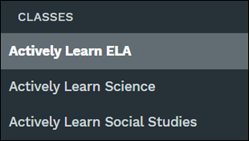
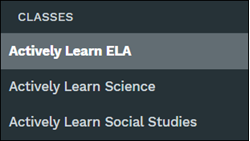
In the Classes section, select the class.
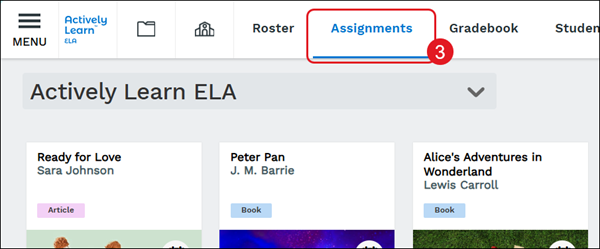
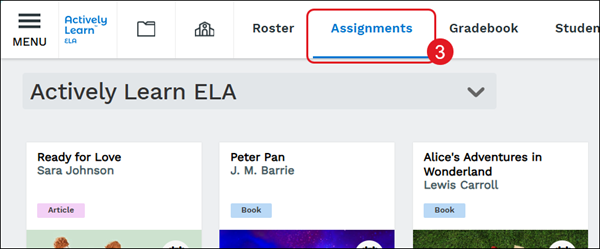
Click on Assignments.
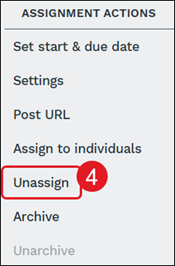
Under Assignment Actions on the right-hand panel, click Unassign.
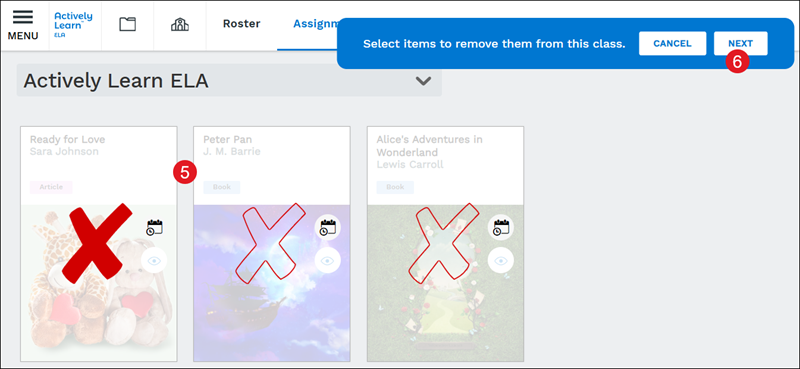
Select the assignment(s) to unassign.
Click the Next button.
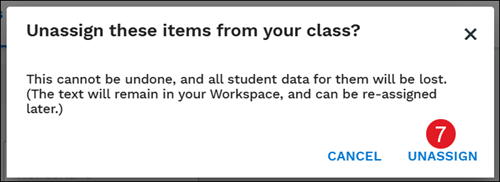
Click the Unassign button.
Archive or Unarchive Assignment
Click on Menu.
In the Classes section, select the class.
Click on Assignments.
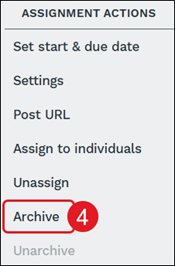
Under Assignment Actions on the right-hand panel, click Archive.
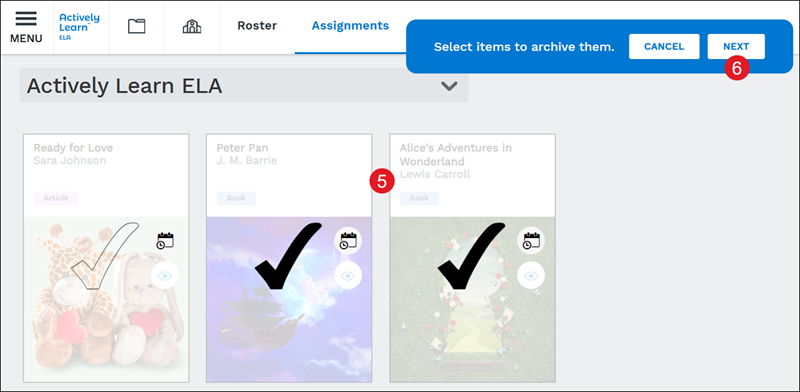
Select the assignment(s) to archive.
Click the Next button.
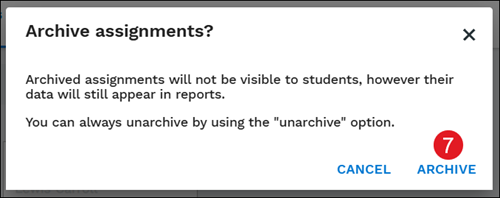
Click the Archive button.
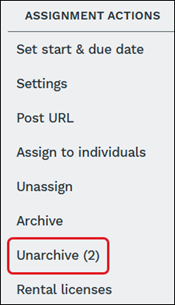
To unarchive an assignment, click Unarchive under the Assignment Actions.
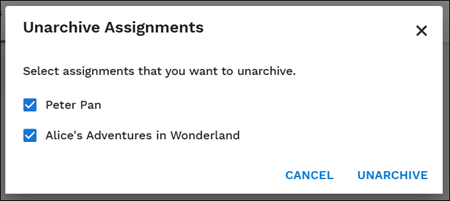
On the pop-up, checkmark the articles and click the Unarchive button.
Delete Assignment
Note: Deleting an assignment will also remove all student work and data. To remove the assignment from class and teacher view while keeping all saved student work and data, archive the assignment instead. To remove it only from the teacher view, it's recommended to move it into a folder instead of deleting the assignment.
There are two options when it comes to deleting an assignment:
Option 1:
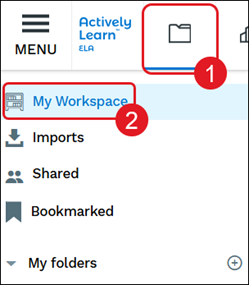
Click on the My Workspace & Imports (folder) button.
Click on My Workspace on the left panel.
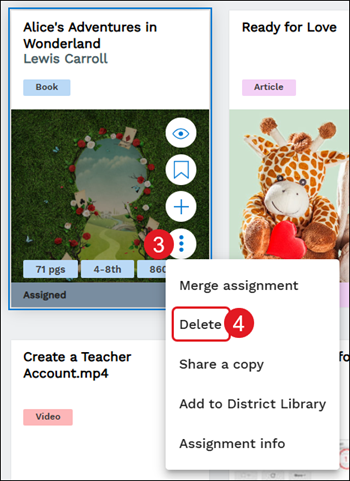
Hover over the assignment tile and click on the kebob icon.
Click on Delete from the menu.
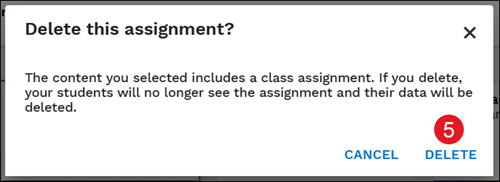
On the pop-up, click the Delete button.
Option 2:
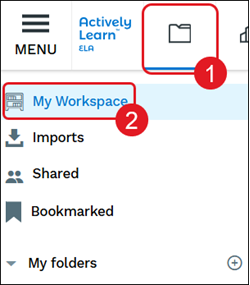
Click on the My Workspace & Imports (folder) button.
Click on My Workspace on the left panel.
Click on the assignment tile.
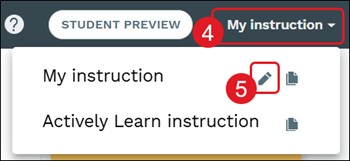
Click on My instruction at the top-right.
Click the pencil icon for the assignment you want to remove.
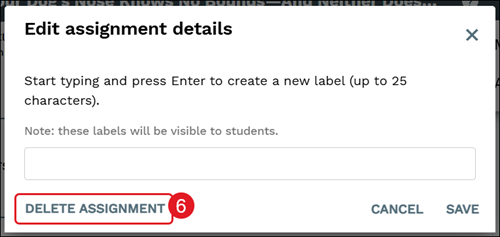
Click the Delete Assignment button.
Help us improve!
Let us know how we can improve our support information by providing feedback in this short survey.
Top
Regional Page Available
It looks like you're outside the United States. Do you want to see your regional version of this page?
Support Topics/Assessments & Reporting/Grades & Assignments
Context/Integration Type/SSO & Manual-Rostering
prek-12
2026-03-24T19:24:01.557-03:00
<h2 class="fs-5">Article Contents</h2> <p><a href="#unassign_assignment">Unassign Assignment</a></p> <p><a href="#archive_unarchive">Archive or Unarchive Assignment</a></p> <p><a href="#delete_assignment">Delete Assignment</a></p> <p> </p> <h3 class="fs-5"><a></a><a id="unassign_assignment"></a>Unassign Assignment</h3> <p><strong>Note:</strong> Unassigning an assignment from a class/student will result in all assignment data and student responses to also be deleted. To remove the assignment from class view while keeping all saved student work and data, <a href="#archive_unarchive">archive the assignment</a> instead.</p> <ol> <li>Click on <strong>Menu</strong>.<br> <br> <img src="/content/dam/mhe/support/support-images/dts-k12-images/al-unassign-archive-delete-assignments/al-unassign-archive-delete-assignments-1.jpg" data-assetref="al-unassign-archive-delete-assignments-1-1780330103046"><br> <br> </li> <li>In the <strong>Classes </strong>section, select the class.<br> <br> <img src="/content/dam/mhe/support/support-images/dts-k12-images/al-unassign-archive-delete-assignments/al-unassign-archive-delete-assignments-2.jpg" data-assetref="al-unassign-archive-delete-assignments-2-1780330111894"><br> <br> </li> <li>Click on <strong>Assignments</strong>.<br> <br> <img src="/content/dam/mhe/support/support-images/dts-k12-images/al-unassign-archive-delete-assignments/al-unassign-archive-delete-assignments-3.jpg" data-assetref="al-unassign-archive-delete-assignments-3-1780330125058"><br> <br> </li> <li>Under <strong>Assignment Actions</strong> on the right-hand panel, click <strong>Unassign</strong>.<br> <br> <img src="/content/dam/mhe/support/support-images/dts-k12-images/al-unassign-archive-delete-assignments/al-unassign-archive-delete-assignments-4.jpg" data-assetref="al-unassign-archive-delete-assignments-4-1780330132308"><br> <br> </li> <li>Select the assignment(s) to unassign.<br> <br> </li> <li>Click the <strong>Next </strong>button.<br> <br> <img src="/content/dam/mhe/support/support-images/dts-k12-images/al-unassign-archive-delete-assignments/al-unassign-archive-delete-assignments-5.jpg" data-assetref="al-unassign-archive-delete-assignments-5-1780330142912"><br> <br> </li> <li>Click the <strong>Unassign </strong>button.<br> <br> <img src="/content/dam/mhe/support/support-images/dts-k12-images/al-unassign-archive-delete-assignments/al-unassign-archive-delete-assignments-6.jpg" data-assetref="al-unassign-archive-delete-assignments-6-1780330151511"></li> </ol> <p> </p> <h3><a></a><a id="archive_unarchive"></a><span class="fs-5">Archive or Unarchive Assignment</span></h3> <ol> <li>Click on <strong>Menu</strong>.<br> <br> <img src="/content/dam/mhe/support/support-images/dts-k12-images/al-unassign-archive-delete-assignments/al-unassign-archive-delete-assignments-7.jpg" data-assetref="al-unassign-archive-delete-assignments-7-1780330160125"><br> <br> </li> <li>In the <strong>Classes </strong>section, select the class.<br> <br> <img src="/content/dam/mhe/support/support-images/dts-k12-images/al-unassign-archive-delete-assignments/al-unassign-archive-delete-assignments-8.jpg" data-assetref="al-unassign-archive-delete-assignments-8-1780330169524"><br> <br> </li> <li>Click on <strong>Assignments</strong>.<br> <br> <img src="/content/dam/mhe/support/support-images/dts-k12-images/al-unassign-archive-delete-assignments/al-unassign-archive-delete-assignments-9.jpg" data-assetref="al-unassign-archive-delete-assignments-9-1780330178225"><br> <br> </li> <li>Under <strong>Assignment Actions</strong> on the right-hand panel, click <strong>Archive</strong>.<br> <br> <img src="/content/dam/mhe/support/support-images/dts-k12-images/al-unassign-archive-delete-assignments/al-unassign-archive-delete-assignments-10.jpg" data-assetref="al-unassign-archive-delete-assignments-10-1780330188760"><br> <br> </li> <li>Select the assignment(s) to archive.<br> <br> </li> <li>Click the <strong>Next </strong>button.<br> <br> <img src="/content/dam/mhe/support/support-images/dts-k12-images/al-unassign-archive-delete-assignments/al-unassign-archive-delete-assignments-11.jpg" data-assetref="al-unassign-archive-delete-assignments-11-1780330205177"><br> <br> </li> <li>Click the <strong>Archive </strong>button.<br> <br> <img src="/content/dam/mhe/support/support-images/dts-k12-images/al-unassign-archive-delete-assignments/al-unassign-archive-delete-assignments-12.jpg" data-assetref="al-unassign-archive-delete-assignments-12-1780330219144"><br> <br> To unarchive an assignment, click <strong>Unarchive </strong>under the <strong>Assignment Actions</strong>.<br> <br> <img src="/content/dam/mhe/support/support-images/dts-k12-images/al-unassign-archive-delete-assignments/al-unassign-archive-delete-assignments-13.jpg" data-assetref="al-unassign-archive-delete-assignments-13-1780330232416"><br> <br> On the pop-up, checkmark the articles and click the <strong>Unarchive </strong>button.<br> <br> <img src="/content/dam/mhe/support/support-images/dts-k12-images/al-unassign-archive-delete-assignments/al-unassign-archive-delete-assignments-14.jpg" data-assetref="al-unassign-archive-delete-assignments-14-1780330255206"></li> </ol> <p> </p> <h3 class="fs-5"><a></a><a id="delete_assignment"></a>Delete Assignment</h3> <p><strong>Note: </strong>Deleting an assignment will also remove all student work and data. To remove the assignment from class and teacher view while keeping all saved student work and data, <a href="#archive_unarchive">archive the assignment</a> instead. To remove it only from the teacher view, it's recommended to <a href="https://www.mheducation.com/prek-12/support/knowledge/actively-learn---my-workspace.html#folder_management" target="_blank">move it into a folder</a> instead of deleting the assignment.</p> <p>There are two options when it comes to deleting an assignment:</p> <p> </p> <h3 class="fs-5">Option 1:</h3> <ol> <li>Click on the <strong>My Workspace & Imports</strong> (folder) button.<br> <br> </li> <li>Click on <strong>My Workspace</strong> on the left panel.<br> <br> <img src="/content/dam/mhe/support/support-images/dts-k12-images/al-unassign-archive-delete-assignments/al-unassign-archive-delete-assignments-15.jpg" data-assetref="al-unassign-archive-delete-assignments-15-1780330270058"><br> <br> </li> <li>Hover over the assignment tile and click on the kebob icon.<br> <br> </li> <li>Click on <strong>Delete </strong>from the menu.<br> <br> <img src="/content/dam/mhe/support/support-images/dts-k12-images/al-unassign-archive-delete-assignments/al-unassign-archive-delete-assignments-16.jpg" data-assetref="al-unassign-archive-delete-assignments-16-1780330285010"><br> <br> </li> <li>On the pop-up, click the <strong>Delete </strong>button.<br> <br> <img src="/content/dam/mhe/support/support-images/dts-k12-images/al-unassign-archive-delete-assignments/al-unassign-archive-delete-assignments-17.jpg" data-assetref="al-unassign-archive-delete-assignments-17-1780330296048"></li> </ol> <p> </p> <h3 class="fs-5">Option 2:</h3> <ol> <li>Click on the <strong>My Workspace & Imports</strong> (folder) button.<br> <br> </li> <li>Click on <strong>My Workspace</strong> on the left panel.<br> <br> <img src="/content/dam/mhe/support/support-images/dts-k12-images/al-unassign-archive-delete-assignments/al-unassign-archive-delete-assignments-18.jpg" data-assetref="al-unassign-archive-delete-assignments-18-1780330307426"><br> <br> </li> <li>Click on the assignment tile.<br> <br> </li> <li>Click on <strong>My instruction</strong> at the top-right.<br> <br> </li> <li>Click the pencil icon for the assignment you want to remove.<br> <br> <img src="/content/dam/mhe/support/support-images/dts-k12-images/al-unassign-archive-delete-assignments/al-unassign-archive-delete-assignments-19.jpg" data-assetref="al-unassign-archive-delete-assignments-19-1780330317708"><br> <br> </li> <li>Click the <strong>Delete Assignment</strong> button.<br> <br> <img src="/content/dam/mhe/support/support-images/dts-k12-images/al-unassign-archive-delete-assignments/al-unassign-archive-delete-assignments-21.jpg" data-assetref="al-unassign-archive-delete-assignments-21-1780330662133"></li> </ol> dts Unassign, archive, or delete assignments in Actively Learn to keep classes organized and up to date. 2026-06-01 Unassign, Archive, or Delete Actively Learn Assignments Unassign, archive, or delete assignments in Actively Learn to keep classes organized and up to date. Unassign, archive, or delete assignments in Actively Learn to keep classes organized and up to date.
Unassign, archive, or delete assignments in Actively Learn to keep classes organized and up to date.
Article Contents Unassign Assignment Archive or Unarchive Assignment Delete Assignment Unassign Assignment Note: Unassigning an assignment from a class/student will result in all assignment data and student responses to also be deleted. To remove the assignment from class view while keeping all saved student work and data, archive the assignment instead. Click on Menu. In the Classes section, select the class. Click on Assignments. Under Assignment Actions on the right-hand panel, click Unassign. Select the assignment(s) to unassign. Click the Next button. Click the Unassign button. Archive or Unarchive Assignment Click on Menu. In the Classes section, select the class. Click on Assignments. Under Assignment Actions on the right-hand panel, click Archive. Select the assignment(s) to archive. Click the Next button. Click the Archive button. To unarchive an assignment, click Unarchive under the Assignment Actions. On the pop-up, checkmark the articles and click the Unarchive button. Delete Assignment Note: Deleting an assignment will also remove all student work and data. To remove the assignment from class and teacher view while keeping all saved student work and data, archive the assignment instead. To remove it only from the teacher view, it's recommended to move it into a folder instead of deleting the assignment. There are two options when it comes to deleting an assignment: Option 1: Click on the My Workspace & Imports (folder) button. Click on My Workspace on the left panel. Hover over the assignment tile and click on the kebob icon. Click on Delete from the menu. On the pop-up, click the Delete button. Option 2: Click on the My Workspace & Imports (folder) button. Click on My Workspace on the left panel. Click on the assignment tile. Click on My instruction at the top-right. Click the pencil icon for the assignment you want to remove. Click the Delete Assignment button.
dts
Customer Support, PreK-12, Classroom Teacher, Elementary School, Middle School, High School, Direct Login & Auto-Rostering, Direct Login & Manual-Rostering, SSO & Auto-Rostering, SSO & Manual-Rostering, Supplemental, Science, Social Studies, Actively Learn, Grades & Assignments