Wonders/Maravillas Student Resources
Learn how students access and use Wonders resources, including lessons, activities, favorites, and standards‑aligned materials.
- Literacy
- SSO & Manual-Rostering
- Customer Support
- Direct Login & Auto-Rostering
- Wonders 2014
- Maravillas 2020 & 2017
- School Student
- Core
- Direct Login & Manual-Rostering
- Wonders Balanced Literacy 2016
- Wonders 2023 2020 2017
- School Parent
- SSO & Auto-Rostering
- PreK-12
- Elementary School
- Student Resources
- Kindergarten
- 1st Grade
- 2nd Grade
- 3rd Grade
- 4th Grade
- 5th Grade
- 6th Grade
- Middle School


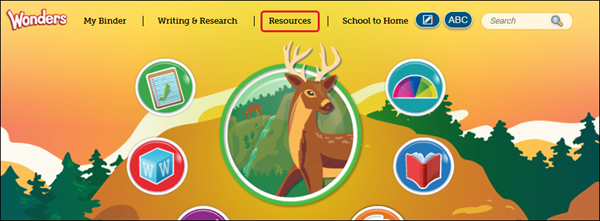
To access your program resources, click Resources at the top of the page.
Use Search Tabs
The tabs on the Resources page contain a number of ways to access program resources:
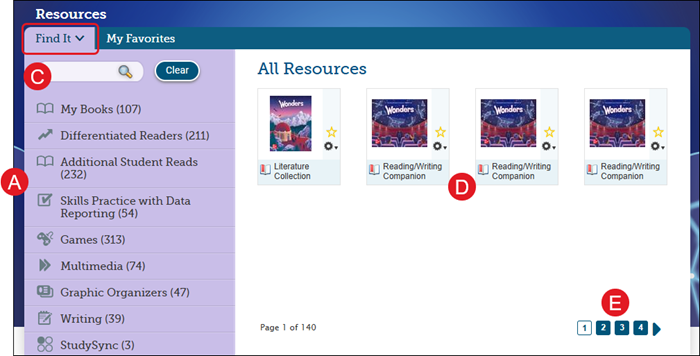
Find It
This tab shows all the Wonders resources by default that are available for students.
A. Filter the resources by clicking a category on the left.
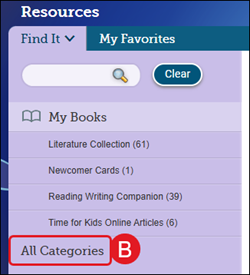
B. Click All Categories to the filters back to the default list.
C. Search by keyword by entering the term in the Search field and click the Search icon.
D. Click a resource to open it.
E. Use the page numbers/arrow to navigate through the available resource pages.
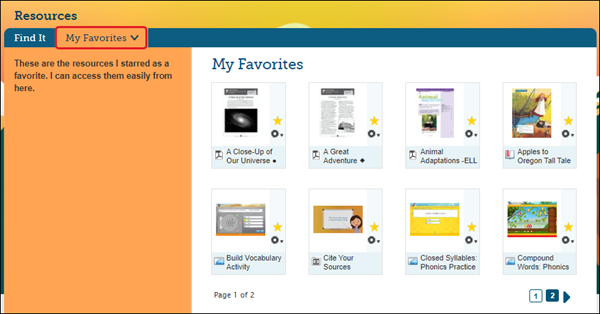
My Favorites
This tab contains all program resources you have marked as favorites.
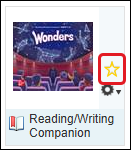
To add a resource to your My Favorites page, click the star icon on the resource tile.
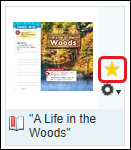
To remove a resource from your My Favorites, click the star icon again so it is no longer filled in.
Resource Icons
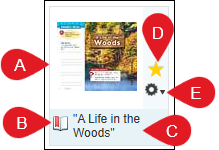
A. Resource Thumbnail (image)
B. File Format Icon (interactive, game, PDF, eBook, etc.)
C. Resource Title
D. Add/Remove Favorite
E. Tools
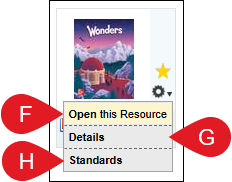
F. Open this Resource - Launches the resource.
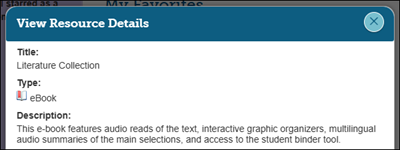
G. Details - Provides information on the resource title, type, and provides a description.
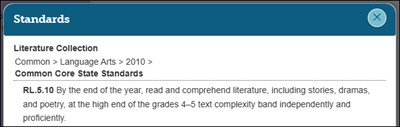
H. Standards - Provides the list of state specific or Common Core State Standards that are associated with the resource.